
Planning Guides, Style Guide
Wedding Spreadsheet: Complete Planning Excel Template
Jun
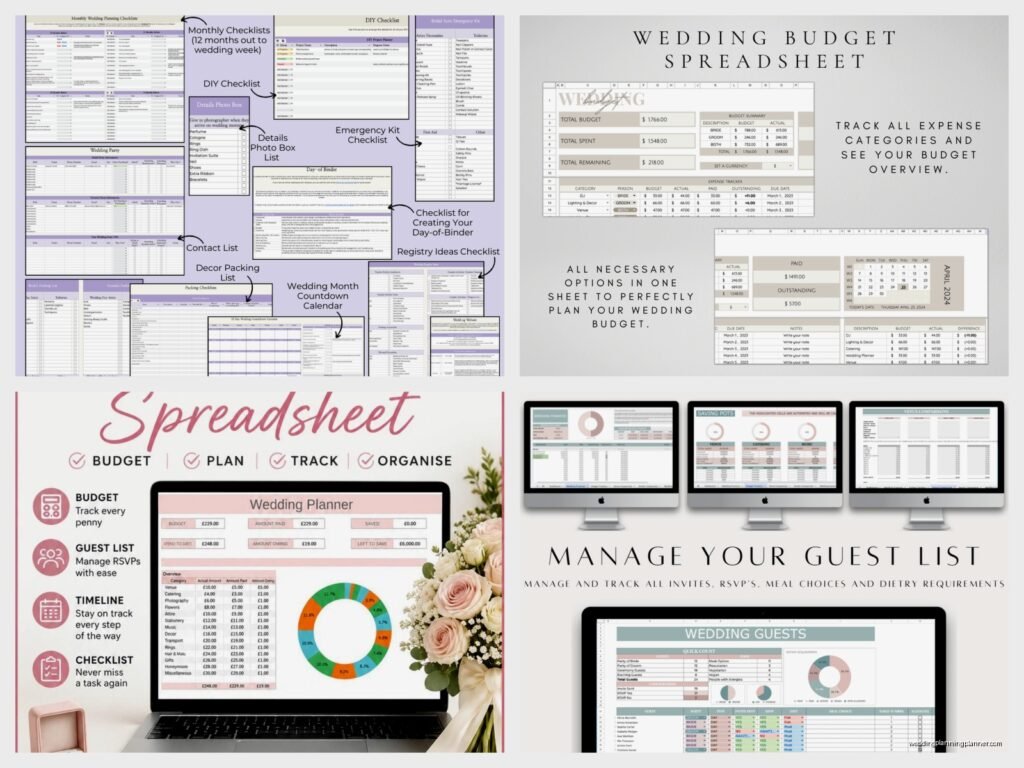
Setting Up Your Wedding Planning Spreadsheet
So you need a wedding spreadsheet and honestly this is like the first thing I tell every couple because back in spring 2023 I had this bride who kept everything in her Notes app and random pieces of paper and we literally lost track of a $3000 deposit to her florist and… anyway let’s just say Excel saved my sanity after that.
First thing is you gotta open Excel or Google Sheets – I actually prefer Google Sheets because you can share it with your partner and your mom can’t accidentally delete the whole thing when she’s “just trying to help” but whatever works for you. Start with these main tabs at the bottom: Budget, Guest List, Vendor Contacts, Timeline, Seating Chart, and To-Do List. You can add more later but these are your basics.
The Budget Tab Setup
This is where people get overwhelmed but like… it’s just numbers in boxes, I promise. Make columns for: Category, Item Description, Estimated Cost, Actual Cost, Deposit Paid, Balance Due, Payment Due Date, and Notes. The categories should be stuff like Venue, Catering, Photography, Flowers, Dress, Suits, Invitations, Music, Transportation, Decor, Hair/Makeup, Cake, Favors, Rings, Honeymoon, and Miscellaneous because there’s ALWAYS miscellaneous.
What really annoyed me for years was when couples would just put “flowers – $2000” like that tells you nothing?? Break it down into bridal bouquet, bridesmaids bouquets, boutonnieres, ceremony arrangements, reception centerpieces, cake flowers. You need the detail because when you’re over budget (and you will be), you need to know where to cut.
Use formulas – this isn’t scary I swear. In the total row at the bottom, use =SUM(D2:D50) or whatever your range is. Then make another cell that shows your total budget and one that shows how much you’re over or under with =TotalBudget-TotalSpent kinda thing. Color code it red if you’re over, green if you’re under. Visual panic is motivating.
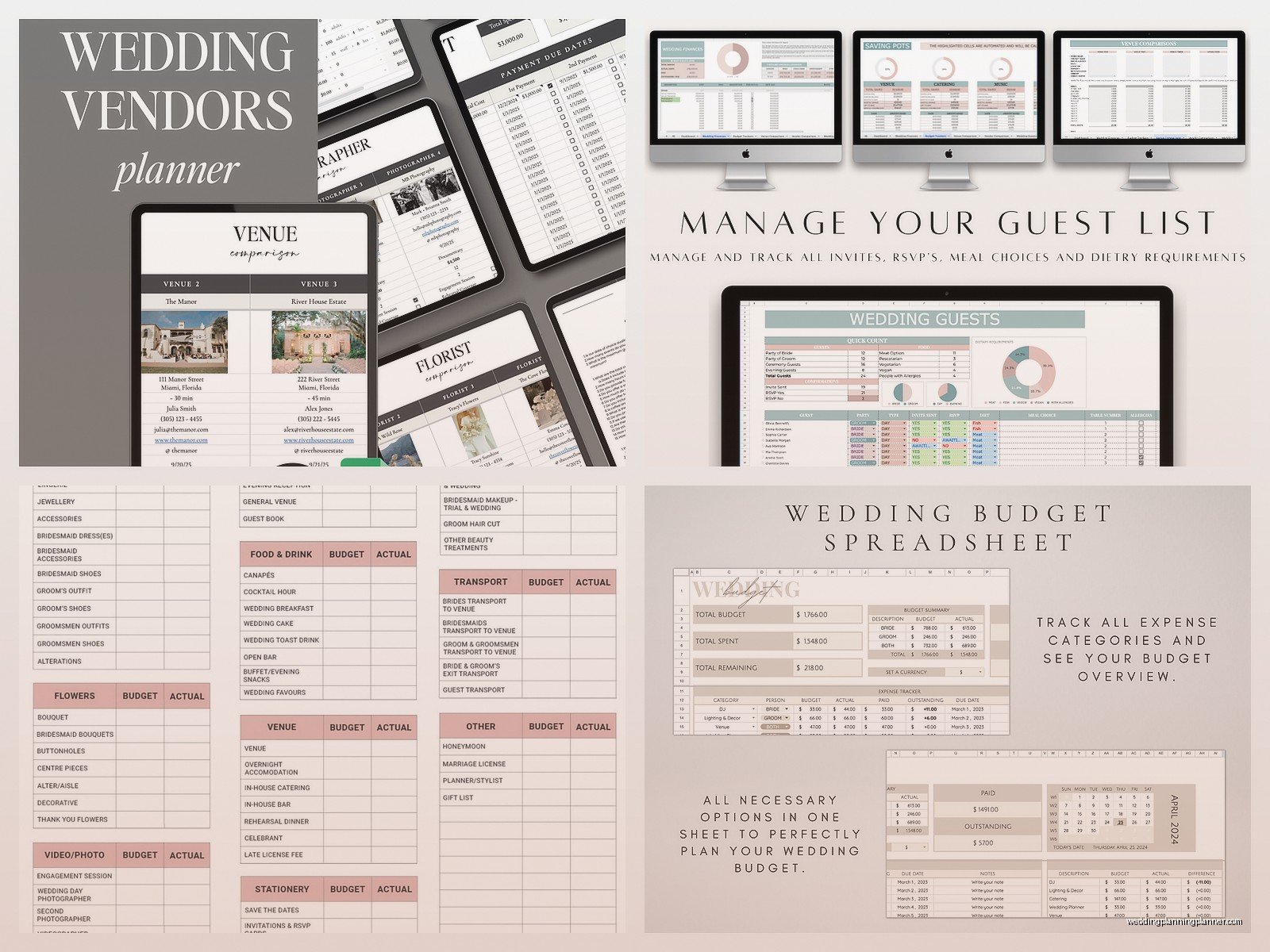
Guest List Tab Because This Gets Messy
Your columns here should be: Guest Name, Plus One Name, Address, Phone, Email, Invited To (ceremony/reception/both), Save the Date Sent, Invitation Sent, RSVP Received, Number Attending, Meal Choice, Dietary Restrictions, Gift Received, Thank You Sent, and Table Assignment.
I learned this the hard way when my cat knocked over my coffee onto a handwritten guest list in 2021 and we had to recreate like 80 addresses from memory – digital is better, just saying.
The trick here is to add a column that auto-counts your guest total. Use =COUNTIF to count how many people marked “yes” for attending. Also make separate counts for ceremony vs reception if those numbers are different. Some venues charge per person so you need accurate counts or you’re gonna pay for 150 people when only 132 show up.
Put everyone’s names in separate rows even if they’re a couple because they might RSVP differently or you need to track meal choices individually. Use data validation dropdown menus for the RSVP column (yes/no/pending) and meal choices (chicken/beef/fish/vegetarian) so you’re not typing the same words 100 times.
Vendor Contact Information
This tab is pretty straightforward but it’s a lifesaver when you’re in crisis mode. Columns: Vendor Category, Company Name, Contact Person, Phone, Email, Website, Contract Signed, Deposit Amount, Deposit Date, Balance Due, Final Payment Date, Arrival Time, Special Notes.
I cannot stress enough how important that Arrival Time column is because during one wedding the DJ showed up an hour late because nobody wrote down that he needed to be there for cocktail hour not just reception and the couple was furious and I was frantically playing Spotify from my phone which… not my finest moment.
Add a column for contract status because you think you’ll remember but you won’t. Also add their cancellation policy in the notes because if 2020 taught us anything it’s that sometimes you need to know these things.
The Timeline Tab That Nobody Thinks They Need
Make a timeline that counts backward from your wedding date. I use columns like: Task, Category, Deadline, Date Completed, Who’s Responsible, Status, and Priority Level.
Start with your wedding date at the top and work backward: 12 months before, 9 months before, 6 months, 3 months, 2 months, 1 month, 2 weeks, 1 week, day before, wedding day, and after wedding. Under each timeframe list what needs to happen. Like 12 months out is booking venue and major vendors, 6 months is ordering invitations and dress alterations, 1 month is final guest count and payments.
The Status column should have dropdown options: Not Started, In Progress, Completed, Blocked (meaning you can’t do it until something else happens first). Color code these – grey for not started, yellow for in progress, green for done, red for blocked.
Priority levels are Critical, High, Medium, Low because not everything is urgent even though it feels like it. Booking your venue is critical. Deciding on napkin colors is… not.
Seating Chart Tab For Maximum Drama
This one gets complicated so stay with me. You need: Table Number, Guest Name, Meal Choice, Special Needs, and Notes (this is where you put “keep away from Uncle Jerry” or whatever).
I usually create a visual representation too using merged cells to show the actual table layouts but that’s extra. At minimum you need a list that your venue can actually use. Some couples get really into making it pretty with colors and shapes but honestly your caterer just needs to know who sits where.
Count the seats per table and make sure your numbers match your guest count. I’ve seen people assign 180 people to tables that seat 160 total and then everyone’s confused on wedding day. Math matters here.
Use the filter function so you can sort by table number, by meal choice, by last name, whatever you need in the moment. During setup you might need to see all the vegetarian meals grouped together, during the reception you might need to find someone by name quickly.
To-Do List Tab That Actually Works
This is different from your timeline – this is for random tasks that pop up. Columns: Task, Category, Due Date, Priority, Assigned To, Status, Date Completed.
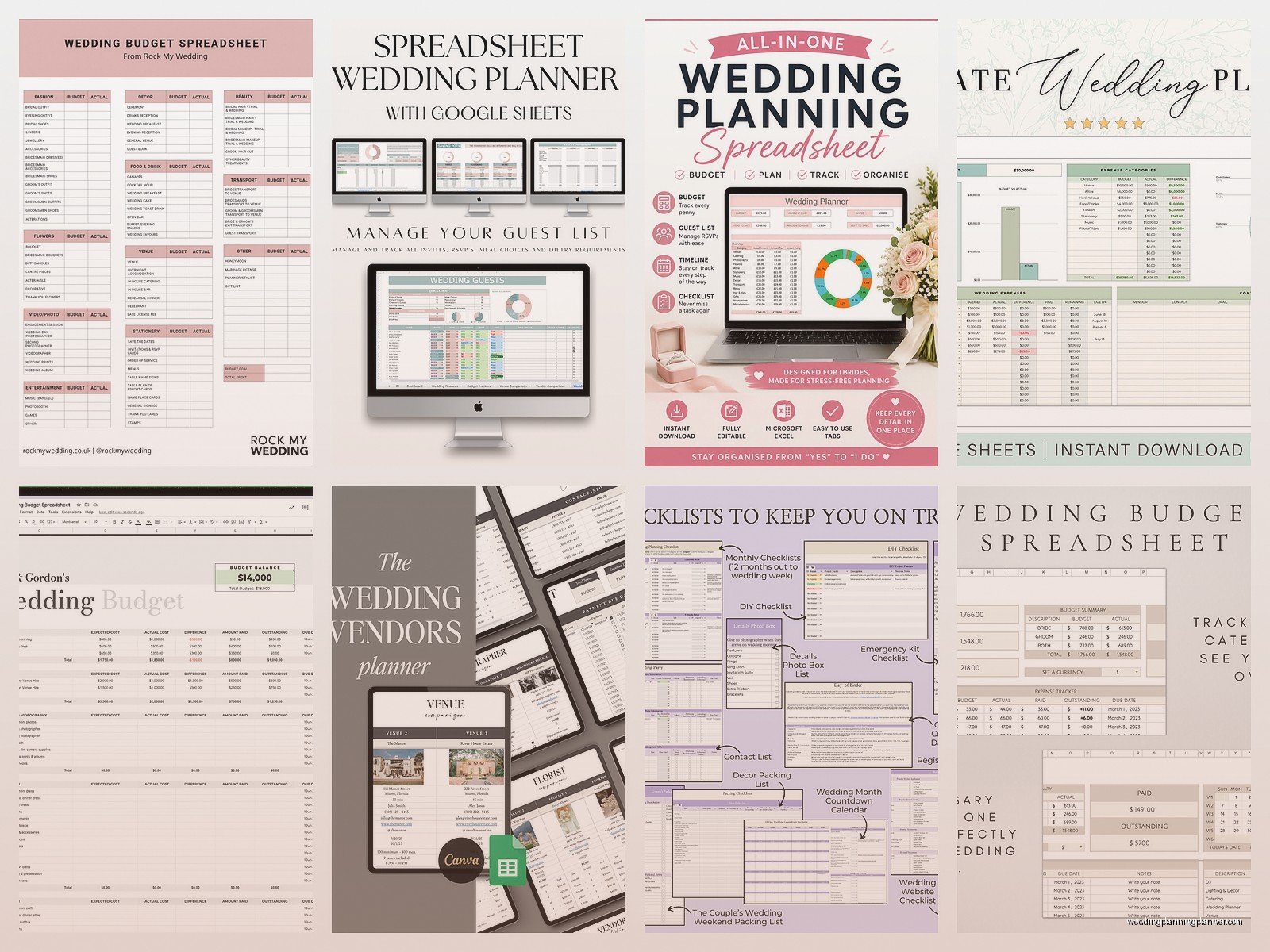
Use the same category system as your budget tab so you can filter by Flowers or Invitations or whatever. The Assigned To column is crucial if you’re delegating to your wedding party or family because then you can sort by person and send them their specific list.
I like adding a “Date Added” column too because sometimes you add something and then three weeks later you’re like wait why is this even on here and if you can see you added it in a panic at 2am you know you can probably delete it.
Conditional formatting is your friend here – make overdue tasks turn red automatically. In Excel or Sheets you can set a rule that if the due date is before today and status isn’t “completed” the whole row turns red. Scary but effective.
Extra Tabs That Make Life Easier
I always add a Rental Items tab if the couple is using a rental company for chairs, linens, plates, whatever. Track: Item, Quantity, Cost Per Item, Total Cost, Delivery Date, Pickup Date, Company. You need this for the final walkthrough so you can check that 150 chairs actually showed up not 145.
A Music tab is helpful too – list your must-play songs, do-not-play songs (seriously every couple has these), ceremony songs, cocktail hour vibe, first dance, parent dances, last song. Send this to your DJ or band so they stop asking you questions.
Some people make a Decor Inventory tab listing every single candle, vase, frame, sign they’re collecting. With columns for: Item, Quantity Needed, Quantity Owned, Still Need to Buy, Where It’s Stored, Which Event Space It Goes In. This is extra organized but if you’re DIY-ing a lot it helps because you’re not buying your seventh hurricane vase when you already have six in your garage.
Formulas That’ll Save Your Sanity
Use =TODAY() in a cell somewhere so you always know the current date and can calculate how many days until your wedding with =WeddingDate-TODAY(). Watching that number go down is either motivating or terrifying depending on the day.
In your budget tab use =SUMIF to total up categories. Like =SUMIF(A:A,”Flowers”,D:D) will add up everything in the Actual Cost column where the category is Flowers. Then you can see exactly how much you’re spending on each category without manually adding.
For your guest list use =COUNTIF(J:J,”Yes”) to count RSVPs or =COUNTIF(K:K,”Chicken”) to count meal choices. Your caterer will need final counts and you can just look at your formula instead of counting manually like some kind of medieval peasant.
Conditional formatting for duplicate names is smart too because sometimes you accidentally add the same person twice especially if one person wrote them as “John Smith” and someone else wrote “John & Sarah Smith” and now you’ve invited them twice and ordered two meals and…
Sharing and Protecting Your Spreadsheet
If you’re using Google Sheets you can share it with specific people. Give your partner edit access obviously. Give your parents view-only access unless you want them changing your budget without telling you. Your wedding party probably needs view-only for the timeline and their specific tasks.
Make a backup every week. Just download a copy or duplicate the whole thing. I watched someone’s entire spreadsheet get corrupted once and they lost everything because they never saved a backup and it was… not good. Set a phone reminder for Sunday nights or whatever.
Protect certain cells if you’re sharing widely – like protect your formula cells so nobody accidentally deletes them. In Excel you can lock specific cells and password protect the sheet. In Google Sheets you can protect ranges. This sounds paranoid but someone WILL accidentally delete your SUM formula and then your totals will be wrong and you won’t notice until you’ve overspent by $4000.
Actually Using This Thing
Update it weekly minimum. Set a recurring calendar event for you and your partner to sit down together, open the spreadsheet, and update everything. Mark tasks complete, add new RSVPs, update vendor payments, whatever changed that week.
I usually tell couples to do this Sunday evenings with a glass of wine because it feels less like homework and more like… well it still feels like homework but at least there’s wine.
Print certain tabs for backup – like print your day-of timeline and vendor contact list because if your phone dies or the wifi is bad at your venue you need paper copies. I know we’re trying to be all digital but trust me on this.
Use the comments feature in Google Sheets to leave notes for each other. Like if you’re updating the budget and you’re not sure about something, leave a comment instead of just guessing. Or if someone needs to call a vendor, tag them in a comment so they get notified.
The beauty of a spreadsheet versus those wedding planning apps is you can customize literally everything. Those apps are kinda rigid and they want you to do things their way but your wedding isn’t their template, you know? You might need extra columns or different categories or whatever and with Excel you just… add them. Done.
Also you’re not locked into some company’s platform that might shut down or change their pricing or whatever. Your spreadsheet is yours forever, you can access it offline, you can keep it after the wedding for memories or thank you tracking or insurance purposes if something goes wrong.
Look I’m not gonna pretend this is fun exactly but it’s necessary and once it’s set up the maintenance is pretty easy and you’ll feel SO much more in control than trying to remember everything or keep it in scattered places
