
Planning Guides, Style Guide
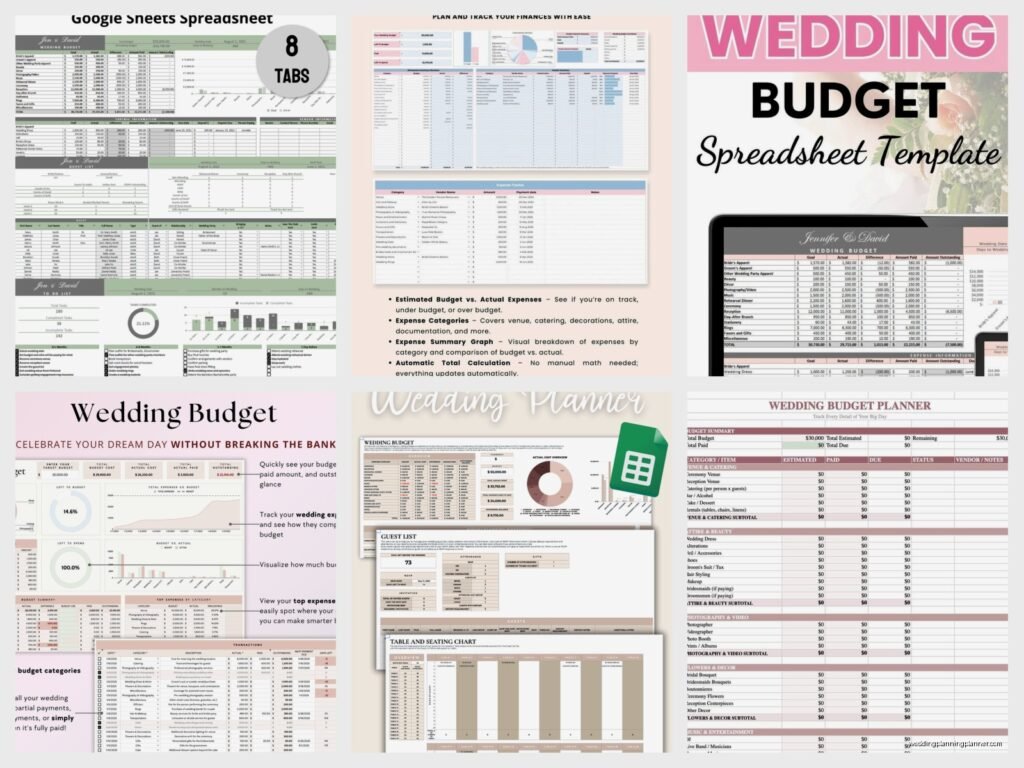
Google Sheets Wedding Budget Template: Free Download Files
Aug
Okay so Google Sheets wedding budget templates are honestly one of the best free tools you can grab for planning, and I’m gonna walk you through exactly how to find them, customize them, and actually USE them without losing your mind.
Why Google Sheets Instead of Fancy Apps
Look, there are a million wedding budget apps out there and they all want your email address and half of them try to upsell you on premium features. Google Sheets is just… there. Free. You can access it from your phone, your laptop, your future mother-in-law’s iPad when she insists on “helping” with the budget at Thanksgiving dinner (that happened to me in spring 2023 with a client and it was actually kinda useful even though the client was mortified).
The main thing is you can share it with your partner, your parents if they’re contributing, your wedding planner if you hired one. Everyone sees the same numbers in real-time. No more “but I thought we had $3000 left for flowers” conversations when you definitely spent that on the DJ deposit.
Where to Actually Download These Templates
The easiest place is literally just typing “wedding budget template” into Google Sheets when you’re already in there. Click on the Template Gallery at the top of your Google Sheets homepage (it’s that colorful grid icon thing) and scroll through. Google has their own wedding budget template that’s pretty basic but functional.
If you want more options:
- TheKnot has a free Google Sheets version you can download
- WeddingWire offers one too
- Etsy has sellers who make really pretty customized versions (like $5-15 usually)
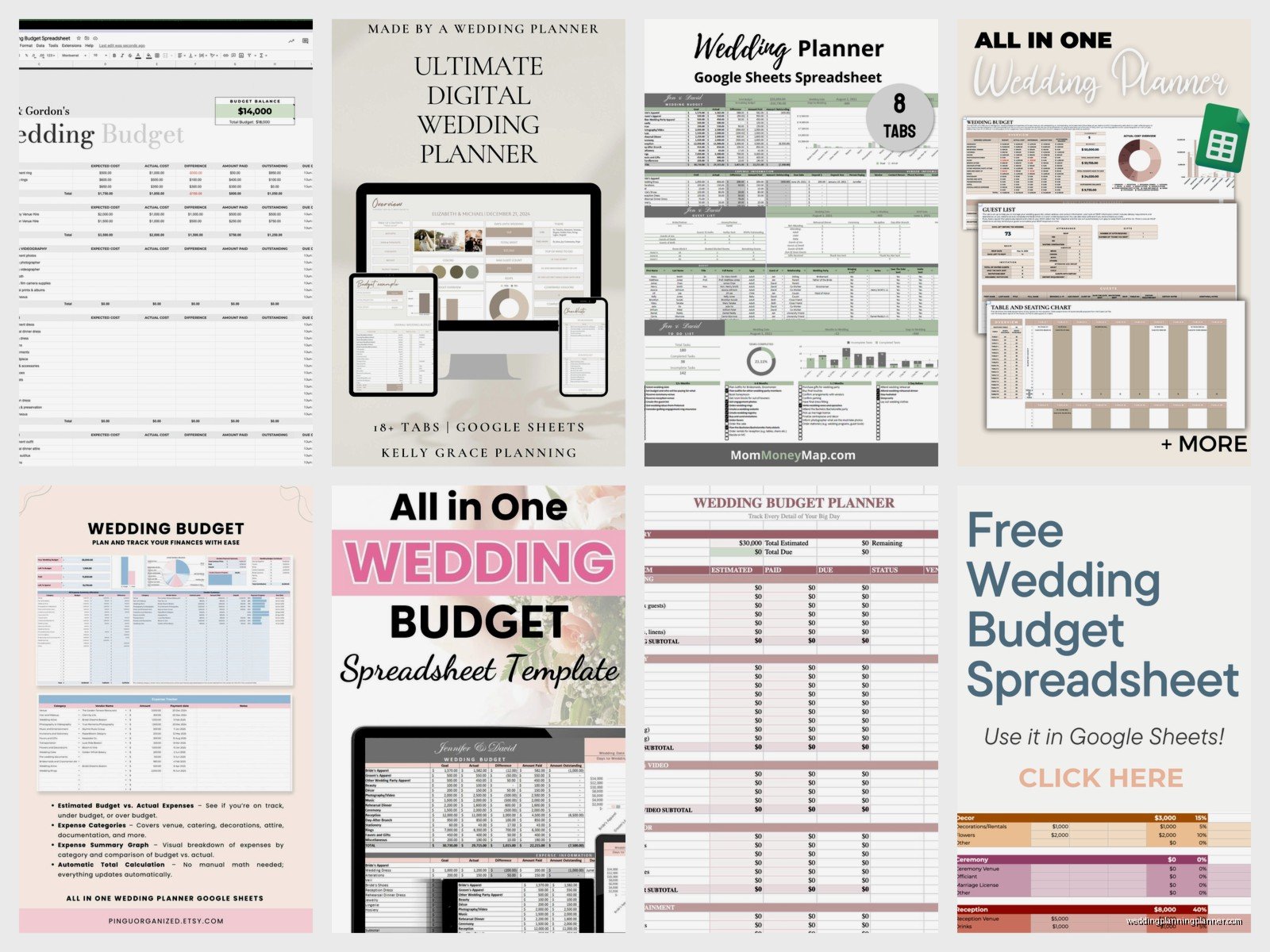
- Pinterest links to a bunch but be careful because some are just screenshots not actual downloadable files which is SO annoying
When you find one you like, you’ll usually click “Make a Copy” or “Use Template” and it saves to your own Google Drive. Then it’s yours to mess with however you want.
What Should Be In a Good Template
The best templates I’ve seen have these sections already built in, and honestly if yours doesn’t have them you should add them:
- Estimated cost column
- Actual cost column
- Paid amount column
- Balance due column
- Payment due date column
- Vendor contact info section
That last one is clutch because you end up with vendor details scattered across emails, texts, contracts… having it all in one sheet with your budget numbers is just smart.
The template should also auto-calculate your totals. If it doesn’t, you’re gonna need to add formulas yourself which isn’t hard but also why are you using a template that makes you do extra work?
Budget Categories You Actually Need
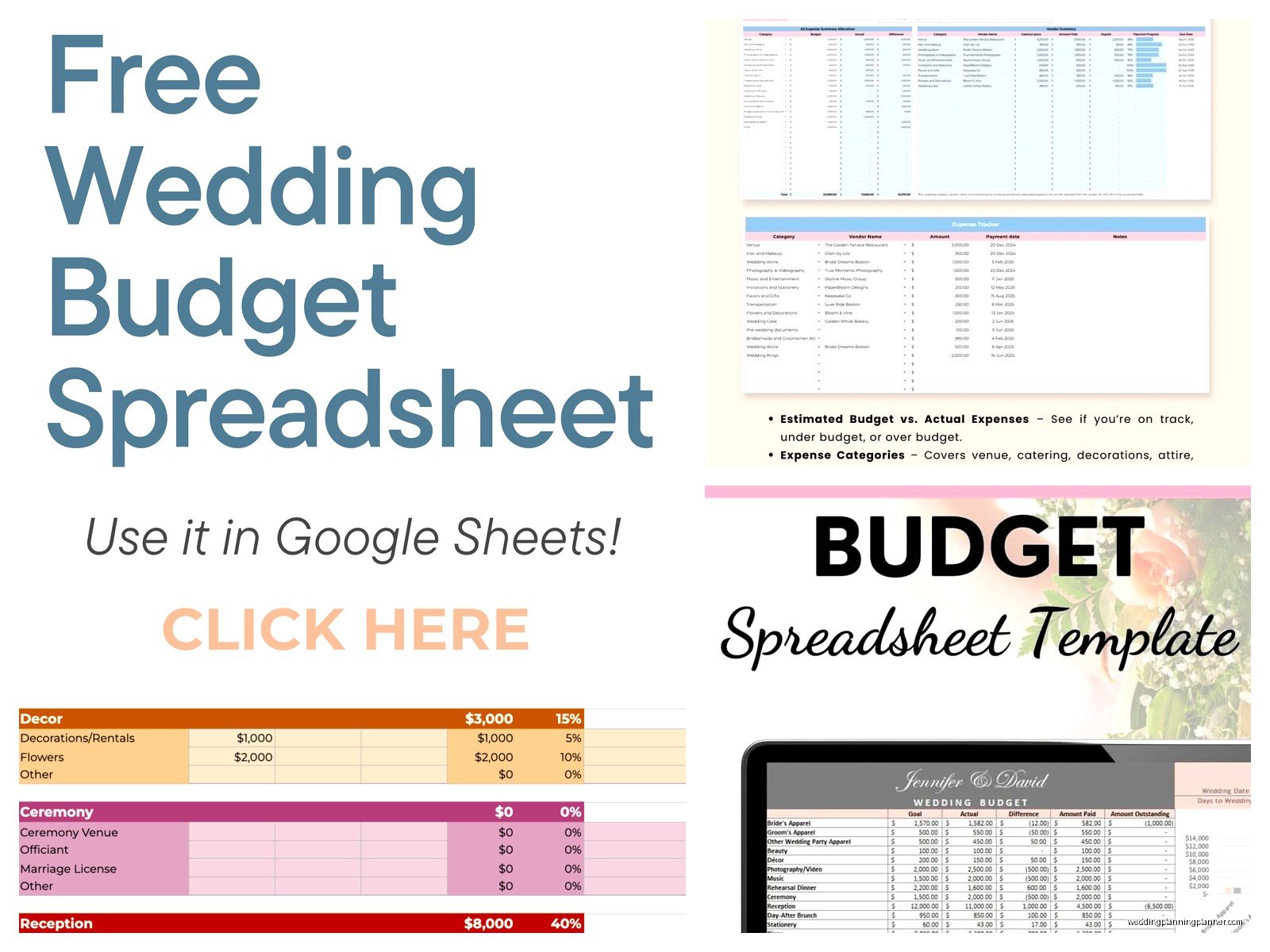
Most templates break it down like this and honestly it’s pretty standard:
- Venue and catering (usually your biggest chunk)
- Photography and videography
- Flowers and decorations
- Attire (dress, suit, alterations, accessories)
- Music and entertainment
- Stationery (invites, programs, menus, signage)
- Beauty (hair, makeup, nails)
- Transportation
- Favors and gifts
- Rings
- Honeymoon
- Miscellaneous (ALWAYS HAVE THIS)
That miscellaneous category saves lives. There’s always something you didn’t think of. Always. Umbrellas because the forecast changed. Extra boutonnières because someone’s nephew is suddenly in the wedding party. A backup phone charger for your coordinator. Whatever.
How I Customize Templates for Clients
So when I download a template for my own use or for a client, first thing I do is delete the rows that don’t apply. Not having a videographer? Delete that row. Having a welcome party the night before? Add that row under Events.
Then I adjust the formulas. Most templates use SUM formulas to add up categories and calculate your total. You can click on any cell with a number that looks like it’s calculating other cells, and you’ll see the formula in the bar at the top. If you delete rows, you gotta make sure the formula range still captures everything.
For example, if the formula says =SUM(D2:D45) and you deleted a bunch of rows, you might need to change it to =SUM(D2:D32) or whatever. Google Sheets usually adjusts automatically but double-check because I’ve seen it mess up.
Adding Conditional Formatting (Sounds Fancy But It’s Not)
This is where you can make cells turn red if you’re over budget or green if you’re under. Super visual, super helpful.
Go to Format > Conditional formatting. Then you set rules like “if the cell value in the ‘Difference’ column is less than 0, make it red” or “if it’s greater than 0, make it green.” You can also do things like highlight payment due dates that are coming up in the next 30 days.
I didn’t start doing this until maybe summer 2021 when I had a client who kept going over budget in every single category and she just wasn’t SEEING it until I made the overages bright red. Then suddenly she got it. Sometimes people need that visual slap in the face, you know?
The Annoying Thing About Shared Spreadsheets
Okay so here’s what drives me crazy. When you share a Google Sheet with multiple people, someone always accidentally sorts a column without selecting all the data. So then your venue cost ends up next to the florist name and everything is chaos.
To prevent this: Select your entire data range, then go to Data > Create a filter. This adds little dropdown arrows to your header row and people can filter without messing up your whole sheet. You can also protect certain ranges (like your formula cells) so people can’t accidentally delete them.
Tools > Protect sheets and ranges > Set permissions. Make it so only you can edit the formula cells and total rows. Everyone else can edit their own sections or just view.
Tracking Payments and Deposits
This is where the template really earns its keep. You’re not just tracking what things cost, you’re tracking what you’ve actually paid and when the next payment is due.
Most vendor contracts have deposit structures like:
- Deposit due at signing (usually 25-50%)
- Second payment due 3-6 months before (maybe another 25%)
- Final payment due 1-2 weeks before the wedding
Your spreadsheet should have columns for each payment and dates. Set yourself calendar reminders based on those dates because missing a payment deadline can mean losing your vendor, and that’s… well, that’s a disaster I’ve seen happen and it’s not pretty.
Linking to Contracts and Receipts
Here’s a pro tip I don’t see in most basic templates: add a column for document links. Upload your contracts and receipts to Google Drive, then paste the sharing link into your spreadsheet. Click on the vendor name or contract cell, right-click, “Insert link.”
Now everything is connected. You can see your DJ cost $2400, you’ve paid $600, the next payment of $900 is due March 15th, and here’s the contract with all the details. One stop shopping.
Using It On Your Phone
The Google Sheets app is actually pretty decent for viewing your budget on the go. You can edit too but I’m gonna be honest, editing spreadsheets on a phone screen is kinda annoying unless you’re just updating a single number.
But for checking your budget while you’re at a vendor meeting? Perfect. “How much did we allocate for cake?” Pull out your phone, check the sheet, boom you know if this bakery is in range.
Just make sure you download the Google Sheets app and you’re signed into the same Google account where the sheet is saved. Sounds obvious but you’d be surprised… or maybe you wouldn’t be surprised, people do this all the time.
What To Do When You’re Over Budget
Because you will go over budget somewhere. Everyone does. The template makes this really obvious really fast which is both good and bad.
When you see you’re over, you have options:
- Increase your total budget (if possible)
- Cut costs in another category to balance it out
- Reduce guest count (fewer people = lower catering, less stationery, smaller venue)
- DIY something you were gonna pay for
- Find a less expensive vendor
The spreadsheet lets you play with these numbers before you commit. Change the estimated cost, see how it affects your total, see where else you’d need to cut. It’s like a financial sandbox for your wedding.
My cat just knocked over my coffee while I’m writing this which is perfect timing because it’s exactly the kind of chaos that happens during wedding planning too. Everything’s going fine and then suddenly something spills everywhere and you gotta deal with it.
Creating Your Own Template From Scratch
If you can’t find a template you like, making your own isn’t that hard. Open a blank Google Sheet and set it up like this:
Row 1: Headers (Category, Item Description, Estimated Cost, Actual Cost, Paid, Balance Due, Due Date, Vendor, Contact, Notes)
Then start listing categories and items underneath. For the Balance Due column, use a formula like =D2-E2 (Actual Cost minus Paid). For your category subtotals, use =SUM(D2:D8) or whatever range includes all items in that category.
At the bottom, create a Total Budget row that sums all your category subtotals. Then create a row for Total Spent and Total Remaining.
Format it with colors, bold headers, freeze the top row (View > Freeze > 1 row) so your headers stay visible when you scroll… honestly you can go down a rabbit hole making it pretty but function over form, right?
Templates for Different Budget Sizes
Some templates are designed for big elaborate weddings and have like 50 line items. If you’re doing a small wedding or elopement, that’s overwhelming. Look for “minimalist wedding budget template” or just delete the sections you don’t need.
On the flip side, if you’re planning a multi-day wedding weekend with welcome party, ceremony, reception, and farewell brunch, you might need a more complex template with separate sheets (tabs at the bottom) for each event. Google Sheets lets you have multiple tabs in one file which is super useful for this.
Sharing With Parents Who Are Contributing
This gets awkward sometimes. If your parents are giving you $10,000 toward the wedding, do they get to see the whole budget or just their portion? That’s up to you and your relationship with them, but the template gives you options.
You can share the whole sheet with view-only access. You can share it with edit access but protect certain ranges. You can create a separate simplified version just for them. Or you can create a different tab that shows just the high-level category totals without all the detailed line items.
I had a situation where a client’s parents wanted to see every single expense and approve everything, and it was… let’s just say the shared spreadsheet became a source of tension instead of clarity. Sometimes less transparency is actually better for family harmony, but that’s a whole different conversation.
Updating It Regularly
Here’s the thing about these templates – they only work if you actually use them. Set a weekly date with your partner to update the budget together. Sunday morning with coffee, Friday evening with wine, whenever works.
Update actual costs as you book vendors. Update paid amounts as you make payments. Add new line items as you think of them (oh right, we need a marriage license, that costs money). Delete or reduce items that you decided not to do.
The budget is a living document. It’s gonna change constantly from engagement to wedding day and that’s totally normal. The couples who struggle are the ones who make a budget in month one and never look at it again until month ten when they realize they’ve spent $8000 more than they planned.
Backup Your Sheet
Google saves automatically which is great, but I’m paranoid so I also download a copy as an Excel file every month or so. File > Download > Microsoft Excel. Just in case Google has a weird glitch or your account gets hacked or… I don’t know, solar flares? Better safe than sorry.
You can also set up version history (File > Version history > See version history) to go back to earlier versions if someone accidentally deletes a bunch of stuff. Google Sheets tracks changes automatically so you can restore from any point, which has saved me more than once when a well-meaning parent “cleaned up” a client’s spreadsheet by deleting things they thought were duplicates but weren’t.
