
Planning Guides, Style Guide
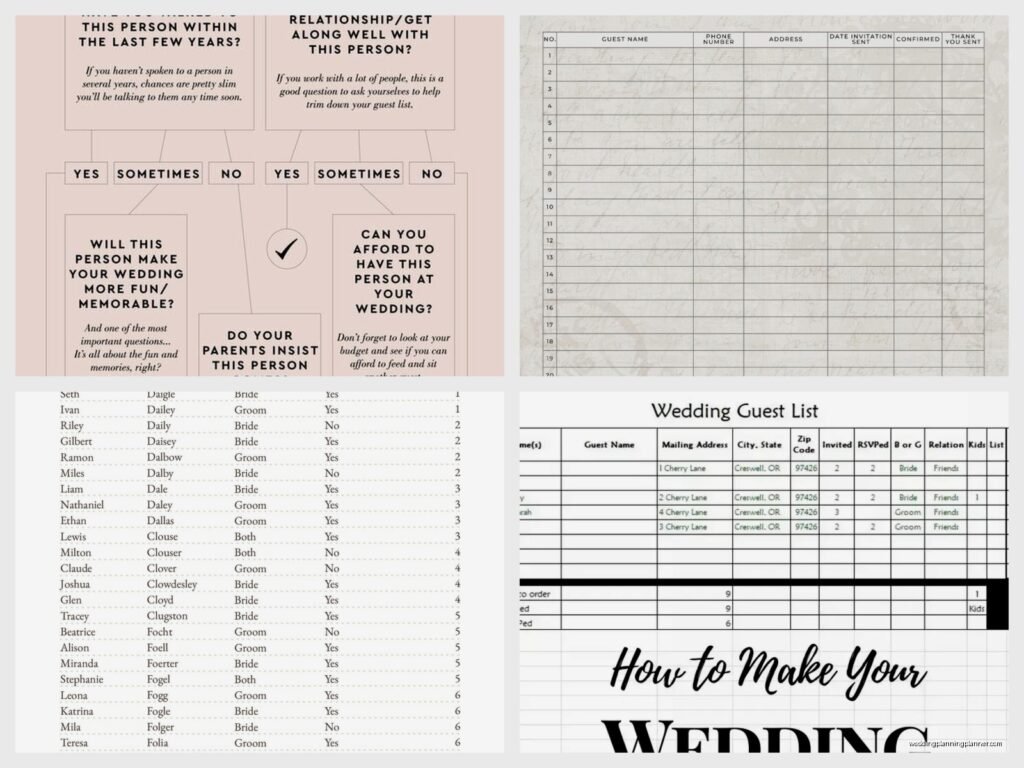
Wedding Guest List Template: Excel & Printable Downloads
Mar
Why You Actually Need a Wedding Guest List Template
Okay so I’m gonna jump right in because honestly, this is the ONE thing that can make or break your entire wedding planning process. Not the flowers, not the dress – the guest list. I learned this the hard way back in spring 2022 when I had a bride literally crying in my office because she’d been tracking guests on random sticky notes and her phone notes app and somehow invited 47 people over her venue capacity. It was a disaster.
You need a proper template. Like, an actual organized spreadsheet or printable worksheet. Not your mom’s handwritten list on the back of an envelope, not a group text thread where everyone’s throwing out names. A real system.
What Should Be On Your Guest List Template
Alright, so here’s what you actually need to track, and trust me I’ve seen people forget the weirdest things:
- Guest full names (both first AND last – you’d be surprised)
- Mailing addresses for save-the-dates and invitations
- Email addresses and phone numbers
- Relationship to bride/groom (this matters more than you think)
- Number of people in their party
- RSVP status
- Meal choices if you’re doing plated dinner
- Dietary restrictions or allergies
- Gift received and thank you note sent (you’ll thank me later)
- Which events they’re invited to (ceremony only, reception, rehearsal dinner, etc.)
Some couples also track like, hotel recommendations they’ve sent or whether someone needs a plus-one. It depends on your situation but those are the basics that I include in every template I give clients.
The Categories You’re Gonna Need
One thing that really annoyed me early in my career was when couples would just make one giant list with everyone mixed together. Then they’d be like “wait, how many people from my work did we invite?” and we’d have to count manually through 200 names. Don’t do this to yourself.
Break your list into categories:
- Immediate family (parents, siblings, grandparents)
- Extended family (aunts, uncles, cousins)
- Friends from college
- Friends from high school
- Current friend group
- Work colleagues (bride’s side)
- Work colleagues (groom’s side)
- Parents’ friends (yeah, this is always a thing)
- Plus ones
- Children
This way you can actually see where your numbers are coming from. Because inevitably someone’s parent is gonna want to invite their entire book club and you need to be able to say “we’ve already got 30 people from your friends list, that’s our limit.”
Excel Template Setup That Actually Works
So I’m gonna walk you through setting up an Excel spreadsheet because honestly it’s the most flexible option. You can sort it, filter it, and do all kinds of stuff that a paper list just… can’t do.
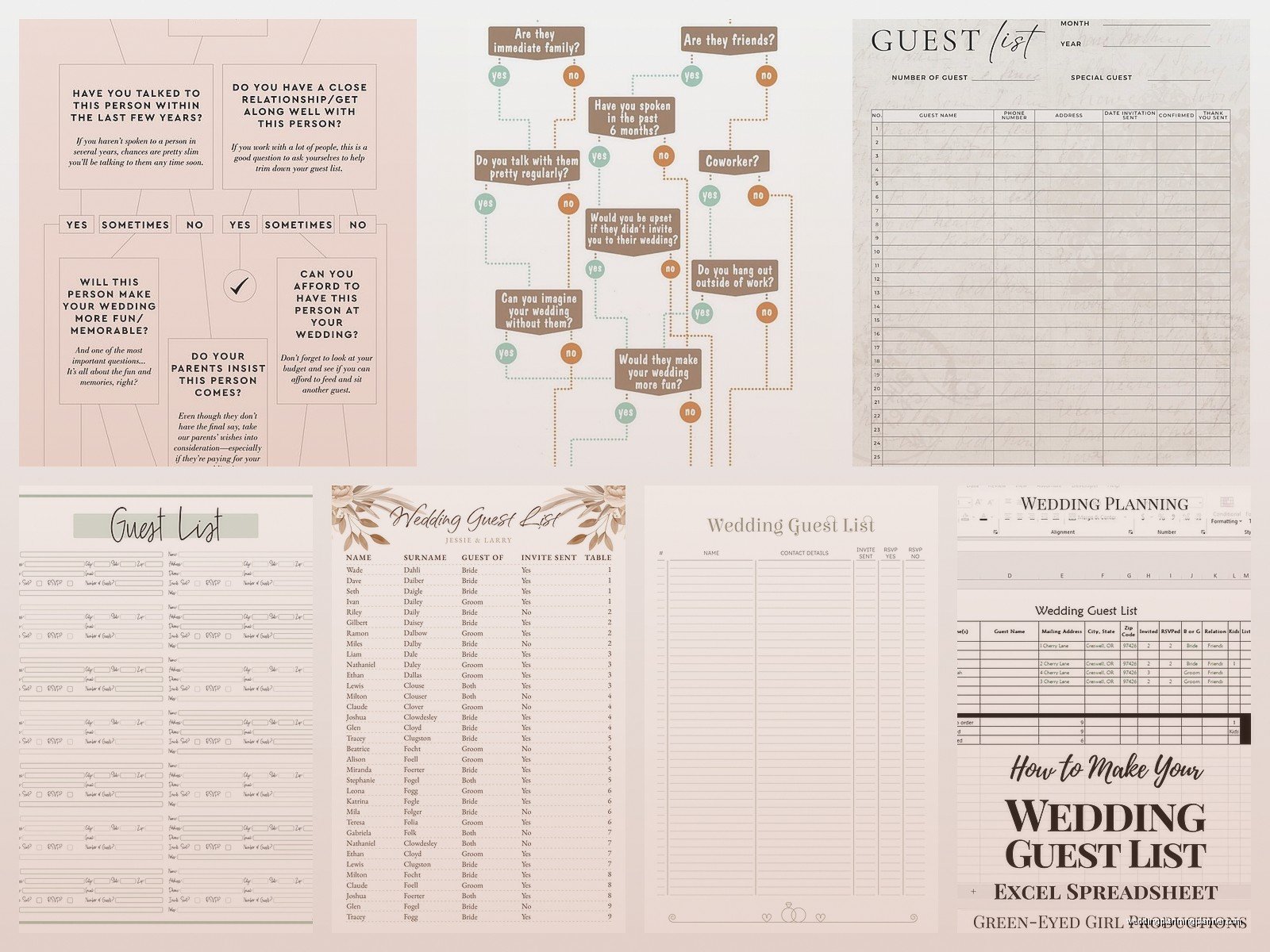
Column Headers
Start with these columns across the top – and umm, you might want to freeze that top row so it stays visible when you scroll. That’s under View > Freeze Panes if you’ve never done it.
- Guest Number (just number them 1, 2, 3, etc.)
- Prefix (Mr., Mrs., Ms., Dr. – matters for invitations)
- First Name
- Last Name
- Guest of (Bride/Groom/Both)
- Category (use those categories I mentioned)
- Address Line 1
- Address Line 2
- City
- State
- Zip Code
- Phone
- Number in Party
- Plus One Allowed (Yes/No)
- Invited To (Ceremony, Reception, Rehearsal, etc.)
- Save the Date Sent
- Invitation Sent
- RSVP Received
- Number Attending
- Meal Choice
- Dietary Restrictions
- Table Assignment
- Gift Received
- Thank You Sent
- Notes
I know that looks like a lot but you don’t have to fill everything out at once. Start with names and addresses, then add info as you go.
Using Filters and Sorts
This is where Excel really shines over a printable list. Click on your header row and go to Data > Filter. Now you’ve got those little dropdown arrows on each column.
Want to see only people who haven’t RSVP’d yet? Filter the RSVP column. Need to know how many vegetarians you have? Filter meal choices. It’s honestly so much easier than– oh my dog is barking at something, hang on… okay she’s fine, probably just a squirrel.
Anyway, you can also sort by category to see all your work friends together, or sort by RSVP status to quickly count who’s coming. The sort function is under Data > Sort and you can sort by multiple columns at once.
The Running Count Formula
Here’s something I always set up in my templates. At the bottom of your “Number in Party” column, use a SUM formula to get your total invited count. Same thing for “Number Attending” once RSVPs start coming in.
The formula looks like this: =SUM(N2:N500) if your numbers are in column N starting at row 2. Adjust based on where your data actually is.
I usually create a little summary section off to the side with:
- Total Invited
- Total Responded Yes
- Total Responded No
- Awaiting Response
- Estimated Final Count (because some people just never respond, let’s be real)
Printable Template Options For People Who Hate Spreadsheets
Look, I get it. Not everyone wants to deal with Excel. My mom still writes everything in her planner with a pen and honestly her system works fine for her life. So if you’re more of a paper person, you can definitely do a printable guest list.
What A Good Printable Template Looks Like
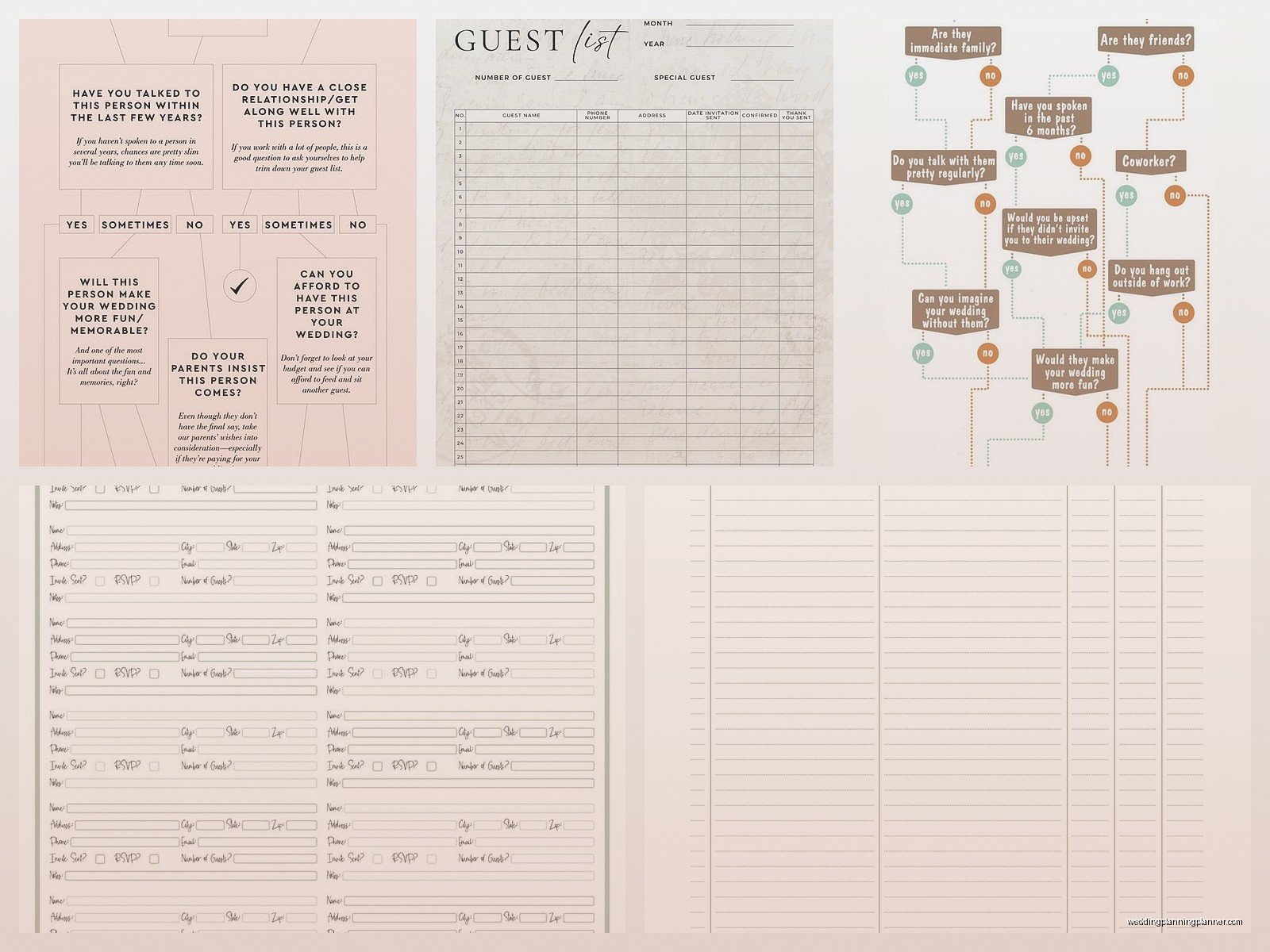
You want something with clean lines and enough space to actually write. I’ve seen those Pinterest templates that are so cute with all the decorative borders and stuff, but then there’s like half an inch to write someone’s full name and address. Not practical.
A basic printable should have:
- Multiple columns (at minimum: Name, Address, Phone, Invited, RSVP Status, Number Attending)
- Lines or boxes to write in
- Enough copies to cover your whole list (print extras)
- Maybe different colored pages for different categories
The main downside is you can’t easily sort or filter like with Excel. So if you need to know something specific, you’re flipping through pages and counting manually. But some people find that process less stressful than staring at a computer screen, and that’s valid.
Hybrid Approach
Here’s what I actually recommend to most couples: use Excel as your master list, but print out sections when you need them. Like, print just the “awaiting RSVP” list to keep by your phone. Or print your table assignments when you’re physically arranging escort cards.
Best of both worlds, you know?
The A-List, B-List Reality
Okay so nobody really wants to talk about this but I’m gonna because it’s super common and you need a system for it. A lot of couples have an A-list (definite invites) and a B-list (people you’ll invite if A-listers decline).
I had this couple in summer 2024 who were doing a destination wedding with limited space. They had 50 spots and a list of about 90 people they wanted to include. So we set up their spreadsheet with an extra column called “List Priority” – marked everyone as A, B, or even C.
The key is tracking RSVP deadlines carefully. If someone from the A-list declines by, say, six weeks out, you immediately send a B-list invite. But you gotta make sure B-list people get at least 4-6 weeks notice themselves, otherwise it’s kinda obvious they were second choice and that feels bad.
In your template, you might want columns for:
- Priority Level
- Date Invitation Should Be Sent
- Actual Date Sent
This isn’t the most romantic part of wedding planning but venues have capacity limits and budgets are real, so… it is what it is.
Tracking Plus Ones Without Losing Your Mind
Plus ones are honestly where things get messy. I cannot tell you how many times I’ve dealt with drama over this. Someone assumes they get a plus one when they don’t, or you forget who you offered one to, or people just… add extra names to their RSVP without asking.
In your template, be VERY clear about plus one status. I usually have two columns:
- Plus One Allowed: Yes/No
- Plus One Name: (fill in when you know it)
And here’s a rule I tell all my couples: if you haven’t met someone’s significant other and they’re not engaged/married/living together, you don’t have to give a plus one. It’s your wedding and those seats are expensive. Some people do it differently and that’s fine, but you need a consistent rule so you can explain your choices if anyone asks.
The “And Guest” Problem
When you address invitations to someone with a plus one you don’t know yet, you write “and Guest” on the envelope. But once they RSVP with their guest’s name, add that to your spreadsheet immediately. Your caterer needs actual names, your seating chart needs actual names, and it’s just more personal.
I usually follow up with anyone who RSVP’d yes but didn’t include their guest’s name. A quick text like “hey, excited you’re coming! Can you send me your plus one’s name for the place cards?” Usually works fine.
The Kid Question
Are you having a child-free wedding? Adults only except for immediate family kids? Everyone welcome? You need to track this because it affects your numbers significantly.
In your spreadsheet, I recommend a column for “Children in Party” separate from the adult count. This way you can see at a glance how many kids you’re accommodating. Because if you’re doing it, you need kids meals, maybe entertainment, high chairs, etc.
Also be really clear on your invitations. If only adults are invited, the envelope should only have the parents’ names. If kids are included, list them: “Mr. and Mrs. Smith, Tommy, and Sarah.” People will still sometimes ignore this and try to bring kids anyway, but at least you were clear from the start.
Address Collection Strategy
Getting everyone’s mailing address is somehow one of the most annoying parts of this whole thing. People move and don’t tell anyone, or they’re like “just send it to my parents’ house” but then they’re never there to check mail, or–
Anyway, here’s what actually works: create a Google Form or use one of those free online RSVP sites for JUST address collection. Send it out as soon as you’re engaged with a message like “We’re so excited to celebrate with you! Please fill out your current address so we can send our save-the-dates.”
The responses will go into a Google Sheet that you can then copy into your Excel template. Way easier than texting 150 people individually.
But honestly some older relatives won’t do online forms, so you’ll probably still need to call or text some people. Just how it goes.
RSVP Tracking System
Okay so your RSVP deadline is coming up. Let’s say it’s six weeks before the wedding because that’s pretty standard. Here’s how to use your template to stay organized:
First, make sure you have clear columns for:
- RSVP Status (Accepted/Declined/No Response)
- Date RSVP Received
- Number Attending
- Names of Who’s Attending (if it’s a family, list everyone)
As responses come in, update immediately. Don’t let them pile up on your counter or sit in your email. I know you’re busy but future you will be SO grateful that the spreadsheet is current.
Two weeks after your RSVP deadline, filter for everyone with “No Response” and start following up. I usually recommend a casual text first: “Hey! Just checking if you got our invitation – we need to give final numbers to our caterer soon. Let us know if you can make it!”
Most people just forgot or the invitation got lost. Some people are weirdly avoidant about declining. Just gotta chase them down.
