
Planning Guides, Style Guide
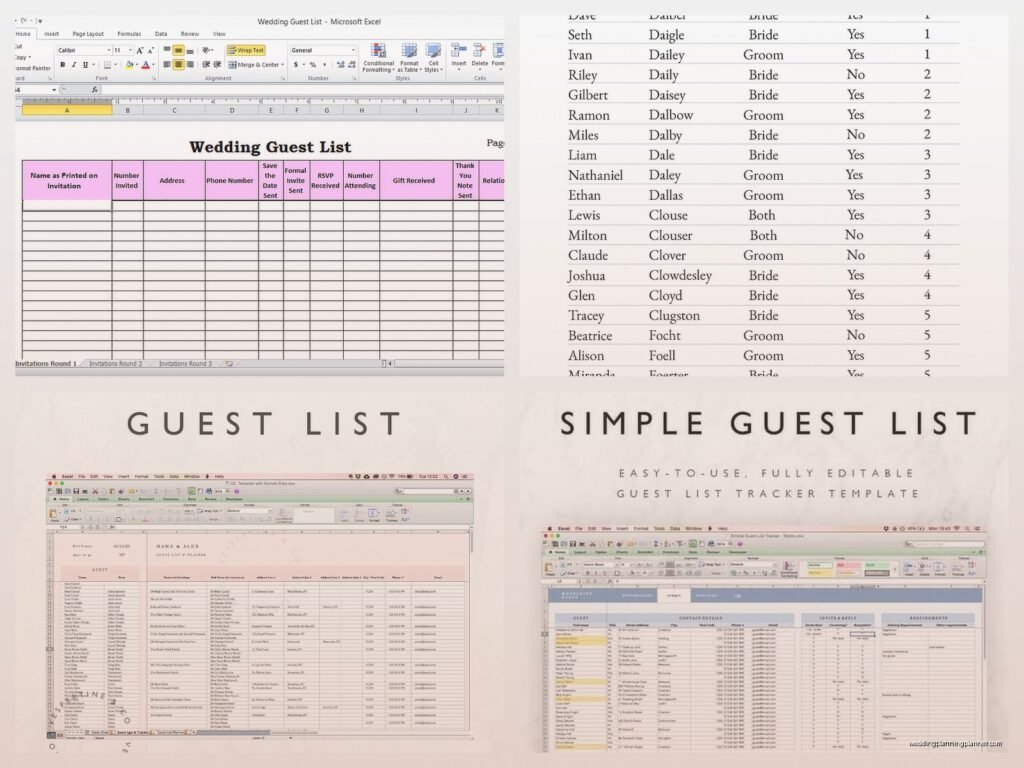
Wedding Guest List Excel Template: Spreadsheet Downloads
Jun
Why You Need a Wedding Guest List Spreadsheet Right Now
Okay so you’re engaged and everyone keeps asking if you’ve started the guest list and you’re like “umm not yet” but actually you should probably start that like yesterday. A proper Excel template is gonna save your sanity, I promise. I learned this the hard way back in spring 2023 when I had a bride who tried to manage 280 guests using a notebook and sticky notes and it was an absolute disaster when addresses got mixed up and three aunts didn’t get invitations at all.
The thing about wedding guest lists is they’re not just names on paper. You’re tracking addresses, meal choices, plus-ones, RSVP status, gift tracking, and whether Aunt Martha needs a gluten-free option. It’s basically a database project disguised as party planning.
What Makes a Good Wedding Guest List Template
Not all spreadsheets are created equal. I’ve seen some truly terrible templates floating around Pinterest that are basically just… a list of names? Like what are you supposed to do with that?
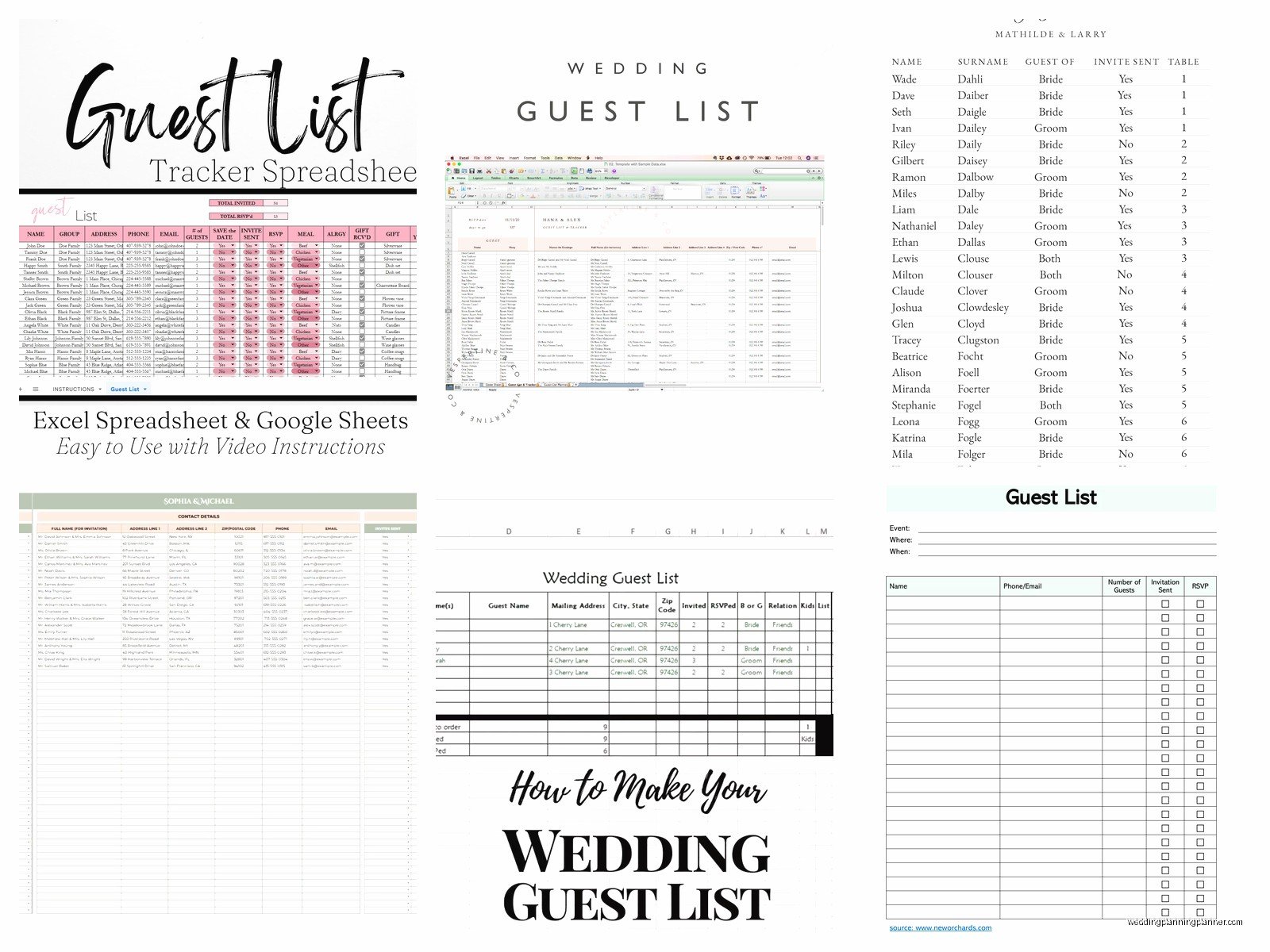
Here’s what you actually need in columns:
- Guest name (first and last, duh)
- Relationship to bride/groom
- Category (family, friends, work, etc.)
- Mailing address (full address, not just city)
- Email and phone
- Plus-one status (yes/no/maybe)
- Plus-one name if applicable
- Invitation sent date
- RSVP received (yes/no/pending)
- Number attending
- Meal choice if you’re doing plated dinner
- Dietary restrictions
- Table assignment
- Gift received and thank you sent
- Bridal shower invited
- Rehearsal dinner invited
That seems like a lot but trust me you’ll use every single column. Maybe not right away but definitely by month three of planning.
Where to Actually Download Templates
So the free ones are kinda hit or miss. Microsoft Office has templates built into Excel if you search their template library. Just open Excel, click “New,” and search “wedding guest list” and you’ll get like 10 options. Some are prettier than others but functionality matters more than cute fonts.
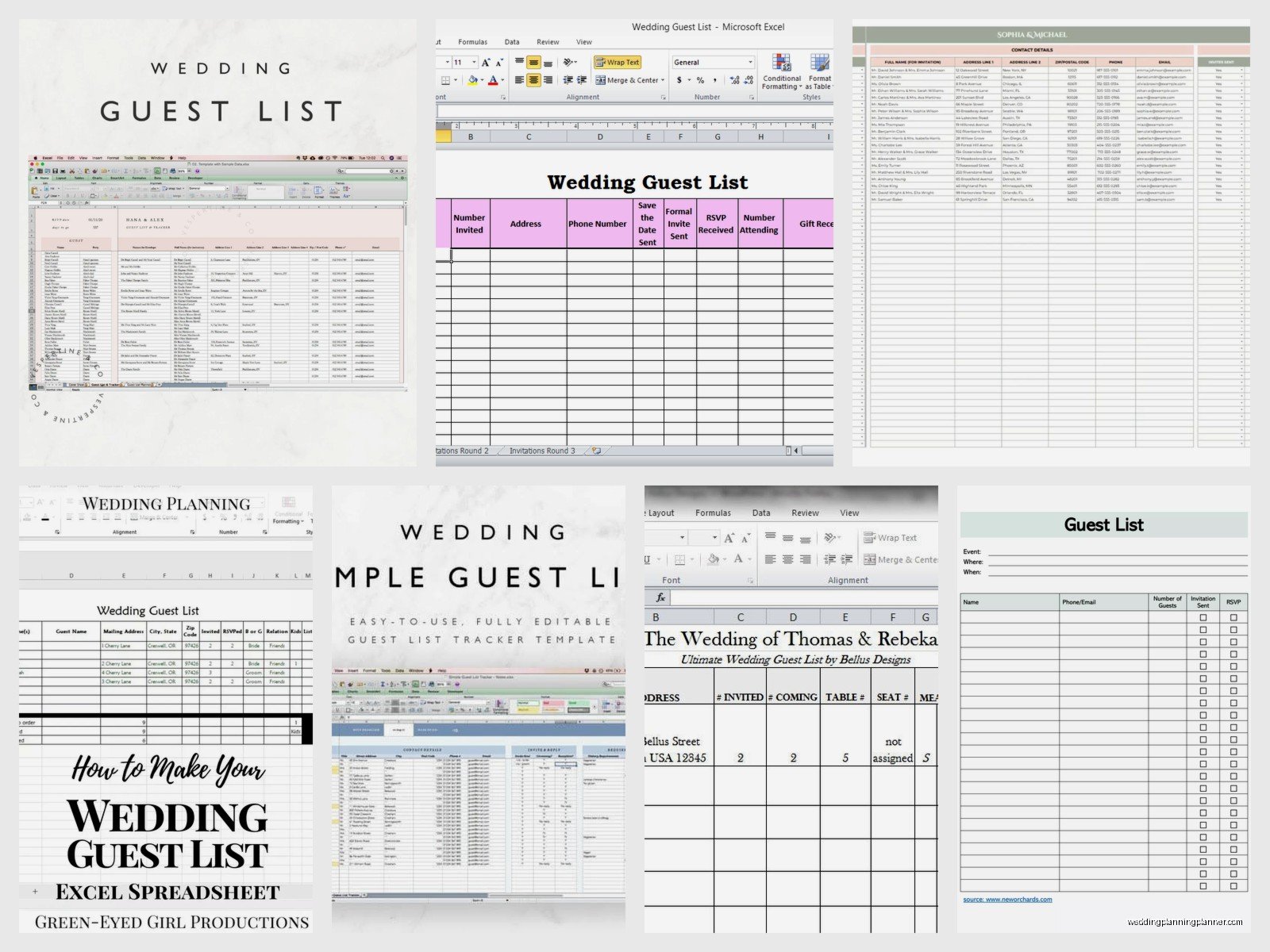
Google Sheets also has templates and the advantage there is you can share it with your partner or your mom or whoever keeps adding random people to your list without asking. The sharing feature is honestly clutch because my cat walked across my keyboard once and deleted an entire row of guests and if I hadn’t had it backed up in the cloud I would’ve lost my mind.
Etsy has paid templates ranging from $5 to $25 and some of them are actually really well designed with automatic counting features and color coding. I’ve recommended the ones from “WeddingTemplatesHub” before because they include formula fields that calculate your total guest count automatically as you add people.
The Knot and WeddingWire have free downloadable Excel templates too. They’re pretty basic but they work fine if you don’t wanna spend money.
Setting Up Your Spreadsheet the Smart Way
Don’t just download a template and start typing names randomly. You gotta have a system or this turns into chaos real fast.
First, sit down with your partner and make a brain dump list. Everyone you can possibly think of. Don’t edit yourself yet, just write down every name that comes to mind. Your childhood best friend you haven’t talked to in 8 years? Write it down. Your partner’s college roommate who moved to Australia? Write it down.
Then categorize them into A-list (absolutely must invite), B-list (would love to have but not essential), and C-list (if we had unlimited budget and space). This is where it gets real because you’ll probably have 200 people on your A-list and a venue that holds 150.
One thing that really annoyed me is when couples don’t discuss the guest list together before building the spreadsheet. I had clients in summer 2021 where the groom just assumed his parents would only invite 20 people and they showed up with a list of 87 and the bride had already promised her sorority sisters they were all invited and it became this whole… anyway, communicate first.
Color Coding Is Your Friend
I know it seems extra but color coding different categories helps you see patterns at a glance. You can use:
- Blue for bride’s side
- Green for groom’s side
- Yellow for invited but not responded
- Red for declined
- Purple for confirmed attending
Or whatever colors make sense to you. The point is visual organization helps when you’re scrolling through 200+ rows trying to figure out if you invited your cousin’s new boyfriend or not.
Formulas That’ll Make Your Life Easier
If you’re even slightly comfortable with Excel formulas, set these up:
A COUNT formula at the top that shows total guests invited. The formula looks like =COUNTA(A2:A200) or whatever your range is. This updates automatically as you add people.
A COUNTIF formula to show how many people have RSVP’d yes. Something like =COUNTIF(J2:J200,”Yes”) if column J is your RSVP column.
A SUM formula if you’re tracking costs per person. Like if your venue charges $125 per head, you can multiply your confirmed guest count by that number and watch your budget cry in real time.
You can also do SUMIF formulas to count how many people need vegetarian meals versus regular versus… honestly I could talk about Excel formulas all day but I’ll stop before this turns into a spreadsheet tutorial instead of wedding advice.
The Plus-One Situation
This is where your spreadsheet becomes crucial because plus-ones are complicated. You need a clear system for who gets one and who doesn’t.
Standard etiquette says anyone married, engaged, or in a long-term relationship gets a plus-one. Anyone in the wedding party gets one. After that it’s your call based on budget and space.
But track this carefully in your spreadsheet. I’ve seen situations where someone told a guest “yeah bring your boyfriend” casually at a barbecue and then forgot to note it anywhere and sent an invitation addressed to just her and then there was drama.
Create a column specifically for plus-one names once you know them. “Plus-one TBD” is fine initially but get actual names before you do seating charts or you’ll be googling “what’s Jake’s girlfriend’s name again” at midnight the week before the wedding.
Tracking Addresses Without Losing Your Mind
Getting addresses from people is like pulling teeth. You’ll send a mass text asking for addresses and get back responses like “same as always!” from people who moved three years ago.
Here’s what works: Create a Google Form that feeds directly into your spreadsheet. Send the link and make people fill out their own address. Yes, it’s kinda impersonal but it’s also accurate and saves you from typing 150 addresses manually.
For older relatives who don’t do online forms, just call them. I know, actually calling people, wild concept. But Grandma isn’t filling out your Google Form no matter how user-friendly you make it.
RSVP Tracking Features You Need
Your template should have a clear RSVP deadline column. Most people do 3-4 weeks before the wedding. But you’ll have stragglers who don’t respond until you personally text them, guaranteed.
I like to add a “follow-up needed” column where you can mark people who haven’t responded by the deadline. Then you can filter your spreadsheet to just show those people and start hunting them down.
Some templates have conditional formatting that automatically highlights overdue RSVPs in red. That’s fancy but also genuinely helpful when you’re trying to give final counts to your caterer and 23 people still haven’t responded.
Meal Choice Tracking
If you’re doing a plated dinner with choices, this section of your spreadsheet becomes super important. You need columns for each person’s meal selection—not just the primary guest but also their plus-one.
I usually recommend these columns: Guest Name | Meal Choice | Plus-One Name | Plus-One Meal Choice
Then use COUNTIF formulas to tally how many chicken, how many fish, how many vegetarian. Your caterer will need exact numbers and “umm like 80 people wanted chicken I think?” isn’t gonna cut it.
Dietary Restrictions and Allergies
This deserves its own column, seriously. You don’t wanna find out the day of the wedding that your groom’s boss has a severe shellfish allergy and you’re serving shrimp cocktail.
When people RSVP, ask specifically about dietary needs. Not just preferences (because everyone has preferences) but actual restrictions and allergies. Gluten-free, dairy-free, nut allergies, vegetarian, vegan, kosher, halal—track all of it.
Then you can filter your spreadsheet by dietary restriction and give your caterer a clear list. Makes their job easier and means fewer panicked phone calls the week before.
Gift Tracking and Thank You Notes
I know you’re not thinking about this yet but future you will thank present you for including these columns from the start.
Columns needed: Gift Received | Gift Description | Thank You Sent | Date Sent
As gifts arrive (mostly after your shower and wedding), log them immediately with who gave what. Take a photo of the card if there is one because you will forget who gave you the KitchenAid mixer versus who gave you the fancy knives.
Then as you write thank you notes, mark them complete. This prevents the nightmare scenario of accidentally sending duplicate thank yous or worse, forgetting someone entirely.
Table Assignments Tab
Once you get closer to the wedding, you’ll need to assign tables. Some people create a whole separate spreadsheet for this but I prefer adding a new tab to the existing guest list file so everything’s in one place.
You can copy your confirmed guest list to a new tab and add columns for table number and seat number if you’re doing assigned seating. Color code by table so you can see at a glance if Table 7 is all cousins who haven’t seen each other since 1987 and might need some friends mixed in to keep conversation flowing.
Sharing and Collaboration
If you’re using Google Sheets, you can share the spreadsheet with specific people. Give your partner full editing access obviously. Maybe give your parents view-only access if they keep suggesting random additions and you need to maintain some control.
Your wedding planner (if you have one) should definitely have access. I always ask my clients to share their guest list spreadsheet with me so I can help track RSVPs and communicate with vendors about counts.
For Excel files, you can use OneDrive or Dropbox to share, but Google Sheets is honestly easier for real-time collaboration. You can literally both be in the spreadsheet at the same time updating different sections.
Common Mistakes People Make
Not backing up your file. Save it in multiple places. Email yourself a copy. Put it in cloud storage. I’ve had clients lose entire guest lists to computer crashes and it’s devastating.
Forgetting to track kids. If you’re inviting families, you need columns for children’s names and ages. This matters for catering counts and also for seating—you probably don’t want to seat a family with a toddler right next to the dance speakers.
Not updating regularly. Your guest list changes constantly in the months leading up to the wedding. People break up, get back together, move, have babies… if you’re not updating your spreadsheet weekly, it’ll be outdated by the time you need it.
Using inconsistent formatting for names. Decide early if you’re doing “John Smith” or “Smith, John” and stick with it. Mixed formatting makes it impossible to sort alphabetically later.
Mobile Access
Download the Excel or Google Sheets app on your phone. You’ll be at random family gatherings and someone will mention their new address and you can update it right then instead of trying to remember later.
I was at Target once (totally unrelated but this actually happened) and ran into a friend who asked if she was invited to my client’s wedding and I could pull up the spreadsheet on my phone and confirm right there. Super handy even if kinda awkward.
Budget Tracking Integration
Some advanced templates include budget tracking tied to guest count. Like if your per-person cost is $150 for venue, food, and drinks, the spreadsheet automatically calculates your total cost based on confirmed attendees.
This is both helpful and terrifying because you watch the numbers go up in real time. But it’s better to know than to be surprised when the final invoice comes.
You can create a simple version yourself with a formula like =COUNTIF(J2:J200,”Yes”)*150 if $150 is your per-person cost and column J tracks confirmed attendance.
What to Do With It After the Wedding
Don’t delete it! Seriously, keep this file forever. You’ll reference it when writing thank you notes, when looking back at photos and trying to remember who that person at table 12 was, when planning your anniversary party in 10 years…
I still have guest list spreadsheets from weddings I planned in 2019. Sometimes couples reach out years later asking for someone’s address for holiday cards or whatever and boom, I’ve got it.
Export a PDF version too, just in case Excel or Google changes their format in the future. PDFs are basically eternal and you’ll always be able to open them.
