
Planning Guides, Style Guide
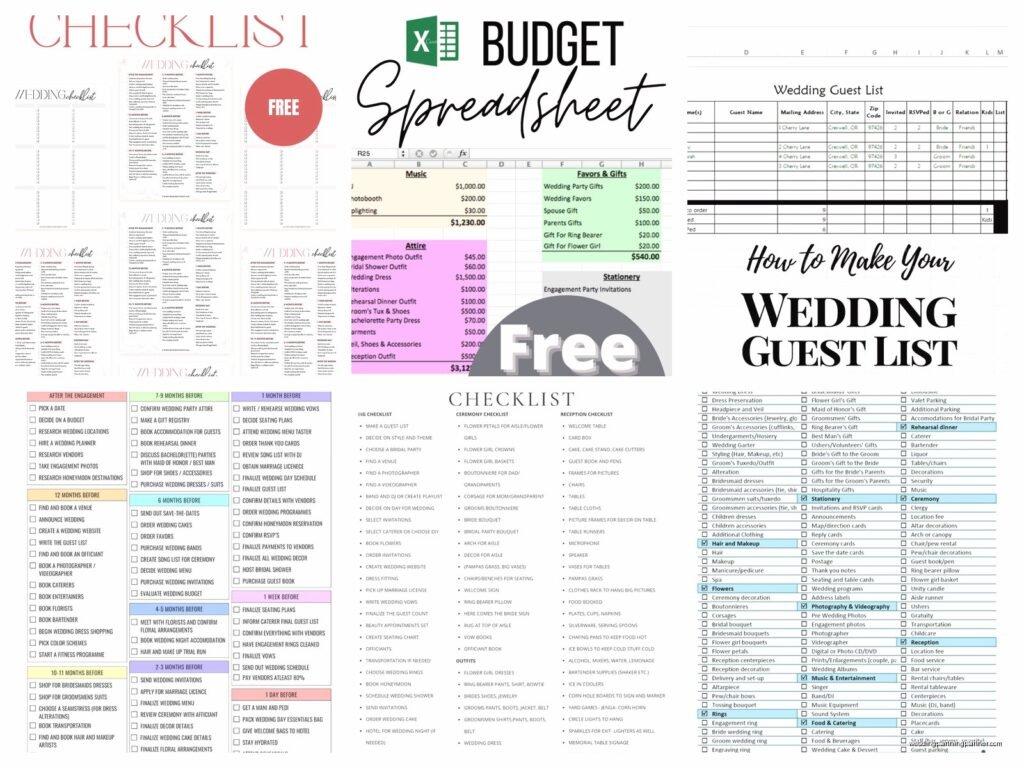
Wedding Checklist Excel: Task List Spreadsheet Template
Jul
Setting Up Your Wedding Checklist Excel Template
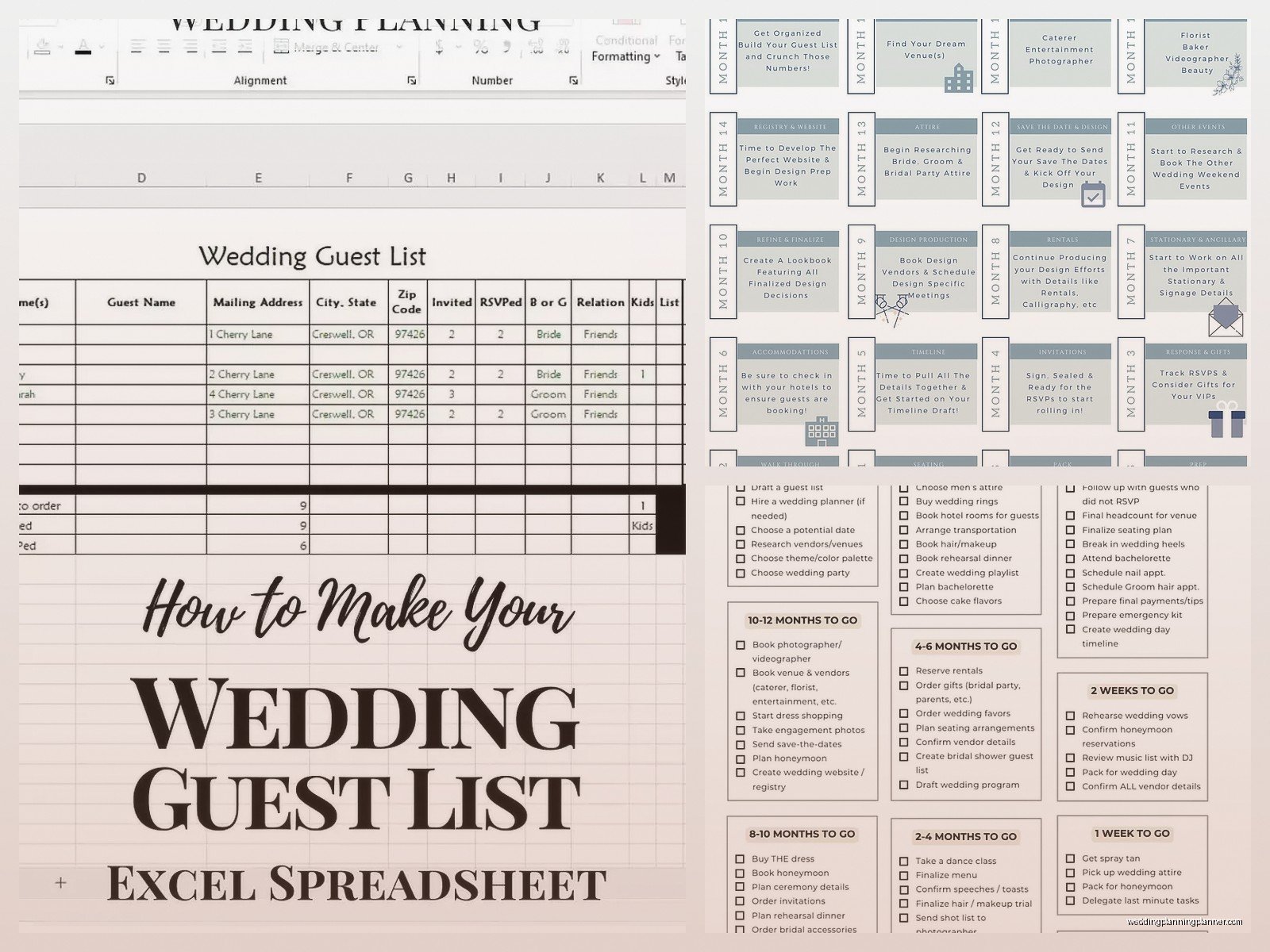
Okay so you’re gonna want to open Excel or Google Sheets—honestly I prefer Google Sheets now because you can access it anywhere and share it with your partner without emailing versions back and forth like it’s 2005. Start with a blank spreadsheet and in that first row create your column headers: Task Name, Category, Due Date, Status, Assigned To, Priority, Cost, Notes. That’s your basic setup right there.
The category column is where you’ll sort everything—like venue, catering, flowers, attire, stationery (obviously my favorite part), photography, all that. I learned this the hard way in summer 2021 when I had a bride who just listed everything in one giant column with no categories and we spent an entire afternoon just trying to figure out what was vendor-related versus what was DIY stuff. It was a mess and my cat kept walking across my keyboard during our Zoom call which didn’t help.
Columns You Actually Need
The Status column should have dropdown options—you can create these in Excel by going to Data > Data Validation. Set up options like: Not Started, In Progress, Completed, Waiting on Vendor, Cancelled. This way you’re not typing the same thing over and over and you can filter by status later which is super helpful when you’re panicking three weeks before the wedding.
For Priority, I use High, Medium, Low. High priority is anything that affects other decisions—like you can’t book your florist before you know your venue because you need to know the space, right? Medium is important but flexible timeline. Low is the nice-to-have stuff that honestly might not even happen if you run out of time or budget.
The Assigned To column matters more than you’d think because wedding planning can turn into this weird situation where both people assume the other person is handling something and then nothing gets done. Ask me how I know. Just put names there—yours, your partner’s, your mom if she’s helping, your wedding planner if you hired one.
Breaking Down the Timeline
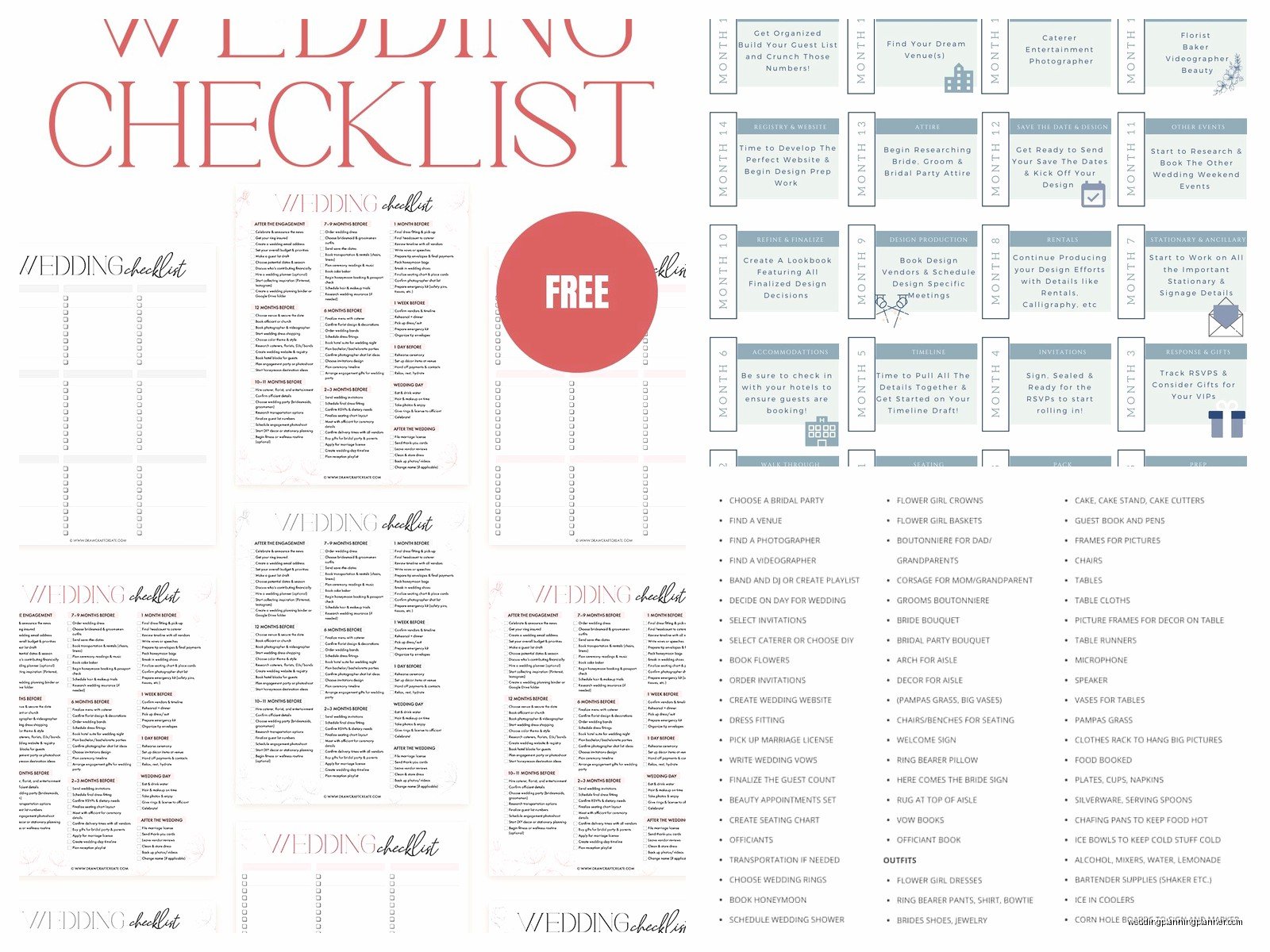
Start at 12 months out if you can, though I know plenty of couples plan in 6 months or even less. Your due dates should work backwards from your wedding date. So if you’re getting married June 15, 2025, your dress shopping should probably have a due date around December 2024 or January 2025 because alterations take forever and… wait, actually you might need even earlier if you’re ordering something custom.
Here’s what annoyed me for years—people put tasks in their spreadsheet but don’t account for dependencies. Like you can’t order save-the-dates before you finalize your guest list AND your wedding website AND you have decent photos for the card. So in your Notes column, mention if a task depends on something else being done first.
The Categories I Always Use
You’ll want these categories at minimum: Venue & Logistics, Catering & Bar, Photography & Video, Flowers & Decor, Attire & Beauty, Stationery & Paper Goods, Entertainment & Music, Guest Management, Legal & Admin, Honeymoon. Under each category you’re gonna break down specific tasks.
For Venue & Logistics you’d list things like: research venues, schedule venue tours, book ceremony venue, book reception venue, review venue contract, pay deposit, confirm final headcount, create floor plan, arrange transportation, book hotel blocks. See how specific that gets?
Stationery is where I get really detailed because it’s my thing—save the dates design, save the dates printing, save the dates mailing, invitation design, invitation printing, RSVP tracking system setup, day-of stationery like programs and menus and place cards, thank you cards. Each of these goes on its own row with its own due date.
Using Formulas to Stay Sane
This is where Excel actually becomes useful instead of just being a fancy list. You can add a column called Days Until Due and use a formula like =DueDate-TODAY() so you can see at a glance what’s coming up soon. Conditional formatting can highlight anything due in the next two weeks in yellow and anything overdue in red.
I also create a summary section at the top of my spreadsheet—like above the main task list—where I use COUNTIF formulas to show how many tasks are completed versus total tasks. It’s kinda satisfying to watch that completion percentage go up. The formula looks like =COUNTIF(StatusColumn,”Completed”)/COUNTA(StatusColumn) and then format it as a percentage.
For budget tracking, you can add a Cost column and then use SUM at the bottom to see your running total. Link this to a separate budget tab if you want to get really organized, but honestly that might be overkill depending on your situation.
Color Coding Because We’re Visual People
I use color coding for the Category column—venues are blue, catering is green, flowers are pink, you get it. This makes it way easier to scan your spreadsheet quickly. In Excel you just select the cells and use the fill color bucket tool. Nothing fancy needed.
Some people color code by priority instead which also works. High priority in red, medium in yellow, low in green. Do whatever makes sense to your brain because you’re the one who’s gonna be staring at this thing for months.
The Tasks People Always Forget
Alright so here’s stuff that never makes it onto checklists but should: getting your marriage license (and this has specific timing requirements depending on your state), changing your name on documents if you’re doing that, breaking in your wedding shoes, having a backup plan for weather, assigning someone to wrangle family members for photos, creating a wedding day timeline for vendors, packing an emergency kit, arranging for gifts and cards to get home safely from the reception.
In spring 2023 I had a couple who forgot to assign anyone to collect cards at the reception and they left like $3000 in checks just sitting on a table until the venue called them the next day. That’s the kind of thing that should be in your spreadsheet under Guest Management or Day-Of Tasks.
Also put in self-care tasks or you’ll burn out—schedule your hair trial, book a massage, plan a date night that’s NOT about wedding planning. I’m serious about this. Wedding planning takes over your entire life if you let it and then you look up and realize you haven’t watched your favorite show or done anything fun in three months.
Sharing and Collaborating
If you’re using Google Sheets, click the Share button and add your partner’s email. Set their permission to Editor so they can actually update stuff. You can add your parents or wedding party as Commenters if you want their input but don’t want them accidentally deleting your carefully crafted formulas.
Some people create separate tabs for different categories—one tab for vendors with all their contact info and contract details, another tab for guest list management, another for the budget breakdown. I think this makes sense once your main checklist gets really long, but start simple and add tabs as you need them.
Templates You Can Swipe
Look, you don’t have to build this from scratch. There are tons of free wedding checklist Excel templates online—The Knot has one, WeddingWire has one, even Microsoft Office has templates built into Excel. Download one and modify it to fit your needs rather than starting with a completely blank spreadsheet.
The problem with pre-made templates is they often have tasks you don’t need (like “book horse and carriage” umm okay sure) and they’re missing tasks specific to your situation. So treat them as a starting point and customize heavily.
Keeping It Updated Without Going Crazy
Set a recurring reminder on your phone to update your spreadsheet—I’d say weekly is good for most of the planning period, then daily once you’re within a month of the wedding. It only takes like 10 minutes if you do it regularly, but if you let it go for weeks it becomes this overwhelming task you avoid.
Check off completed items immediately. There’s something really satisfying about changing that Status dropdown to Completed and watching your progress percentage go up. It’s the little wins that keep you motivated when you’re deep in the weeds of planning.
Update your Notes column as you go—if a vendor says something important, note it there. If you change your mind about something, note why. Future you will appreciate having that context when you’re trying to remember why you made certain decisions.
What To Do When You Get Overwhelmed
Filter your spreadsheet to show only High priority tasks or only tasks due in the next month. Looking at 200 tasks is paralyzing but looking at 8 tasks is manageable. Excel and Google Sheets both have filter buttons at the top of each column—click those and select what you want to see.
You can also sort by due date so you’re always working on the most urgent stuff first. Click on the Due Date column header and choose Sort Oldest to Newest. Now you’re working chronologically which feels more logical than jumping around randomly.
If you’re really struggling, hide columns you don’t need right now. The Cost column might stress you out—fine, hide it and look at it later. Right-click on the column letter and select Hide. It’s still there in your spreadsheet, just not visible until you’re ready to deal with it.
The Day-Of Tab
Create a separate tab called Wedding Day Timeline about a month before your wedding. This is hour-by-hour schedule—like 9am hair and makeup starts, 2pm first look photos, 4pm ceremony begins, whatever. Share this with every single vendor and every person in your wedding party. Print it out. Put it in your emergency kit.
This tab should include contact numbers for all your vendors, the address of each location you’ll be at, and who’s responsible for what. If someone needs to know where the rings are or who has the marriage license or when cocktail hour ends, it should be on this timeline.
I cannot stress enough how much this helps on the actual day when everyone’s asking questions and you just want to like… exist and get married without project managing. Point them to the timeline and let it do the work for you.
Mistakes I See People Make
Not backing up their spreadsheet—please save it in multiple places or use cloud storage. I’ve seen people lose months of planning because their laptop died. Also not being specific enough with task names—”flowers” isn’t helpful, but “book florist consultation” and “approve floral proposal” and “confirm delivery time with florist” tells you exactly what needs doing.
Another thing is putting tasks that are actually multiple steps as one line item. “Plan honeymoon” should really be like 15 different tasks—research destinations, book flights, book hotel, arrange time off work, get passports renewed, buy travel insurance, all separate. Otherwise you’ll check it off as complete when you’ve only done part of it.
People also forget to put names in the Assigned To column and then six months later nobody’s done anything because everyone thought someone else was handling it. Just assign stuff even if it feels awkward to be like “babe you’re doing this task” because clarity prevents fights later.
