
Planning Guides, Style Guide
Wedding Excel Spreadsheet: Complete Planning Template
Jul
Setting Up Your Wedding Excel Spreadsheet
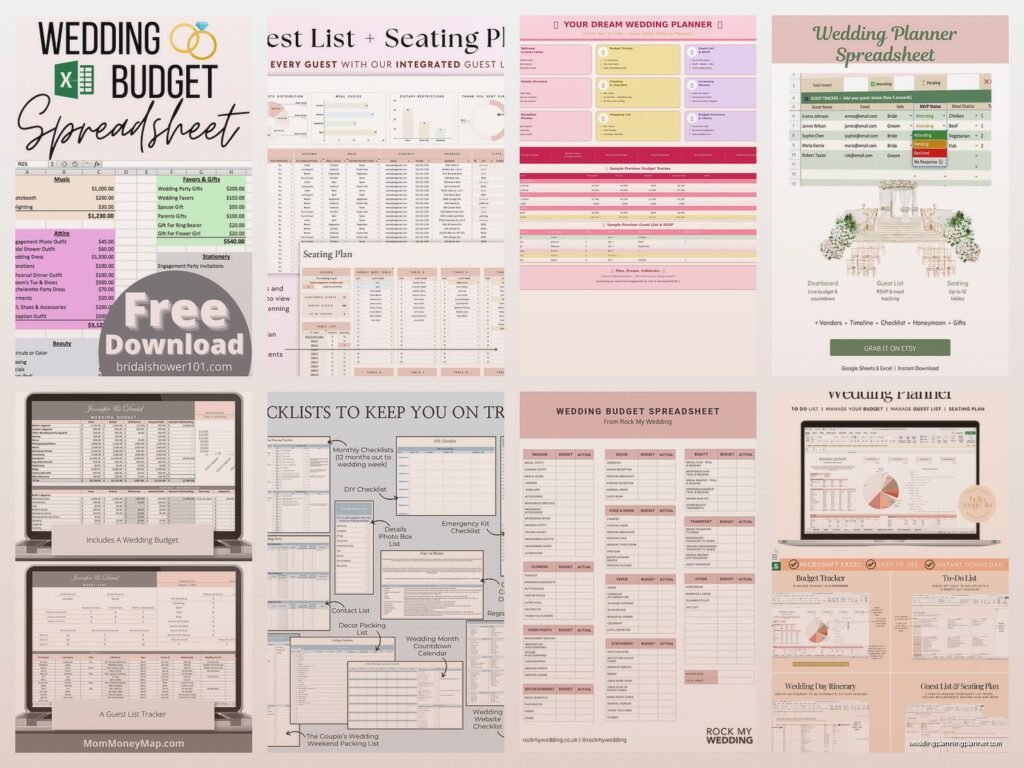
Okay so first things first you need to actually open Excel and create separate tabs because trying to cram everything onto one sheet is gonna make you want to throw your laptop out the window. I learned this the hard way in summer 2021 when I had a bride who insisted on keeping everything on ONE tab and we literally couldn’t find her vendor contact list during a crisis situation with the florist. Create these tabs right away: Budget, Guest List, Vendor Contacts, Timeline, Seating Chart, and Task List.
The budget tab is where most people start and honestly it’s the most important one. Set up columns for: Category, Item Description, Estimated Cost, Actual Cost, Deposit Paid, Balance Due, Payment Due Date, and Notes. Then you’ll want rows for all your categories like venue, catering, photography, videography, florals, attire, invitations (my specialty obviously), music, transportation, and miscellaneous because trust me there’s always miscellaneous stuff that pops up.
Here’s what really annoyed me about budget spreadsheets though – people never leave enough buffer room in their miscellaneous category. They’ll budget like $500 for miscellaneous when realistically you need at least 10-15% of your total budget set aside for the random stuff that comes up. Your bridesmaid gets pregnant and needs a different dress. The venue charges you for extra setup time. You decide you want a late-night snack station that wasn’t in the original plan.
Guest List Tab Setup
The guest list tab needs way more columns than you think. I usually set mine up with: Guest Name, Category (his side/her side/mutual), Mailing Address, Email, Phone Number, Save the Date Sent, Invitation Sent, RSVP Received, Number Attending, Meal Choice, Dietary Restrictions, Plus One Name, Gift Received, Thank You Sent.
You’re gonna want to use data validation for some of these columns so you can create dropdown menus. Like for the RSVP Received column, set up a dropdown with Yes/No/Pending. Same thing for Save the Date Sent and all those tracking columns. Makes it way easier to filter and sort later when you’re trying to figure out who hasn’t responded yet and you need to hunt them down.
One thing I always tell couples is to add a column for “how do we know them” because six months into planning you might forget why Uncle Jerry’s accountant is on your guest list and whether you actually need to invite him. Also add a priority column – A list guests who definitely get invited, B list who get invited if A list people decline, C list who you’re inviting out of obligation but kinda hoping they can’t make it.
Vendor Management Tab
The vendor contacts tab saved my butt so many times I can’t even count. You need: Vendor Category, Company Name, Contact Person, Phone, Email, Website, Contract Signed Date, Total Cost, Deposit Amount, Deposit Date, Balance Due, Balance Due Date, Insurance Certificate Received, and Notes.
In the notes section I always put specific details like “needs access to venue by 2pm” or “bringing own tables” or “allergic to cats” because yes I had a photographer once who was severely allergic and the venue had a barn cat and… anyway that’s a whole other story. The point is you need these details accessible quickly.
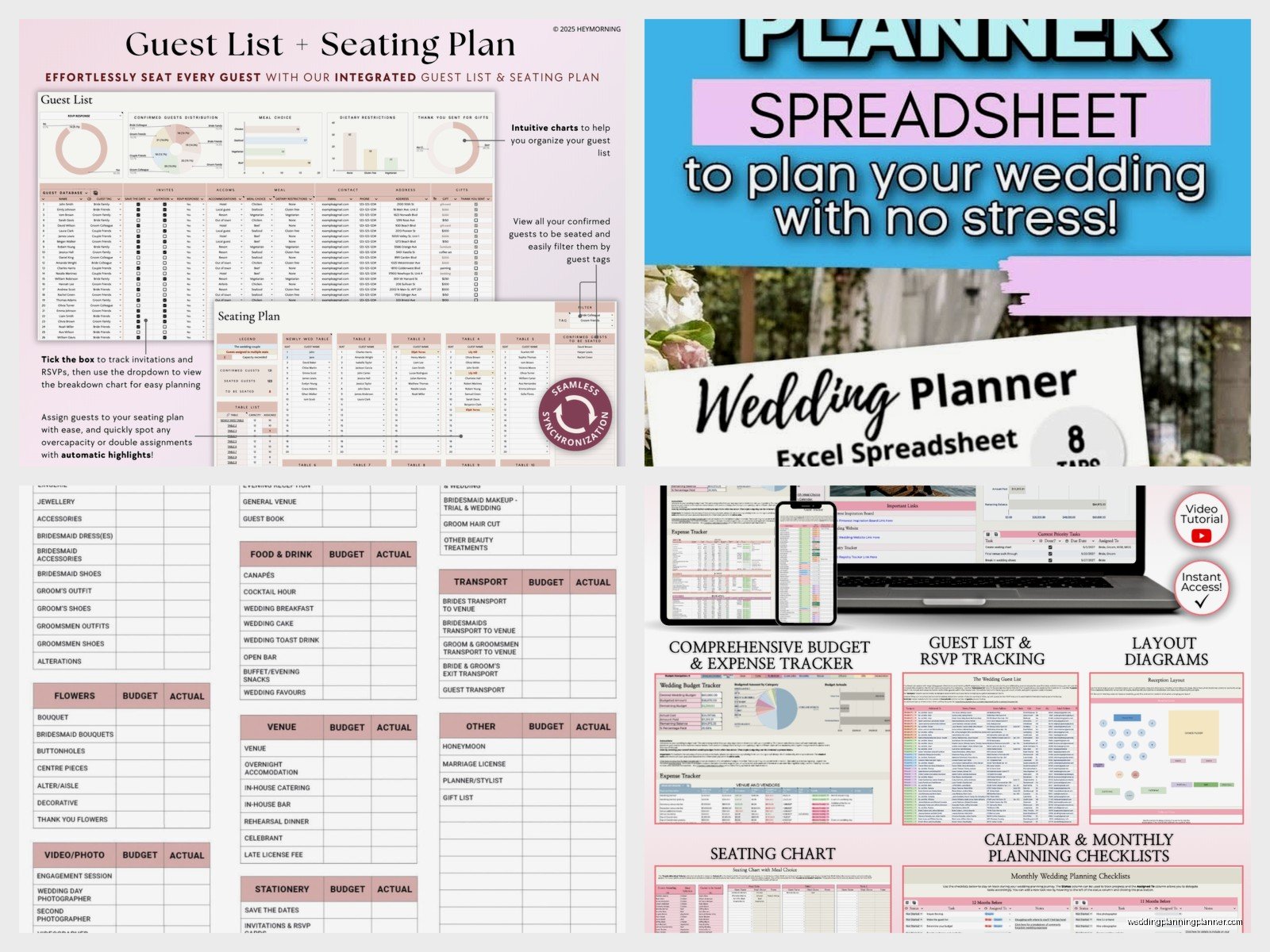
Create a separate section on this tab or maybe another tab for vendor payment schedule. List out every single payment due date in chronological order with the vendor name and amount. Then you can check this weekly and never miss a payment deadline. Missing payment deadlines is how you lose your vendors or get charged late fees and nobody wants that stress.
Timeline Tab Because You Will Forget Things
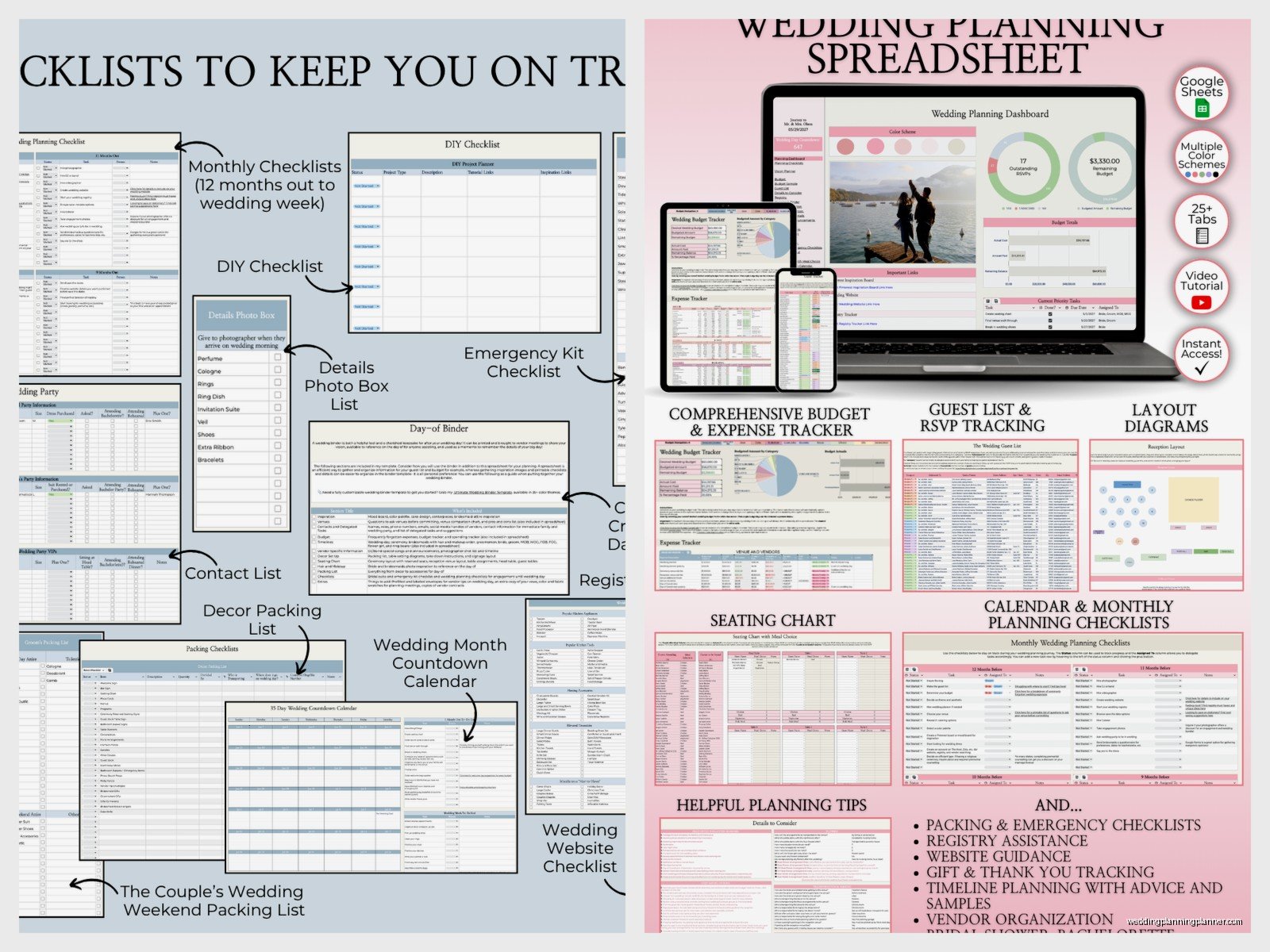
The timeline tab should have two sections – your overall planning timeline and your wedding day timeline. For planning timeline I break it down by months before wedding. Like 12+ months out, 9-12 months, 6-9 months, 3-6 months, 2-3 months, 1 month, 2 weeks, 1 week, day before, wedding day.
Under each time period list the tasks that need to happen then. Book venue and research vendors at 12+ months. Send invitations at 2-3 months. Final headcount to caterer at 1 week. You get it. I have a master template I’ve built over the years that I customize for each couple but you can find generic ones online and modify them.
Wedding day timeline needs to be down to the minute honestly or things get chaotic real fast. Start with when vendors arrive and set up, then when wedding party arrives for photos, ceremony start time, cocktail hour, reception entrance, first dance, toasts, dinner service, cake cutting, bouquet toss, last dance, and venue must be cleared by whatever time. Include buffer time between things because nothing ever runs exactly on schedule.
Seating Chart Nightmare Management
Ugh the seating chart tab is probably gonna be the most updated spreadsheet in your entire workbook. Set it up with columns for: Guest Name, Table Number, Meal Choice, Special Notes. Then create a separate area where you list each table number and how many seats it has and who’s assigned to it.
Pro tip that I wish someone had told me earlier – color code your cells based on family groups or friend groups. So like all the bride’s college friends are in blue, groom’s work colleagues in green, bride’s family in yellow, etc. Makes it SO much easier to see at a glance if you’ve separated people who shouldn’t sit together or if you’ve accidentally put all the quiet people at one table and all the loud people at another.
Also keep a running list of people who absolutely cannot sit together. Divorced parents who hate each other. Cousins who got in a fight at Thanksgiving. Your aunt who talks too much and your friend who gets overstimulated easily. I had this situation in spring 2023 where we didn’t note that two guests had recently gone through a bad business breakup and we sat them at the same table and it was… not great.
Task List Tab For Your Sanity
The task list needs these columns: Task Description, Category, Priority Level, Assigned To, Due Date, Status, and Notes. Use data validation again for Priority (High/Medium/Low) and Status (Not Started/In Progress/Complete/Blocked).
Sort this by due date so you always know what’s coming up next. I like to filter it every Sunday evening and look at what needs to happen that week. Makes the whole thing feel less overwhelming when you break it into weekly chunks instead of looking at this massive list of 847 things you need to do before your wedding.
Category column should match your other tabs – so like Invitations, Florals, Catering, etc. That way you can filter by category when you’re focusing on one particular vendor or aspect. Like if you’re having your invitation consultation you can filter to just see invitation-related tasks.
Formulas That’ll Make Your Life Easier
Okay so you don’t need to be an Excel wizard but a few basic formulas will help tremendously. In your budget tab, use =SUM() to total up each category and get your overall budget total. Use =Actual Cost-Estimated Cost to see if you’re over or under budget for each item.
In your guest list, use =COUNTIF() to count how many people have RSVP’d yes versus no versus pending. Like =COUNTIF(I:I,”Yes”) if your RSVP column is column I. This gives you a running headcount without manually counting every single time.
You can also use conditional formatting to highlight cells in red when you’re over budget on something or when a payment due date is coming up in the next week. Makes it really visual and harder to miss important stuff. To do this select the cells, go to conditional formatting, and set up rules based on the values or dates.
For the timeline tab, if you enter your wedding date at the top, you can use formulas to calculate all your other deadlines automatically. Like if your wedding is in cell B1, then “send invitations” deadline could be =B1-90 for 90 days before the wedding. Then if your wedding date changes you don’t have to manually update every single deadline.
Tracking Gifts and Thank You Notes
Add columns to your guest list for this or create a separate tab. You need: Guest Name, Gift Received Date, Gift Description, Gift Value (for insurance purposes), Thank You Note Written Date, Thank You Note Sent Date.
I cannot stress enough how important it is to track this as gifts come in. You think you’ll remember who gave you what but after you’ve opened 75 gifts everything blurs together. My cat actually knocked over a pile of gift cards once during a client meeting on Zoom and we had to match them back to the right people using the spreadsheet thank god we’d been updating it.
Some people like to add a column for where the gift was purchased so you know where to exchange it if needed, or if it was handmade, or if it was a check. Just whatever details help you write a specific thank you note instead of a generic one.
Backing Up Your Spreadsheet
Save your spreadsheet to cloud storage like Google Drive or OneDrive or Dropbox. Don’t just keep it on your computer’s hard drive because computers crash and then you lose everything and have a total meltdown. Ask me how I know this… actually don’t because it still stresses me out to think about.
If you’re using Excel, consider converting it to Google Sheets so you and your partner can both access and edit it at the same time. Prevents the situation where you update the guest list on your computer and then your partner updates their version on their computer and now you have two different versions and have to figure out which one is current.
Name your file something obvious like “Smith-Johnson Wedding Planning 2024” with the date you last updated it. Or use version numbers. Whatever works for your brain. Just make it searchable because you’ll be opening this file approximately 6000 times between now and your wedding day.
Customizing For Your Specific Needs
Not every couple needs every tab I mentioned. If you’re having a really small wedding maybe you don’t need a complex seating chart tab. If you’re doing a destination wedding you might need additional tabs for travel arrangements and accommodation blocks. If you’re DIYing a lot of stuff you might need project management tabs with supply lists and… wait actually that’s getting complicated maybe don’t DIY too much okay that’s a different conversation.
Add tabs for whatever makes sense for your situation. Some couples add a honeymoon planning tab. Some add a gift registry tracker. Some add a tab for tracking RSVPs to pre-wedding events like the engagement party or bridal shower. Just don’t go overboard and create 47 tabs because then you can’t find anything.
The whole point of the spreadsheet is to reduce stress and keep you organized, not to become another overwhelming project. Start with the basics – budget, guest list, vendors, timeline, tasks – and add more tabs as you realize you need them. You can always add complexity later but starting too complex usually means you abandon the whole thing by month three of planning.
Sharing With Your Team
Decide who gets access to what. Your wedding planner (if you have one) probably needs access to everything. Your mom maybe just needs the guest list. Your maid of honor might need the timeline and task list. You don’t necessarily want everyone editing everything because too many cooks in the kitchen or whatever that saying is.
If you’re using Google Sheets you can set different permission levels – some people can edit, some can only comment, some can only view. Use this feature. I’ve seen situations where someone’s well-meaning relative went in and “fixed” the budget by deleting things they thought were unnecessary and it caused a huge mess.
Keep your vendor login credentials and sensitive financial information on a separate secure document, not shared with everyone. Maybe a password-protected sheet or a separate file entirely. Just because someone needs to see your timeline doesn’t mean they need your venue deposit amount or your photographer’s contract terms.
