
Planning Guides, Style Guide
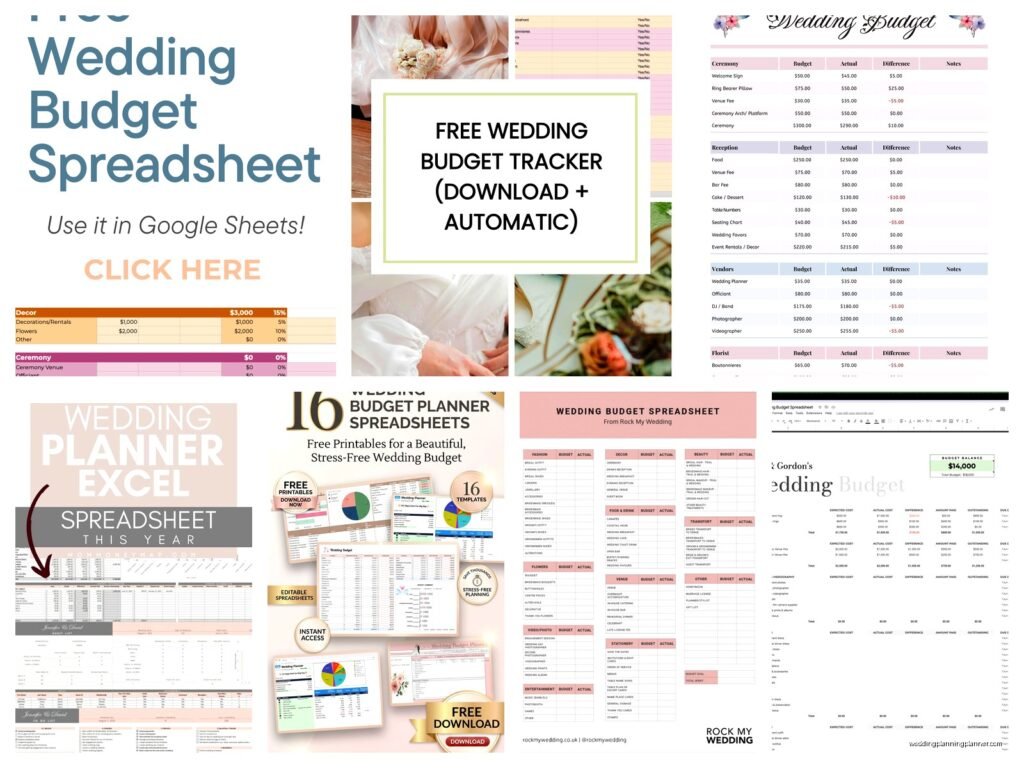
Free Wedding Budget Spreadsheet: Excel Cost Tracker
Jul
Okay So Here’s The Deal With Free Wedding Budget Spreadsheets
The first thing you gotta know is that Excel or Google Sheets is honestly your best friend when planning a wedding. I’ve had couples show up to consultations with literal notebooks full of receipts and estimates scribbled on napkins, and I’m like… we need to fix this immediately. A proper budget tracker literally saved my sanity back in spring 2023 when I had three weddings in one month and every single couple kept texting me asking if they could afford an ice sculpture or whatever.
Setting Up Your Basic Structure
Start with these columns because they’re the backbone of everything: Category, Item Description, Estimated Cost, Actual Cost, Deposit Paid, Balance Due, Due Date, Vendor Name, and Status. You can add more later but these are non-negotiable. I usually put a column for Notes too because you’re gonna want to remember that the florist only accepts checks or that the DJ requires final headcount two weeks before.
Your categories should be something like: Venue, Catering, Photography, Videography, Flowers, Attire, Beauty, Music/Entertainment, Invitations, Decorations, Transportation, Favors, and Miscellaneous. That miscellaneous category is where like 30% of your actual spending ends up so don’t skip it thinking you won’t need it.
The Formula Setup That Actually Works
Alright so here’s where Excel gets useful instead of just being a fancy list. At the top of your spreadsheet, you want these calculations visible at all times. Put them in a different color or make them bold or whatever so you can see them quickly.
Total Budget: This is what you decided you can spend. Just type it in manually.
Total Estimated Cost: =SUM(C:C) if your estimated costs are in column C. This shows what you THINK everything will cost.
Total Actual Cost: =SUM(D:D) for actual costs. This is reality hitting you in the face.
Total Paid So Far: =SUM(E:E) for all your deposits and payments.
Remaining Balance: =SUM(F:F) for what you still owe.
Budget Remaining: =Total Budget minus Total Actual Cost. This number should ideally stay positive but lol good luck with that.
My Annoying Discovery About Percentage Tracking
What really annoyed me for YEARS until I figured this out was that couples never knew what percentage of their budget they’d allocated to each category. Like they’d spend 50% on the venue and then wonder why they couldn’t afford a good photographer. So now I always add a percentage column that shows =Actual Cost/Total Budget for each category. When you see that your flowers are eating up 18% of your budget, you might reconsider those imported peonies.
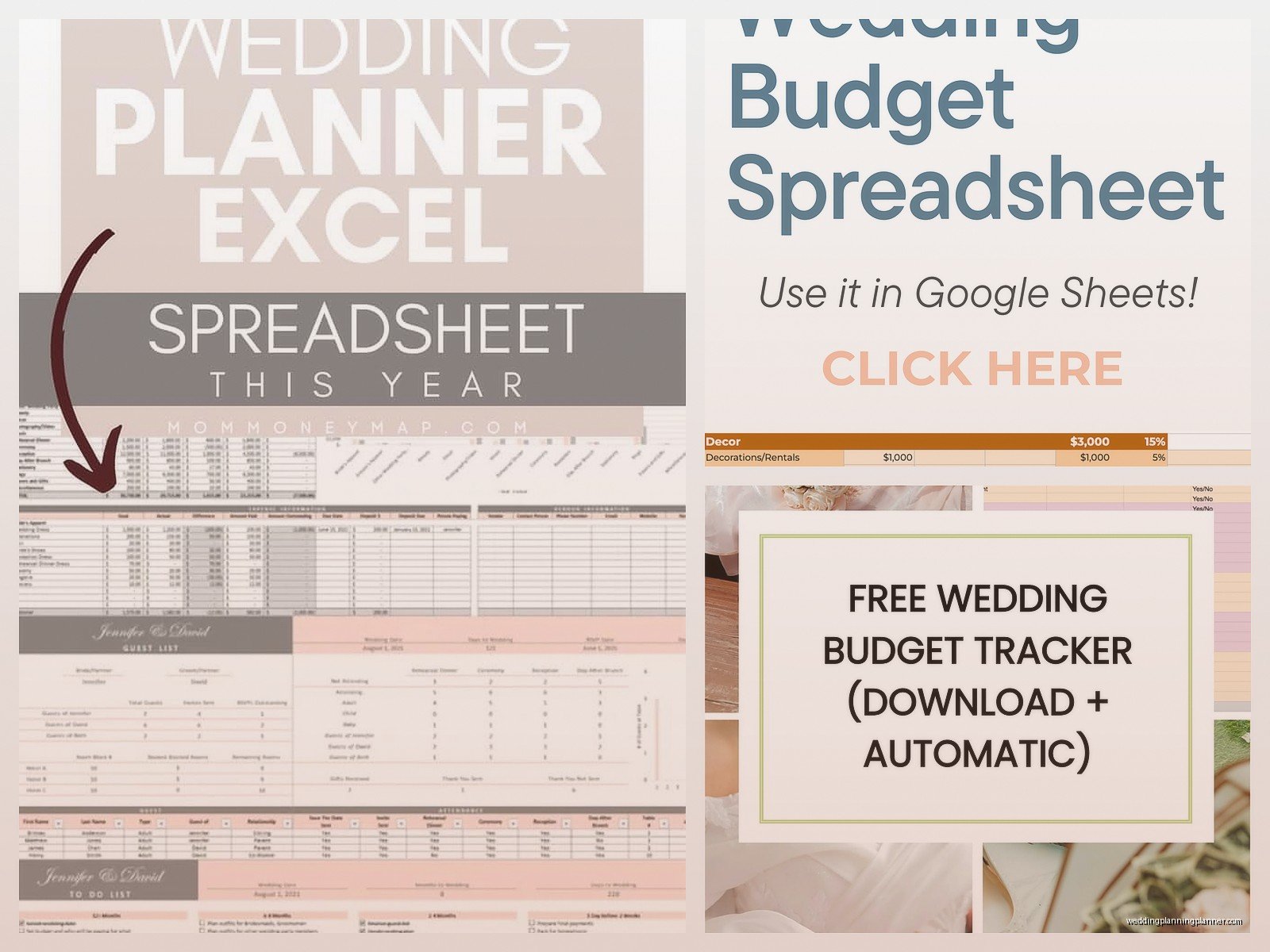
The recommended percentages are roughly: Venue and Catering 40-50%, Photography 10-15%, Flowers 8-10%, Attire 8-10%, Music 8-10%, and everything else fighting for the remaining 20-30%. But honestly every wedding is different and if you don’t care about flowers, spend $200 and put that money toward an amazing band instead.
Conditional Formatting Is Your Friend
This is gonna sound technical but it’s super easy I promise. You can make Excel automatically highlight cells based on what’s in them. I set up mine so that:
- Any item where Actual Cost exceeds Estimated Cost turns red
- Items with due dates within 30 days turn yellow
- Items with due dates within 14 days turn orange
- Anything marked “Paid in Full” in the Status column turns green
To do this, select your cells, go to Home tab, click Conditional Formatting, and choose New Rule. Pick “Format cells that contain” or “Use a formula” depending on what you’re trying to do. There are tons of YouTube videos on this if you get stuck but it’s honestly pretty intuitive once you click around.
The Payment Schedule Tab Nobody Thinks About
Here’s something I learned the hard way during a really stressful situation in summer 2021 when a couple almost lost their venue deposit because they forgot the payment was due. Create a second tab in your spreadsheet called “Payment Calendar” or whatever. List out every single payment due date in chronological order with the vendor name, amount, and payment method they accept.
Some vendors want final payment 30 days before, some want it the week of, some want it day-of. You need this information in one place because trying to track it across fifteen different contracts is how mistakes happen. I literally set phone reminders for each date two weeks in advance and then again three days before.
Tracking Deposits vs Final Payments
Most vendors want 25-50% down as a deposit when you book them. The rest is usually due 1-2 weeks before the wedding or sometimes the day of. Your spreadsheet needs to track both clearly because you’re gonna be managing this for like 18 months probably. I use the Deposit Paid column for what you’ve already given them, and Balance Due for what’s still owed. Make sure these add up to the Actual Cost or something’s wrong with your math.
The Guest Count Connection
Your per-person costs need their own section honestly. Create rows for things like: catering per person, bar package per person, favors per person, invitations per household. Then have a cell at the top where you update your current guest count estimate. Use formulas to multiply that guest count by the per-person cost so you can see in real-time what happens if you invite 150 people vs 120.
I had a couple who kept going back and forth on their guest list and every time they’d ask me “what if we invite 20 more people” and I’d have to recalculate everything manually until I set up this system. Now you just change one number and everything updates automatically. It’s kinda magical actually.
Hidden Costs To Add Right Away
These are the things that couples forget to budget for and then panic about later:
- Tax and gratuity (add 20-25% to most vendor costs)
- Shipping costs for your dress, invitations, decorations
- Alterations for attire
- Marriage license and officiant tip
- Vendor meals at the reception
- Parking or valet for guests
- Hotel room for wedding night
- Thank you cards and postage
- Emergency kit supplies
- Overtime fees if your reception runs long
Just trust me and add a line item for each of these now. Put estimates even if they’re rough. You can always adjust later but at least you won’t be blindsided.
Google Sheets vs Excel Honestly
I used to be Excel only but Google Sheets has converted me for wedding planning specifically because you can share it with your partner, your parents if they’re contributing money, your wedding planner (hi that’s me), and everyone sees updates in real-time. No more emailing versions back and forth and wondering which spreadsheet is current.
The formulas work basically the same between the two. Google Sheets is free which is obviously nice. Excel has slightly more advanced features but you probably won’t need them for this. I keep a master template in Google Sheets now that I share with all my clients with the structure already set up.
That Tab For Gifts And Cash Tracking
Okay this isn’t exactly budget but while you have a spreadsheet going, add a tab for tracking gifts and monetary gifts you receive. You need this for thank you cards anyway. Columns: Guest Name, Gift Description, Amount if Cash, Date Received, Thank You Sent (checkbox or date). You’re legally required to send thank you cards within like three months or whatever but really you should do it way faster than that while you actually remember what everyone gave you.
My cat walked across my keyboard while I was working on a client’s spreadsheet once and somehow created a whole new tab with random characters and I didn’t notice until the client asked me what “jjjjjjhhhhhttt” meant. Anyway.
Backup Everything Multiple Ways
Save your spreadsheet in three places minimum. Your computer, a cloud service like Dropbox or Google Drive, and email yourself a copy every time you make major updates. I’ve seen people lose their entire budget tracker because their laptop died and they had no backup and it’s genuinely devastating when you’re six months into planning.
If you’re using Excel, turn on AutoSave if you have Microsoft 365. If you’re using Google Sheets, it saves automatically but you should still download an Excel copy to your computer periodically just in case Google has a weird glitch or your account gets hacked or something random.
Weekly Budget Check-Ins
Set a recurring calendar event every Sunday or whatever day works where you and your partner spend 15 minutes updating the spreadsheet together. Add any new estimates you got during the week, update actual costs when you book vendors, mark off payments you made. This prevents the thing where you avoid looking at your budget for three months and then discover you’re $8000 over and have no idea where it happened.
The couples who actually do this weekly review thing are always way less stressed than the ones who don’t. Like noticeably calmer. They know where their money’s going and they make intentional decisions instead of panic decisions.
When You’re Going Over Budget
First of all, basically everyone goes over their initial budget so don’t feel bad. The average is like 15-20% over. But when you see it happening in your spreadsheet, you’ve gotta make choices. Sort your items by actual cost highest to lowest and look at your biggest expenses first. Can you negotiate with your caterer? Choose a simpler menu? Reduce guest count?
Or go through and look at your lowest priority items—probably in that Miscellaneous category—and see what you can cut entirely. Do you really need chair covers? Probably not. Do you need a custom cocktail napkin design? Nah. Do you need that crazy expensive cake when you could do a small cutting cake plus a sheet cake? Maybe not.
Free Templates You Can Actually Use
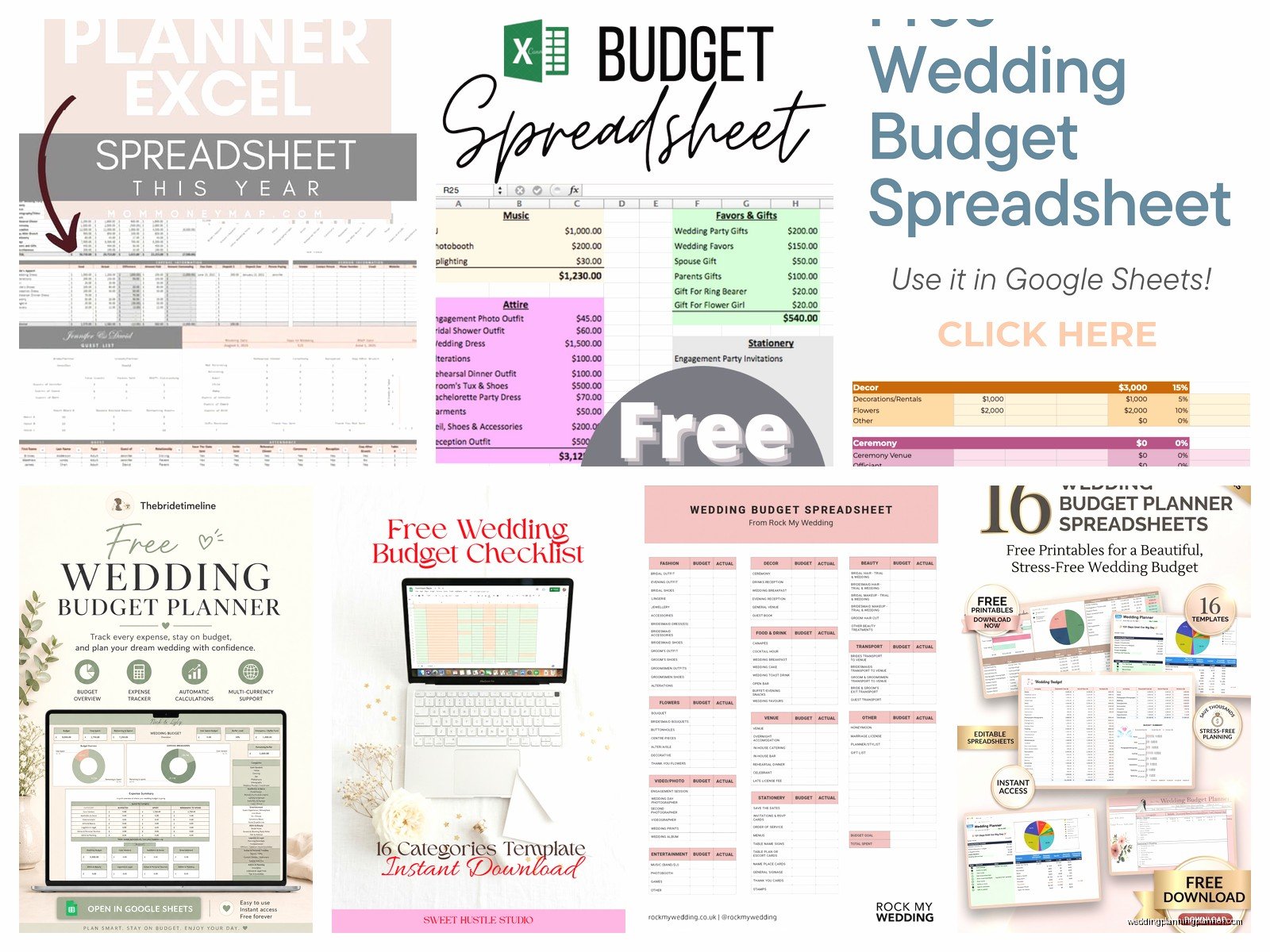
If you don’t wanna build this from scratch, there are good free templates out there. The Knot has one. WeddingWire has one. Microsoft has wedding budget templates in their template library. I’ve used the one from Vertex42 which is pretty comprehensive. Just download it and customize it for your needs because no template will be exactly right for your situation… you might not need a videographer line or you might need to add a line for your ceremony venue if it’s separate from your reception venue.
Connecting It To Your Bank Account
Some people like to link their spreadsheet to their bank account or credit card so expenses import automatically but honestly I don’t recommend this for wedding planning. Too many non-wedding purchases get mixed in and then you’re sorting through transactions trying to figure out what’s what. Just manually enter your wedding expenses as you make them. It takes two minutes and you’ll stay more aware of your spending.
Plus if you’re using a specific credit card only for wedding expenses (which is smart for rewards points and tracking), you can just check that statement against your spreadsheet monthly to make sure everything matches up.
The Reality Check Column
Here’s something I started adding recently that’s been really helpful—a column called “Reality Check” where you note whether each expense is Fixed, Flexible, or Cuttable. Fixed means you’ve signed a contract and the money’s committed. Flexible means you could still negotiate or adjust. Cuttable means you could eliminate it entirely if needed. When you’re looking for places to reduce spending, sort by this column and focus on the Flexible and Cuttable items first because the Fixed ones are… well, fixed.
What To Do With The Spreadsheet After The Wedding
Keep it for tax purposes if any of your expenses might be deductible (they probably aren’t unless you’re a content creator or something but check with an accountant). Also keep it because if you have friends getting married after you, they’re gonna ask for your budget breakdown and vendor recommendations and you’ll actually have organized information to share instead of trying to remember everything. I still have my own wedding spreadsheet from years ago and I reference it sometimes when clients ask what things typically cost.
