
Planning Guides, Style Guide
Wedding Guest Template: List Tracking Spreadsheet
Jul
Setting Up Your Guest List Spreadsheet Because You Actually Need This
Okay so the absolute first thing you need is a spreadsheet program. I use Google Sheets for literally everything because it’s free and you can access it from your phone when you’re lying in bed at 11pm suddenly remembering that Aunt Carol needs a plus-one. Excel works too if you’re already paying for Microsoft Office, but honestly the collaboration features in Google Sheets are gonna save your sanity when you’re working with your partner or your mom who insists she needs to “help.”
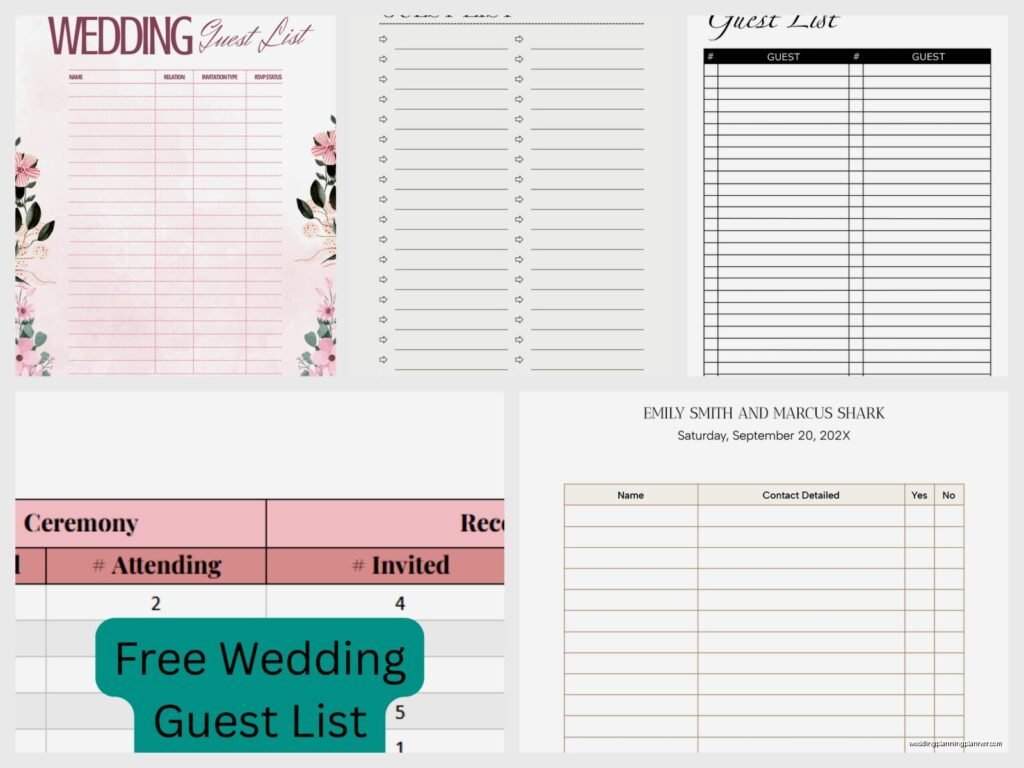
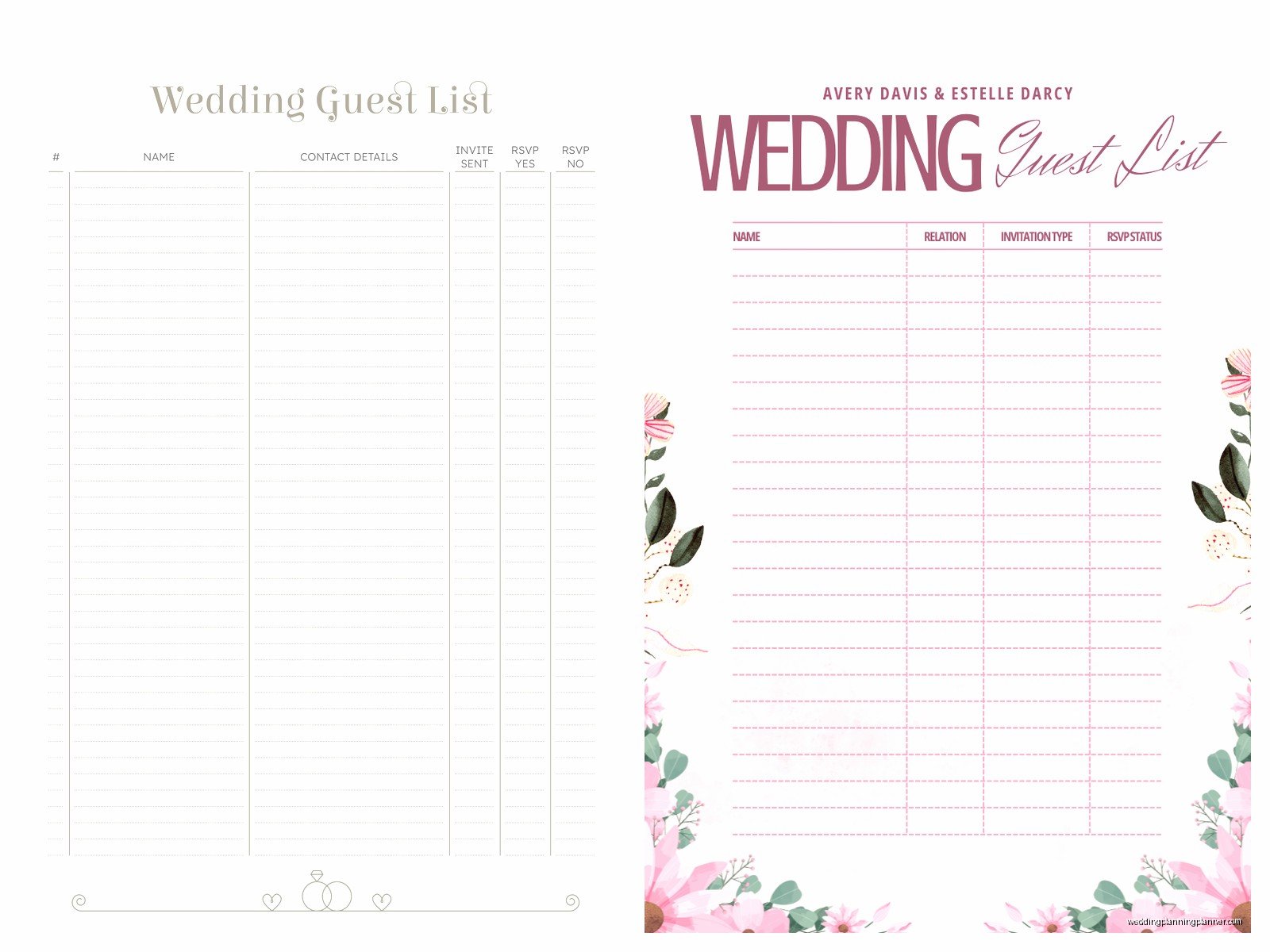
Start with these basic columns and I’m serious, don’t skip any of them even if they seem excessive right now:
- Guest Name (full legal name for formal invites)
- Nickname/Preferred Name
- Relationship to Bride/Groom
- Guest Category (family, college friends, work, etc.)
- Address Line 1
- Address Line 2
- City
- State
- Zip Code
- Phone Number
- Plus One Status (yes/no/maybe)
- Plus One Name
- Number in Party
- Save the Date Sent (date)
- Invitation Sent (date)
- RSVP Status
- Number Attending
- Meal Choice
- Dietary Restrictions
- Gift Received
- Thank You Card Sent
- Notes
I know that looks like a lot but trust me on this. Back in spring 2023 I had a bride who thought she could just keep everything in her head and then three weeks before the wedding she had a complete meltdown in my office because she couldn’t remember if her cousin’s boyfriend was vegetarian or if that was someone else entirely. We had to call like fifteen people to confirm dietary stuff because she didn’t track it properly from the beginning.
The Guest Name Situation That Everyone Messes Up
Put the full formal name in the first column even if everyone calls them by a nickname. So like “Margaret Anne Thompson” goes in Guest Name, then “Maggie” goes in the Nickname column. This matters SO much for the actual invitation addressing and it’s one of those things that… you know what, people get weirdly offended if you spell their legal name wrong on a formal invitation. I’ve seen it happen.
For couples, I usually put them on the same row with something like “John and Sarah Mitchell” but some people prefer separate rows for each person. There’s no perfect system here, just pick one and stick with it. The separate rows thing helps if you need to track individual meal choices though.
Color Coding Because Your Brain Needs Visual Breaks
Use conditional formatting or just manual color coding for different categories. I typically do:
- Light blue for Must Invite (immediate family, wedding party)
- Light green for Definitely Want (close friends, extended family you actually like)
- Light yellow for Would Like to Invite If Space/Budget Allows
- Light orange for Plus Ones
- Light red for Declined/Can’t Attend
This visual system helps when you’re trying to cut the list down and you need to see at a glance where you have flexibility. Because let’s be real, almost everyone starts with a list that’s way too long and then has to make cuts based on venue capacity or budget or both.
The Plus One Column Is Gonna Cause Drama
Ugh okay so this is the thing that annoyed me most about guest list management. People have SO many opinions about plus ones and everyone thinks their situation is special. The general etiquette rule is that anyone married, engaged, or in a long-term relationship gets a plus one automatically, and anyone single doesn’t unless you’re feeling generous or they won’t know anyone else at the wedding.
But then you get into this weird gray area of like, what counts as long-term? Six months? A year? And what if someone’s been dating someone for three months but you can tell it’s serious? I usually tell couples to make a clear rule for themselves and stick to it, otherwise you’ll drive yourself crazy trying to be fair.
In your Plus One Status column, use a dropdown menu with these options: “Yes – Named,” “Yes – Unnamed,” “No,” “Maybe (B-List).” The B-List thing is kinda controversial but it’s practical. If you have space constraints, you can have a secondary list of people who get invited if enough people from the A-list decline. Just make sure there’s enough time between sending those invitations that it’s not obvious.
Tracking RSVPs Without Losing Your Mind
The RSVP Status column needs a dropdown too: “Not Yet Sent,” “Awaiting Response,” “Accepted,” “Declined,” “No Response (Follow Up Needed).” That last one is important because there are always people who just… don’t respond? Like they received the invitation, you know they got it, they texted you about something else entirely, but they somehow forgot to actually RSVP.
Set a reminder for yourself two weeks before your RSVP deadline to check who hasn’t responded yet. Then set another reminder for three days after the deadline to start chasing people down. I know it feels awkward but you gotta do it. Your venue needs final numbers.
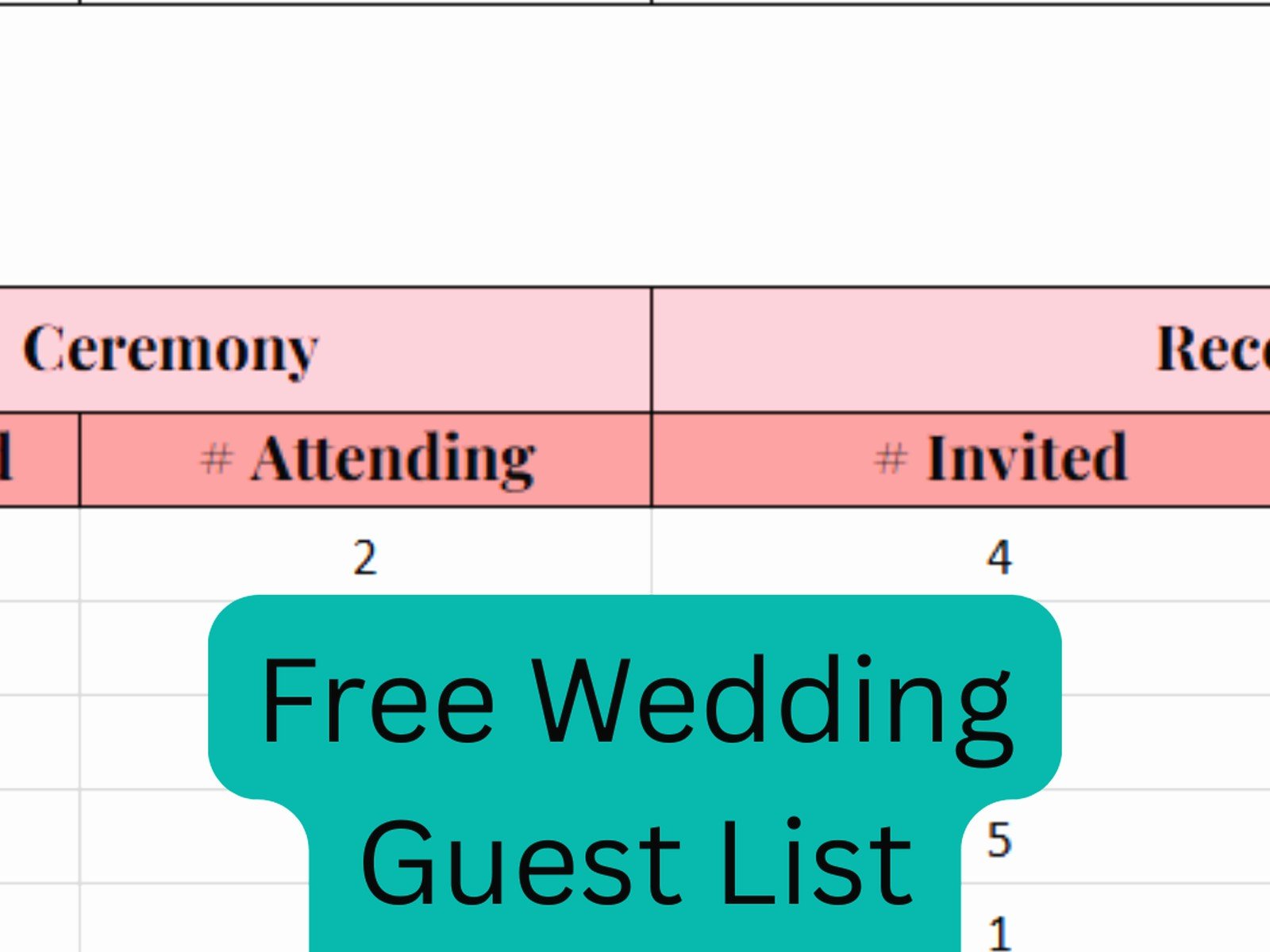
For Number Attending, use an actual number not just yes/no. So if a family of four RSVPs, put “4” in that cell. This way you can use a SUM formula at the bottom of the column to get your total guest count automatically. Same for Number in Party at the top of your sheet—this helps you track your maximum possible attendance if everyone says yes.
Meal Choice Tracking Before You Forget Everything
If you’re doing plated dinner with choices, you need to track this meticulously. Use a dropdown menu with your exact meal options: “Chicken,” “Beef,” “Fish,” “Vegetarian,” “Vegan,” “Child’s Meal,” whatever your caterer offers. Then you can use COUNTIF formulas to automatically tally how many of each meal you need.
The formula would look like: =COUNTIF(R:R,”Chicken”) where R is your Meal Choice column. Put these formulas in a separate section at the top or bottom of your sheet so you always have current counts.
Dietary Restrictions is a free-text field where you note anything specific: “shellfish allergy,” “gluten-free,” “kosher,” whatever. This info goes straight to your caterer so be detailed. My cat knocked over my coffee while I was updating a client’s spreadsheet once and I lost like thirty minutes of dietary restriction notes because I hadn’t saved—so definitely use Google Sheets that auto-saves or remember to save constantly if you’re in Excel.
The Address Columns That Save You During Invitation Time
Breaking the address into separate columns seems excessive until you’re ready to mail merge your invitation envelopes or print labels. Then you’ll be so grateful you did it this way from the start. You can use a formula to combine them when needed, but having them separate gives you flexibility.
For international addresses or addresses that don’t fit the standard format, just do your best with the columns you have. Put the full address in Address Line 1 and Address Line 2 if needed, then use the Notes column to flag anything weird about formatting.
Email addresses are essential for sending updates, links to your wedding website, or digital save-the-dates if you’re doing those. Phone numbers are your backup for when people don’t respond to emails and you need to track them down.
Gift and Thank You Tracking Because Future You Will Thank Present You
The Gift Received column is where you note what people gave you—either the actual gift or “card” or “cash.” Be specific enough that you can write a genuine thank you note later. “Kitchen Aid mixer – red” is better than just “mixer.” If someone gives you cash or a check, note the amount. I know it feels weird to write it down but you need this info for thank you notes.
Thank You Card Sent gets the date you mailed it. Etiquette says you have up to a year to send thank you notes but honestly, try to do them within three months while you still remember who everyone is and what they gave you. This column helps you track who you’ve thanked and who you still need to get to.
The Notes Column Is Your Catch-All Chaos Space
This is where everything else goes. “Needs to sit away from Uncle Bob,” “bringing service dog,” “arriving Friday needs hotel block info,” “wants to give a toast,” whatever random details don’t fit anywhere else. I use this column constantly and it’s usually the most useful one when questions come up.
You can also note here if someone has offered to help with something, if they need special accommodations, if they’re staying at a specific hotel, if their kids are in the wedding party… literally anything relevant.
Setting Up Different Views With Filters
Learn how to use filter views in Google Sheets or filter functions in Excel. You’ll want to create saved views for things like:
- All guests who haven’t RSVPed yet
- All guests attending (accepted only)
- Guests by category (family, friends, work, etc.)
- Guests who need thank you cards
- Guests with dietary restrictions
This way you can look at just the subset of data you need without scrolling through hundreds of rows. When you’re three weeks out and just need to see who’s actually coming so you can finalize seating charts, you don’t want to be looking at people who declined.
Sharing Access But Setting Boundaries
If you’re using Google Sheets, you can share it with your partner, your parents, your wedding planner (hi, that’s me), or anyone else who needs access. But here’s my advice: give most people “view only” or “comment only” access. Too many editors creates chaos. I’ve seen spreadsheets where five different people are updating information simultaneously and nobody knows what’s accurate anymore.
Designate one or two people as the official updaters. Everyone else can suggest changes through comments but can’t directly edit. This prevents the situation where your mom deletes a row because she doesn’t think you should invite your partner’s college roommate and suddenly you’ve lost all that contact information.
Backing Up Your Spreadsheet Because Technology Fails
Even with cloud storage, download a backup copy of your spreadsheet every few weeks and save it somewhere else. Email it to yourself, put it on a USB drive, whatever. I’ve never personally lost a client’s guest list but I’ve heard horror stories and it would be devastating to lose all that data.
Also take screenshots of your formulas and key sections so if something breaks you can recreate it. Spreadsheet corruption is rare but it happens.
Additional Columns For Different Wedding Situations
Depending on your specific situation you might need extra columns. Like if you’re having a destination wedding, add columns for:
- Attending Welcome Party (yes/no)
- Attending Rehearsal Dinner (yes/no)
- Flight Information
- Hotel Reservation (yes/no)
- Needs Transportation From Airport
For multi-day events or if you’re having a separate ceremony and reception with different guest lists, you might need columns specifying who’s invited to what. Some people do intimate ceremonies with large receptions or vice versa.
If you’re having kids at the wedding or offering childcare, add a “Children’s Names and Ages” column so you can plan appropriately. Your caterer needs to know how many kids meals, and if you’re hiring childcare providers they need a headcount.
Using Your Spreadsheet For Seating Charts
Once RSVPs are in, you can add columns for table assignments. I usually add “Table Number” and “Table Name” columns (if you’re using named tables instead of numbers). Then you can sort by table to see who’s sitting together and make sure you haven’t accidentally put people who hate each other at the same table.
You can also export this data to actual seating chart software or just use it as a reference when you’re arranging place cards. Having everything in the spreadsheet means you’re not juggling multiple documents or sticky notes or whatever organizational system seemed like a good idea at 2am.
The relationship column really helps here because you can see at a glance “okay, these five people are all from my partner’s grad school program, they should probably sit together” or “these are all my mom’s friends from book club, they’ll be happy at the same table.”
Budget Tracking Integration If You Want
Some people add a “Cost Per Guest” column and multiply it by their attendance numbers to track how guest count affects budget. Your per-guest cost includes things like catering, rentals, favors, invitations… it adds up fast. This helps when you’re trying to decide whether to invite those extra coworkers or keep the list smaller.
You don’t have to integrate budget tracking into your guest list spreadsheet though. I usually keep those separate unless someone specifically wants everything in one place. Just depends on your organizational preference.
Random Tips From Years Of Doing This
Start your spreadsheet the day you get engaged, seriously. Even if you don’t have a venue or a date yet, start collecting addresses and contact information because it takes forever. You think you have everyone’s address but you definitely don’t.
Use data validation for dropdown menus so you’re not typing the same things over and over. It keeps your data consistent and makes filtering actually work properly.
Freeze the top row so your column headers stay visible when you scroll down. This seems obvious but so many people don’t do it and then they can’t remember which column is which.
Don’t feel bad about cutting people from your list if you need to. Your wedding, your budget, your decision. The spreadsheet makes this easier because you can see everything objectively instead of emotionally. Like yes, you were friends with that person in high school, but you haven’t talked to them in twelve years except for occasional Instagram likes—do they really need to be at your wedding?
Update your RSVP status immediately when responses come in, don’t let them pile up. I’ve watched couples let a stack of RSVP cards sit on their counter for two weeks and then they can’t remember who they’ve already entered and it becomes this whole thing.
The spreadsheet is also helpful for managing your wedding party information by the way, like you can have a separate tab for bridesmaids and groomsmen with their measurements, dress orders, tux rentals, contact info for organizing events… but that’s kinda a whole separate thing. For now just focus on the main guest list tab and you’ll be alright.
