
Planning Guides, Style Guide
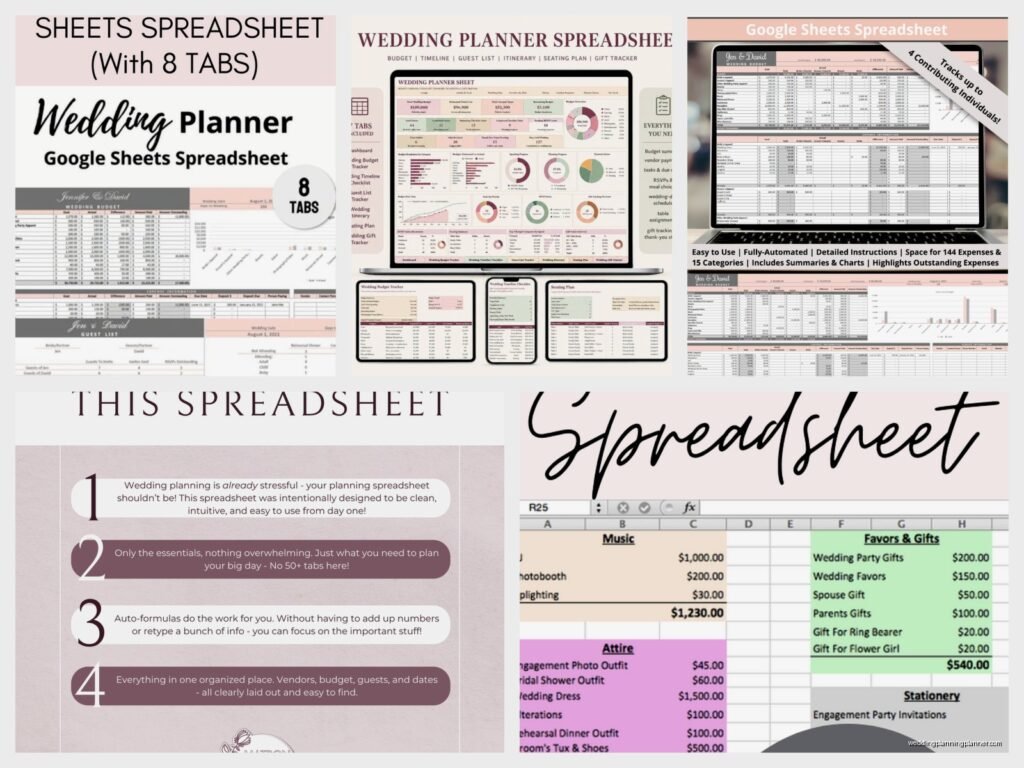
Wedding Budget Google Sheet Template: Cloud Cost Tracker
Jul
Setting Up Your Wedding Budget Google Sheet
So the first thing you gotta do is actually open Google Sheets and create a new spreadsheet. I know that sounds obvious but you’d be shocked how many couples I worked with in spring 2023 who were still trying to track their wedding budget in Notes on their phone or like, random scraps of paper. One couple literally showed me a napkin with vendor estimates scribbled on it during our consultation call.
Start with a fresh sheet and name it something you’ll actually remember like “Wedding Budget 2024″ or whatever your year is. The cloud aspect of Google Sheets is honestly the best part because both you and your partner can access it from anywhere, your mom can peek at it if you share it with her, and I can’t tell you how many times I’ve had brides text me from the grocery store parking lot asking about their floral budget because they could just pull up the sheet right there.
Column Headers That Actually Make Sense
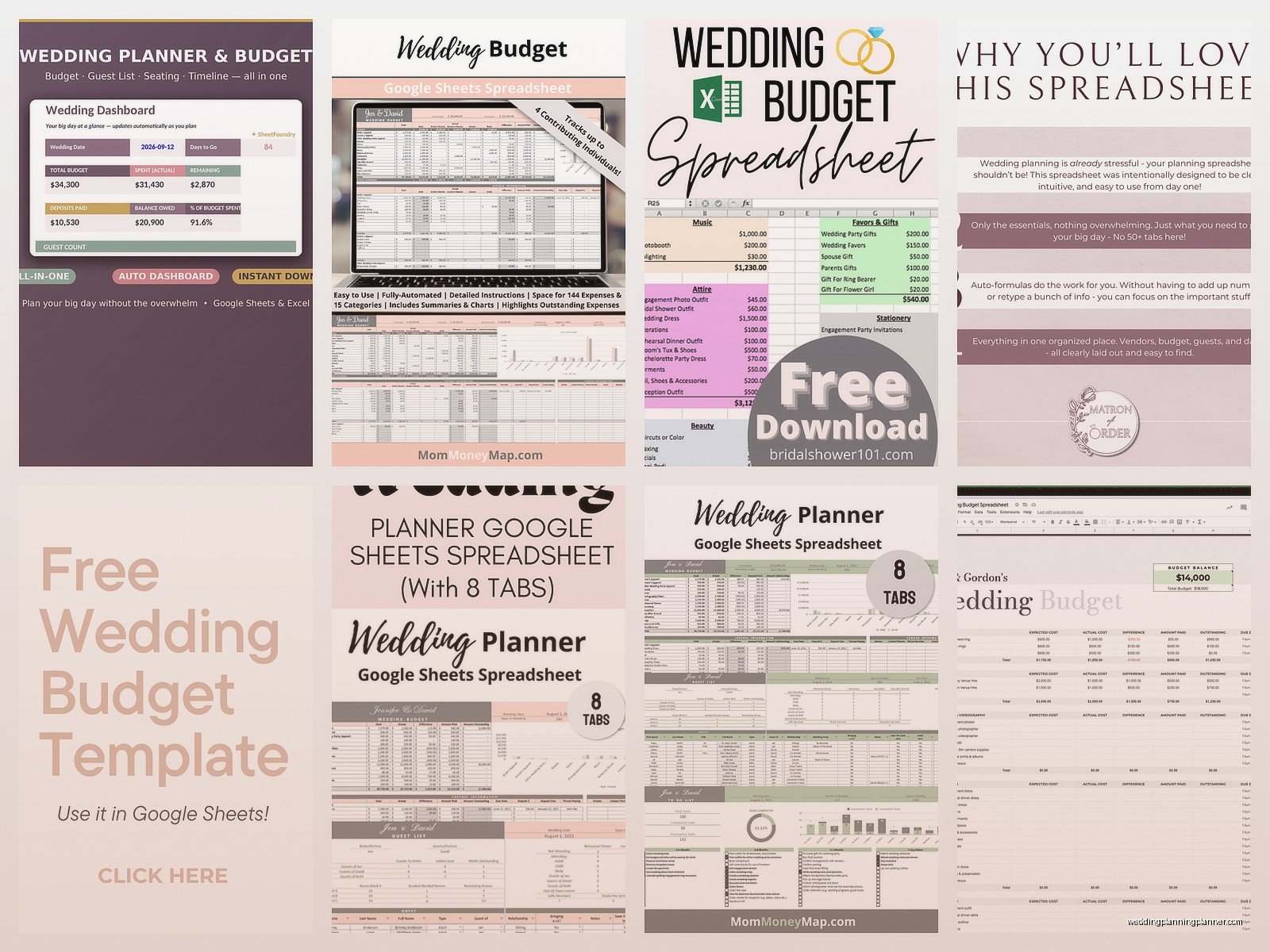
Your first row should have these columns: Category, Item Description, Estimated Cost, Actual Cost, Deposit Paid, Balance Due, Payment Due Date, Vendor Contact, and Notes. That’s like nine columns which sounds like a lot but trust me you need all of them.
Category is stuff like Venue, Catering, Photography, Flowers, Attire, Stationery (my personal favorite obviously), Music, etc. Item Description gets more specific like “ceremony flowers” or “bridesmaid bouquets” under the Flowers category.
The Estimated vs Actual Cost thing is where people mess up constantly and it drives me kinda crazy. You need BOTH columns because your estimates are gonna be wrong. They just are. That photographer who quoted you $3500 might actually be $3800 once you add the engagement session you decided you wanted later. Having both columns lets you see where you’re bleeding money.
Setting Up Formulas That Won’t Break
Okay so here’s where it gets slightly technical but not really. At the bottom of your Estimated Cost column, you’re gonna use =SUM(C2:C100) or whatever your range is. Same thing for Actual Cost column. This gives you running totals that update automatically whenever you add a number.
For the Balance Due column, you want a formula that calculates Actual Cost minus Deposit Paid. So if your Actual Cost is in column D and Deposit Paid is in column E, your formula in column F would be =D2-E2 and then you drag that down for all your rows.
I remember this one bride in summer 2021 who kept manually calculating her balance due for each vendor and she made like three errors that caused her to think she had $2000 more than she actually did, which was… not great when final payments came around. Let the spreadsheet do the math for you because you’re already stressed enough about whether your aunt and your mom’s college roommate can sit at the same table.
Color Coding Because We’re Visual Creatures
Use conditional formatting to make certain cells change color based on what’s in them. Like, you can set it so any Balance Due amount over $500 turns red, or any payment due within 30 days turns yellow. This helps you see at a glance what needs your attention.
To do this, select the cells you want to format, go to Format > Conditional formatting, and set your rules. I usually do green for “fully paid,” yellow for “deposit paid,” and red for “nothing paid yet.” You can customize it however makes sense for your brain though.
Breaking Down Categories With Sub-Sheets
Here’s something I started doing with my clients that changed everything – create separate tabs for major categories. Your main sheet is your overview, but then you have tabs for like “Catering Details,” “Flower Breakdown,” “Stationery Timeline” where you can get super granular.
For stationery specifically (which I’ve been designing for couples for fifteen years now), I have my clients track: Save the Dates quantity and cost, Invitations, RSVP cards, Details cards, Thank You notes, Programs, Menus, Place cards, Table numbers, Welcome signs… it gets extensive. And each of those items has its own printing cost, assembly cost if applicable, postage cost, and oh my god postage is the thing that ALWAYS surprises people because they forget that a heavy invitation with multiple inserts costs like $1.20 to mail not the regular stamp price.
On your sub-sheets, you can link totals back to your main overview sheet using formulas like =’Catering Details’!B50 which pulls the total from cell B50 on your Catering Details tab. This way everything stays connected and you’re not entering data twice.
Tracking Payments and Due Dates
The Payment Due Date column is critical and also the one couples ignore until it’s too late. Most vendors want deposits upfront, then payments at specific intervals, then the final payment usually like 1-2 weeks before the wedding.
I create a separate tab called “Payment Calendar” where I list everything chronologically. It’s basically the same info but sorted by date instead of category, which helps you see that oh crap, you have $4000 in payments all due the same week in March. Maybe you can contact a vendor and shift one of those dates.
You can use Google Sheets to set reminders too, sort of. If you put a date in a cell, you can set up a notification rule through Google Calendar by… actually this is getting complicated and I’m not sure everyone does this the same way. The easier thing is just to check your Payment Calendar tab like once a week and set phone reminders manually for anything coming up.
Sharing Settings and Who Gets Access
Click the Share button in the top right and you can add people by email. You’ve got options: Viewer (they can only look), Commenter (they can leave comments but not change anything), or Editor (they can change stuff).
I usually tell couples to make each other Editors obviously, make parents Commenters if they’re contributing money, and make me a Viewer so I can reference it during planning but I’m not accidentally deleting their formulas or whatever. My cat walked across my keyboard once during a client meeting and somehow changed a formula and we didn’t notice for like two weeks so… yeah, be careful about who has edit access.
You can also set it to “Anyone with the link can view” which is useful if you want to share it with your wedding party or vendors quickly without adding everyone individually. Just don’t post the link on social media or anything because then random people can see your entire budget which is weird.
The Annoying Thing About Percentage-Based Vendors
This drives me absolutely insane: some vendors charge percentages instead of flat rates, which makes budgeting a moving target. Like, your planner might charge 15% of your total budget, or your caterer adds 20% service charge, or there’s an 8% venue fee on top of everything.
For these, I create a separate section at the bottom of the main sheet called “Percentage-Based Costs” where I link to the current subtotal and multiply by the percentage. So if your subtotal of fixed costs is $30,000 and your planner is 15%, you’d have a formula like =B75*0.15 where B75 is your subtotal cell. This updates automatically as your other costs change.
The problem is this creates a circular reference situation if your planner’s fee is included in the subtotal that determines their fee, and… you know what, just track percentage vendors separately and add them in at the end. It’s easier and your brain will hurt less.
Contingency Fund and Buffer Money
Add a line item called “Contingency” or “Buffer” or “Oh Shit Fund” – whatever you wanna call it. This should be 10-15% of your total budget and it’s for all the stuff you didn’t plan for. The bridesmaid who needs alterations at the last minute. The extra bar hour because your cocktail hour ran long. The emergency boutonniere because someone sat on theirs in the limo.
I had this couple who budgeted everything perfectly, I mean down to the dollar, and then two weeks before the wedding they decided they hated their cake topper and needed a new one custom made. They had no buffer money and had to pull from their honeymoon fund. Don’t be like them.
Tracking Who Paid What
If you have multiple people contributing – like your parents are paying for the venue, his parents are covering the bar, you’re paying for photography – add a column called “Paid By” so you can track who’s covering what. This prevents the awkward situation where your mom thinks she’s paying the florist and you already paid the florist and now there’s confusion and hurt feelings.
You can also use this to track if anyone still owes money they promised. Like if Uncle Bob said he’d give you $1000 toward the band and then he… doesn’t. Not that I’m speaking from experience with my own wedding or anything.
Templates You Can Start With
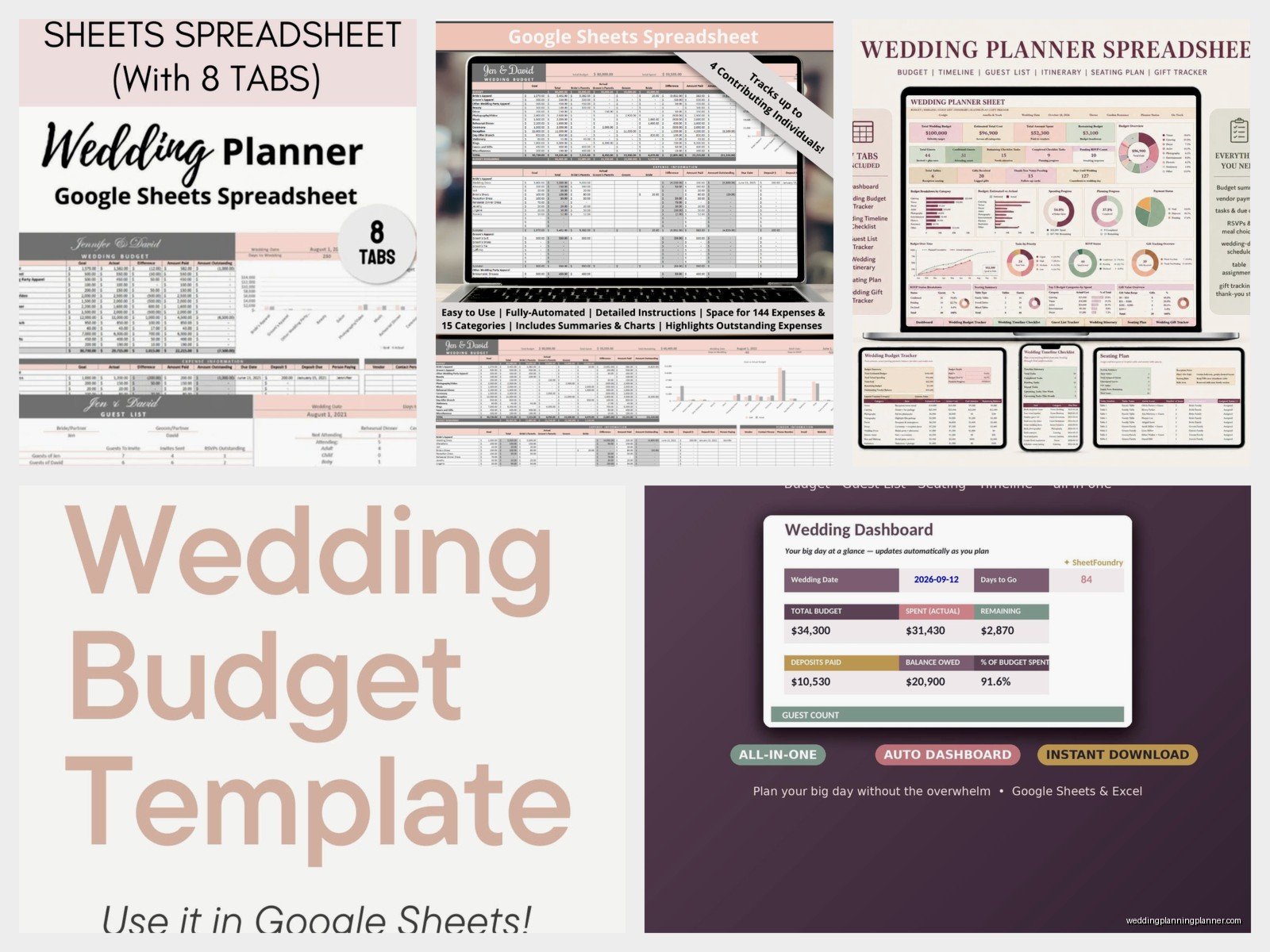
Google actually has wedding budget templates if you search “wedding budget” in the template gallery when you create a new sheet. They’re fine but kinda basic. I usually start with a blank sheet because those templates try to guess what categories you need and they’re always slightly off.
There are also a million templates online that people sell on Etsy or whatever, and some of them are really pretty with custom fonts and colors and graphs. Those are nice if you want something that looks good, but functionally they don’t do anything a basic sheet can’t do. I’m gonna be honest, I bought one once because it had a pretty color scheme and then I ended up rebuilding the whole thing anyway because the formulas were broken.
Mobile Access and Offline Mode
Download the Google Sheets app on your phone because you WILL need to check your budget while you’re out meeting vendors. The app works pretty well, though editing complex formulas on a phone screen is sorta a nightmare so I’d do major updates on a computer.
You can also enable offline mode in Google Sheets settings, which lets you view and edit your sheet without internet and it syncs when you’re back online. This saved me during a venue tour in this dead-zone rural area where there was no cell service but the bride needed to check if the rental fee fit in her budget right then.
Linking to Other Planning Documents
In your Notes column, you can add links to other Google Docs or folders. Like, link to your contract with each vendor, or to your inspiration photos for that category, or to your timeline document. This keeps everything connected in the cloud.
I keep all my wedding planning stuff in one Google Drive folder with the budget sheet, guest list, timeline, vendor contacts, seating chart, and all contracts. Then I share the whole folder with the couple and they have everything in one place. It’s honestly so much better than the filing cabinet system I used to use in like 2010 or whenever.
Some couples also link their budget to their wedding website or registry or… actually I’m not sure how that works exactly but I know people do it. You can get pretty elaborate with cross-linking documents if you’re into that level of organization.
Version History Is Your Friend
If you accidentally delete something or your partner changes a number and you can’t remember what it was before, go to File > Version History > See Version History. Google Sheets saves everything automatically and you can see exactly who changed what and when, and you can restore old versions.
This has saved me multiple times when couples have arguments about “I thought we agreed the DJ budget was $1200” and I can literally show them that no, it was always $1500, you just misremembered. Or when I accidentally sorted a column without selecting all the data and everything got misaligned and I panicked for like five minutes before remembering version history exists.
