
Planning Guides, Style Guide
Wedding Planning Template Google Docs: Cloud Organization
Jul
Setting Up Your Google Docs Wedding Planning Template
Okay so Google Docs for wedding planning is honestly one of the best decisions you’ll make and I’m gonna walk you through exactly how to set this up because I learned the hard way. Back in spring 2023 I had a bride who lost an entire Excel spreadsheet with her guest list—like just gone, corrupted file, no backup—and I literally never want to see someone cry like that again over something so preventable.
First thing you need to do is create a dedicated Google Drive folder just for wedding stuff. Not in your main Drive where it gets mixed with work documents and random screenshots. Make a folder called “Wedding Planning [Your Names]” or whatever you want, just make it specific. Inside that main folder, create subfolders: Budget, Vendors, Guest List, Timeline, Design & Decor, Contracts, and Miscellaneous.
The beauty of Google Docs is that everything auto-saves to the cloud every few seconds. You can access it from your phone while you’re at a venue, your laptop at home, or even your partner’s tablet. No more “oh I left that notebook at home” situations.
Master Planning Document Structure
Start with one master document that’s gonna be your home base. I call mine the “Wedding Command Center” because it sounds cooler than “main document” but whatever works for you. This document should have a table of contents at the top with links to all your other documents. Yes, you can hyperlink between Google Docs and it’s amazing.
In your master doc, include these sections with brief summaries and links:
- Budget tracker (link to your budget spreadsheet)
- Vendor contacts (link to vendor document)
- Timeline and checklist (link to timeline doc)
- Guest list status (link to guest list sheet)
- Design mood board (link to design doc or folder)
- Day-of schedule (link to detailed timeline)
The thing that really annoyed me for years was when couples would have like seventeen different documents scattered everywhere with no organization, and then they’d text me at 11pm asking “where did we put the florist’s quote?” Like… I don’t know, YOUR Google Drive, maybe?
The Budget Template Setup
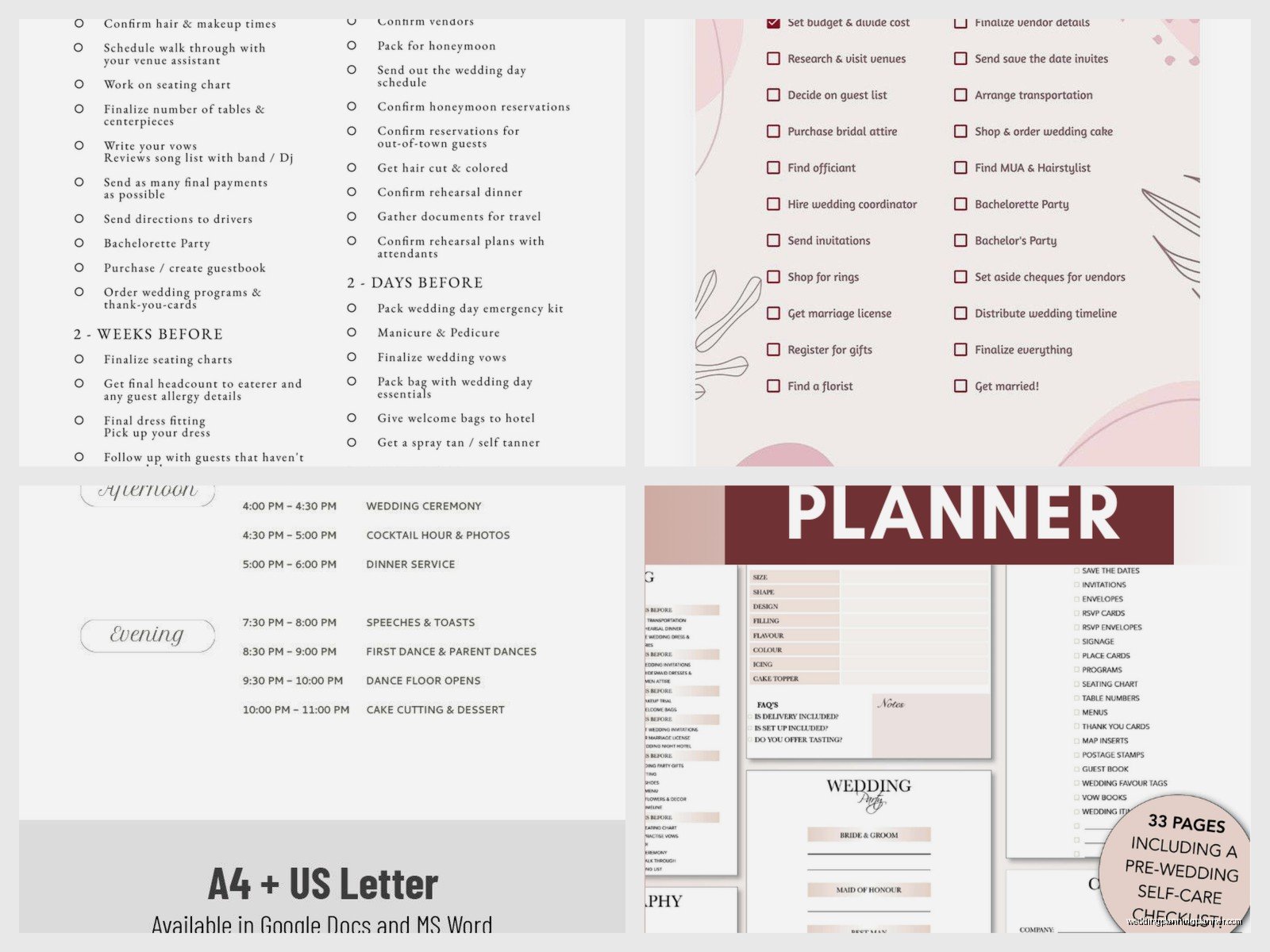
Now for the budget—and honestly you might want to use Google Sheets for this instead of Docs because the calculations are automatic. But I’ll explain both ways. In a Google Doc, create a table with these columns: Category, Vendor/Item, Estimated Cost, Actual Cost, Deposit Paid, Balance Due, Due Date, Status.
Your categories should be: Venue, Catering, Photography, Videography, Flowers, Music/Entertainment, Attire, Stationery, Rentals, Transportation, Accommodations, Beauty, Gifts & Favors, Officiant, and Miscellaneous. Trust me on the Miscellaneous category because there’s always random stuff like marriage license fees or that emergency sewing kit you need.
If you use Google Sheets instead (which I recommend), you can set up formulas that automatically calculate totals and show you how much you’re over or under budget. The formula =SUM(C2:C50) will add up all your estimated costs. You can get fancy with conditional formatting that turns cells red when you’re over budget but that might just stress you out more.
Vendor Management Document
Create a separate document called “Vendor Contacts & Details” and this is where you’re gonna save yourself so much headache. For each vendor, include:
- Business name and contact person
- Phone number, email, and website
- Services they’re providing
- Contract date and key terms
- Payment schedule
- What you still need to provide them (song list, timeline, meal counts, etc.)
- Their arrival time and setup needs for wedding day
I literally keep this document open on my phone during wedding days because someone always asks “what time is the DJ arriving?” or “what’s the photographer’s cell number?” and boom, it’s right there.
Guest List Management
The guest list is definitely better in Google Sheets, not Docs. Set up columns for: Guest Name, Partner/Plus One, Address, Phone, Email, Invite Sent, RSVP Status, Number Attending, Meal Choice, Table Assignment, Thank You Sent, and Notes.
Use the filter function so you can sort by RSVP status or see who still needs meal selections. You can share this sheet with your partner, your parents, or your wedding planner and everyone sees updates in real time. My cat walked across my keyboard once and somehow sorted my entire guest list by table number and I didn’t even notice for three days, so maybe don’t leave your laptop open unattended.
Color-code your rows: green for confirmed yes, yellow for pending, red for declined. Makes it visually easy to see where you’re at with responses.
Timeline and Checklist Documents
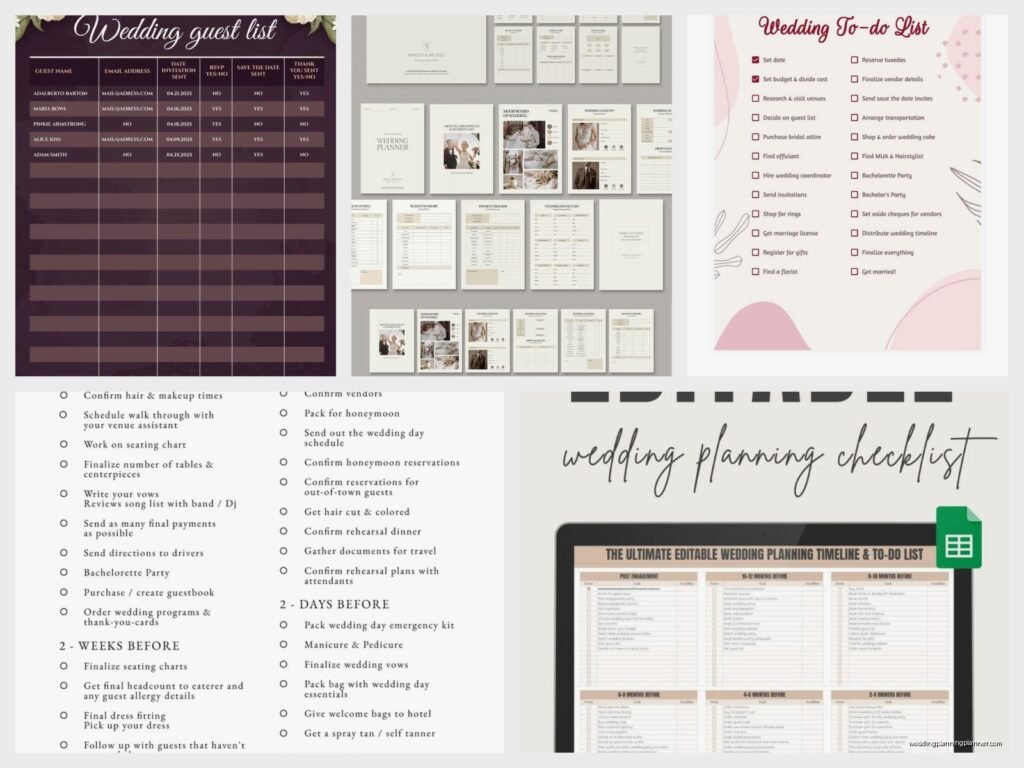
You need two timeline documents: one for the planning process (12 months out, 9 months out, etc.) and one for the actual wedding day schedule.
For the planning timeline, organize it by time periods and what needs to happen. Something like:
- 12+ Months Before: Book venue, choose wedding party, start dress shopping, hire planner
- 9-11 Months: Book major vendors (photographer, caterer, florist, band/DJ), order invitations
- 6-8 Months: Book officiant, finalize guest list, choose attire for wedding party, plan honeymoon
- 3-5 Months: Send invitations, order wedding bands, book beauty appointments, finalize menu
- 1-2 Months: Final vendor meetings, create seating chart, break in your shoes, get marriage license
- Week Of: Confirm final counts, pack for honeymoon, rehearsal, last vendor confirmations
Check off items as you complete them. There’s something really satisfying about seeing tasks get crossed off or… well, in Google Docs you can use strikethrough text or checkboxes.
The wedding day timeline should be minute-by-minute from when hair and makeup starts until the end of reception. Include buffer time because nothing ever runs exactly on schedule. I learned this during a summer 2021 wedding when the bride’s bustle took 15 minutes instead of 5 and it threw off the entire cocktail hour entrance.
Design and Inspiration Organization
Create a Google Doc for design inspiration but also make a folder for images. You can insert images directly into a Doc, but they can make the file slow to load if you go crazy with it. Instead, I usually create a document with written descriptions and links to Pinterest boards or image folders.
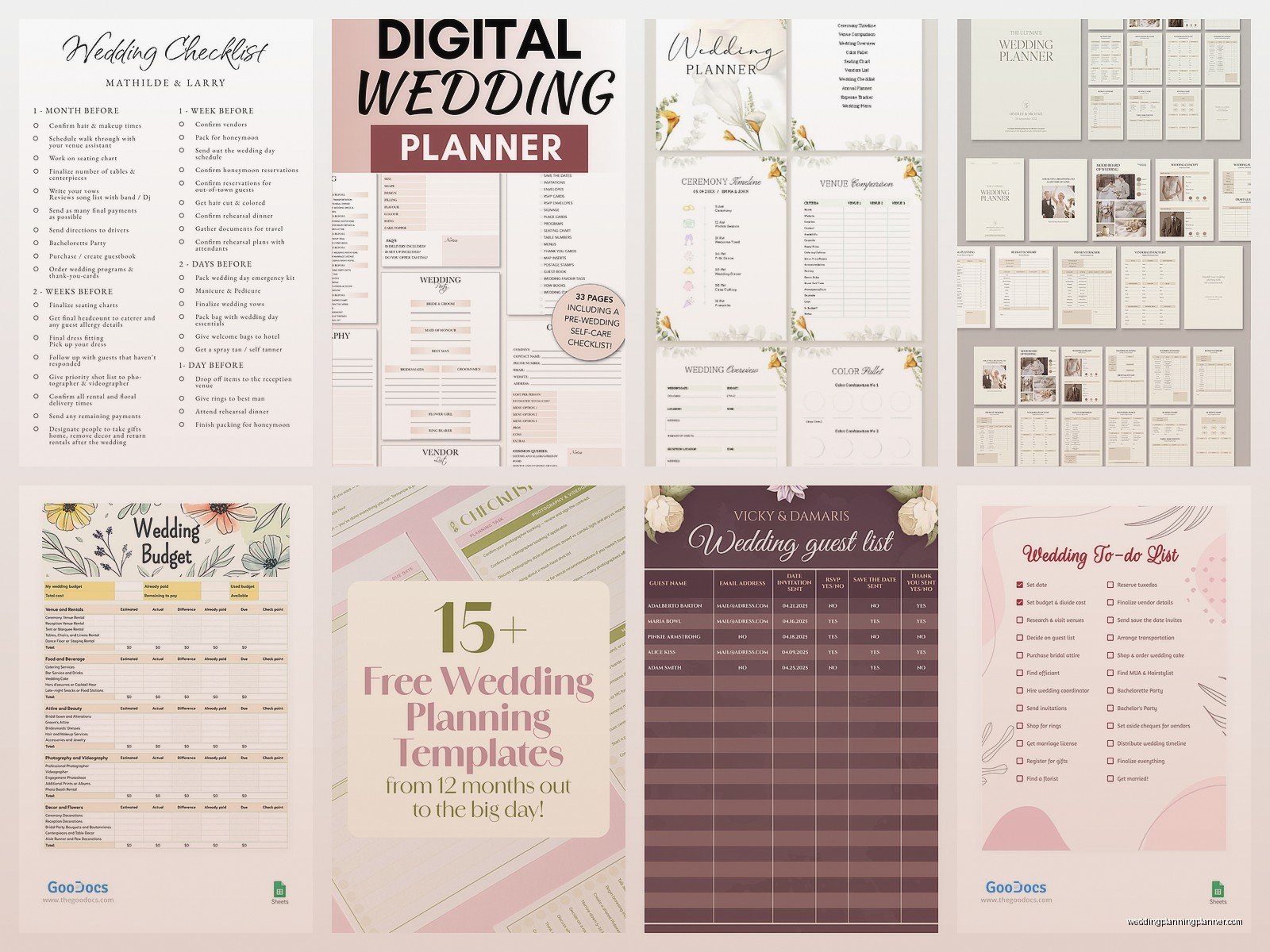
Organize by category: Ceremony Decor, Reception Tables, Floral Arrangements, Lighting, Signage, Attire Details, Color Palette, etc. Include specific notes like “love the hanging greenery but not the candles” or “this tablecloth color but with gold napkins instead of silver.”
When you meet with vendors, you can pull up this document and show them exactly what you mean instead of trying to describe “that thing with the… you know… the sparkly stuff that hangs down.”
Contracts and Important Documents Folder
This is critical—upload PDF copies of every contract to your Google Drive. Create a document that lists all contracts with the signing date, key terms, cancellation policies, and payment schedules. Some vendors send contracts as Word docs or PDFs, and you wanna have everything in one place.
I also recommend screenshotting or saving confirmation emails from vendors. When someone claims they “never said that,” you can pull up the email thread. Not to be cynical but… actually yeah, be a little cynical with vendor communications.
Sharing and Permissions
Okay so here’s where Google really shines—you can share specific documents with specific people and control what they can do. Your partner should have editing access to everything. Your parents maybe get viewing access to the guest list and budget but not editing unless you trust them not to accidentally delete stuff.
Your wedding planner (if you have one) should have editing access to pretty much everything. Bridesmaids might get view access to the timeline. The key is using the Share button and choosing “Can view” vs “Can comment” vs “Can edit” appropriately.
You can also set up notifications so you get an email when someone makes changes to a shared document. This is helpful for knowing when your mom adds seventeen cousins to the guest list without asking first.
Templates Within Templates
Create template sections for repetitive tasks. Like if you’re sending vendor inquiry emails, draft a template in a Google Doc with blanks to fill in. Same for thank you note tracking—make a template with columns for gift received, from whom, note written, note sent.
I have templates for everything: day-of vendor tip envelopes (with amounts already calculated), emergency kit contents list, getting ready day timeline, even a template for delegating tasks to wedding party members.
Mobile Access and Offline Mode
Download the Google Docs app on your phone and enable offline access for your most important documents. This saved me once when I was at a venue with terrible cell service and needed to reference the floor plan. You can make edits offline and they’ll sync when you get back online.
To enable offline: open the Google Drive app, find your wedding folder, tap the three dots, and select “Available offline.” Just note that this takes up storage space on your phone so maybe don’t do this with your entire photo collection.
Specific Document Ideas You Might Not Think Of
Here are some other documents I create that couples always thank me for later:
Emergency Contact List: Everyone’s cell numbers including backup contacts for vendors, venue coordinator, parents, wedding party, hotel front desk. Print this and give it to key people on wedding day.
Toasts and Speeches Tracker: Who’s speaking, in what order, approximate length, any special music or slideshow needs. Share this with your DJ/MC.
Vendor Meal Planning: Which vendors need meals, any dietary restrictions, when they’ll eat. Your caterer needs this.
Honeymoon Planning: Separate from wedding stuff but still in the main folder. Confirmation numbers, itinerary, packing list, travel insurance info.
Gift Tracker: Who gave what gift (from engagement through wedding), so you don’t send the wrong thank you note. Include where gifts are from for easy returns if needed.
Backup Strategy
Even though Google Drive is cloud-based, I’m paranoid, so I also recommend doing monthly downloads of your most critical documents as PDFs saved to an external hard drive or different cloud service. It’s probably unnecessary but after that spring 2023 incident I mentioned earlier, I just… yeah. Better safe than devastated.
You can also use Google Takeout to download your entire Drive if you want a complete backup. It’s kinda overkill for most people but the option exists.
Naming Conventions Matter
Name your documents clearly and consistently. Use dates in your file names for versions, like “Seating Chart v3 – Updated Jan 15” so you know which is the most recent. Nothing worse than opening “Final Seating Chart” only to find out there’s also “Final Seating Chart ACTUALLY FINAL” and “Seating Chart USE THIS ONE.”
I use this format: Category – Specific Item – Date if applicable. So like “Vendors – Florist Proposal – Dec 2023” or “Timeline – Day Of Schedule v2.” Makes everything searchable and organized.
Collaboration Tips
When multiple people are editing the same document, use the commenting feature instead of just changing stuff. Highlight text and click the comment button to suggest changes or ask questions. This prevents the confusion of “wait who changed the ceremony time and why?”
You can assign comments to specific people too, like tag your partner with “@[their email]” and they’ll get a notification to respond. Super helpful for decisions that need input from both of you.
Version history is your friend—you can see every change made to a document and who made it. Click File > Version History > See Version History and you can even restore old versions if someone accidentally deletes important stuff. I’ve used this feature approximately one million times.
The thing about Google Docs for wedding planning is it’s not fancy or exciting, it’s just practical and it works. You don’t need special software or apps that cost money or have features you’ll never use. Just organize your folders, create your core documents, share them appropriately, and actually keep them updated. That last part is where people fail—they set everything up perfectly in month one and then never touch it again and wonder why they’re disorganized by month eight. Update as you go, even if it’s just quick notes on your phone during vendor meetings, and you’ll be so much better off than couples trying to plan a wedding with random notes scattered across email, text messages, and that one napkin from the cake tasting that’s probably in a junk drawer somewhere
