
Planning Guides, Style Guide
Wedding Spreadsheet Template: Complete Excel Organizer
Jul
The Main Tabs You Actually Need
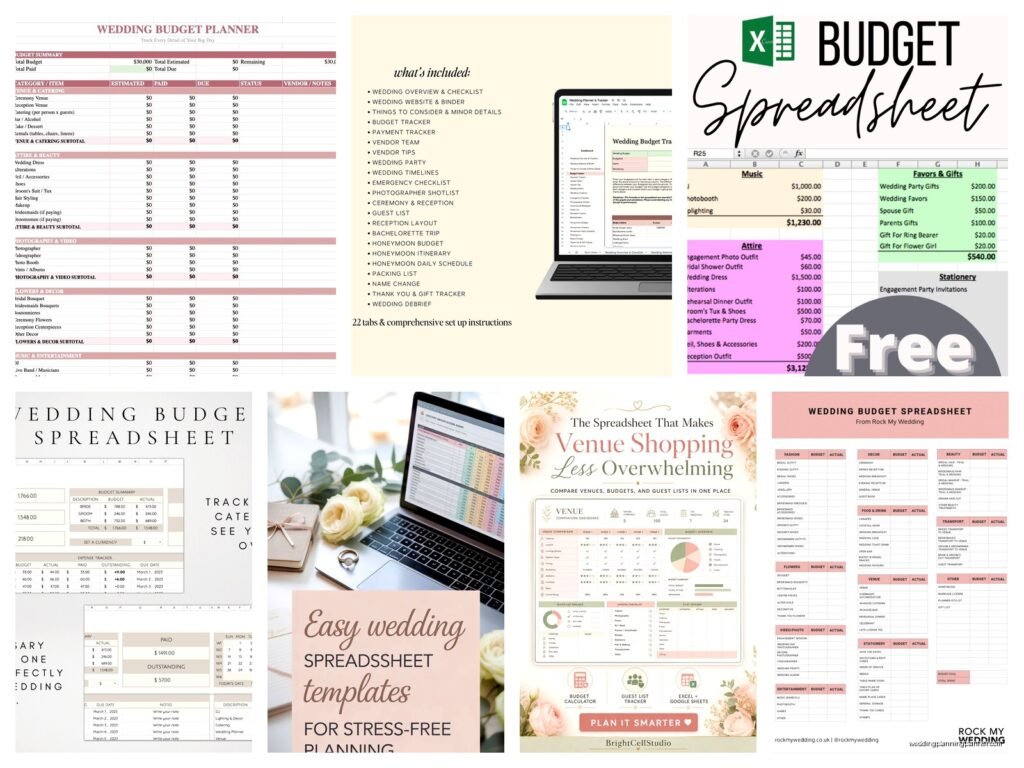
So the wedding spreadsheet I always recommend has like six core tabs and honestly you could probably get away with five but the sixth one saves your sanity when it’s 11pm and a bridesmaid is texting you about transportation. Start with a Master Budget tab because that’s where everything lives and dies – I had this bride in spring 2023 who kept three different budget documents and none of them matched and we literally found out two weeks before the wedding that she’d double-counted the venue deposit in two places.
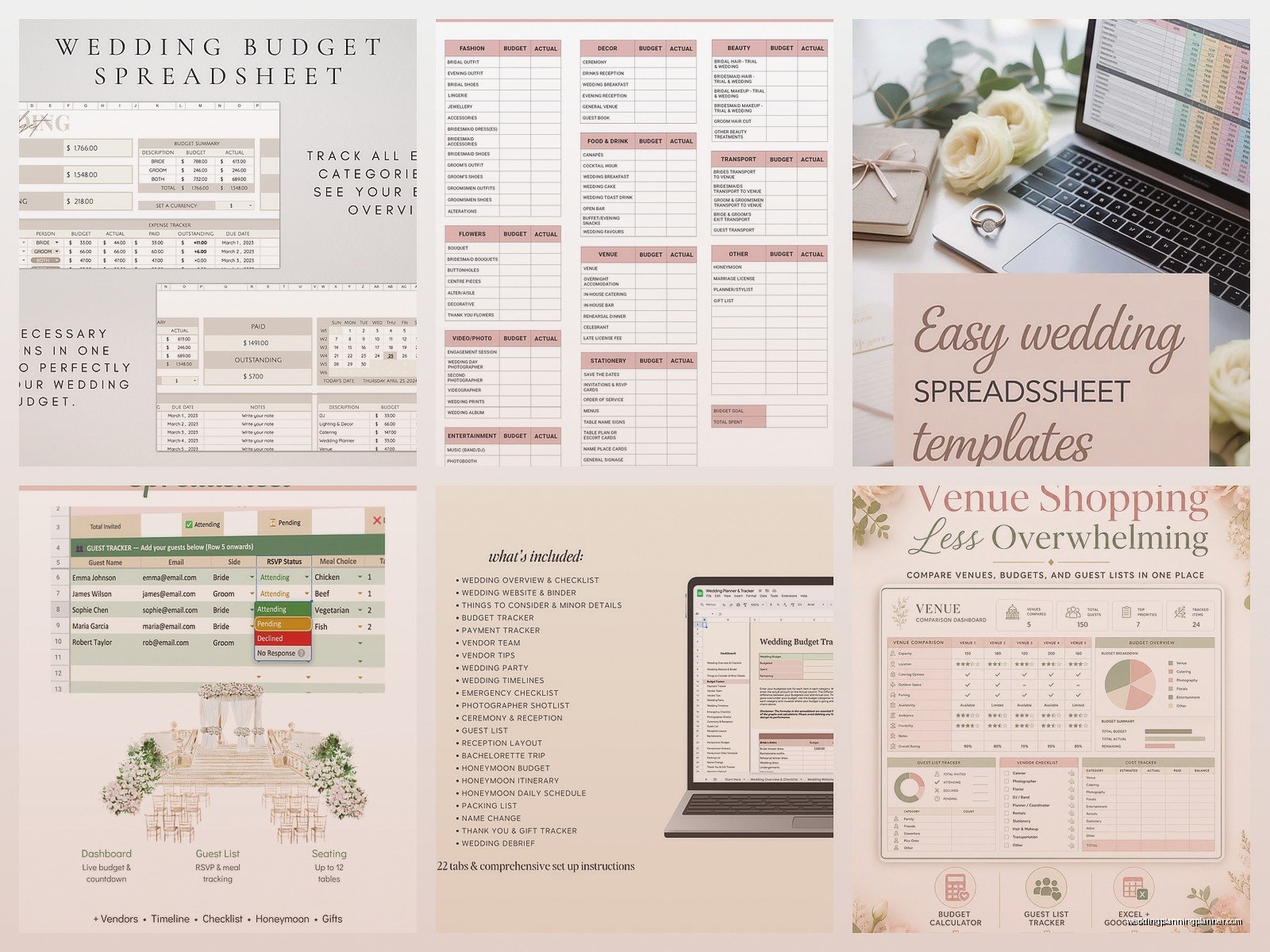
Your Master Budget tab needs these columns: Category, Item Description, Estimated Cost, Actual Cost, Deposit Paid, Balance Due, Due Date, Paid (checkbox), and Notes. I know that sounds like a lot but trust me every single column matters. Under Category you’re gonna list stuff like Venue, Catering, Photography, Flowers, Attire, all that. Then break it down – so under Catering you’d have line items for cocktail hour apps, dinner service, late night snacks, cake, whatever.
The Guest List tab is where things get messy and also where I spend probably 30% of my consultation time because families are complicated. You need: Guest Name, Address, Phone, Email, Invited To (ceremony only, reception, rehearsal dinner), RSVP Status, Number of Guests, Meal Choice, Dietary Restrictions, Gift Received, Thank You Sent, and Table Assignment. That last one you won’t fill in until later but having the column ready means you’re not reformatting at midnight three days before the wedding.
Setting Up Formulas That Don’t Break
Okay so here’s where Excel gets useful instead of just being a fancy list. In your Master Budget tab, you want a SUM formula at the bottom of your Estimated Cost column and your Actual Cost column. That’s basic stuff. But also create a cell that shows you the difference between estimated and actual – this is gonna tell you real fast if you’re going over or under budget as you book vendors.
For the Balance Due column, use a formula like =Actual Cost – Deposit Paid so it auto-calculates what you still owe. Then you can sort by Due Date and see what payments are coming up. I usually add conditional formatting so anything due within 30 days turns yellow and anything overdue turns red. You can find conditional formatting under the Home tab and it’s honestly easier than it sounds.
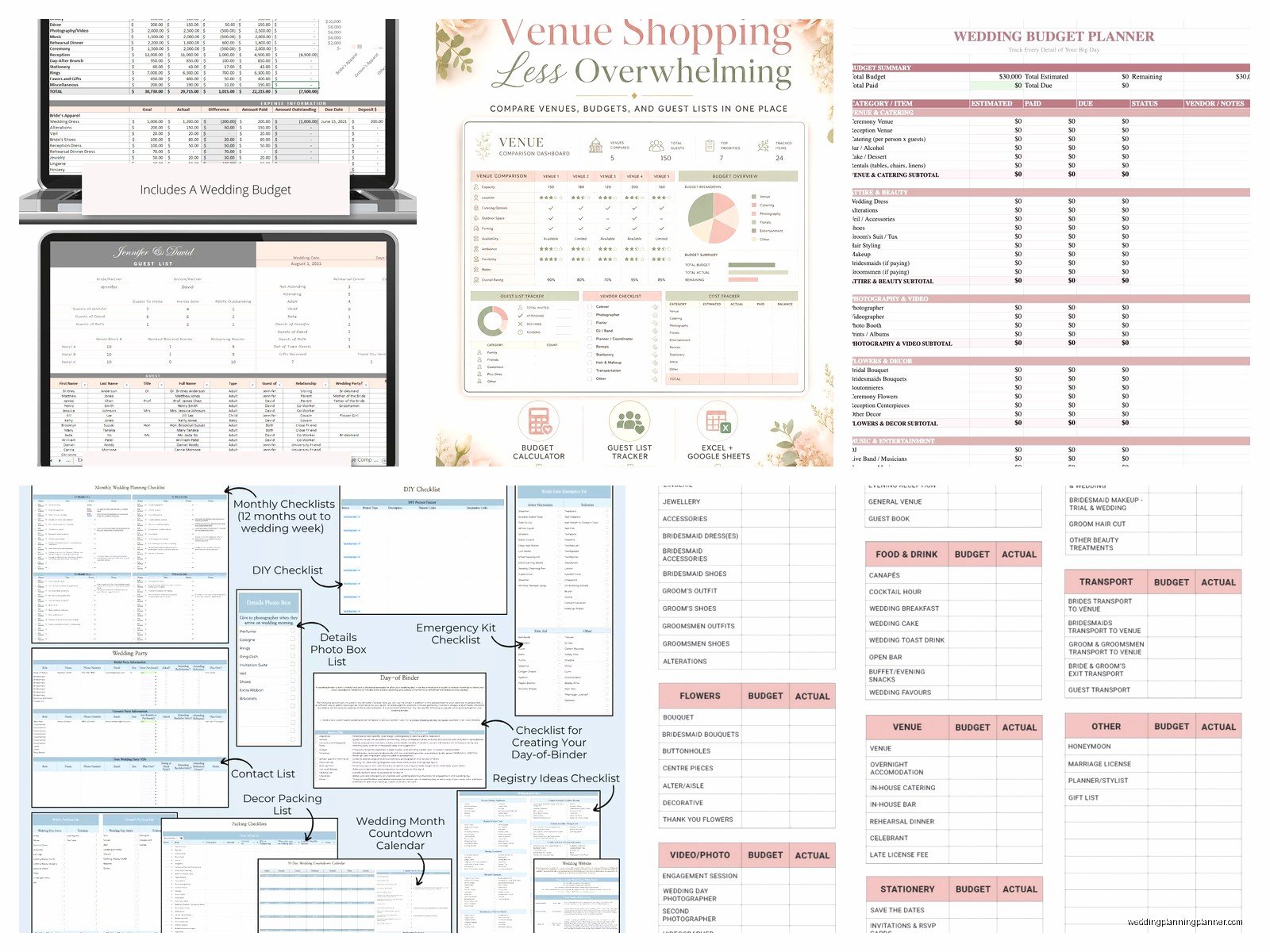
In the Guest List tab, at the top I always put a count formula for total invited, total accepted, total declined, and total pending. Something like =COUNTIF(E:E,”Accepted”) where E is your RSVP Status column. This updates automatically when you change someone’s status which is so satisfying when you’re tracking RSVPs and watching that number climb.
The Vendor Management Tab
This is the tab that saved me when my cat knocked over my coffee onto a stack of contracts in summer 2021 and I realized I had everything backed up in the spreadsheet anyway. You need: Vendor Category, Company Name, Contact Person, Phone, Email, Website, Contract Signed (checkbox), Deposit Amount, Deposit Paid Date, Balance Due, Final Payment Due Date, and Notes.
The Notes column is where you put stuff like “needs final headcount by April 15” or “bringing own speakers” or whatever random detail you’ll forget otherwise. I also include a column for Arrival Time on wedding day because coordinating when everyone shows up is its own nightmare and having it all in one place means you can send one email with the timeline instead of digging through twelve different contracts.
One thing that really annoys me is when people don’t update this tab after they sign contracts and then three months later they’re like “wait did we pay the photographer deposit” and I’m like… check your spreadsheet? But also I get it because life gets busy and you forget to update things.
Timeline and Task List Tabs
The Timeline tab is your month-by-month breakdown of what needs to happen when. I structure it with columns for: Timeframe (like “12 months before” or “2 weeks before”), Task, Assigned To, Status, and Completion Date. You can find a million wedding timeline templates online but honestly just google “wedding planning timeline” and pick one that matches your engagement length, then customize it.
Some tasks everyone forgets: ordering extra invitations for keepsakes, breaking in your wedding shoes (do this I’m begging you), picking up marriage license, confirming vendor arrival times two days before, assigning someone to handle the card box. That last one – you’d be shocked how many couples forget to designate a trusted person to take the cards home and then they’re trying to carry this awkward box at the end of the night.
The Task List tab is different from Timeline because it’s for all the random stuff that doesn’t fit neatly into a timeframe. Like “research hotel blocks” or “decide on signature cocktail” or “figure out what to do with Great Aunt Susan who can’t sit near Uncle Bob.” I organize this by category – Venue, Catering, Decor, etc. – with columns for Task, Priority (High/Medium/Low), Status, and Notes.
Seating Chart Tab Setup
Don’t even start this until like six weeks before the wedding or you’ll make yourself crazy. But when you do start it, pull your guest list from that other tab – you can literally copy and paste the names of everyone who RSVP’d yes. Then add columns for: Table Number, Relationship to Couple, Any Conflicts, and Seated With.
I usually create a separate little section in this tab that lists each table number and how many seats it has. So like Table 1: 8 seats, Table 2: 8 seats, whatever your venue has. Then as you assign people you can keep count and make sure you’re not putting 10 people at an 8-person table because the rental company is NOT going to be happy about that.
The Relationship to Couple column helps you remember who knows who – like you can group college friends together or work friends or family. The Conflicts column is for “these two people are divorced” or “these cousins haven’t spoken since 2019” or whatever drama you need to navigate. Wedding politics are so exhausting and I say that as someone who does this professionally.
Day-Of Timeline Tab
This is the detailed minute-by-minute schedule for the actual wedding day and it’s probably the most important tab for your vendors and wedding party. Structure it with: Time, Event/Activity, Location, People Involved, and Vendor Responsible. Start from when hair and makeup begins and go all the way through to when the venue needs to be cleared.
Include everything: when the photographer arrives, when the florist delivers, when grandma needs to be picked up from her hotel, cocktail hour start time, when dinner service begins, first dance, cake cutting, all of it. I usually work backwards from the ceremony time to figure out when everything else needs to happen – if the ceremony is at 5pm and you need 30 minutes for photos beforehand and an hour to get dressed… you see where I’m going.
Send this timeline to every single vendor about a week before the wedding. Then send it again two days before. Some of them won’t read it but at least you tried and you have proof you sent it when the DJ shows up an hour late (this has happened and I’m still annoyed about it).
Extra Tabs That Make Your Life Easier
I usually add a Registry Tracker tab even though most registries are online now because sometimes people buy off-registry gifts or give cash and you need to track it for thank you notes. Columns: Guest Name, Gift Description, Amount (for cash gifts), Date Received, Thank You Note Sent, Date Sent. Link this to your guest list if you’re fancy with Excel but honestly just having it in the same workbook is good enough.
A Music tab is kinda optional but helpful if you’re particular about what plays when. Sections for: Ceremony Processional, Ceremony Recessional, Cocktail Hour Playlist, Dinner Music, First Dance, Parent Dances, Do Not Play List. That last one is crucial – give your DJ a specific list of songs you absolutely don’t want because “just play good music” means different things to different people.
Some people add a Decor tab where they track DIY projects or purchased items with columns for Item, Quantity Needed, Quantity Purchased/Made, Cost, and Status. This is super helpful if you’re doing centerpieces or favors or any kind of crafty stuff yourself. I had a bride who made 150 lavender sachets as favors and didn’t realize until the week before that she’d only made 120… the spreadsheet would’ve caught that earlier.
Sharing and Updating Your Spreadsheet
If you’re planning with a partner or your mom is super involved or you hired a planner like me, you gotta figure out how to share this thing. Google Sheets is honestly better for collaboration because multiple people can edit at once and it auto-saves. You can upload your Excel file to Google Drive and convert it to Sheets pretty easily.
Set up sharing permissions carefully though – like maybe your planner needs edit access but your bridesmaids only need view access for the timeline. You don’t want someone accidentally deleting your entire guest list because they don’t know how spreadsheets work (yes this has happened, no I don’t want to talk about it).
Update the spreadsheet weekly at minimum, daily when you’re in the final month. I usually tell clients to pick a specific day like “every Sunday evening I’ll update my spreadsheet” because if you don’t schedule it you’ll forget and then suddenly it’s three months out of date and useless. Make it a routine, maybe pour some wine, put on that show you’re rewatching – I’ve been cycling through The Office again and it makes admin work slightly less boring – and just update your stuff.
Common Excel Features You’ll Actually Use
Freeze panes is your friend when you have a long guest list or budget. Click on the row below your headers, go to View tab, click Freeze Panes, and now your column headers stay visible when you scroll. Life changing? Maybe not, but definitely helpful when you’re scrolling through 200 guests trying to remember what column is meal choice.
Filters are essential for the guest list. Click anywhere in your data, go to Data tab, click Filter, and little dropdown arrows appear in your headers. Now you can filter to show only people who haven’t RSVP’d yet or only people with dietary restrictions or only your partner’s side of the family. Makes everything so much faster than scrolling through the whole list.
Data validation is useful if you want dropdown menus for things like RSVP Status or Meal Choice. Select the cells where you want the dropdown, go to Data tab, click Data Validation, choose List, and type your options separated by commas. Now instead of typing “Accepted” every time you can just pick it from a dropdown and you won’t have some entries that say “Accepted” and others that say “Yes” and others that say “Coming” which messes up your formulas.
Conditional formatting I mentioned earlier but seriously it’s so useful for highlighting stuff that needs attention. You can make overdue payments turn red, upcoming due dates turn yellow, completed tasks turn green… whatever helps your brain process information quickly. Find it under Home tab and just play around with it until it does what you want or watch a YouTube tutorial because sometimes the interface is confusing.
Backing Up Your Spreadsheet
Save your spreadsheet to cloud storage – OneDrive, Google Drive, Dropbox, whatever you use. Also email yourself a copy every few weeks as an extra backup. I learned this lesson the hard way when a client’s laptop died and she hadn’t backed up her spreadsheet in two months and we had to recreate so much information from memory and email threads and scattered notes.
Name your file something clear like “Smith-Wedding-Planning-2024” not just “wedding stuff” because you’ll have a million wedding-related files eventually and you need to know which one is THE spreadsheet. Date your backups if you’re making multiple versions – like “Smith-Wedding-Planning-2024-March15” so you can go back to an older version if needed.
Print a copy of your main tabs about a week before the wedding too. I know we’re all digital now but when you’re getting ready on wedding day and someone has a question, it’s easier to flip through printed pages than open your laptop. Plus if your phone dies or something gets spilled on your devices, you have a paper backup of the critical info like vendor contact numbers and timeline
