
Planning Guides, Style Guide
Free Online Wedding Planner Template: Cloud Organizer
Jul
Why Cloud Wedding Planners Actually Save Your Sanity
So cloud-based wedding planners are basically gonna change how you organize everything because I learned this the hard way in summer 2021 when I had a bride lose her entire paper planner in a coffee shop two months before her wedding. Like, just gone. Someone probably threw it away thinking it was trash. We had vendor contacts, payment schedules, everything in there. That’s when I became obsessed with getting every single couple I work with onto some kind of cloud system.
The best part about free online wedding planner templates is you can access them from literally anywhere. Your phone while you’re at the florist, your laptop at 2am when you suddenly remember you forgot to email the DJ, your tablet when you’re showing your mom options at brunch. Everything syncs automatically and you don’t have to worry about version control or which notebook has the correct guest count.
What Makes a Good Cloud Organizer Template
Okay so here’s what you actually need in a template that’s worth your time. First, it’s gotta have a master checklist that’s broken down by timeline. Not just “book photographer” but like “research photographers, schedule consultations, compare packages, make deposit, schedule engagement shoot” as separate tasks. The really good ones let you assign due dates and will send you reminders.
Budget tracking is non-negotiable. You need columns for estimated cost, actual cost, deposit paid, balance due, and payment due date. I’ve seen too many couples lose track of who they’ve paid and who they haven’t, and then you’re scrambling trying to figure out if you already sent the caterer their final payment or if that was just the deposit.
Guest list management needs to be robust. Name, address, email, phone, plus-one status, RSVP status, meal choice, dietary restrictions, and which events they’re invited to if you’re doing multiple things. Some templates let you sort by different categories which is super helpful when you’re trying to figure out seating charts or… wait, I’ll get to seating charts in a minute.
Vendor Contact Hub
You need one central place for every single vendor. Company name, contact person, phone, email, website, contract date, payment schedule, what they’re providing, arrival time on wedding day. I usually add a notes section too because you’ll want to remember stuff like “florist can’t deliver before 2pm” or “photographer hates being asked to do formal family photos during cocktail hour.”
What really annoyed me about most free templates I tried in the beginning was that they didn’t have a section for login credentials. If you’re using a wedding website builder or online registry, you need somewhere to store those usernames and passwords. My cat walked across my keyboard once and somehow logged me out of a couple’s wedding website and it took me 30 minutes to find the password reset email.
The Main Free Options You Should Know About
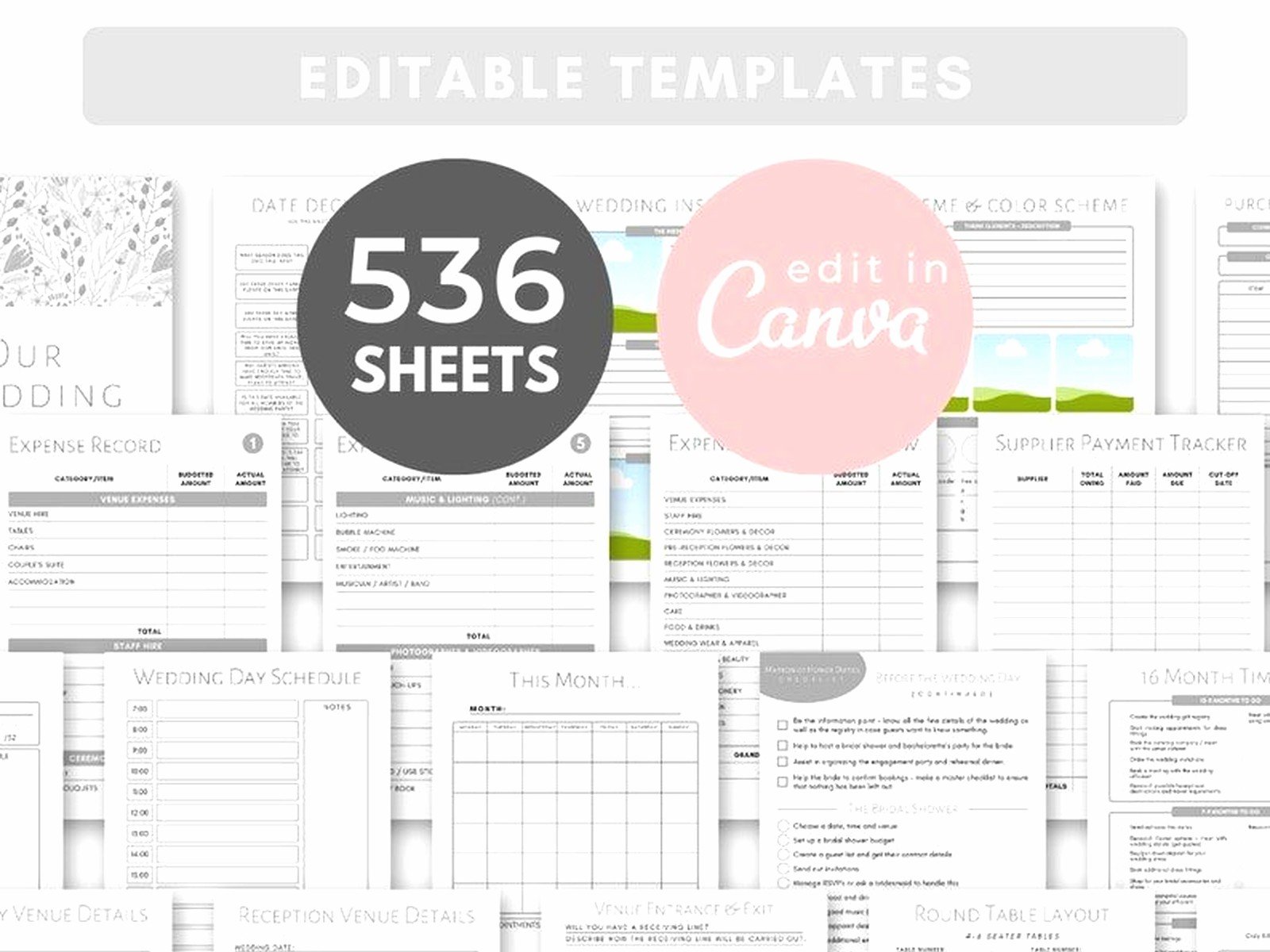
Google Sheets is honestly my go-to recommendation for couples who want something free and customizable. You can find wedding planner templates in the Google Sheets template gallery or just search “wedding planner template” and copy someone else’s. The nice thing is you can share it with your partner, your planner, your mom, whoever needs access. You can set different permission levels too so your future mother-in-law can view but not accidentally delete your entire vendor list.
I built my own Google Sheets template that I share with clients and it has like 15 different tabs. Budget, checklist, vendors, guest list, timeline, menu planning, seating chart, gift tracker, honeymoon planning, and a few others. The formulas do most of the math for you so when you enter actual costs it automatically updates your total spent and remaining budget.
Trello for Visual People
Trello’s free version works really well if you’re more visual and like seeing things as cards you can move around. You can create boards for different categories and then cards for individual tasks. Like you’d have a “Venue” list with cards for “tour venues,” “compare pricing,” “book venue,” “menu tasting,” etc. You can add due dates, checklists within cards, attach files, and leave comments.
The thing with Trello is it’s less structured than a spreadsheet so you kinda have to build your own system. Some people love that flexibility, others find it overwhelming. I had a groom in spring 2023 who used Trello for work and he set up their entire wedding planning board in like an hour. His fiancée thought he was insane because there were 200+ cards, but honestly it was incredibly thorough.
Notion Templates
Notion is having a moment right now and there are tons of free wedding planner templates. It’s somewhere between Google Sheets and Trello in terms of structure. You can have databases, checklists, calendars, and text all in one place. The learning curve is steeper though if you’ve never used it before.
The free version limits you to one workspace and has some restrictions on file uploads, but for wedding planning that’s usually enough. You can embed images, links, and even videos. I’ve seen couples use Notion to keep inspiration photos right next to their vendor contacts which is pretty smart.
How to Actually Set Up Your Cloud Organizer
Don’t try to fill everything out in one sitting. You’ll burn out and abandon it. Start with the basics: your wedding date, venue, and any vendors you’ve already booked. Then add your guest list even if it’s rough. Just names to start, you can add addresses later when you’re ready to send save-the-dates.
Set up your budget categories first before entering any numbers. Standard categories are venue, catering, photography, videography, music, flowers, attire, stationery, transportation, accommodations, and miscellaneous. Under each category you’ll have line items. Like under “attire” you’d have wedding dress, alterations, veil, shoes, jewelry, groom’s suit, etc.
The Checklist Timeline Thing
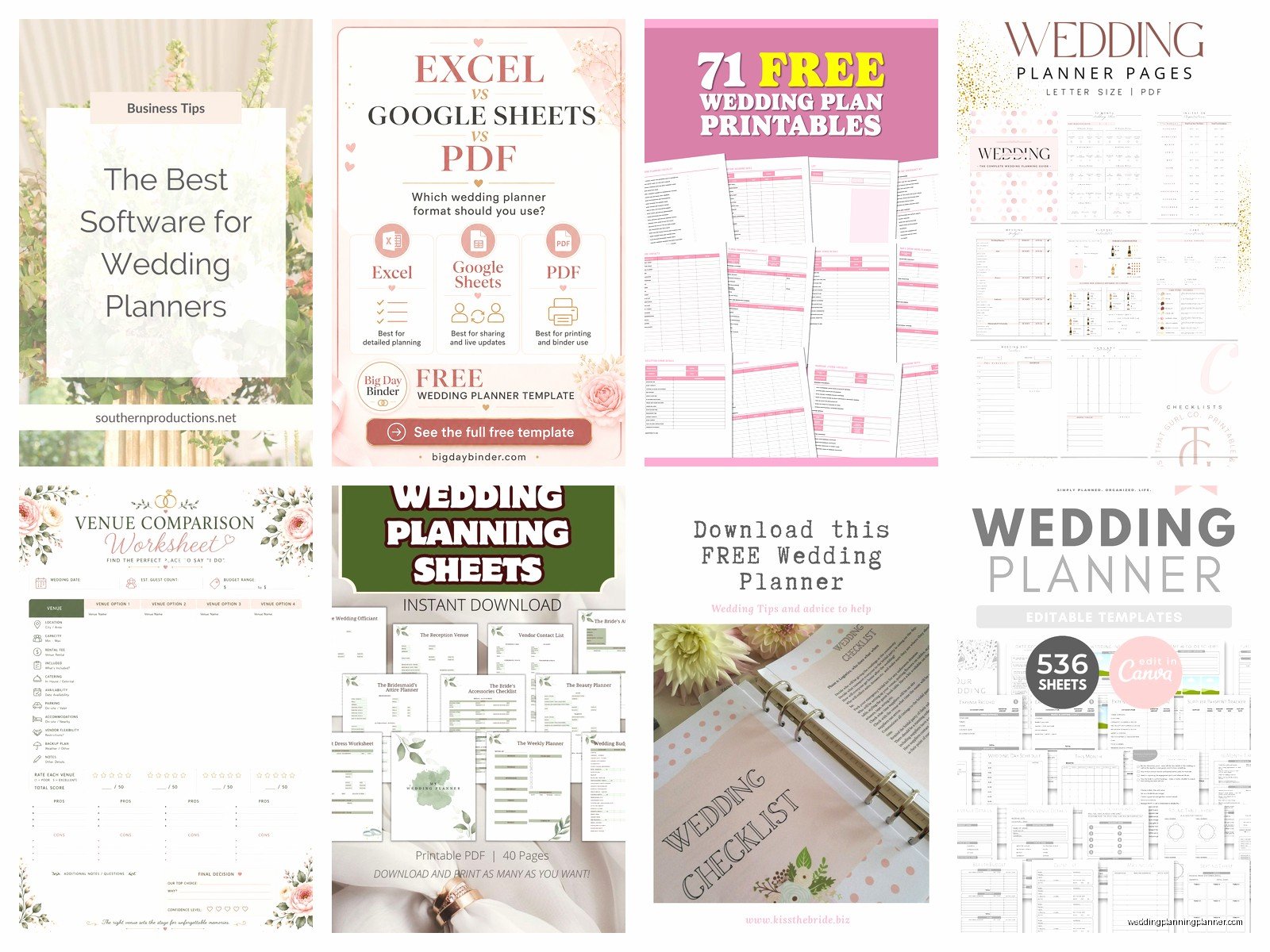
Most templates come with a pre-made checklist organized by how many months out you are. 12+ months before, 9-12 months, 6-9 months, and so on. Go through and delete tasks that don’t apply to you. Not having a church ceremony? Delete all those church-related tasks. Not doing a rehearsal dinner? Gone.
Add your own tasks that are specific to your wedding. Having a welcome party? Add those planning tasks. Doing a Sunday brunch? Put it in. The template is just a starting point and you need to make it actually useful for your situation.
Keeping It Updated Without Losing Your Mind
Here’s the thing nobody tells you: the organizer only works if you actually use it. Set a recurring calendar reminder to update your wedding planner every week. Sunday nights work well for most people. Spend 15-20 minutes adding new tasks, checking off completed ones, updating costs, and reviewing what’s coming up.
When you have a vendor meeting or make a decision, update your organizer immediately. Or at least within 24 hours while you still remember the details. I cannot tell you how many times couples tell me “oh we decided something about the flowers but I can’t remember exactly what” because they didn’t write it down right away.
Sharing Access Strategically
Give your partner full edit access obviously. If you’re working with a planner or coordinator, they should have it too. Parents can have view-only access if they’re helpful and involved, but honestly think carefully about this. Some parents will stress you out by commenting on every single decision or constantly checking your budget.
Your wedding party doesn’t need access to everything. Maybe share just the timeline for the wedding day or the list of events they need to attend. They don’t need to see your budget or guest list drama.
The Features You’ll Actually Use vs What Sounds Cool
Seating chart tools sound amazing in theory but they’re honestly a pain to use in most free templates. You’re better off using a dedicated free seating chart tool or even just doing it on paper first. The digital version is good for storing the final result, but the actual arranging process is… it’s frustrating on a spreadsheet, let’s just say that.
Guest list tracking is something you’ll use constantly. Every time someone RSVPs, every time you get an address, every time someone changes their meal choice. This needs to be easy to update and sort. I like having filters set up so you can quickly see who hasn’t RSVPed yet or who has dietary restrictions.
Timeline builders are incredibly useful for the actual wedding day. You need to know when vendors arrive, when the ceremony starts, how long cocktail hour is, when toasts happen, when the cake gets cut. Share this with all your vendors so everyone’s on the same page. The good templates let you assign people to each task so the photographer knows they’re responsible for capturing the cake cutting.
Payment Tracking That Actually Helps
The payment tracking section should show you at a glance what’s paid, what’s coming due, and what you still owe. Color coding helps here. I use green for paid in full, yellow for deposit paid, red for overdue, and white for not yet due.
Set up reminders for payment due dates. Most vendors want final payment 1-2 weeks before the wedding, but some want it 30 days out. You don’t want to miss a payment deadline because you weren’t paying attention.
What to Do When You’re Sharing With Someone Who Won’t Use It
If your partner refuses to engage with the cloud organizer, don’t force it. Just keep them updated verbally and make decisions together, but you be the one who actually inputs everything. It’s annoying but fighting about it isn’t worth it. Some people just aren’t spreadsheet people and that’s fine I guess.
You can also try different formats. Maybe they hate Google Sheets but they’d actually use Trello because it feels less overwhelming. Or maybe they just want a simple checklist app on their phone. Figure out what works for them and adapt.
Mobile Access Is Everything
Whatever system you choose needs to work well on your phone. You’ll be checking it while you’re out running errands, at vendor meetings, shopping for stuff. The Google Sheets app is pretty good. Trello’s mobile app is actually better than the desktop version in some ways. Notion’s app is fine but can be slow sometimes.
Download the app for whatever platform you’re using and set up quick access. Put it on your home screen. Add a widget if that’s an option. The easier it is to check and update, the more likely you are to actually do it.
Backing Up Your Cloud Organizer
Even though it’s in the cloud, you should still export a copy every month or so. Google Sheets can download as Excel or PDF. Trello can export to JSON. Notion can export to PDF or Markdown. Just keep a backup copy somewhere because technology fails sometimes and you don’t want to lose everything.
I also recommend keeping a simplified paper version of critical information. Vendor contact list, wedding day timeline, emergency contacts. Put it in a binder that you bring to the venue on wedding day. If your phone dies or the wifi is terrible, you still have the basics.
The Stuff That’s Worth Paying For
Most free templates are honestly good enough, but some paid options add features that might be worth it. Wedding planning apps like Zola or The Knot have free versions with premium upgrades. The premium usually gets you more guest management features, better budget tracking, or integration with other services.
I usually tell couples to start with free and upgrade only if you hit limitations that actually bother you. Don’t pay for features you won’t use just because they sound nice.
