
Planning Guides, Style Guide
Google Docs Wedding Planning Template: Free Download Files
Aug
Google Docs Templates Are Actually Perfect for Wedding Planning
Okay so Google Docs wedding planning templates are honestly one of the best free resources you can grab and I wish more couples knew about them because I’ve seen people spend like $50 on planning apps when they literally just need a spreadsheet and some checklists. The thing is, Google makes it super easy to access their template gallery but somehow nobody knows it exists?
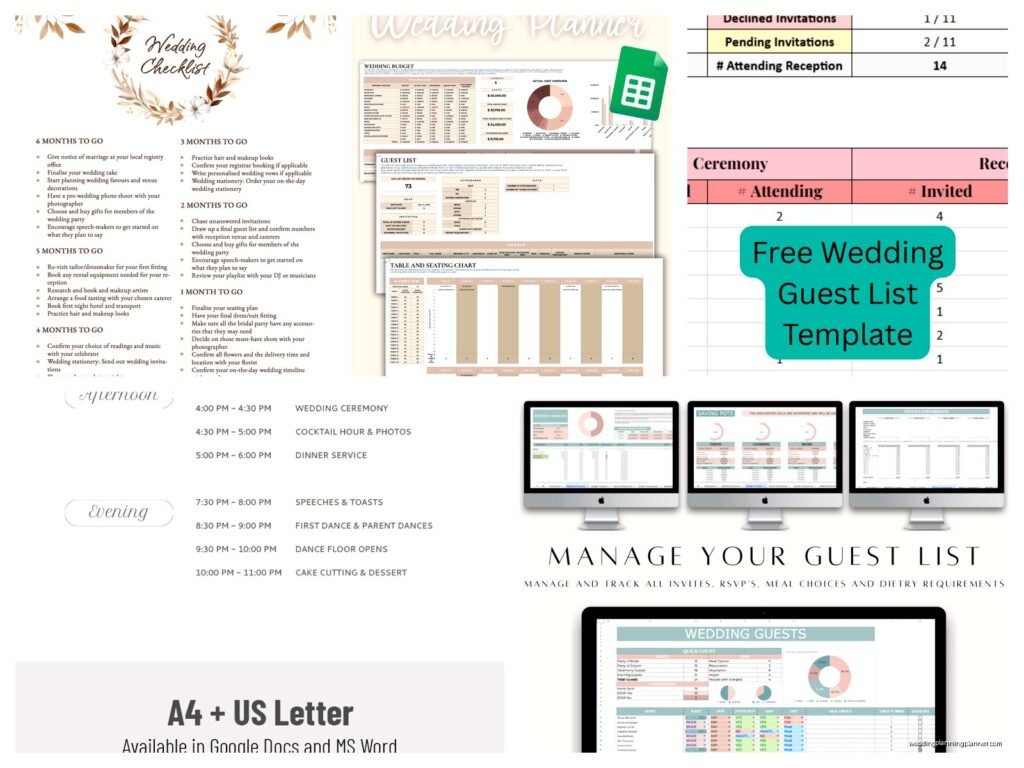
Go to docs.google.com and look for the template gallery at the top. If you don’t see it immediately, click on the little hamburger menu and select “Template gallery” from there. Google has a whole wedding planning section with budget trackers, guest lists, seating charts, and timeline templates. They’re all free and you can make copies to customize however you want.
The Main Templates You Actually Need
I’m gonna break down the essential ones because there are like a million templates out there and most of them are kinda redundant:
- Budget Tracker: This is the big one. You need this before anything else because I cannot tell you how many couples I’ve worked with who just… winged it with their budget and then panicked three months before the wedding when they realized they’d spent their flower budget on upgraded invitations.
- Guest List Manager: Tracks names, addresses, RSVP status, meal choices, plus-ones, all that stuff. Way better than keeping it in your notes app or on random pieces of paper.
- Vendor Contact Sheet: All your vendor info in one place with contract dates, payment schedules, phone numbers.
- Timeline Template: Both the overall planning timeline (12 months out, 6 months out, etc.) and the day-of timeline.
- Seating Chart: Though honestly I find these work better in Google Sheets because you can color-code easier.
How to Actually Find and Download These Things
So here’s what annoyed me for literally years—Google keeps moving where their templates live and the wedding-specific ones aren’t always in the main gallery. Sometimes you gotta search for them separately or find them through Google Sheets instead of Docs because some templates work better as spreadsheets.

For Google Docs templates, go to the template gallery and scroll down to the “Personal” section. You’ll usually find a wedding planning template there, but it’s pretty basic. It’s more of a checklist than anything else.
For Google Sheets templates (which are honestly better for budget and guest tracking), open a new Google Sheet, click on “Template gallery” at the top, and look under “Personal” again. The wedding budget template there is actually really solid.
To download or copy any template: just click on it, and it’ll open a preview. Then click “Use Template” or make a copy to your own Drive. From there you can edit it however you want. You can also download it as an Excel file or PDF if you need offline access, but I don’t really see the point since the whole benefit is having it in the cloud where you and your partner can both access it.
Setting Up Your Budget Tracker (The Most Important One)
I’m serious about starting with the budget tracker first. Back in spring 2023 I had this couple who came to me already $8,000 over budget and they hadn’t even booked half their vendors yet because they’d just been keeping rough estimates in their heads and it was a complete mess.
The Google Sheets wedding budget template has categories already set up:
- Venue and catering
- Photography and videography
- Flowers and decorations
- Attire
- Music and entertainment
- Stationery (my personal favorite category obviously)
- Transportation
- Miscellaneous
You’ll want to go through and enter your total budget at the top, then allocate estimated amounts to each category. The template automatically calculates what percentage of your budget each category takes up, which is super helpful for seeing where your money’s actually going. Like you might think you’re being reasonable but then realize you’ve allocated 40% to the venue and only 5% to photography when really you want those epic photos.
As you get actual quotes from vendors, replace the estimates with real numbers. The template shows you running totals and how much you’re over or under budget in real-time. It’s kinda satisfying actually, watching those numbers update… or really stressful, depending on how it’s going.
Guest List Management Is More Complicated Than You Think
The guest list template needs some customization because everyone’s situation is different. Google’s default template includes columns for:
- Guest name
- Address
- RSVP status
- Number attending
- Meal preference
- Table assignment
But you’re probably gonna want to add stuff like:
- Which “side” they’re on (your family, partner’s family, mutual friends)
- Whether they’re invited to rehearsal dinner
- Gift tracking if you’re into that
- Kids attending (yes/no)
- Dietary restrictions beyond just meal choice
I always tell couples to add a “Priority” column with A-list, B-list, C-list designations because let’s be real, if you’re doing a smaller wedding or have a strict venue capacity, you need to know who absolutely has to be there versus who you’d invite if space allows. It sounds harsh but it’s practical.
One thing that’s super useful—you can sort and filter in Google Sheets, so you can view just people who haven’t RSVP’d yet, or just people who selected the vegetarian option, or just your partner’s family. Makes it way easier to track stuff down when you need specific info.
Customizing Templates to Actually Work for You
Here’s the thing about templates—they’re starting points, not finished products. You gotta make them work for your specific situation or they’re basically useless.
For the timeline template, Google’s version is super generic with stuff like “12 months before: set budget and create guest list” which like, okay, but what about all the specific tasks for YOUR wedding? I usually open the template and then add in:
- Specific vendor booking deadlines based on your area (photographers in my city book up 18 months out for summer weddings, for example)
- Cultural or religious requirements you need to plan for
- DIY project timelines if you’re making stuff
- Dress fitting appointments
- When to send save-the-dates versus invitations based on your guest situation
The day-of timeline is even more important to customize. The template gives you a basic structure but you need to fill in actual times based on your vendors. Like your photographer needs to know when getting-ready starts, your caterer needs to know when cocktail hour begins, your DJ needs the exact ceremony end time. I spent one entire weekend in summer 2021 creating a master day-of timeline for a client with 8 different vendors and it had to be down to 15-minute increments because the venue had strict noise ordinances and we had to be done by 10pm.

Sharing and Collaborating (Without Losing Your Mind)
The whole point of using Google Docs is that multiple people can access and edit the same document. You can share your templates with:
- Your partner (obviously)
- Your wedding planner if you have one
- Parents if they’re helping plan or pay
- Wedding party members who need access to specific info
But here’s what you gotta do—set the sharing permissions correctly or someone’s gonna accidentally delete your entire guest list and you’ll want to cry. When you click “Share” in the top right corner, you can choose whether people can edit, comment, or just view.
I recommend:
- Edit access: just you and your partner, maybe your planner
- Comment access: parents or anyone who needs to give input but shouldn’t be changing stuff directly
- View access: vendors who need to reference info but definitely shouldn’t be editing your documents
Also Google Docs has version history which is a lifesaver. If someone does mess something up or you change your mind about something, you can go to File > Version History > See Version History and restore an earlier version. I’ve used this feature so many times when couples panic about changes they made.
Creating Your Own Templates from Scratch
Sometimes the Google templates just don’t have what you need and you gotta build your own. Like I’ve never found a good stationery tracker template that includes all the details I need—quantities for save-the-dates versus invitations versus thank-you cards, postage costs, printing deadlines, wording drafts, all that.
To create a custom template, just start with a blank Google Doc or Sheet and build out what you need. Then save it with a clear name like “Wedding Stationery Master Tracker” so you can find it later. If you want to use it as a template for future reference or share it with others, you can make a copy and clear out all the personal info, then share the link.
For a vendor contact sheet, I always include: vendor name, contact person, phone, email, website, contract date, deposit amount paid, deposit due date, final payment amount, final payment due date, what’s included in their package, and a notes section. Having all this in one place instead of scattered across email and contracts is gonna save you so much time and stress.
Other Random Templates That Are Actually Helpful
There are some less obvious templates that can make your life easier:
Menu planning document: If you’re doing a tasting with your caterer, create a Doc where you can paste in the menu options they’re offering, add notes about what you liked, what your partner thought, dietary restrictions you need to accommodate. So much better than trying to remember three weeks later which appetizer option was the good one.
Vow drafts: Keep your vow drafts in a private Google Doc. You can work on them over time, and having version history means you can see how they evolved. Just make sure this one isn’t shared with your partner if you want them to be a surprise.
Song list: Create a spreadsheet with must-play songs, do-not-play songs, and ceremony music. Include columns for which part of the event each song is for (processional, first dance, parent dances, etc.). Share this with your DJ or band way ahead of time.
Vendor question tracker: When you’re in the research phase, keep a Doc with standard questions you’re asking all vendors in each category. Like all photographers get asked the same 10 questions so you can compare answers. Makes decision-making way easier than trying to remember who said what during different consultations.
My cat just knocked over my coffee while I was typing this and I’m gonna pretend that’s not a sign I should take a break…
Backing Up Your Templates
Even though Google’s cloud storage is pretty reliable, I always recommend downloading backup copies of your important planning documents monthly. Go to File > Download and save as Microsoft Word (.docx) or Excel (.xlsx) format to your computer or an external drive.
I had a client once who accidentally deleted their entire guest list when they meant to delete a different file, and even though we recovered it through version history, those fifteen minutes of panic were not fun. Backups are your friend.
Mobile Access Makes Everything Easier
Download the Google Docs and Google Sheets apps on your phone because you’re gonna need to reference this stuff when you’re out meeting vendors or at the venue or randomly at Target trying to remember if you already ordered table numbers. Having everything accessible on your phone means you can update your budget right after getting a quote, add notes to your vendor tracker during a meeting, or check your timeline while you’re discussing setup with your venue coordinator.
The mobile apps let you edit documents offline too, which is clutch if you’re at a venue with spotty reception. Changes sync automatically when you’re back online.
Organizing Multiple Templates
You’re gonna end up with like 15 different documents and spreadsheets, so organization matters. Create a dedicated folder in your Google Drive called “Wedding Planning” and then subfolders for different categories:
- Budget and Contracts
- Guest Management
- Vendor Information
- Design and Decor
- Timelines and Checklists
- Stationery
Move all your templates into the appropriate folders. You can also star important documents so they show up in your “Starred” section for quick access. I star the budget tracker and master timeline because those get referenced constantly.
Color-coding folders helps too if you’re a visual person. Right-click on any folder and select “Change color” to make your wedding planning folder stand out from your regular Drive stuff.
Also you can add documents to your phone’s home screen for even faster access. Open the document in the mobile app, tap the three dots menu, and select “Add to Home screen.” Then your budget tracker or whatever is just one tap away instead of having to open Drive and search for it every time.
The biggest advantage of using Google’s free templates over paid planning apps is that you own your data and can customize literally everything, and you’re not locked into someone else’s system that might not work for your specific situation or might disappear if the company shuts down their app or whatever
