
Planning Guides, Style Guide
Wedding Planner Google Sheets: Professional Services Guide
Oct
Why Google Sheets Changed Everything For My Wedding Planning Business
So you’re probably thinking about organizing your wedding planning business better and honestly Google Sheets is gonna be your best friend here. I switched over from Excel and various paper systems back in spring 2023 when I had three weddings in one weekend and literally lost track of which florist was delivering to which venue and… yeah, that was a disaster I don’t want to repeat.
The thing is, Google Sheets isn’t just a spreadsheet tool. It’s basically your entire business management system if you set it up right. And the best part? Your clients can access certain sheets in real-time, which means fewer panicked texts at 11pm asking what time the ceremony starts.
Setting Up Your Master Client Tracker
First thing you need is a master sheet that tracks all your clients. I keep mine pretty simple but comprehensive – client names, wedding dates, venue, package type, total contract amount, deposit received, balance due, and a status column. The status column is where I put things like “initial consultation,” “contract signed,” “planning phase,” “final walkthrough done,” etc.
What really annoyed me for YEARS was not having a quick visual of where each client was in the process. I’d be on the phone with someone and scrambling through emails trying to remember if they’d already chosen their photographer or not. Now I just pull up this sheet and boom, everything’s right there.
You can use conditional formatting to make certain cells change color based on what you enter. Like I have mine set so that if a balance is still due within 30 days of the wedding, that cell turns red. If deposits are all paid, it’s green. Super visual, super helpful.
The Individual Wedding Master Sheet Template
For each wedding, I create a new Google Sheets file with multiple tabs. This is where the real magic happens and honestly where you’ll spend most of your time. My template has like 12 tabs now but when I started it was maybe 5 or 6.
Budget Tracker Tab
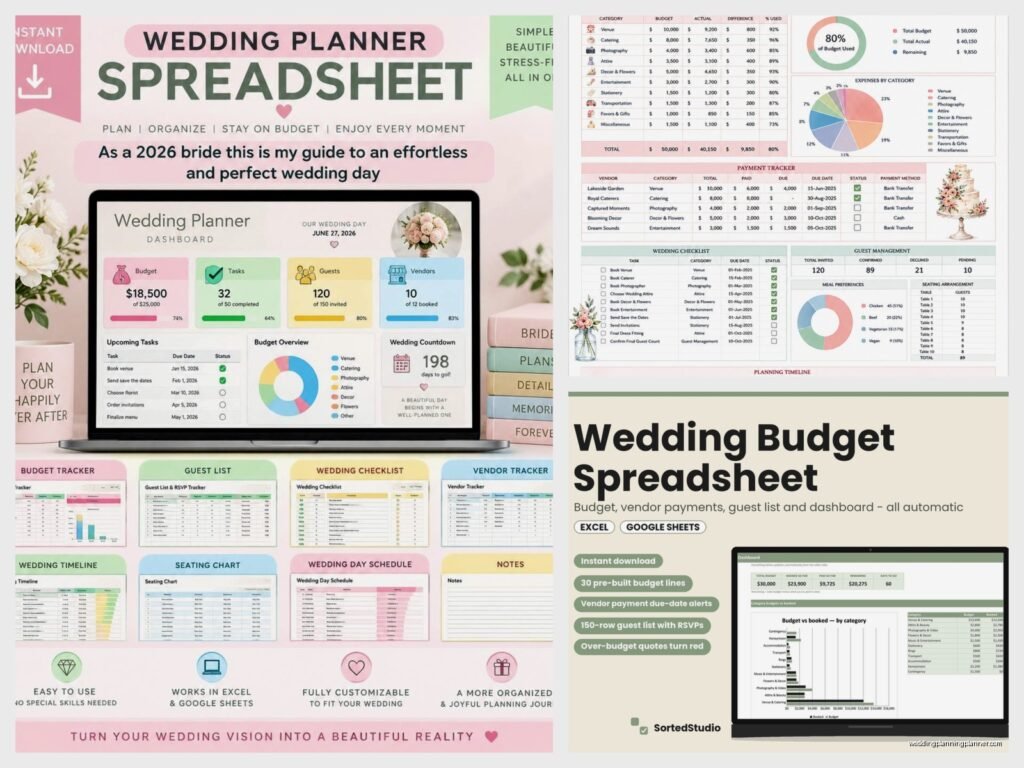
This is usually the first tab because let’s be real, budget drives everything. I set up columns for: category (venue, catering, flowers, photography, etc.), estimated cost, actual cost, deposit paid, balance due, payment due date, and vendor name. At the bottom I have formulas that calculate total estimated vs actual, how much has been paid, and how much is still owed.
The formula for tracking remaining balance is super simple: =SUM(actual cost column) – SUM(deposit paid column). You can get fancier with it but that’s the basic idea. I also like to add a “percentage of total budget” column so clients can see that flowers are taking up 18% of their budget and maybe they wanna adjust that.
Vendor Contact Sheet
Every single vendor gets logged here. Name, company, service type, contact person, phone, email, Instagram handle (because sometimes that’s the fastest way to reach people tbh), contract signed (yes/no), insurance received (yes/no), final payment due date, and notes. The notes column is where I put things like “prefers email communication” or “needs parking pass for venue” or “bring payment in cash day-of.”

I share this sheet with my couples so they have everyone’s contact info too. Sometimes they wanna reach out directly and that’s totally fine – I’d rather they have the info than bug me for it when I’m dealing with another wedding.
Timeline Tab
This is where I build out the actual wedding day timeline. I usually start with the ceremony time and work backwards and forwards from there. Hair and makeup start time, when the photographer arrives, when guests start arriving, cocktail hour, reception entrance, first dance, toasts, dinner service, cake cutting, last dance, send-off.
I include columns for: time, duration, activity, responsible party/vendor, and location. So like “5:30pm, 30 min, cocktail hour, all guests, south lawn” or whatever. This sheet gets shared with ALL vendors about two weeks before the wedding so everyone’s on the same page.
My cat jumped on my keyboard while I was building a timeline last month and somehow created a bunch of random cells with just the letter “m” scattered throughout and I didn’t notice until I sent it to the DJ who was like… umm is this morse code or?
Guest List and Seating Chart
Okay so this tab is actually two tabs for me now. The guest list tab has: guest name, number in party, mailing address, RSVP status, meal choice (if applicable), dietary restrictions, relationship to bride/groom, and gift received (I track this for thank you notes).
You can use data validation for the RSVP status column – create a dropdown with options like “invited,” “attending,” “declined,” “no response.” Makes it cleaner and you can’t accidentally type “yes” in one cell and “attending” in another which messes up your formulas.
For counting guests, I use =COUNTIF(RSVP column,”attending”) and multiply that by the number in party column if needed. Some couples have me track +1s separately which makes the formula a bit more complex but nothing you can’t handle.
The seating chart tab is where things get… interesting. I usually set this up with table numbers/names and then list out who’s sitting where. Some planners get really fancy with this and create actual visual layouts but honestly I don’t have time for that level of detail in a spreadsheet.
Task Management and Checklist Tabs
I have a master checklist template that I customize for each wedding based on their timeline. It’s organized by timeframe – like “12 months before,” “9 months before,” “6 months before,” and so on until you get to “day of” and “after the wedding.”
Each task has: the task description, who’s responsible (me or the couple), due date, status, and notes. I use checkboxes in Google Sheets for the status column – you can insert them from the Insert menu and they’re way more satisfying than just typing “done” or whatever.
The checklist might include things like “book ceremony venue,” “order invitations,” “schedule menu tasting,” “apply for marriage license,” “finalize seating chart,” “confirm final headcount with caterer.” You get the idea. It’s basically everything that needs to happen between now and the wedding.

Payment Tracking Tab
This is separate from the budget tracker because this is specifically MY payments from the couple. I list out the payment schedule from their contract – usually it’s something like deposit at signing, second payment at 6 months out, final payment 2 weeks before the wedding.
I include: payment due date, amount due, date received, payment method, and confirmation number if applicable. I also calculate the total paid vs total contract amount so everyone knows where we stand. There was this one time in summer 2021 where a couple swore they’d paid their final payment and I couldn’t find any record of it and it turned out they’d sent it to my old PayPal that I wasn’t checking anymore and… anyway, now I’m way more organized about this.
Rental Inventory and Floor Plan Tab
If you’re coordinating rentals (chairs, tables, linens, dishes, whatever), you need a tab for this. List out every single item being rented: item description, quantity, rental company, cost per item, total cost, delivery date/time, and pickup date/time.
This is especially important for venues that are blank slate spaces where you’re bringing in literally everything. I once forgot to order water glasses for a 150-person wedding because they weren’t on my spreadsheet and the caterer assumed I was handling it and I assumed they were handling it and… yeah, we had to send someone to buy plastic cups from Target an hour before cocktail hour.
Some planners also create a visual floor plan in Google Sheets using merged cells and borders to show table placement and stuff. I tried this once and nah, it’s too fiddly for me. I just use an actual floor plan tool and reference the spreadsheet for quantities.
Communication Log
This is kinda extra but I started doing it after a situation where a client claimed I never told them something and I KNOW I did but I couldn’t prove it. Now I log important communications – date, who I talked to, method (email, phone, in-person), and a brief summary of what was discussed.
You don’t need to log every single text message, but big decisions should go in here. Like “discussed moving ceremony time from 4pm to 5pm, client approved via phone call” or “sent revised budget showing additional $500 for upgraded florals, awaiting approval.” It’s saved me multiple times when someone’s memory gets fuzzy about what was decided.
Sharing and Permissions
Here’s where Google Sheets really shines over Excel or other tools – the sharing capabilities are incredible. For most of my sheets, I give clients “view” access or “comment” access rather than “edit” access. This way they can see everything and leave comments or suggestions, but they can’t accidentally delete my formulas or mess up the formatting.
For the budget tracker and checklist, sometimes I give edit access so they can update things themselves. Like if they make a payment directly to a vendor, they can mark it as paid. Or if they complete a task on the checklist, they can check it off.
Vendors usually just get view access to the specific tabs they need – timeline, contact sheet, and maybe floor plan if relevant. I don’t give vendors access to budget info because that’s private client information.
You can also set it up so certain people get notifications when the sheet is edited. I have mine set so I get an email notification when a client edits the shared budget sheet so I can review what they changed.
Templates and Efficiency
Once you’ve created your perfect wedding planning Google Sheets system, save it as a template. When you book a new client, just make a copy of the template file, rename it with the client’s names and wedding date, and start filling it in. This saves SO much time compared to building everything from scratch each time.
I keep my master template in a “Templates” folder in my Google Drive, and then I have a folder for each wedding year with subfolders for each client. Keeps everything organized and I can find stuff quickly when I need to reference an old wedding for some reason.
Some formulas I use constantly: SUM (adds things up), COUNTIF (counts cells that meet certain criteria), IF statements (like =IF(deposit paid=”yes”,”Paid”,”Outstanding”)), and TODAY() which automatically shows today’s date so you can calculate how many days until the wedding.
Mobile Access
Download the Google Sheets app on your phone because you’re gonna need it. I’m constantly checking sheets while I’m at venues or meetings or running errands. The mobile app works pretty well, though editing complex sheets on your phone is kinda annoying – but for viewing info and making quick updates it’s perfect.
During wedding days, I have the timeline and vendor contact sheet open on my phone at all times. If something’s running late or I need to call someone, I don’t have to dig through emails or papers to find the info.
Backup and Protection
Google Sheets automatically saves everything to the cloud which is amazing, but I still recommend downloading important sheets as Excel files once a month or so just as a backup. You never know when you might lose internet access or have some weird Google account issue.
Also use the “Protected ranges” feature for important formulas or data that shouldn’t be changed. You can protect specific cells or entire sheets and require a warning before anyone (including you) can edit them. I do this for my formula cells so I don’t accidentally delete them when I’m making updates.
The version history feature is also super helpful – you can see every change that’s been made to a sheet and who made it. If someone accidentally deletes something important, you can restore a previous version. I’ve had to do this a few times when clients got a little too enthusiastic with their edit access.
Integration with Other Tools
Google Sheets plays nice with lots of other tools you might be using. You can import data from Forms (great for RSVP tracking if you do online RSVPs), connect it to your calendar, or use add-ons to do more complex stuff. There’s an add-on called “Yet Another Mail Merge” that lets you send personalized emails to vendors or clients using data from your sheet.
I also use Zapier sometimes to automatically add new client info from my booking forms into my master client tracker sheet. It’s not perfect but it cuts down on manual data entry which I hate doing anyway.
What Not To Do
Don’t make your sheets too complicated. I see some planners who have like 47 tabs with crazy formulas and linked data across multiple files and honestly that’s just asking for problems. Keep it as simple as possible while still being functional. If you need a computer science degree to understand your own spreadsheet, you’ve gone too far.
Also don’t rely solely on Google Sheets for contracts or legal documents. Those should still be proper PDFs with signatures. The spreadsheet is for planning and organization, not for binding agreements. And obviously don’t put sensitive info like credit card numbers in there even though it’s password protected – just don’t.
Make sure you’re not sharing sheets with the wrong people. I almost sent a sheet that included budget info to a vendor once because I wasn’t paying attention to who I was adding to the share list. Double check before you hit send on those share invitations because you can’t really unsend them if someone’s already opened the sheet and saved their own copy or whatever… well you can revoke access but they might have already seen stuff they shouldn’t have seen and that’s awkward to explain to a client.
