
Planning Guides, Style Guide
Google Sheets Wedding Planner: Professional Services Guide

Oct
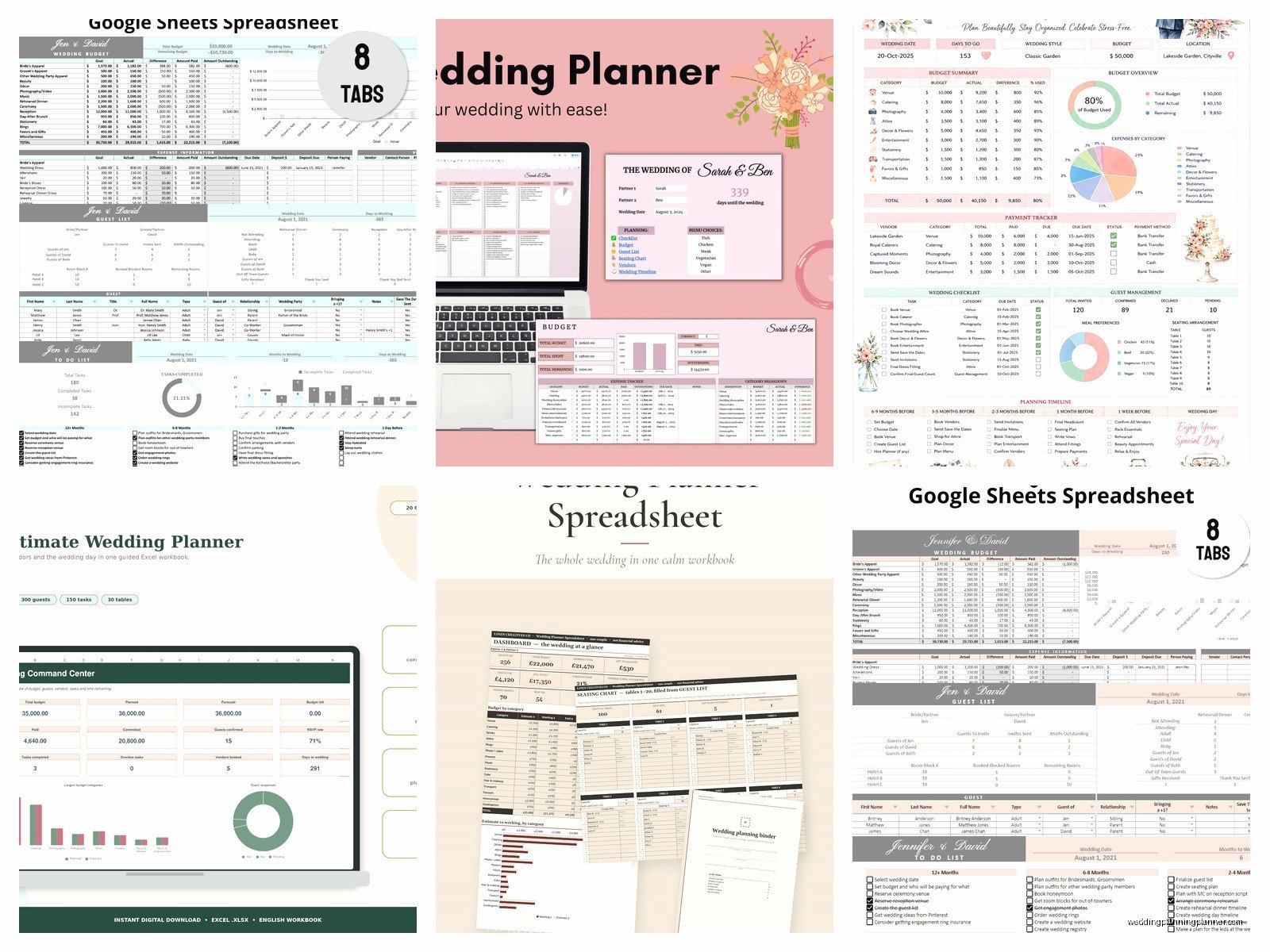
Setting Up Your Google Sheets Wedding Planner Framework
So Google Sheets for wedding planning is honestly one of those things I wish I’d gotten better at sooner because… okay, I spent years using Excel and then one day in spring 2023 a bride emailed me at 11pm asking about her vendor payments and I realized I couldn’t access my files from my phone and it was just this whole mess. Switched to Google Sheets that week and never looked back.
First thing you gotta do is create a master workbook. Don’t make separate files for everything because you’ll lose track—trust me on this. One workbook, multiple tabs at the bottom. I usually set up tabs for Budget, Vendor Contacts, Timeline, Guest List, Payment Schedule, and Task Checklist. You can add more later but start with these six.
For the Budget tab, set up columns like this: Category, Item Description, Estimated Cost, Actual Cost, Deposit Paid, Balance Due, Payment Due Date, and Status. The Status column is where you’ll write stuff like “Paid in Full” or “Waiting on Invoice” or whatever. Use data validation for this—click on the cells, go to Data > Data Validation, and create a dropdown list with your status options. Makes everything cleaner and you can filter later.
The Vendor Management System
Your Vendor Contacts tab needs to be super detailed because this is where things get chaotic. Columns I use: Vendor Category, Company Name, Contact Person, Phone, Email, Contract Signed (yes/no), Contract Date, Service Date/Time, Total Cost, Deposit Amount, Deposit Date, Final Payment Due, Final Payment Date, and Notes.
The thing that annoyed me for YEARS was vendors who wouldn’t respond to emails but would answer texts immediately, so I started adding a “Preferred Contact Method” column too. Some vendors are email people, some are text people, some still use actual phone calls like it’s 2005.
Pro tip: use conditional formatting to highlight rows where contracts aren’t signed yet. Select your “Contract Signed” column, go to Format > Conditional Formatting, and set it so any cell that says “No” turns red. Visual reminder that you’ve got loose ends.
Guest List Management That Won’t Make You Cry
Guest lists are where Google Sheets really shines compared to other tools. Set up columns for: Guest Name, Plus One Name, Mailing Address, Email, Phone, Invitation Sent, RSVP Received, Number Attending, Meal Choice, Dietary Restrictions, Table Assignment, and Gift Received.
Use the filter function like crazy here. You can filter by RSVP status to see who hasn’t responded yet, filter by meal choice to get your catering numbers, filter by table assignment when you’re doing seating charts. The filter button is at the top right of your data—looks like a little funnel.
For tracking RSVPs, I create a separate tab called “RSVP Tracker” that pulls data from the main guest list using formulas. Use COUNTIF to count how many people said yes, no, or haven’t responded. The formula looks like: =COUNTIF(C2:C200,”Yes”) where C2:C200 is your RSVP column range. Then you can see your numbers update in real-time.
Timeline and Task Management
The Timeline tab is gonna be your sanity-saver. Columns: Task Description, Category (like “Flowers” or “Catering”), Assigned To, Due Date, Status, Priority, and Notes. I usually add a “Days Until Due” column that auto-calculates using =C2-TODAY() where C2 is your due date cell. This way you can see what’s coming up soon.
Sort by due date regularly. Like every Monday morning I’d sort my client sheets by due date so I knew what needed attention that week. You can also use conditional formatting here—make anything due within 7 days turn orange, anything overdue turn red.
One time during this super stressful situation in summer 2021, I had three weddings in one weekend and I forgot to confirm the cake delivery time for one of them because it wasn’t in my timeline properly. The baker showed up 2 hours early and there was nowhere to put the cake and… anyway, put EVERYTHING in the timeline with specific times, not just dates.
Budget Tracking That Actually Works
Back to the budget tab because this deserves more detail. The key is using formulas to auto-calculate everything so you’re not doing mental math at midnight. At the bottom of your Estimated Cost column, use =SUM(C2:C50) to total everything. Do the same for Actual Cost.
Create a “Difference” column that shows =D2-C2 (Actual minus Estimated) so you can see where you’re over or under budget. Then at the very top of your sheet, create a little dashboard area with cells showing Total Budget, Total Spent, and Remaining Budget. Makes it super easy to see the big picture.
For the payment tracking part, I add a column called “Payment Method” because some vendors want checks, some want Venmo, some want bank transfers, and keeping track of this prevents you from sending money the wrong way and having to redo it.
Using Formulas to Make Your Life Easier
Okay so formulas sound scary but they’re really not. The basic ones you need are SUM (adds things up), COUNTIF (counts cells that match criteria), and IF statements (does different things based on conditions).
An IF statement for your budget might look like: =IF(D2>C2,”Over Budget”,”On Track”) where D2 is actual cost and C2 is estimated cost. This automatically tells you if a line item is over budget.
For your guest list, you can use =COUNTA(B2:B200) to count how many guests you have total (counts all non-empty cells). Then use =COUNTIF(H2:H200,”Yes”) to count confirmed attendees.
VLOOKUP is more advanced but super useful if you want to pull vendor info into your timeline automatically. I’m not gonna explain the whole thing here but YouTube has like a million tutorials and once you get it, it’s kinda magical.
Sharing and Collaboration Settings
The whole point of Google Sheets is that multiple people can access it. Click the Share button in the top right, add email addresses, and set permissions. For couples, give them “Editor” access so they can make changes. For vendors who just need to see info, use “Viewer” access.

You can also share specific tabs only, which is clutch when you don’t want vendors seeing your whole budget. Right-click on a tab, select “Copy to” > “New spreadsheet,” then share that separate sheet. It’s not as elegant as I’d like but it works.
One thing I do is create a “Vendor View” tab that only shows the info they need—their specific timeline items, their payment schedule, etc. Then I share just that tab with them.
Templates and Customization
Don’t reinvent the wheel every time. Once you’ve set up a good system, save it as a template. Go to File > Make a Copy, rename it “Wedding Planner Template,” and delete all the client-specific data. Now you’ve got a blank template ready for the next couple.
I customize colors for different clients so I can tell sheets apart at a glance. My cat walked across my keyboard once and changed all the colors to this hideous purple and orange combo and honestly it kinda grew on me so now that’s my color scheme for summer weddings, but anyway—use Format > Theme to change colors professionally.
Add your logo or branding to the top if you want it to look more professional when sharing with clients. Insert > Image, then resize it small and put it in the top left corner.
Payment Schedules and Reminders
Create a separate Payment Schedule tab that lists every payment you need to make with dates. This should pull from your vendor sheet but also include things like tips, emergency fund, etc. Columns: Vendor, Amount, Due Date, Paid Date, Payment Method, Confirmation Number.
Set up email notifications for yourself. In your Payment Schedule tab, you can use Google Sheets’ notification rules (Tools > Notification Rules) to email you when changes are made, but honestly I just set calendar reminders for payment due dates because the notification system is sorta clunky.
For tracking what’s been paid, I use checkboxes. Insert > Checkbox in your “Paid” column. Click the box when payment is complete. You can even use conditional formatting to make the whole row turn green when the checkbox is checked, which feels weirdly satisfying.
Advanced Features Worth Learning
Pivot tables sound complicated but they’re just ways to summarize data. If you’ve got a huge guest list and want to see how many people from each family are coming, create a pivot table. Data > Pivot Table, then play around with rows and values until it makes sense.
Query function is like Google Sheets’ version of a database search. You can use it to pull specific data from one tab into another. The syntax is weird at first—something like =QUERY(A2:D50,”SELECT A, B WHERE C=’Florist'”)—but it’s super powerful once you get it.
Named ranges make formulas easier to read. Instead of =SUM(C2:C50), you can select those cells, name them “EstimatedCosts” (Data > Named Ranges), then use =SUM(EstimatedCosts). More readable when you’re looking at it six months later.
Mobile Access and Offline Mode
Download the Google Sheets app on your phone because you’ll need to check stuff while you’re at venues or meetings. The app works pretty well, though editing complex formulas on a phone screen is… not fun.
Turn on offline mode in Google Drive settings so you can access sheets without internet. This saved me once at a venue with terrible wifi when I needed to confirm vendor arrival times. Go to drive.google.com/drive/settings and enable offline.
The mobile app lets you scan receipts directly into Google Drive, which you can then link to your budget tracker. I use this for all vendor deposits—take a pic of the receipt, upload it, add a link in the Notes column of my budget sheet.
Backup and Version Control
Google Sheets auto-saves everything but you should still make backup copies periodically. File > Make a Copy once a month and save it with a date in the filename like “Smith Wedding Planner – Backup March 2024.”
Version history is your friend when someone accidentally deletes something. File > Version History > See Version History shows you every change made. You can restore old versions or just copy data from them.
I learned this the hard way when a groom deleted the entire guest list thinking he was just deleting one row and then panicked and closed the browser and… yeah. Version history brought it all back in like 30 seconds but those were a stressful 30 seconds.
Integration with Other Tools
Google Sheets plays nice with other apps. You can import data from Gmail using add-ons, connect it to Google Calendar for timeline reminders, or export to Excel if a vendor needs that format.
Zapier and similar tools can auto-update your sheets when certain things happen, like when a payment comes through PayPal or when someone fills out a contact form. This gets kinda technical but the basic Zapier plans are free and worth exploring if you’re doing this professionally.
For invoicing, you can create invoice templates in Google Sheets that pull client data automatically, then export to PDF. Or just use proper invoicing software and keep your Google Sheet for planning only, which is probably smarter honestly.
The key thing is that everything connects somehow, so your wedding planning system doesn’t have to live entirely in one sheet—it can pull from and push to other tools you’re already using. Makes life way easier than manually copying info between different platforms.
