
Planning Guides, Style Guide
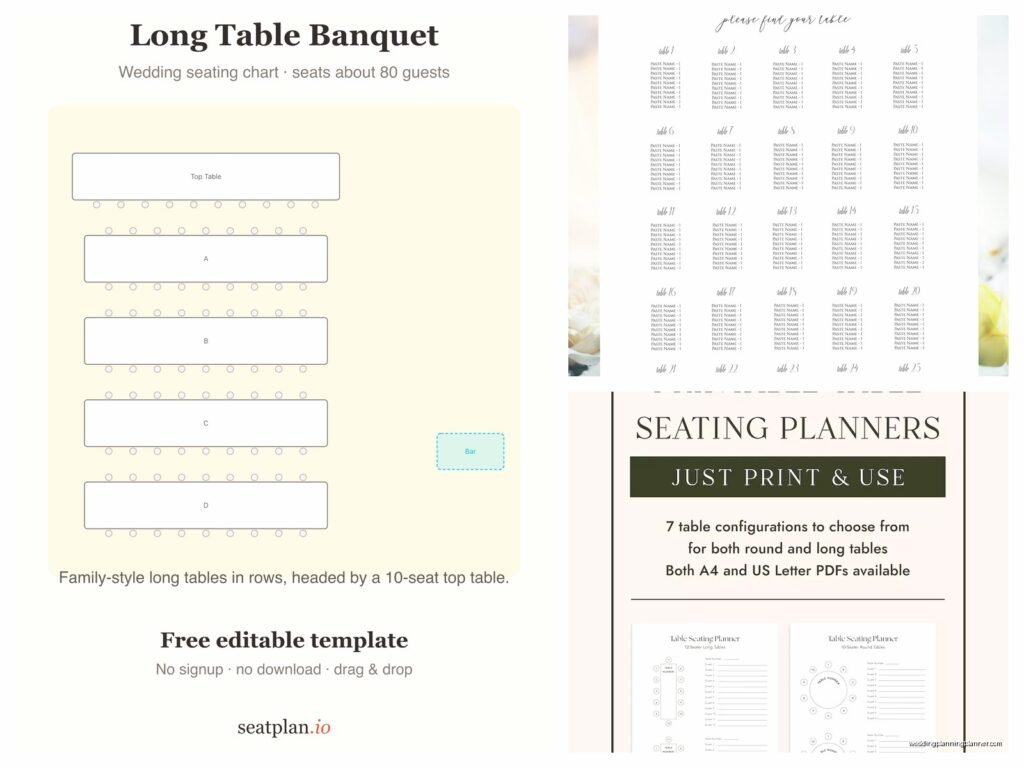
Long Table Seating Chart Template: Free Download Files
Sep
Long Table Seating Chart Templates That’ll Actually Save Your Sanity
Okay so long tables are having this massive moment right now and honestly they’re kinda my favorite because they feel less stuffy than rounds? But the seating chart part is where everyone loses their minds. I had this bride in spring 2023 who insisted on doing king’s tables for 200 people and we spent like four hours moving names around before she realized we could just… use a template and stop reinventing the wheel.
The thing about long table seating charts is they’re deceptively simple until you actually try to make one. Then you’re dealing with who sits at the head, whether people face each other or sit on one side only, and God forbid you have an odd number of guests at a table. It gets messy fast.
Why Long Tables Need Different Templates Than Rounds
You can’t just use a regular round table seating chart template for long tables because the dynamics are completely different. With rounds, everyone can see everyone. With long tables, you’re basically creating these little conversation zones. The person across from you? Your dinner companion. The person three seats down? Might as well be in another zip code.
I learned this the hard way during a farm wedding in summer 2021 where we seated 12 people at each long table and put all the quiet introverts on one side. It was like a library on one side and a party on the other. Not ideal.
What really annoys me is when people download these “free” templates that are actually just locked PDFs where you can’t edit anything without buying the premium version. Like why even call it free at that point?
The Basic Long Table Layout Options You Need to Know
There are basically three ways to do long table seating and your template needs to match which style you’re going for:
- Single long tables (aka king’s tables or farm tables) – usually seat 10-20 people
- Multiple parallel long tables – you’ll have several tables running the same direction
- Feasting style with one mega table – this is for smaller weddings, maybe 30-50 guests max
Each one needs a slightly different template approach because you’re tracking different information. For single long tables, I usually create individual charts for each table. For parallel tables, you need more of a room layout view so people can see where Table 1 vs Table 5 is located.
What Information Your Template Actually Needs
Here’s what I always include in my long table templates and you should too:
- Table number or name (if you’re doing named tables which honestly makes everything easier)
- Number of seats at that table
- Guest names in order of seating
- Meal choices if you’re doing plated dinner (this saves your catering staff SO much time)
- Any special notes – dietary restrictions, needs to sit near bathroom, whatever
Some people also add the relationship to bride/groom but I find that clutters things up unless you’re dealing with a blended family situation where it actually matters.

Free Template Options That Actually Work
Alright so let me break down the free downloads that I actually use and recommend versus the ones that are gonna waste your time.
Excel and Google Sheets Templates
These are honestly your best bet for functionality. You can find basic long table templates that let you list out seats 1 through however many, then just type in names. The advantage is you can copy and paste names, use color coding for different families or friend groups, and easily make changes.
I have a Google Sheets template I’ve been using for years that has formulas built in to count guests automatically so you don’t end up with 23 people at a table that seats 20. Which has definitely happened to me before. Multiple times actually.
The downside is they’re not pretty? Like you can’t hand this to your calligrapher or print it out for your venue coordinator without it looking kinda… spreadsheet-y.
PowerPoint and Canva Templates
These look way better visually and Canva especially has gotten really good for this. You can find templates that show actual table shapes with little boxes for names. They’re more visual which helps when you’re trying to explain the layout to your wedding party or parents who keep asking “but where am I sitting exactly?”
The problem with Canva is that the free version limits how many designs you can create and some templates require Canva Pro. But honestly there are enough actually-free ones that you can make it work.
I use PowerPoint templates when I need to present seating options to clients because I can make multiple slides showing different arrangements. Then we can flip through them and compare.
PDF Templates You Can Print and Fill In
Nah, I’m gonna be real with you – these are mostly useless unless you’re doing a super small wedding. Printing out a template and handwriting names might sound romantic and DIY but when Guest #47 cancels and you need to redo everything… you’ll wish you’d gone digital.
The only time I recommend printable PDFs is for your final version that you’re giving to your venue or caterer. Not for the planning process.
How to Actually Use These Templates Without Losing Your Mind
Having the template is one thing, using it effectively is another. Here’s my process and you can steal it:
Step One: List All Your Guests First
Before you even open the seating chart template, make a master list of every single person coming. Include their meal choice, any seating requirements (needs to sit with kids, has mobility issues, whatever), and maybe a note about which “group” they’re in – bride’s college friends, groom’s family, coworkers, etc.
This seems obvious but I cannot tell you how many times someone starts the seating chart and then realizes halfway through they forgot to include the officiant or the photographer needs a seat or… you get it.
Step Two: Figure Out Your Table Sizes
Long tables come in standard sizes usually – 6ft tables seat 6-8 people, 8ft tables seat 8-10. But you can also push tables together to create longer ones. I had a venue once that only had 6ft tables and we needed to seat 14 people at each “long table” so we pushed three together and it actually looked really cool?

Know your numbers before you start assigning people. And leave a little wiggle room because someone will inevitably bring an unexpected plus-one.
Step Three: Start With Your VIPs
Put the people who actually matter to you first – parents, wedding party, super close friends. Get them placed in good spots. Everyone else can fill in around them.
For long tables I usually put important people in the middle seats, not the ends. The ends can be awkward because you’re only talking to one person and you might have servers squeezing past you all night.
My cat just knocked over my coffee which is perfect timing because this is about when in the process you’ll want to take a break anyway. This stuff is tedious and your brain gets fuzzy after staring at names for too long.
Step Four: Group Your Plus-Ones Strategically
Here’s something I learned that changed everything – alternate people who know each other with people who don’t. Don’t put all the strangers together at one table thinking they’ll bond. That’s how you get awkward silence for three hours.
Instead, mix it up so each “stranger” is sitting next to at least one person they know or have something in common with. Use your template to mark this somehow – I use colored highlighting to show different friend groups.
Step Five: Consider the Practical Stuff
Put families with small kids near exits so they can escape easily. Put elderly guests away from the speakers. Put your rowdy college friends far enough from the kids table that nobody’s corrupting anyone.
Also think about the flow of the room. If you’re doing multiple long tables, leave enough space between them for servers and guests to walk. I usually note this on my template even though it’s not technically about seating – just write “4ft clearance” or whatever between table rows.
Common Template Mistakes That Drive Me Crazy
People mess up long table seating charts in really predictable ways and I’m gonna save you from these:
Forgetting to number the seats. You need seat numbers even if you think you won’t. When the venue is setting up place cards, “third from the left” doesn’t cut it. Number them. Seat 1, Seat 2, whatever.
Not accounting for table width. Some long tables are 30 inches wide, some are 40 inches. The wider ones, you can sometimes seat people on the ends too, not just the long sides. Your template should note the table dimensions.
Making it too complicated. I see these elaborate templates with color coding and symbols and keys and honestly… just keep it simple. Name, seat number, table number. That’s it. You can add meal choice if needed but beyond that you’re just making work for yourself.
Where to Actually Download Free Templates
Okay so specific resources because that’s probably why you’re here:
Template.net has a bunch of free seating chart templates including long table specific ones. Some require sign-up but it’s free sign-up not paid.
Canva obviously – search for “seating chart” and filter by free templates. Look for ones that show rectangular tables not round ones.
Microsoft Office templates if you have Office 365 – they have built-in event planning templates that work great for long tables.
Google Sheets template gallery – less design-focused but super functional. Search “wedding seating chart” and you’ll find spreadsheet versions.
I also have templates I’ve made over the years that I’m gonna be honest, I should probably sell but I mostly just give them to clients. They’re Google Sheets based with automatic guest counting and color coding built in. Nothing fancy but they work.
Making Your Template Work for Different Table Arrangements
One template doesn’t fit all long table situations so you’ll probably need to adjust based on your specific setup:
If you’re doing one long head table for the wedding party, you need a template that shows who’s on which side. I usually draw a literal rectangle and put names above and below the line to show which side they’re on. Seems basic but it prevents confusion.
If you’re doing family-style seating where everyone’s at long tables facing each other, you need to show both sides clearly. I make two columns in my template – Side A and Side B. Then you can see at a glance who’s sitting across from who.
For single-sided long tables (like if tables are against a wall or you’re doing theater-style seating), you obviously only need one row of names. But make sure your template clearly shows this is single-sided so nobody gets confused during setup.
Digital vs Printed Templates
Work digitally as long as possible. Seriously. Don’t print anything until you’re 100% sure it’s final. I cannot stress this enough because I’ve watched people print out beautiful seating charts and then have to redo them five times.
Once you ARE ready to print, export your template as a PDF to preserve formatting. Nothing worse than sending an Excel file to your printer and having it come out all wonky because they have different software or… whatever technical thing that always seems to happen.
Tips for Filling Out Your Template Efficiently
Use abbreviations for meal choices – C for chicken, B for beef, V for vegetarian. Keeps things cleaner than writing out “herb-crusted chicken breast with seasonal vegetables.”
Color code by family or friend group if you’re visual like me. Makes it easier to see if you’ve accidentally isolated someone or put too many of one group at a single table.
Keep a separate “floater” list of guests who you could genuinely put anywhere. These are your flexible people who you use to fill gaps. Every seating chart has a few spots that are tricky and having a list of easy-going guests who can slot in anywhere saves time.
Update your template in real-time as RSVPs come in. Don’t wait until you have everyone confirmed because then you’re doing it all at once and it’s overwhelming. Do it gradually and it’s way more manageable.
Save multiple versions with dates in the filename. “SeatingChart_March15.xlsx” and “SeatingChart_March22.xlsx” so you can go back if needed. I learned this after accidentally deleting a whole table arrangement and having no way to recover it except redoing two hours of work.
Actually you know what, I think the biggest thing is just… don’t overthink it? Like yes use a template, yes be organized, but also remember that on the actual day people are gonna move around anyway and talk to whoever they want and it’ll be fine. The seating chart matters but it’s not like a blood oath or whatever. People survive sitting next to someone they don’t know super well for two hours. It’s gonna be alright.
