
Planning Guides, Style Guide
Wedding Guest Excel Spreadsheet: List Tracking Template
Jul
Why You Actually Need a Wedding Guest Excel Spreadsheet
Okay so I learned this the hard way back in spring 2023 when I had three weddings in one month and one couple—lovely people, absolute disasters with organization—tried tracking their guest list in a notebook and random scraps of paper. They lost track of about 40 people. Just… completely forgot they’d invited them until two weeks before the wedding when someone called asking about hotel blocks.
Excel is gonna save your sanity here. I know everyone wants to use those fancy apps, but honestly? A simple spreadsheet gives you control over everything, you can customize it however you want, and you’re not locked into someone else’s system that might randomly change their pricing or shut down. Plus you can share it with your mom, your partner, your wedding planner without making everyone download something new.
Setting Up Your Basic Columns
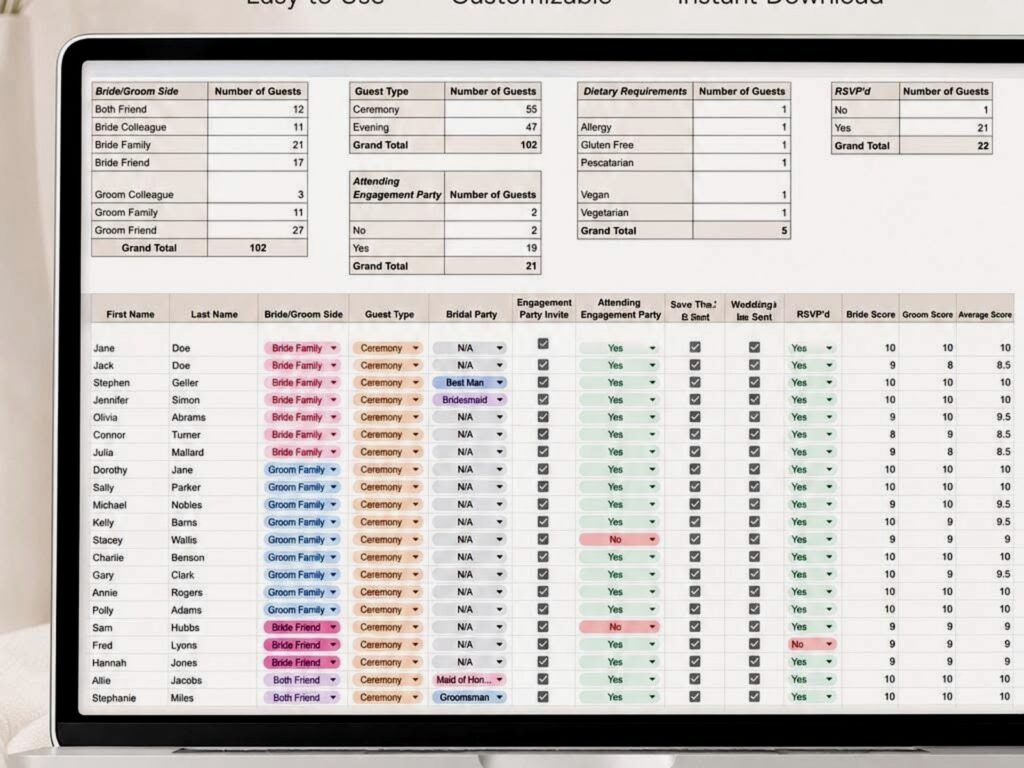
Start with the essentials. I usually tell couples to create these columns first, then add more as they realize what they need:
- Guest Name – Full name, obviously. First and last.
- Address – You’ll need this for save-the-dates and invitations
- Phone Number – Trust me, you’ll need to text someone last minute
- Email – For digital stuff, updates, whatever
- Guest Category – Like “Bride’s Family,” “Groom’s Coworkers,” “College Friends”
- Plus One Status – Yes/No, or the actual plus one’s name if you know it
- Save the Date Sent – Date you sent it
- Invitation Sent – Date you mailed it
- RSVP Status – Pending/Accepted/Declined
- Number Attending – The actual headcount
- Meal Choice – If you’re doing plated dinner with options
- Dietary Restrictions – This is SO important, don’t skip it
- Gift Received – You need this for thank you notes later
- Thank You Note Sent – Date you sent it
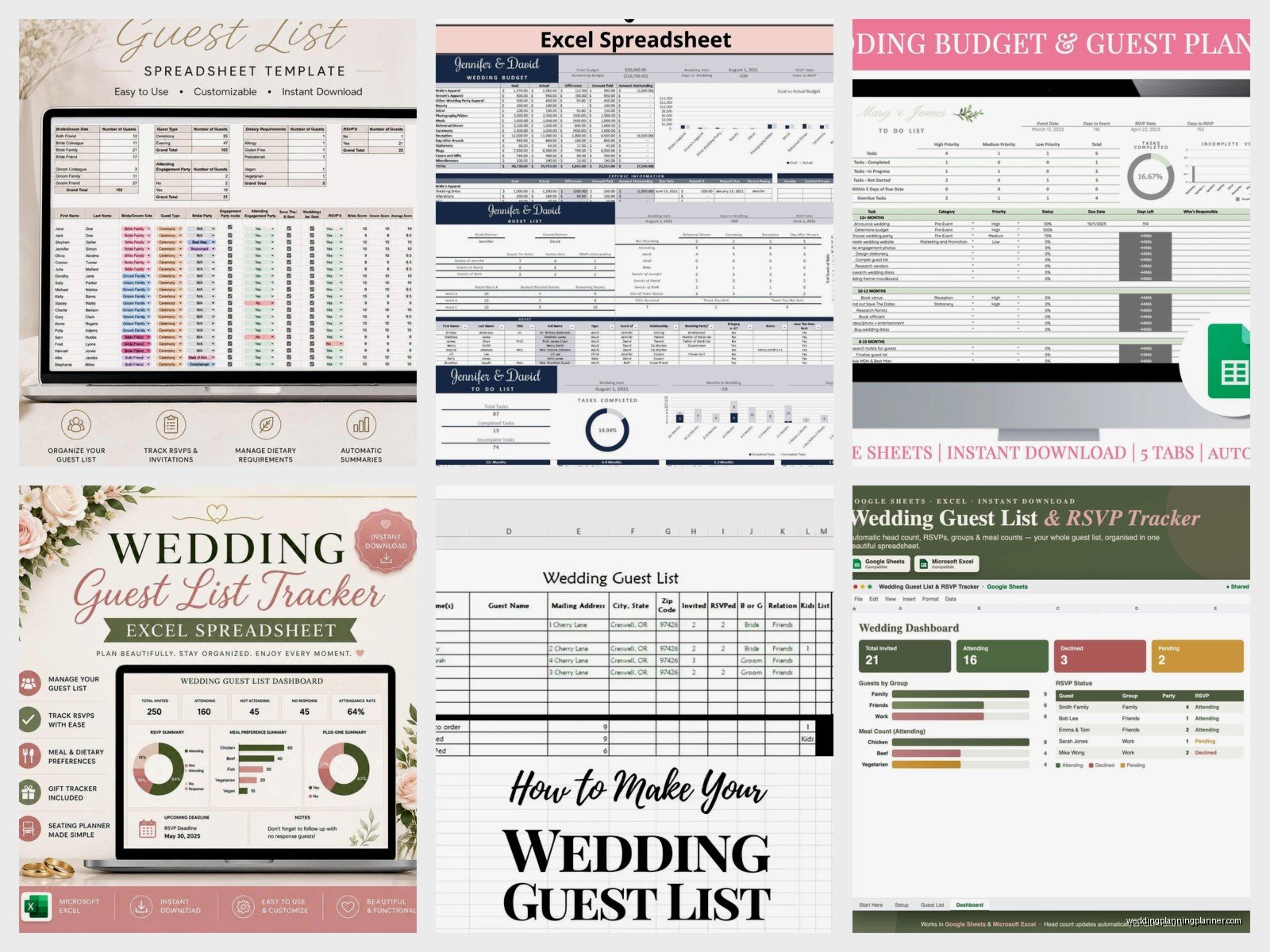
That’s like the bare minimum. You can totally add more—I’ve seen couples track hotel room bookings, whether someone needs airport pickup, if they’re bringing kids (this should probably be its own column actually), special seating requests, all kinds of stuff.
The Thing That Annoys Me Most
People always forget to track addresses properly and then panic when it’s time to send invitations. Like, they’ll have “123 Main St” but no city or zip code, or they’ll have someone’s old address from five years ago. Do yourself a favor and verify addresses BEFORE you order your invitations. I had a client who had to hand-deliver 15 invitations because they didn’t realize their addresses were incomplete until after everything was printed and… ugh, just don’t be that person.
Using Formulas to Make Your Life Easier
Okay so Excel formulas sound scary but they’re really not. You just gotta learn a few basic ones and suddenly your spreadsheet is doing half the work for you.
Counting Attendees: At the bottom of your “Number Attending” column, use =SUM(J2:J200) or whatever your range is. This gives you your running headcount. You’ll check this number about 500 times during planning.
RSVP Tracking: You can use =COUNTIF to count how many people have responded. Like =COUNTIF(I2:I200,”Accepted”) will tell you how many yeses you have. Do the same for “Declined” and “Pending” so you know who you’re still waiting on.
Conditional Formatting: This isn’t a formula but it’s super helpful. You can make cells turn red if someone hasn’t RSVP’d by your deadline, or green when you’ve sent their thank you note. Makes it really visual and easy to see what still needs doing.
Managing the Plus One Nightmare
Plus ones are… they’re just complicated, okay? Some people get them, some don’t, and you need a system for tracking this or it becomes chaos. I usually recommend having both a “Plus One Allowed” column (Yes/No) and a “Plus One Name” column.
Here’s what I do: If someone is allowed a plus one but you don’t know their name yet, put “Guest of [Name]” in the Plus One Name column. When they RSVP and tell you who they’re bringing, update it with the actual name. This matters for seating charts, place cards, meal counts—everything really.
Also track whether the plus one is attending separately from the main guest. I’ve seen situations where the invited guest comes but their plus one doesn’t, and if you’re not tracking that properly your numbers get all messed up.
Address Collection Tricks
Getting addresses from people is like pulling teeth. Everyone says they’ll send them and then… doesn’t. What works better is creating a Google Form (yeah I know we’re talking about Excel but stay with me) where people can submit their info directly, then you copy-paste it into your spreadsheet. Way less back-and-forth texting.
Or if you’re doing this old school, send a group text or email saying “I need your mailing address by [date] for wedding stuff!” People respond better to deadlines. Also my cat just knocked over my coffee while I’m writing this so if this gets a little scattered that’s why.
RSVP Tracking System
When invitations go out, add a column for “RSVP Deadline” and put the date there. Then you can sort by that to see who’s past due. I usually tell couples to wait about a week past the official deadline before starting to chase people down—some folks are just slow with mail.
Create a separate column for “Follow-up Needed” and mark Yes for anyone who hasn’t responded by deadline day. Then you can filter to just see those people and start making calls or sending texts. Because yes, you will have to hunt people down. It’s annoying but it’s part of the deal.
The RSVP phase is when your spreadsheet earns its keep, honestly. Being able to sort by status, filter by category (like “all my college friends who haven’t responded yet”), and quickly see your running totals—it’s invaluable.
Meal Choices and Dietary Stuff
If you’re doing a plated dinner with options, you need a clear system for tracking choices. I usually set up separate columns for each guest’s meal choice—so if it’s chicken, fish, or vegetarian, those are your options in the dropdown menu (yes, use data validation to create dropdowns, makes data entry so much cleaner).
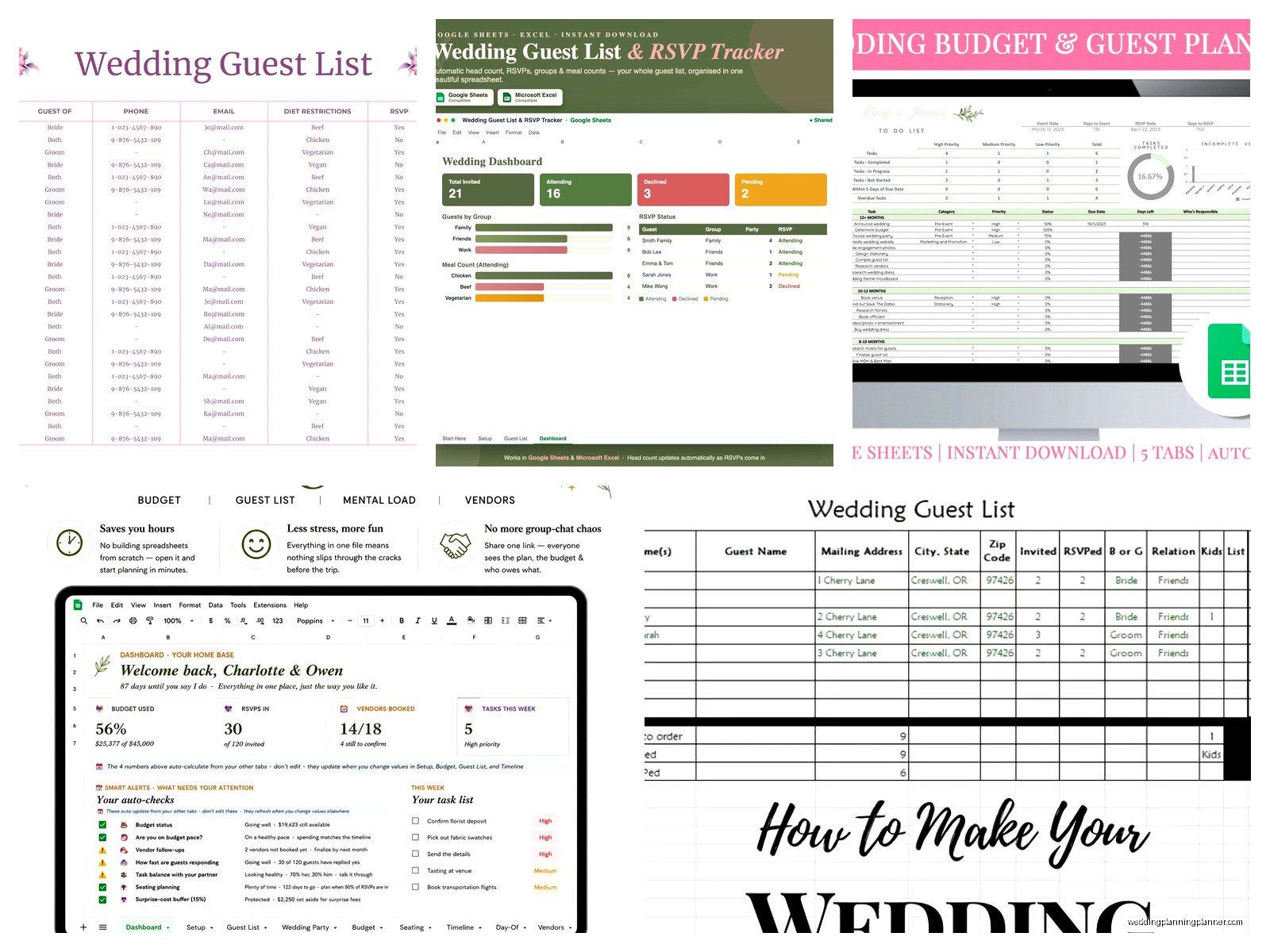
The dietary restrictions column is separate and should be free-form text because people have all kinds of needs—allergies, religious restrictions, preferences, whatever. Don’t try to categorize this too much. Just let people write what they need and then you can sort through it when you’re working with your caterer.
Pro tip: Add a column for “Catering Notes” where you can put special instructions that don’t fit anywhere else. Like “vegetarian but will eat fish” or “not allergic to dairy but prefers to avoid it” or whatever complicated thing your guests throw at you.
Kids and Families
This gets messy fast if you don’t plan for it. I recommend tracking families as household groups somehow—either by color-coding or by having a “Household ID” column where everyone in the same family gets the same number. Makes it easier when you’re figuring out seating.
Have a separate column for “Children Attending” with Yes/No, and maybe another for “Children’s Ages” if you’re providing kids meals or activities. Some couples do a whole separate list for children under 12 with different meal tracking. Up to you how detailed you wanna get, but at minimum you need to know if kids are coming because that affects everything from catering to seating to… everything.
Gift and Thank You Note Tracking
Okay so this part happens after the wedding but you’ll thank yourself for setting it up now. Have columns for:
- Gift Received (Yes/No or date received)
- Gift Description (what they gave you)
- Thank You Note Written (date)
- Thank You Note Sent (date)
I know it seems like overkill to track when you wrote it versus when you sent it, but sometimes you write a bunch at once and then mail them in batches. Having both dates helps you stay organized. And trust me, three months after your wedding when you’re drowning in thank you notes, you’ll need this system or you’ll lose track of who you’ve thanked.
The gift description doesn’t have to be super detailed. “Kitchen Aid mixer – red” or “Check $100” or “Picture frame” is enough to jog your memory when you’re writing the note.
Sorting and Filtering Tips
This is where Excel really shines. You can sort your list a million different ways depending on what you need to see.
Sort by RSVP status to see who hasn’t responded. Sort by category to see all your coworkers or all your family members together. Sort by meal choice when you’re giving final counts to the caterer. Sort by address when you’re organizing invitation stuffing (do people still call it that? whatever, you know what I mean).
Use filters to view just specific groups—like filter to show only people who’ve accepted, or only people who need vegetarian meals, or only people you still need to send thank you notes to. The filter buttons are at the top of each column and they’re kinda magical once you get used to them.
Sharing and Collaboration
If you’re using Excel Online or Google Sheets (which is basically the same thing), you can share the spreadsheet with your partner, parents, wedding planner—whoever needs access. Just be careful about too many people editing at once because things can get confused.
I usually recommend giving most people “view only” access and only letting 1-2 people actually edit. Otherwise you get situations where your mom is updating addresses while you’re updating RSVPs and somehow half the information gets lost or overwritten and it’s just a mess.
Also make backups. Like, weekly backups. Save versions with dates in the filename. “Guest List 2024-01-15” or whatever. Because I have seen spreadsheets get corrupted or accidentally deleted and if you don’t have a backup you’re starting over from scratch which is… nah. Just don’t risk it.
Adding Tabs for Different Info
Here’s something I started doing around summer 2021 that makes things way more organized—use multiple tabs in the same workbook for different aspects of planning. Your main guest list is on one tab, but then you can have:
- A “Seating Chart” tab where you plan out tables
- A “Vendor Contacts” tab for all your wedding pros
- A “Timeline” tab for day-of scheduling
- A “Budget” tab because obviously
- An “Out of Town Guests” tab if you have a lot of people traveling
Everything’s in one place but separated logically. Way better than having like 15 different files floating around your computer or—god forbid—multiple spreadsheets that you have to keep synchronized.
The Out of Town Guest Situation
If you have guests traveling from out of town, consider a separate tracking system for their accommodations. Either a whole separate tab or additional columns on your main list for:
- Hotel room needed (Yes/No)
- Hotel name where they’re staying
- Arrival date
- Departure date
- Transportation needs
This helps you manage hotel blocks, coordinate welcome bags if you’re doing those, plan any group activities, and just generally make sure your out-of-town people are taken care of. Some couples also track which airport people are flying into, especially if you’re organizing shuttles or group transportation.
When Things Change
Your guest list will change. Like, constantly. People who said yes will cancel. People you thought couldn’t make it will suddenly be available. Plus ones will break up (awkward). New plus ones will appear. Addresses will change. It’s just… it’s a living document, basically.
Don’t try to keep everything perfect all the time or you’ll drive yourself crazy. Just update it when you get new information and trust that the spreadsheet is keeping track of everything. That’s what it’s there for.
I had this couple once who kept printing out their guest list and marking changes on paper and then forgetting to update the Excel file and it was just chaos. Don’t do that. Make the spreadsheet your single source of truth. If it’s not in the spreadsheet, it doesn’t exist.
Practical Setup Steps
Alright so here’s how to actually set this up if you’re starting from scratch:
- Open Excel or Google Sheets and create a new file named something like “Wedding Guest List – [Your Names]”
- Create column headers in row 1 for all the categories I mentioned earlier
- Format row 1 to be bold, maybe add a background color so it stands out
- Freeze row 1 so it stays visible when you scroll down (this is under View menu)
- Start entering your guest information, one person per row
- Set up data validation for any columns where you want dropdowns (like RSVP Status, Meal Choice)
- Add your formulas for counting totals at the bottom
- Set up conditional formatting if you want visual cues
- Save it and set up automatic backups
Don’t try to make it perfect on day one. You’ll figure out what other columns you need as you go through the planning process. Everyone’s wedding is different so everyone’s spreadsheet ends up a little different too.
Common Mistakes to Avoid
Don’t merge cells. It makes sorting and filtering weird and you’ll regret it. Keep each piece of information in its own cell.
Don’t use colors as your only tracking method. Like don’t just highlight someone’s row in yellow to mean they haven’t RSVP’d—actually put “Pending” in the RSVP column. Colors can help but they shouldn’t be your primary data.
Don’t forget to account for yourself and your partner in the headcount. I know that sounds obvious but I’ve seen couples do all their catering numbers and forget to add themselves. You count too!
Don’t put multiple people in one row unless they’re a couple getting the same invitation. Kids should probably be their own rows with a note about which family they belong to, because they might have different meal needs or you might need to track their ages separately or… just trust me on this one.
Mobile Access
If you use Google Sheets or Excel Online, you can access your guest list from your phone which is super handy. I can’t tell you how many times I’ve been out somewhere and someone asks about the wedding and I can just pull up the spreadsheet right there to check if they’ve RSVP’d or what meal they chose or whatever.
The mobile apps aren’t as full-featured as the desktop versions but they work fine for viewing information and making quick updates. Just maybe don’t try to do major reorganization or formula work on your phone because the tiny screen makes it easy to mess things up.
You can also export your spreadsheet to PDF if you need to send it to a vendor who doesn’t need the editable version—like your caterer just needs the final meal counts, they don’t need access to your whole guest tracking system. Makes it cleaner and more professional looking too.
