
Planning Guides, Style Guide
Wedding Planner Notion: Professional Services Guide
Oct
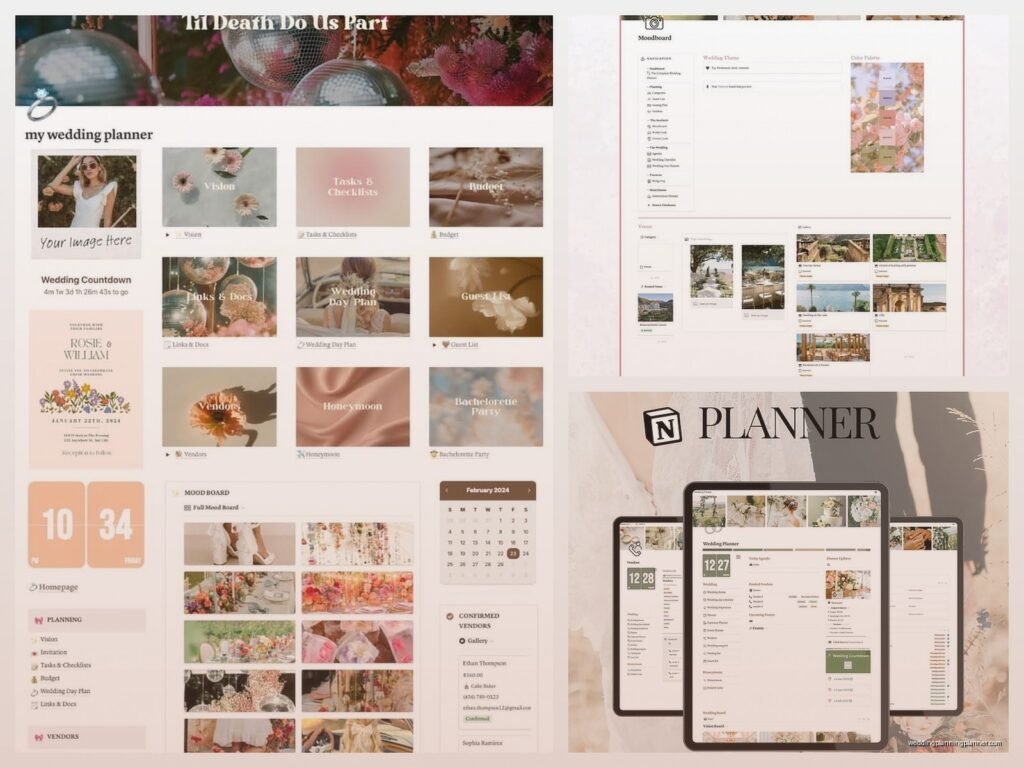
Setting Up Your Wedding Planner Notion Workspace
Okay so Notion changed my entire business back in spring 2023 when I was juggling like six weddings in one month and nearly forgot to confirm a florist because my paper planner was an absolute disaster. I’d been using spreadsheets and Google docs and honestly just sticky notes everywhere, and one day I found a sticky note stuck to my cat’s fur with a vendor’s phone number on it and I was like… this has gotta stop.
The thing about Notion is it’s basically whatever you need it to be. You can build a client management system, a vendor database, a timeline tracker, budget sheets, all in one place. But here’s what annoyed me when I first started – everyone’s templates online are either way too complicated or way too simple. Like either it’s got seventeen databases linked together in ways I don’t understand, or it’s just a blank page that says “add your clients here” which is completely unhelpful.
Start With Your Client Database
This is gonna be your main hub. Create a database (the table view works best for me but you do you) with these properties at minimum:
- Client names (obviously)
- Wedding date
- Venue name and location
- Package type (full planning, partial, day-of coordination)
- Status (inquiry, booked, planning phase, week-of, completed)
- Budget
- Guest count
- Contact info
I also add a “vibe check” property where I just write notes like “loves boho” or “very type-A, needs detailed timelines” or “mom is actually making all decisions” because trust me you’ll forget these details between meetings. Each client entry becomes its own page where you can store literally everything about their wedding.
Building Out Individual Client Pages
When you click into a client’s page from your database, this is where the magic happens. I structure mine like this and it’s worked for probably 50+ weddings now:
Overview Section: Right at the top, I have a quick reference area with their wedding date, venue, key vendors, and wedding party count. Sometimes I’ll paste in their inspiration photos here too so I can remember their aesthetic without digging through emails.
Meeting Notes: I create a new toggle for each meeting we have. The date goes in the toggle title, then all my notes go inside. This keeps everything chronological but collapsed so the page doesn’t get insanely long. During meetings I’m typing directly into Notion on my laptop or iPad and clients actually seem impressed by this even though I’m literally just… taking notes.
Vendor Tracker: This is a table within their page listing every vendor – name, category, contact, contract status, payment schedule, and a checkbox for “contract signed” and “final payment made.” I link this to my main vendor database too but we’ll get to that.
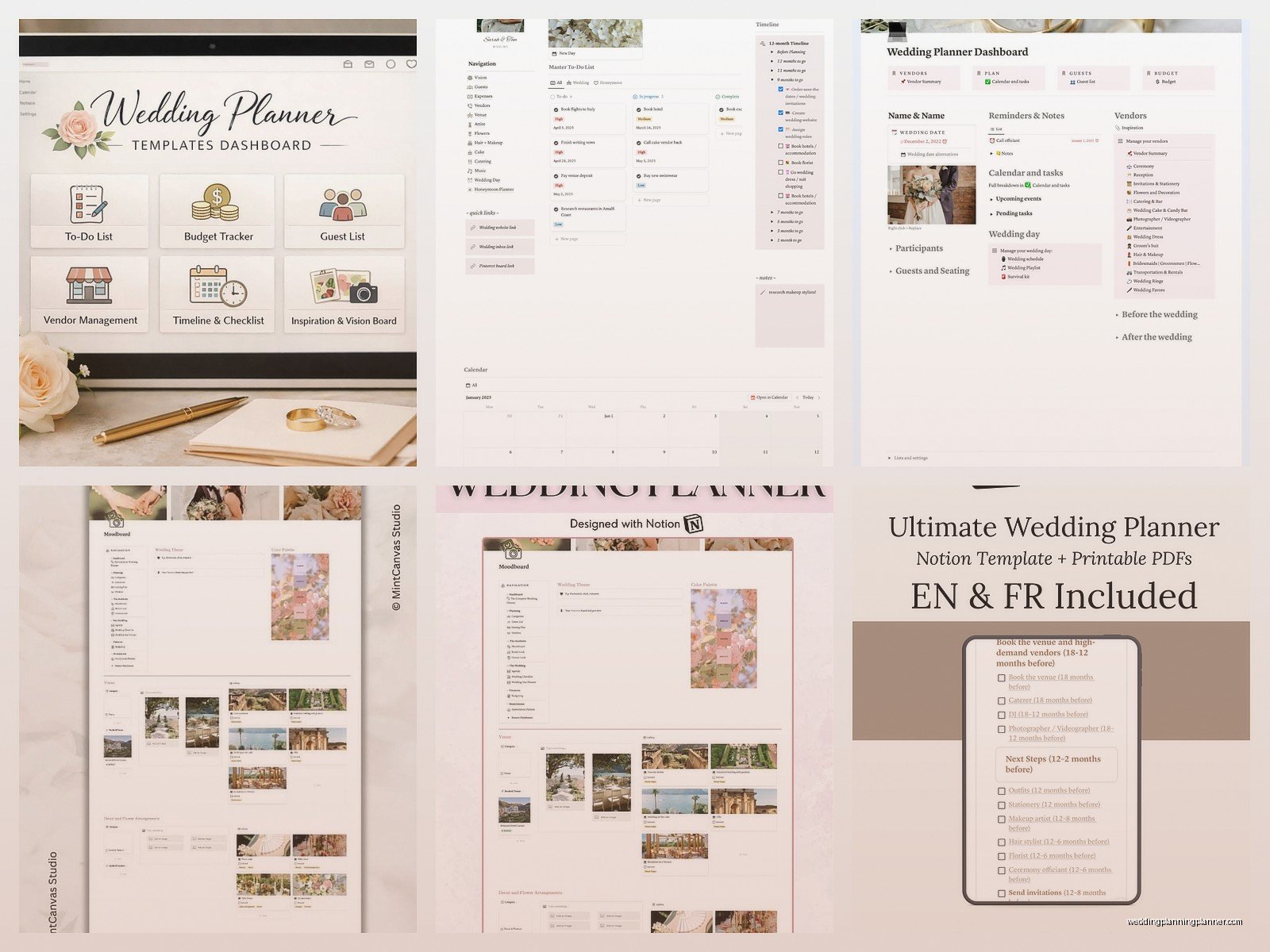
Budget Breakdown: Simple table with category, estimated cost, actual cost, deposit paid, balance due. I use formulas to auto-calculate totals which sounds fancy but Notion makes it pretty easy. You just type /formula and it walks you through it kinda.
Timeline: I’ll be honest, I tried doing super detailed timelines in Notion and it got messy. Now I just keep milestone dates here (invitations ordered, final guest count due, rehearsal dinner, etc.) and I still use a separate detailed day-of timeline in a Google doc because my vendors are used to that format and I’m not gonna make everyone adapt to my system.
Task List: This is where I track everything I need to do for them. I use checkboxes with due dates. Notion can remind you about tasks but I never remember to set that up honestly, I just sort by date and check it daily.
Your Master Vendor Database
This is separate from your client database but you can link them together. Create another database with all vendors you’ve worked with or researched. Include:
- Vendor name and business name
- Category (photographer, florist, caterer, etc.)
- Contact information
- Price range (I use $, $$, $$$, $$$$)
- Location/areas served
- Notes about working with them
- Rating (I do 1-5 stars)
- Website and Instagram
The notes section is crucial. I write things like “always runs 15 minutes late but photos are gorgeous” or “very responsive, great for anxious couples” or “requires full payment 60 days out, no exceptions.” These little details help when I’m recommending vendors to new clients based on their personalities and needs.
You can create a relation property to link vendors to specific client weddings, so you can see all the weddings you’ve used a particular photographer for, or see all vendors attached to one wedding. It sounds complicated but once you set it up it’s actually really satisfying to click around and see all the connections.
Templates For Efficiency
Here’s something I wish I’d done earlier – create templates for recurring page types. Notion lets you make a template button that generates a pre-formatted page. So now when I add a new client to my database, I hit my “New Client Template” button and boom, all those sections I mentioned above are already there, I just fill in the specifics.
I also have templates for:
- Initial consultation notes (with standard questions already listed)
- Venue walkthrough checklists
- Month-of timeline (what should happen 4 weeks out, 3 weeks out, etc.)
- Day-of emergency kit inventory
You make these by typing /template inside a database and it’ll guide you through it. Watch one YouTube video on this if you’re confused, it’s easier to see than explain.
The Content Calendar For Your Blog/Social
Since you’re probably marketing your services, I keep a content calendar in Notion too. It’s a database with calendar view where I plan out blog posts, Instagram content, newsletter topics, whatever. Properties include topic, status (idea, drafted, scheduled, published), platform, and the actual draft text.
I’ll write blog post drafts directly in Notion, then copy them to WordPress later. It’s nice having everything in one ecosystem instead of Google Docs for writing, Trello for planning, spreadsheets for tracking… like my brain can only handle one tool, you know?
Financial Tracking
I use Notion for high-level financial tracking, not as a replacement for actual accounting software (I use QuickBooks for that and my accountant would kill me if I didn’t). But I have a database for:
- Income by client (package price, deposit received date, final payment received date)
- Monthly revenue goals vs actual
- Expenses (I just track business expenses here in broad categories)
This helps me see at a glance if I’m on track for my annual goals without opening QuickBooks which is… not my favorite way to spend time. The dashboard view with all these numbers visible makes me feel very professional even though half the time I’m working in yoga pants with my cat walking across the keyboard.
Dashboard Views That Actually Help
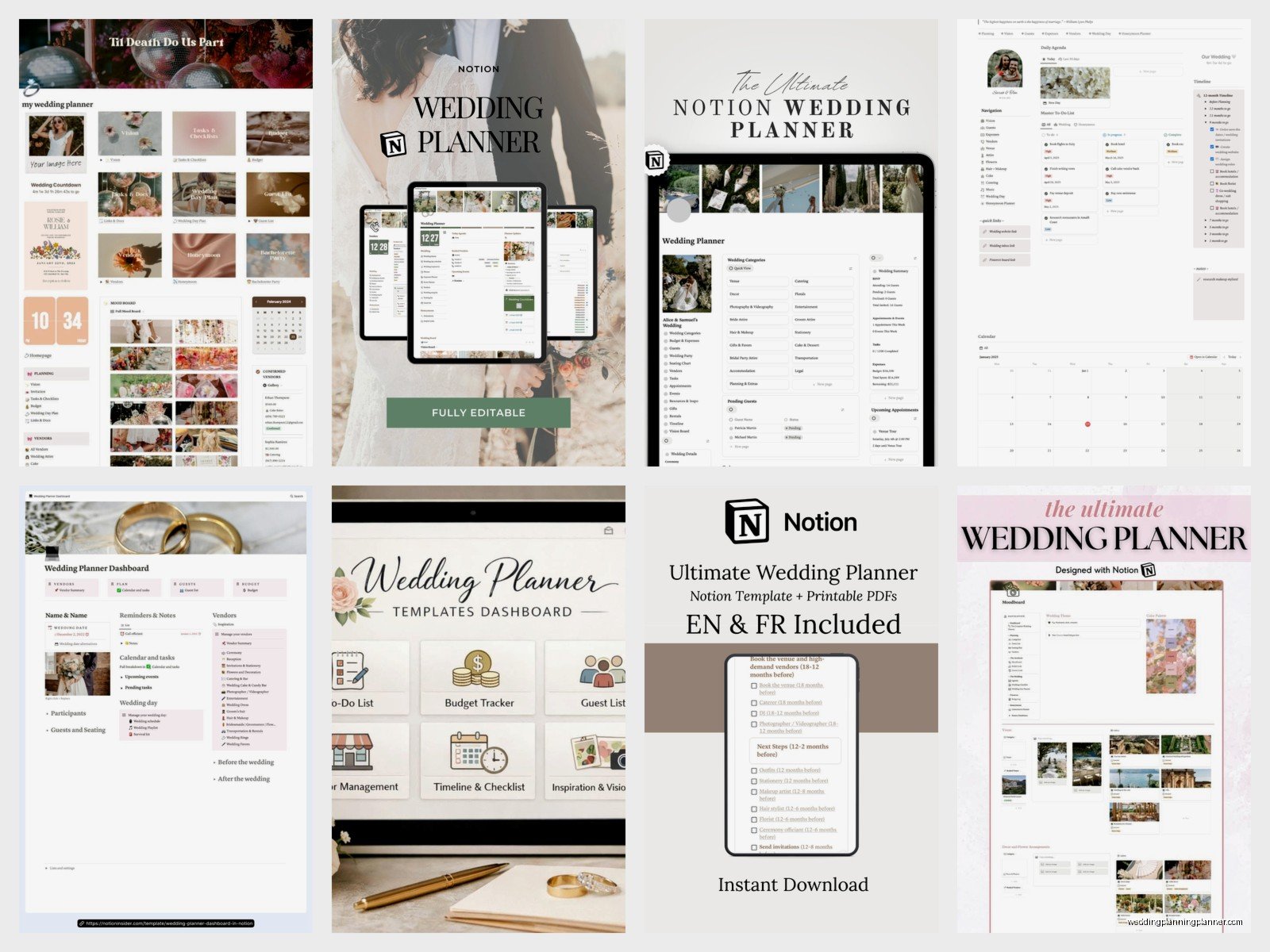
The main Notion page I open every single day is my dashboard. It’s got:
This Week’s Tasks: A filtered view of all client tasks due in the next 7 days, sorted by date. This is pulled from all my client pages automatically.
Upcoming Weddings: A timeline view showing weddings in the next 3 months with their dates visible. Color-coded by how many weeks away they are.
Recent Inquiries: Clients whose status is “inquiry” so I remember to follow up. I lost a client once because their email got buried and they booked someone else, and I’m still annoyed about that because it was a really good fit.
Revenue This Month: Just a number that auto-calculates from my income database. Motivating or depressing depending on the month honestly.
Quick Links: Links to my vendor database, content calendar, and my “Resources” page where I keep contracts, questionnaires, and other documents I use repeatedly.
Oh and I have a “Brain Dump” section at the bottom that’s just a blank space where I write random thoughts or things I need to remember that don’t fit anywhere else. Sometimes I’ll be watching reality TV at night and think of something for a client and I’ll just grab my phone and dump it there – like “ask Sarah about gluten-free options for her bridesmaid” or whatever. It’s not organized but at least it’s captured somewhere I’ll see it.
Mobile vs Desktop Use
The Notion mobile app is… fine. It works. I use it mostly for checking things quickly or adding notes during venue visits. But for actually building out pages and databases, do that on desktop because the mobile interface for database properties and relations is kinda clunky. You can do it, but you’ll get frustrated.
During weddings I keep my phone open to the client’s page so I can reference the timeline and vendor contacts quickly. I also take photos of setup and add them directly to their page through the mobile app, which is nice for documentation and for sharing with future clients (with permission obviously).
Linking Everything Together
This is where Notion gets powerful but also where it can get overwhelming – the ability to link databases and create relations between different types of information. Like my vendor database links to client pages, which link to specific weddings, which connect to task lists and budgets and…
Start simple. Just get your client database working. Then add vendors. Then maybe link them. You don’t need a perfect system on day one, you need something that’s better than whatever chaotic method you’re using now (sticky notes on cats, in my case).
I’m still tweaking my setup honestly. Like last month I added a “Lessons Learned” section to each completed wedding page where I write notes about what went well and what I’d do differently, because I was repeating the same mistakes and not… learning from them? Which seems obvious in retrospect but whatever, we’re all busy.
Things I Don’t Use Notion For
Just to be clear, Notion isn’t perfect for everything. I don’t use it for:
- Contracts and legal documents (those live in Google Drive with proper backup)
- Photo storage (way too many photos, that’s also Google Drive)
- Email (I mean, obviously, but some people try to manage email through Notion integrations and nah)
- Detailed day-of timelines (Google Sheets is still better for this because vendors can access it easily)
It’s a workspace and organization tool, not a replacement for every single software you use. The goal is to reduce the number of tools, not to force everything into one system just because you can.
Backing Everything Up
Notion has export functions and you should use them. I export my entire workspace monthly as both HTML and Markdown, just in case. I’ve never needed it but I also never want to be the person who loses all their client information because of a tech glitch or something. Takes like five minutes, totally worth the peace of mind.
Also everything syncs to the cloud automatically which is great, but that also means you need internet to access it. I learned this during a venue walkthrough in a basement with no service and couldn’t pull up my notes. Now I screenshot important pages before going to venues in weird locations.
The other thing is you can share specific pages with clients if you want, like their budget or timeline, and they can view it in real-time. Some clients love this, others never look at it. I mention it as an option during onboarding and let them decide. The type-A clients always want access, the laid-back ones are like “just tell me where to show up” and that’s fine too.
