
Planning Guides, Style Guide
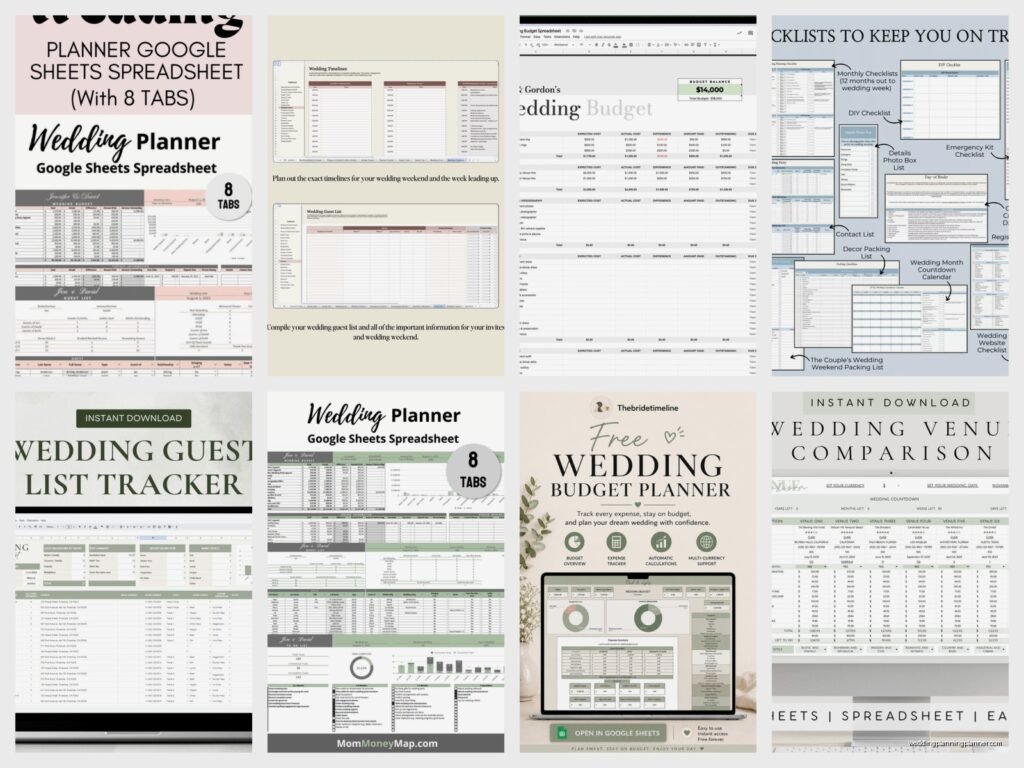
Wedding Planning Spreadsheet Google Sheets Free: Cloud Template
Jul
Setting Up Your Google Sheets Wedding Planning Spreadsheet
So Google Sheets is gonna be your best friend for wedding planning and honestly I wish more of my clients discovered this earlier instead of coming to me in spring 2023 with crumpled paper lists and seventeen different Notes app entries. The cloud aspect means you and your partner can both access it from anywhere, which is huge when one of you remembers something at 2am or you’re standing in a flower shop trying to remember your budget.
First thing – just go to Google Drive and click the big colorful plus sign, then select Google Sheets. You’ll want to create a new blank spreadsheet and immediately rename it something like “Our Wedding Planning” or whatever makes sense. I usually tell clients to add the date too like “Smith-Johnson Wedding 2025” so it’s easy to find later.
The Budget Tab Setup
Create your first tab and call it Budget because let’s be real, this is the most important one. Set up columns for: Category, Vendor Name, Estimated Cost, Actual Cost, Deposit Paid, Balance Due, Payment Due Date, and Notes. That last column is where you’ll dump random stuff like “Jessica recommended this person” or “they have a cancellation policy until 60 days out.”
In the Category column you’re gonna list things like Venue, Catering, Photography, Videography, Flowers, Dress, Suit/Tux, Invitations, DJ/Band, Cake, Transportation, Hair/Makeup, Decor, Favors, Rehearsal Dinner, and Miscellaneous. Trust me on the Miscellaneous category – there’s always random expenses that pop up.
Here’s what annoyed me SO much when I started using spreadsheets years ago – people would set up their budget but then never actually update the “Actual Cost” column when they booked vendors. Like what’s the point of tracking if you don’t actually track? You end up with this false sense of where you’re at financially and then suddenly you’re over budget by three thousand dollars and panicking.
Formula Magic That Makes Your Life Easier
Okay so in Google Sheets you can use formulas to do math automatically which sounds intimidating but it’s actually super simple. At the bottom of your Estimated Cost column, click a cell and type =SUM(C2:C20) or whatever rows your data is in. This adds up everything automatically. Do the same for Actual Cost, Deposit Paid, and Balance Due columns.
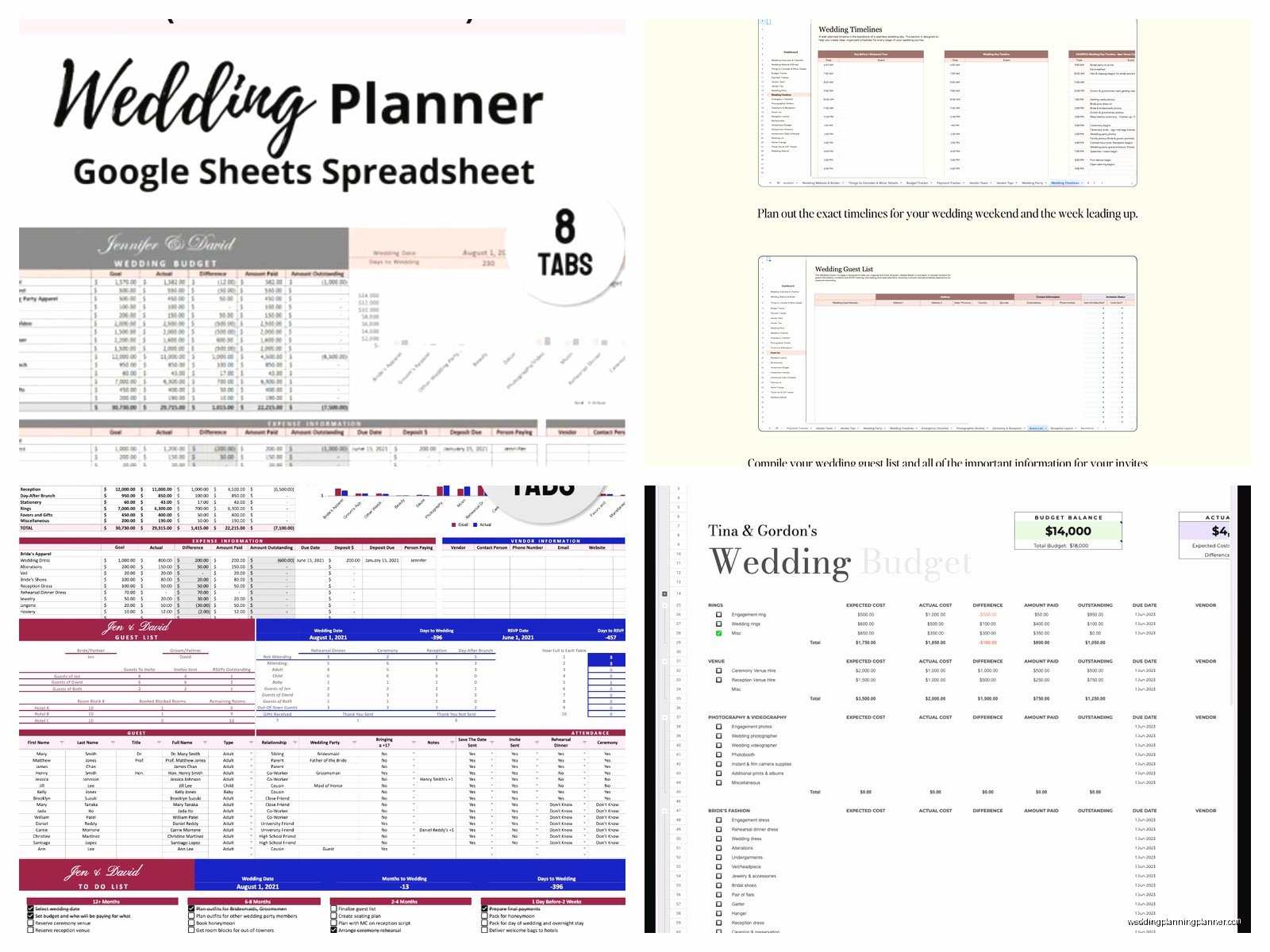
You can also create a cell at the top that shows your total budget, then create another formula that shows how much you have left. So if your total budget is in cell B1 and your sum of actual costs is in cell D25, you can make a new cell that says =B1-D25 and boom, you see exactly how much budget remains. I learned this trick from a bride in summer 2021 who was a data analyst and she basically taught me more about spreadsheets in one meeting than I… anyway, it changed how I work with clients.
Guest List Tab Because This Gets Messy
Make a second tab called Guest List and this is where things get real. You need columns for: First Name, Last Name, Address, City, State, Zip, Email, Phone, Group (like family, friends, work, etc.), Invited To (ceremony only, ceremony and reception, or rehearsal dinner too), Save the Date Sent, Invitation Sent, RSVP Response, Number of Guests, Meal Choice if you’re doing plated dinner, Dietary Restrictions, and Gift Received.
The Group column is super helpful when you’re trying to figure out if you’ve invited too many coworkers versus family or whatever. You can sort by that column to see the breakdown. And the RSVP Response column should have options like Yes, No, or Awaiting – you can use data validation for this which sounds fancy but you literally just highlight the column, go to Data menu, click Data Validation, and choose “List of items” then type Yes, No, Awaiting.
My cat just knocked over my coffee which is perfect timing because managing guest lists can feel equally chaotic. The thing about digital guest lists is you can filter and sort them in ways that paper lists just can’t handle. Need to see everyone who hasn’t RSVP’d yet? Filter by “Awaiting.” Need addresses for people in California? Filter by state.
The RSVP Tracking Nightmare
You’ll want another formula at the top of this sheet that counts total guests. Use =COUNTIF(M:M,”Yes”) where M is your RSVP Response column. This counts everyone who said yes. Then multiply that by average guests per invite (usually like 1.8 or something) or better yet, have a column that specifies exact number attending and sum that instead.
I had a bride once who didn’t track her guest count properly and she told the caterer 150 people, but when we actually went through her spreadsheet together we discovered she had 178 confirmed guests. That was a fun phone call to the venue.
Vendor Contact Information Tab
Create a tab for all your vendor contacts with columns like: Vendor Type, Company Name, Contact Person, Phone, Email, Website, Contract Signed (yes/no), Deposit Amount, Deposit Paid Date, Balance Due, Final Payment Date, Arrival Time on Wedding Day, and Notes.
The arrival time column is crucial because on the actual wedding day you or your coordinator needs to know when everyone’s showing up. Your photographer might arrive at 2pm but your DJ isn’t coming until 5pm and you need to track this somehow or it becomes chaos.
For the Contract Signed column use that data validation trick again with Yes/No options. You can even set up conditional formatting to make cells turn green when you select Yes so you can visually see at a glance what’s done and what’s not. Go to Format > Conditional Formatting and set rules based on cell values.
Timeline and Task Management Tab
This tab is kinda like your master to-do list organized by month or timeframe. Set up columns for: Task Description, Category, Due Date, Assigned To (you or partner or family member), Status (Not Started, In Progress, Complete), and Priority (High, Medium, Low).
You can literally dump everything here from “Book venue” to “Order bridesmaid gifts” to “Schedule hair trial” to “Apply for marriage license.” Then sort by due date so you always know what’s coming up next. I recommend color-coding the priority column – red for high, yellow for medium, green for low.
The Status column should use data validation too so you can track progress. There’s something really satisfying about changing a task to Complete, not gonna lie. It’s like the adult version of checking boxes except it’s synchronized across devices and your partner can see it too.
Additional Tabs You Might Want
Some people create separate tabs for specific categories like a detailed Seating Chart tab where you list table numbers and assign guests to tables. This gets complicated but if you’re having a big wedding it’s necessary. You can create a simple grid with table numbers across the top and guest names listed below each table.
A Menu Planning tab works well if you’re doing a lot of the catering yourself or working with multiple food vendors. List out appetizers, main courses, desserts, drinks, and track quantities needed based on guest count.
Photography Shot List tab is something I started recommending after working with couples who forgot to get specific family combinations photographed. List out must-have shots like “Bride with parents,” “Groom with siblings,” “Full wedding party,” etc. Share this with your photographer beforehand.
Sharing Settings and Collaboration
Click the blue Share button in the top right and add your partner’s email address. You can choose whether they can edit or just view, but obviously you want them to edit so they can update things too. You might also share view-only access with your wedding planner, mom, or whoever’s helping you coordinate.
One thing about Google Sheets is it auto-saves constantly which is amazing but also means if someone accidentally deletes something it’s gone unless you catch it quickly. You can go to File > Version History to see previous versions and restore them if needed, which has saved me more times than I can count.
Templates You Can Actually Use
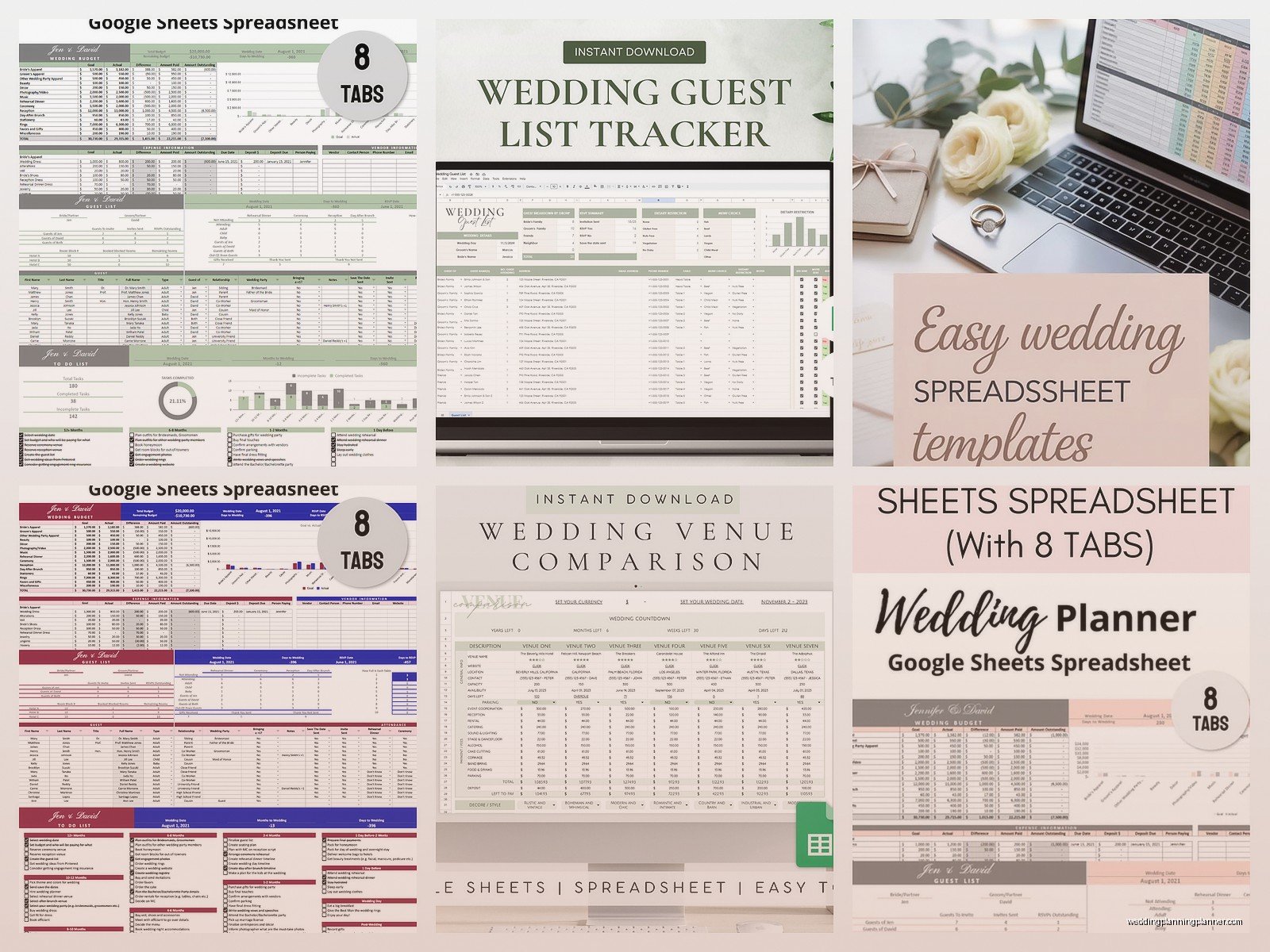
If setting all this up from scratch sounds exhausting, there are free templates floating around. Just search “wedding planning Google Sheets template” and you’ll find options people have created and shared publicly. You can make a copy to your own Drive and then customize it.
The template gallery in Google Sheets has some event planning templates but honestly they’re kinda basic for weddings. I’ve found better ones through wedding blogs and Pinterest where planners have shared their actual working templates. Just make sure when you find one that you go to File > Make a Copy so you’re working on your own version, not editing someone else’s public template.
Mobile Access Is Actually Good Now
The Google Sheets app on your phone works pretty well for viewing and quick edits. You won’t want to build your whole spreadsheet on mobile because that sounds like torture, but when you’re out meeting vendors and need to check your budget or add a note, it’s totally functional. I use it all the time when I’m at venues with clients and need to reference something quickly.
Just download the Google Sheets app, sign in with the same Google account, and all your spreadsheets appear there. You can even work offline if you enable that setting, though changes won’t sync until you’re back online obviously.
Formulas and Functions That Actually Help
Beyond basic SUM formulas, you can use COUNTIF to count how many people RSVP’d yes like I mentioned earlier. SUMIF is useful for adding up costs within a specific category, like =SUMIF(A:A,”Flowers”,D:D) which would sum all actual costs where the category is Flowers.
Conditional formatting can highlight rows where balance due dates are coming up soon. Set it to turn cells red if the due date is within 7 days and yellow if it’s within 30 days. This creates a visual alert system so you don’t miss payment deadlines.
Data validation keeps your entries consistent – instead of some people typing “yes” and others typing “YES” or “Y”, everyone has to select from the same dropdown list. Makes filtering and sorting actually work properly.
Backing Up Your Spreadsheet
Google automatically saves everything to the cloud but I’m paranoid so I also download an Excel version every few weeks as backup. Go to File > Download > Microsoft Excel and save it somewhere on your computer or external drive. Just in case Google decides to have a weird outage or something, you have a backup copy.
You can also print specific tabs to PDF if you want physical copies for vendor meetings. I still bring printed budget sheets to venue tours sometimes because scrolling through a phone while walking around is awkward and my clients appreciate having something to reference on paper even though everything lives digitally.
The beauty of a cloud-based spreadsheet is you can access it from literally anywhere – your laptop, your phone, your partner’s computer, a library computer if needed. Everything syncs automatically and you never have to worry about emailing yourself the latest version or wondering if you’re looking at old data. It just works, which for wedding planning when your brain is already overloaded with decisions about napkin colors and whether to do a receiving line or not… yeah, having one less thing to think about helps a lot
