
Planning Guides, Style Guide
WordPress Wedding Template Free: Free Download Files
Sep
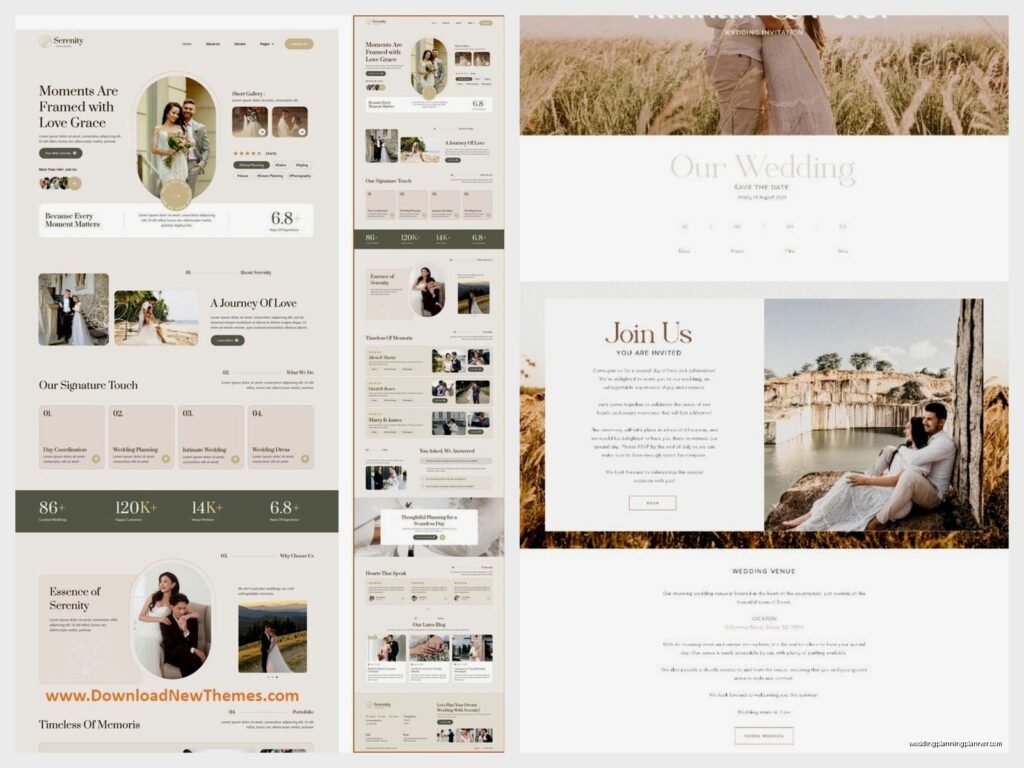
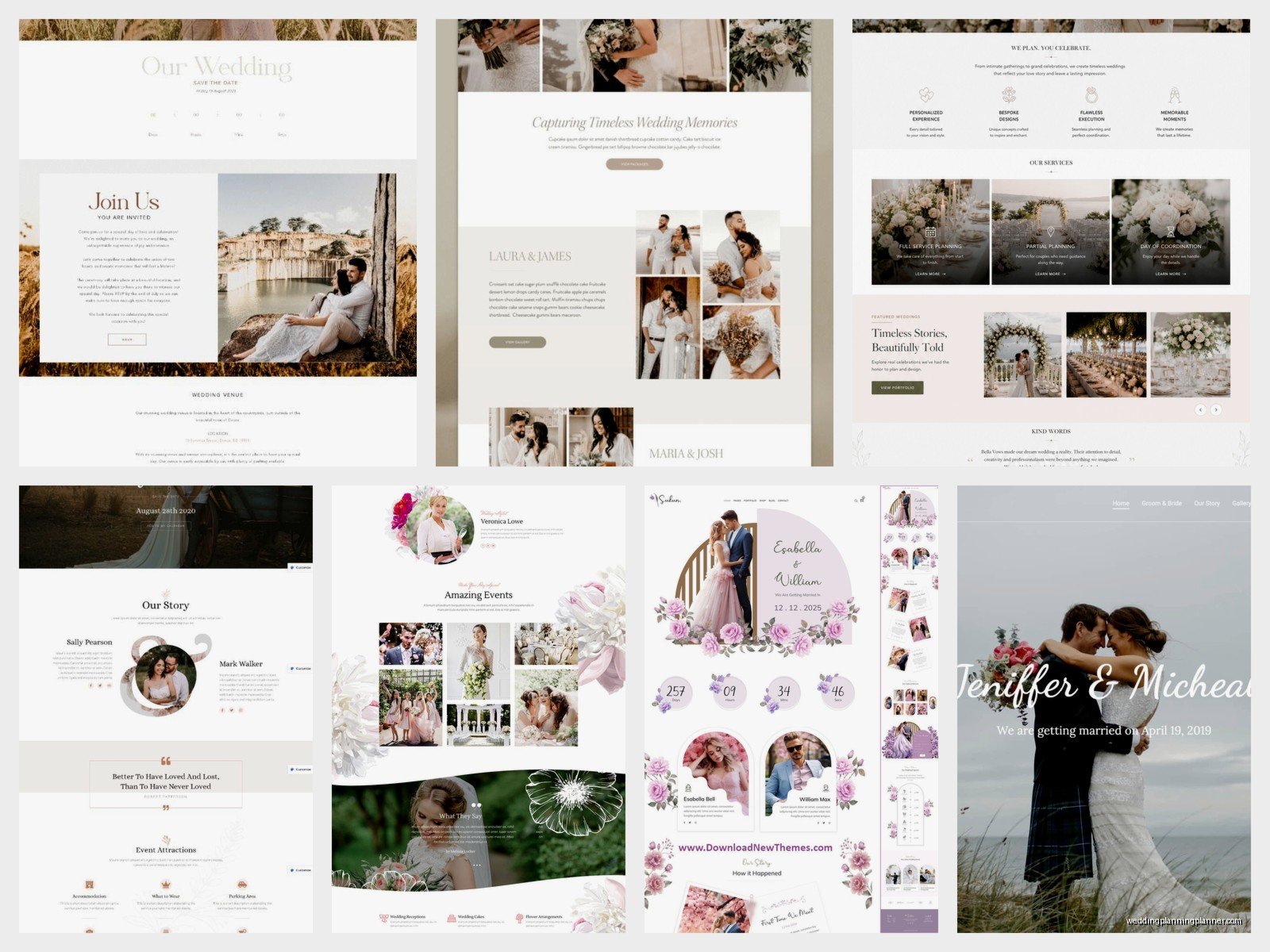
Okay So WordPress Wedding Templates That Are Actually Free
Look, I’ve been down this rabbit hole so many times with clients who want a gorgeous wedding website but have basically no budget left after the venue deposit. Spring 2023 I had this bride who literally spent three hours on a consultation call just trying to find free WordPress templates because she’d already blown through her budget on centerpieces and I was like… okay we’re doing this together.
The first thing you gotta know is that “free” with WordPress templates means like seventeen different things. There’s free-free where you download a complete template and just use it. Then there’s freemium which is gonna drive you nuts because you download it thinking it’s free but then half the features are locked behind a paywall. And then there’s the WordPress.com free options versus WordPress.org self-hosted options which are completely different animals.
Where To Actually Find These Files
WordPress.org theme directory is your starting point. Go to wordpress.org/themes and you can search but here’s the annoying part – they don’t have a “wedding” category specifically. You have to search terms like “wedding” or “event” or “elegant” and sort through a bunch of stuff that’s not even close to what you need. I spent like two hours doing this once while my cat kept walking across my keyboard and somehow managed to filter by “blue” themes only and I didn’t even notice for twenty minutes.
Some templates that actually work for weddings from the official directory include Lovecraft (yeah weird name but it’s romantic), Whispy, and Blossom Wedding. These are legitimately free, no strings attached. You download the zip file directly from WordPress and upload it to your site.
Then there’s third-party sites. TemplateMonster has a free section but honestly it’s pretty picked over. ThemeForest is mostly paid but occasionally they do freebies. Colorlib has some free wedding templates but you gotta be careful because some of them require you to keep their credit link in the footer or whatever.

The Download Process That Nobody Explains Properly
When you find a template you like on WordPress.org, there’s a big Download button. Click it and you get a .zip file. DO NOT UNZIP IT. This is where people mess up constantly and I don’t know why this isn’t explained better anywhere but you need that zip file to stay zipped.
Log into your WordPress dashboard. Go to Appearance then Themes then Add New then Upload Theme. Choose that zip file. Click Install Now. Wait for it to process which can take like thirty seconds or three minutes depending on your hosting… it’s kinda random honestly.
After it installs you’ll see Activate. Click that. Boom, your site now looks completely different and possibly broken because templates don’t come with the demo content you saw in the preview.
Demo Content Is The Thing That’ll Frustrate You
This drove me absolutely crazy when I was setting up sites for clients in like summer 2021 – you see this gorgeous template with beautiful photos and perfect text and romantic layouts, you install it, and your site looks like a blank skeleton with default WordPress headers and no structure. Where did all the pretty stuff go?
Most free templates don’t include demo content import files. The paid versions do. The free versions expect you to manually recreate everything you saw in the preview. Some templates like Blossom Wedding actually do include an import function for demo content but it’s rare.
If your template has demo import, you’ll usually find it under Appearance > Import Demo Data or something similar. Follow the instructions and it’ll pull in sample pages, sample posts, sample images, all that stuff. Then you just replace it with your actual wedding info.
If it doesn’t have demo import, you’re building pages from scratch using whatever page builder the template includes or just the regular WordPress block editor.
What You Actually Get In These Free Files
A typical free WordPress wedding template includes the theme files themselves (PHP, CSS, JavaScript), sometimes a child theme, maybe a readme file with basic instructions that may or may not be helpful, and that’s kinda it.
You’re not getting premium plugins bundled in. You’re not getting premium fonts necessarily. You’re not getting dedicated support – like if something breaks you’re googling it or posting in forums hoping someone answers.
The theme files control how your site looks – the colors, fonts, layout structure, header design, footer design. Most free wedding templates come with some customization options in the WordPress Customizer (Appearance > Customize) where you can change colors, upload your logo, modify menu layouts, stuff like that.
Some include custom post types for things like “Wedding Events” or “Wedding Party Members” which is actually super helpful. You can create individual posts for each bridesmaid or each event in your wedding weekend and they’ll display in a nice grid or timeline.
The Plugins You’ll Probably Need To Download Separately
Free templates usually don’t include everything you need for a functional wedding website. You’ll want to grab these free plugins separately:
- A form plugin like WPForms or Contact Form 7 for your RSVP form
- A gallery plugin like Envira Gallery Lite if you want fancy photo galleries
- Maybe an event calendar plugin if your template doesn’t have one built in
- Elementor or Beaver Builder free versions if you want drag-and-drop page building
- An SEO plugin like Yoast because you still want people to find your site
Each plugin is a separate download and installation process. Go to Plugins > Add New, search for the plugin name, click Install then Activate. I usually set up like five or six plugins minimum for a basic wedding site.
File Types You’ll Encounter And What They Mean
The .zip file is the main theme package. Inside that zip (if you did unzip it to look, which you shouldn’t for installation but you can for curiosity) you’ll see:
PHP files – these are the template files that tell WordPress how to structure pages. header.php controls your header, footer.php controls your footer, single.php controls individual post layouts, etc. You don’t need to touch these unless you know what you’re doing.
style.css – this is the main stylesheet with all the design rules. The top of this file has comments with the theme name, author, version number, all that metadata.
functions.php – this is where the theme’s functionality lives. Again, don’t touch it unless you know PHP.
A screenshot.png or screenshot.jpg – this is the theme preview image you see in your WordPress dashboard.
Maybe a fonts folder, images folder, js folder for JavaScript files.
Some templates include a separate .xml file for demo content import. This is an export of all the sample pages and posts from the demo site.
The Freemium Trap I Mentioned Earlier
Okay so this is the thing that annoyed me most – you download what’s advertised as a free template, you install it, you start building your site, and then you realize the homepage layout you wanted is premium only. Or the RSVP form integration is premium only. Or you can only choose from three color schemes instead of custom colors unless you upgrade.
Templates like Astra and OceanWP do this. They’re technically free but they’re really designed to upsell you to the pro version. Which is fine as a business model I guess but it’s frustrating when you’re expecting full functionality.
You can usually tell by reading the template description carefully. If it says “free version includes basic features” or shows a comparison chart of free vs pro, you’re looking at freemium. Truly free templates don’t usually have a pro version at all.
Actually Setting Up Your Wedding Website After Download
Once you’ve got your template installed and activated, you need pages. At minimum you want:
- Home page with your names, date, maybe a photo
- Our Story page with how you met and all that
- Wedding Party page with your bridesmaids and groomsmen
- Schedule/Events page with ceremony time, reception time, etc
- Travel & Accommodations with hotel blocks and directions
- RSVP page with your form
- Registry page with links to your registries
- Photos/Gallery if you want engagement photos up
Create these under Pages > Add New. Most wedding templates will have page templates you can select – like “Full Width” or “Landing Page” or sometimes specific ones like “Wedding Party Template.” You’ll see a dropdown usually in the sidebar that says Template and you can choose.
If your template uses a page builder, you’ll see a different editor interface with drag-and-drop sections. If it uses the WordPress block editor, you’re adding blocks (paragraph blocks, heading blocks, image blocks, gallery blocks, etc).
For your homepage, go to Settings > Reading and set “A static page” then choose your home page from the dropdown. Otherwise WordPress will show your blog posts on the homepage which you probably don’t want for a wedding site.
Customizing Colors And Fonts And Stuff
Go to Appearance > Customize. This opens the WordPress Customizer with a live preview of your site. The options here depend entirely on what your template includes but typically you’ll find:
Site Identity – upload your logo (which might just be a fancy version of your names), add a site icon (the little icon that shows in browser tabs)
Colors – change background colors, text colors, link colors, header colors. Free templates usually give you at least basic color controls.
Typography – some let you change fonts, some don’t. If your template doesn’t have font options built in, you might need a plugin like Easy Google Fonts.
Header/Footer options – turn things on or off, rearrange layouts.
Menus – create your navigation menu with links to all your pages.
Widgets – add things to your sidebar or footer like Instagram feeds or countdown timers.
Make your changes, click Publish when you’re done. If you don’t click Publish they won’t save which I’ve definitely forgotten to do before and lost like thirty minutes of work because I’m smart like that.
Free Stock Photos Because You Need Images
Your template is gonna have placeholder images that you need to replace. If you don’t have your own photos yet (engagement photos aren’t done, whatever), you need stock photos. Unsplash, Pexels, and Pixabay are completely free with no attribution required usually.
Search for “wedding,” “couple,” “bride,” “flowers,” whatever fits your vibe. Download the images. In WordPress, go to Media > Add New and upload them. Then you can insert them into your pages.
Try to keep image file sizes reasonable – like under 1MB each – because giant images slow down your site. There’s free plugins like Smush that’ll compress images automatically.
The RSVP Form Situation
Most free templates don’t include a working RSVP form, just a placeholder. You need to build the actual form with a plugin. WPForms has a free version that works fine for basic RSVPs.
Install WPForms, go to WPForms > Add New, choose the contact form template as a starting point. Add fields for name, email, number of guests attending, meal choices, dietary restrictions, whatever you need. Save the form.
Copy the shortcode it gives you (looks like ). Edit your RSVP page and paste that shortcode where you want the form to appear. The form will show up on the page and submissions will go to your email.
You can get fancier with conditional logic and stuff but that requires the paid version of WPForms usually, or you use a different plugin like Formidable Forms.
Mobile Responsiveness Which You Gotta Check
Most modern free templates are mobile-responsive meaning they automatically adjust for phones and tablets. But you should check because I’ve definitely seen free templates that look gorgeous on desktop and completely broken on mobile.
In the WordPress Customizer there’s usually icons at the bottom to preview desktop, tablet, and mobile views. Click through those and make sure everything looks okay. If something’s weird, you might need to adjust padding or font sizes or image sizes.
You can also just pull up your site on your actual phone. That’s honestly the best test.
Backing Up Your Site After You’ve Set Everything Up
Once you’ve got your template installed and customized and your content added, back it up. Free plugin like UpdraftPlus will do automatic backups to Google Drive or Dropbox or wherever.
I had a client’s site completely crash during her wedding weekend once – like summer 2021 I think? – and we had no backup and it was a nightmare trying to rebuild everything from memory while she was supposed to be enjoying her rehearsal dinner. Don’t be like us. Set up backups.
UpdraftPlus free version lets you do manual backups whenever you want and schedule automatic ones. It saves your database (all your content and settings) and your files (your theme, plugins, uploads). You can restore everything with one click if something goes wrong.
Getting Your Domain Name Connected
If you’re using WordPress.com free plan, your site URL will be like yournames.wordpress.com and you can’t change that without upgrading. If you’re on WordPress.org with your own hosting, you can connect any domain name you bought.
This is a whole separate process that depends on where you bought your domain (GoDaddy, Namecheap, Google Domains, wherever) and where your hosting is. Usually you’re updating nameservers or DNS records which sounds scary but there’s step-by-step instructions from your hosting company.
Most couples use something like JohnAndJaneWedding.com or JaneSmithAndJohnDoe.com or their wedding date or… I’ve seen some creative ones honestly. Make sure you get the domain early because good ones go fast.
Honestly this whole process of finding free WordPress wedding templates and actually setting them up is kinda tedious but it’s totally doable if you’ve got patience and you’re willing to google things when you get stuck. I’ve walked probably thirty couples through this at this point and they all figured it out eventually even the ones who thought they weren’t tech-savvy at all. You just gotta give yourself like a weekend to mess around with it and not expect it to be perfect immediately because it won’t be but that’s alright.
