
Planning Guides, Style Guide
Wedding Google Slides Template: Free Download Files
Sep
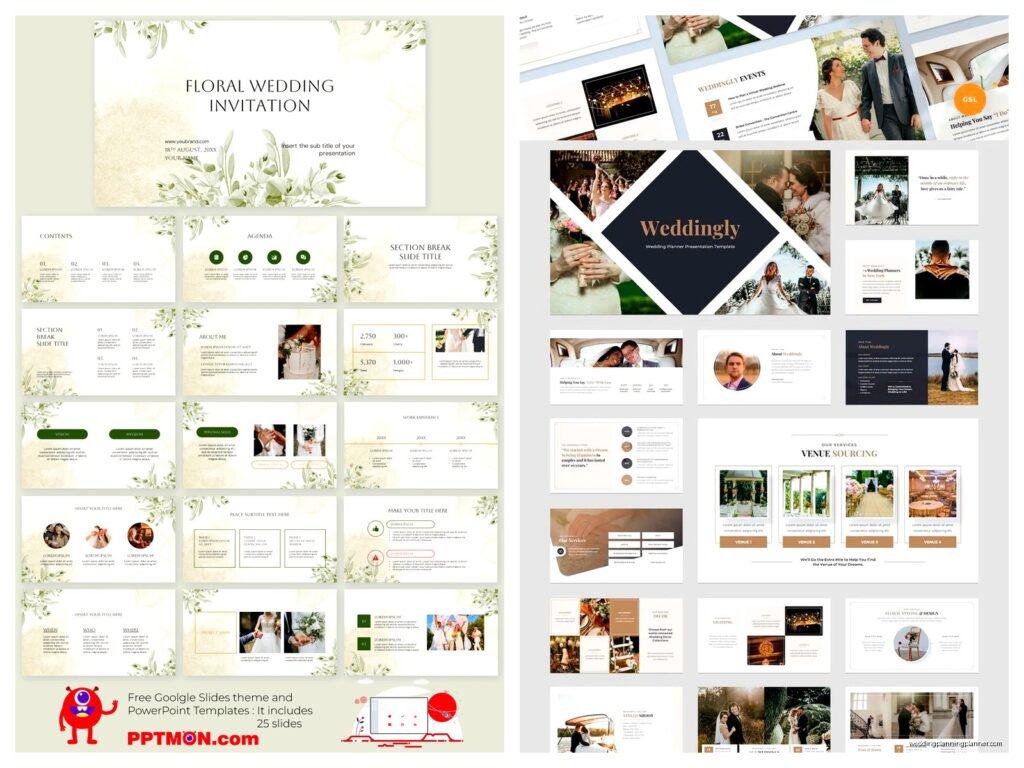
Why You Even Need Wedding Google Slides Templates
So here’s the thing about wedding planning presentations – you’re gonna need them way more than you think. I learned this the hard way back in spring 2023 when I had this bride who wanted to present her entire wedding vision to her future mother-in-law and I showed up with… a Pinterest board on my phone. Yeah. That went exactly as awkward as you’re imagining.
Google Slides templates are honestly a lifesaver because they let you organize everything visually without needing to buy PowerPoint or learn some fancy design software. You can share them with your partner, your wedding planner (hi), your vendors, whoever needs to see what’s happening. Plus they’re free which is kinda the whole point of this guide.
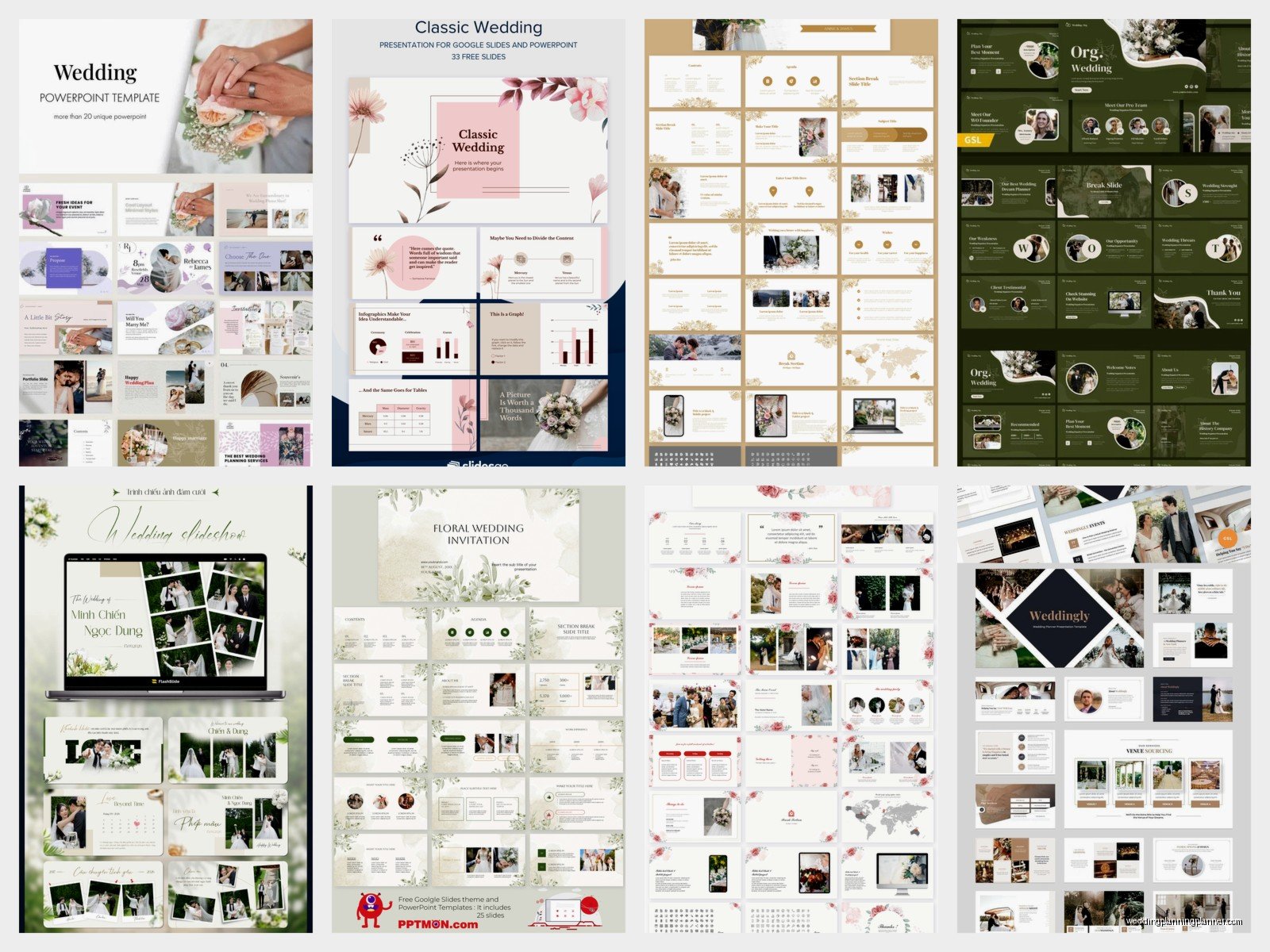
Where to Actually Find Free Wedding Google Slides Templates
Alright so the obvious place everyone goes is the Google Slides template gallery but honestly? Their wedding selection is pretty meh. I usually tell clients to check these spots instead:
- SlidesCarnival – they have some surprisingly elegant options that don’t look like they were made in 2012
- SlidesGo – decent variety and you can filter by style which saves time
- Canva – yes I know this is technically Canva but you can download their presentations as Google Slides files
- GraphicMama – hit or miss but when they’re good they’re really good
- Template.net – they have free options mixed in with paid ones so you gotta scroll
What really annoyed me though is that half these “free” templates have like 8 slides and then the rest are locked behind a paywall. Like just tell me upfront it’s a sample, you know?
How to Download and Import Them Properly
This is where people mess up constantly. You find a template you like and then… wait, how do I actually get this into my Google Drive?
If it’s a PowerPoint file (usually .pptx), you need to upload it to Google Drive first, then right-click and select “Open with Google Slides.” It’ll convert it but sometimes the fonts get weird or images shift around. I always check every single slide after converting because you don’t wanna present something that looks broken.
For actual Google Slides templates, look for the “Use Template” button or “Make a Copy” option. This creates your own version in your Drive so you’re not editing the original. Some sites make you sign in with your Google account first which is fine, just make sure it’s going to the right account if you have multiple.
What Makes a Good Wedding Planning Template
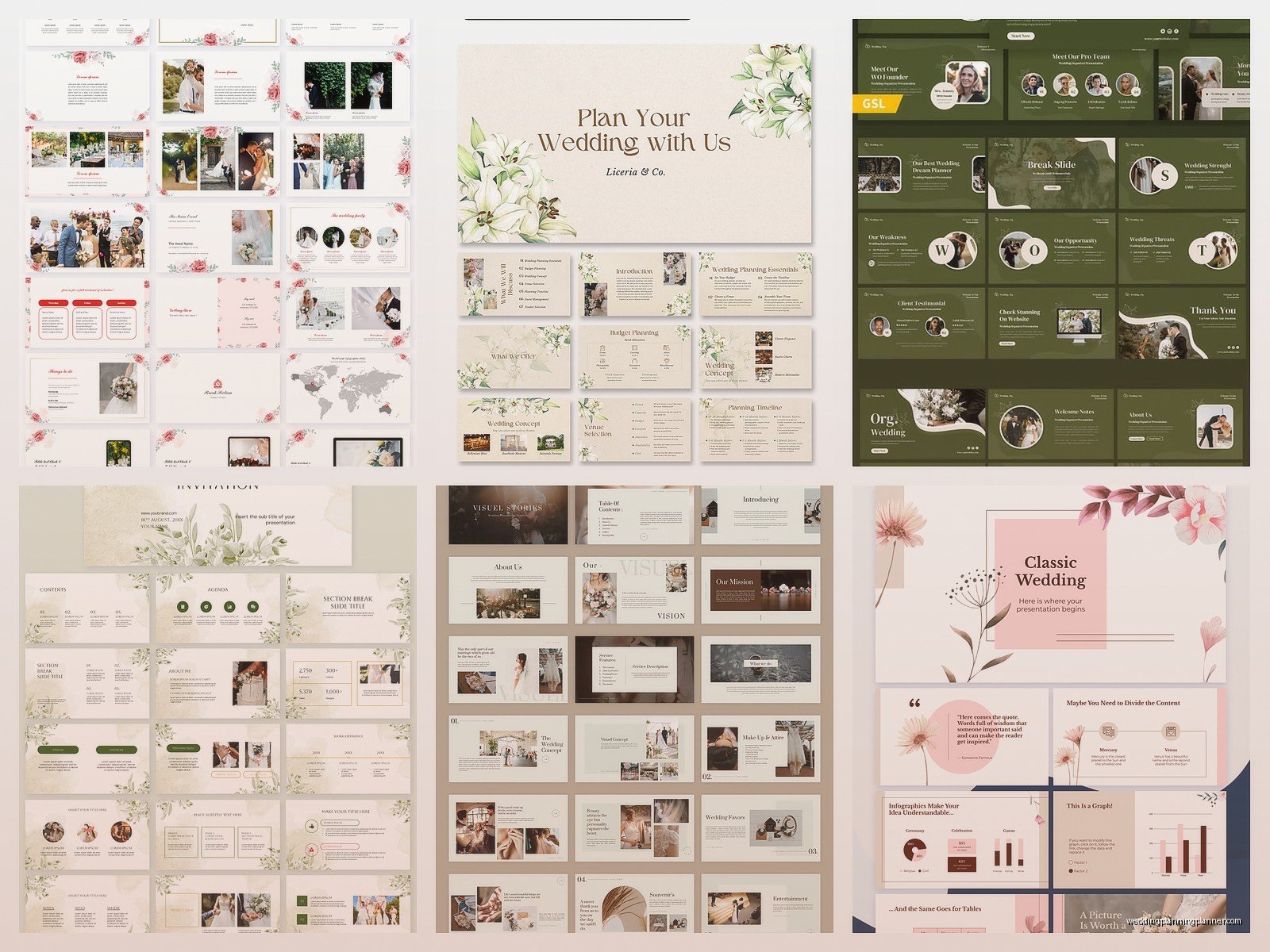
You want slides that cover the basics without being overwhelming. Here’s what I look for:
- A cover slide for the wedding date and names obviously
- Timeline or schedule layouts
- Budget breakdown slides with tables or charts
- Mood board or inspiration slides with image placeholders
- Vendor contact information slides
- Seating chart or floor plan options
- Color palette and theme slides
The template doesn’t need to have ALL of these but it should have at least 4-5 of them to be worth downloading. Otherwise you’re basically starting from scratch anyway.
Customizing Your Template Without Making It Look Messy
Okay so you’ve got your template downloaded and ready to go. Now comes the fun part where you make it actually yours. Or the frustrating part, depending on your design skills.
First thing – pick your fonts and stick with them. Most templates come with preset fonts that work together. Don’t go changing the title font to something completely different unless you really know what you’re doing. I’ve seen presentations with like 6 different fonts and it looks like a ransom note.
For colors, use the “Theme” button at the top of Google Slides to change the entire color scheme at once. This is way better than manually changing each element because it keeps everything consistent. You can input your actual wedding colors here – just grab the hex codes from your color palette.
Images are where things get tricky. You’ll want high-resolution photos but Google Slides can get laggy if your files are too massive. I usually resize images to about 1920px on the longest side before uploading them. There’s free tools like TinyPNG or Squoosh that compress images without making them look terrible.
Using Templates for Different Wedding Planning Purposes
The versatile thing about these templates is you can repurpose them for different needs. I had this couple in summer 2021 who used the same base template for like five different presentations – one for parents, one for the venue, one for their wedding party, and I think they even made one for themselves just to stay organized.
Presenting Your Vision to Parents or In-Laws
This is honestly where having a professional-looking presentation really helps. Parents take things more seriously when you show up with a actual slideshow versus just talking about your ideas. Include budget breakdowns here but maybe simplify them – you don’t need to show every single line item, just the major categories.
Keep this version between 10-15 slides max. Any longer and you’ll lose their attention. Trust me, I’ve sat through 40-slide wedding presentations and by slide 23 everyone’s just nodding without actually listening.
Coordinating with Your Wedding Planner or Coordinator
If you’re working with a planner like me, a shared Google Slides deck is actually super useful for collaboration. I can leave comments on specific slides, you can update details in real-time, and we both always have the most current version.
For this purpose, include more detailed information – vendor contracts status, payment schedules, specific measurements for the venue, that sort of thing. This becomes your working document basically.
Briefing Your Vendors
When you’re meeting with photographers, florists, caterers… they all need to understand your vision. A quick 5-7 slide presentation with your color scheme, style inspiration, venue photos, and any specific requirements helps SO much.
I always tell clients to make a vendor-specific version that focuses on just what that vendor needs to know. Your florist doesn’t need to see your budget breakdown for the DJ, you know?
Common Mistakes People Make With Wedding Presentation Templates
Oh man, I could write a whole separate guide on this. But here’s the big ones I see constantly:
Too much text on slides. If you’re reading paragraphs off your slides, you’re doing it wrong. Bullet points, key phrases, numbers – that’s it. The slide supports what you’re saying, it doesn’t replace you talking.
Low quality images. Blurry Pinterest screenshots stretched across a full slide look terrible. Either find high-res versions or use the image smaller.
Inconsistent formatting. If your vendor contact slides have different layouts from each other it looks sloppy. Use the duplicate slide function to keep things consistent.
Forgetting to check on mobile. A lot of people will view your shared presentation on their phones. Open it on your phone before sharing to make sure everything’s readable.
Advanced Tips for Template Customization
If you wanna get a bit more sophisticated with your presentation, here’s some tricks I use:
Adding Clickable Links
You can hyperlink text or images in Google Slides which is perfect for linking to vendor websites, your wedding website, or specific inspiration images. Just highlight the text, click the link icon, and paste your URL. Makes the presentation way more functional.
Embedding Your Color Palette
Instead of just showing color swatches, create a slide with actual color blocks and the hex codes underneath. This makes it super easy for vendors to match your exact colors. I usually do this as a 4×2 grid with 8 colors – main colors, accent colors, and neutral tones.
Creating a Master Timeline
Use the table function or even better, create a visual timeline using shapes and lines. I like doing a horizontal timeline that spans across 2-3 slides if needed. Shows the full wedding planning journey from engagement to honeymoon.
Budget Visualization
Google Slides has basic chart options that actually work pretty well. A pie chart showing budget allocation by category is way more impactful than just a list of numbers. You can pull data from a Google Sheet if you’re already tracking your budget there.
Sharing and Collaboration Settings
This part trips people up because Google’s sharing settings are kinda confusing if you’re not used to them.
When you click “Share” in the top right, you’ve got options. “Viewer” means people can see it but not edit. “Commenter” lets them leave comments but not change anything. “Editor” gives full control which you probably only want to give your partner and maybe your planner.
The “Get link” option lets you create a shareable link. You can set this to “Anyone with the link” or “Restricted” (only specific people you invite). For vendor presentations, I usually use “Anyone with the link can view” – makes it easy to send without managing permissions.
One thing – if you’re presenting in person, download a PDF version as backup. I learned this when my internet died literally 10 minutes before a venue walkthrough presentation. My cat had chewed through the router cable apparently, which was just… perfect timing.
Making Templates Work for Different Wedding Styles
Not every template works for every wedding vibe. A minimalist modern template isn’t gonna work for a rustic barn wedding and vice versa.
For classic/traditional weddings, look for templates with serif fonts, gold or navy accents, and clean layouts. Avoid anything too trendy or geometric.
For modern/minimalist weddings, go with lots of white space, sans-serif fonts, and simple color schemes. Black and white templates work great here.
For rustic/bohemian weddings, templates with watercolor elements, script fonts, and earthy tones fit the vibe. Just don’t go overboard – one or two decorative elements per slide max.
Vintage/retro weddings need templates with that aged paper look, vintage fonts, and muted colors. These are harder to find for free honestly but they exist.
When to Just Start from Scratch
Sometimes a template just isn’t working and that’s okay. If you’re spending more time fighting with the template than it would take to build slides yourself, just start with a blank presentation. Use one of Google’s built-in themes as a base and add your own slides.
I do this pretty often actually when I need something really specific. Like I had a couple who wanted their presentation to match their Art Deco themed wedding and none of the free templates had that right geometric 1920s vibe, so I just… made it from scratch using shapes and lines. Took maybe an hour but it looked exactly right.
Organizing Multiple Template Files
If you’re like most couples, you’ll end up with several different versions – the master planning deck, the parent presentation, vendor briefs, maybe a rehearsal dinner slideshow…
Create a folder in Google Drive called “Wedding Presentations” or whatever and keep everything there. Use clear naming: “Wedding Vision – Parents Version” or “Vendor Brief – Florist” so you don’t accidentally send the wrong version to someone. Yeah that’s happened before and it was awkward.
Date your file names too if you’re updating frequently. “Wedding Timeline – Updated May 2024” helps you track which version is current.
Free vs Paid Templates – Is It Worth Upgrading
Real talk – most free templates are perfectly fine for wedding planning. You’re not presenting to a corporate board, you’re showing your mom where the ceremony’s happening and what the flowers look like.
That said, if you find a paid template that’s like exactly perfect and it’s only $15-20, sometimes it’s worth it for the time you’ll save customizing. Paid templates usually have more slide variations and better design consistency.
But honestly? I’ve seen gorgeous wedding presentations made with completely free templates. It’s more about how you customize and use them than the template itself. Don’t feel like you gotta spend money if the free options work for you.
The main advantage of paid templates is usually customer support and updates, which for a one-time wedding presentation you probably don’t need anyway. Save that money for the actual wedding.
