
Planning Guides, Style Guide
Google Sheets Wedding Planning Template: Free Download Files

Aug
The Google Sheets Templates That Actually Work
Okay so I’ve been using Google Sheets for wedding planning since like 2019 and honestly it’s the best free option out there if you don’t wanna pay for those fancy wedding apps that keep trying to upsell you on premium features. I had this bride in spring 2023 who came to me completely overwhelmed because she’d started planning in three different apps and had guest info scattered everywhere, and we literally just moved everything into one Google Sheet and she almost cried from relief.
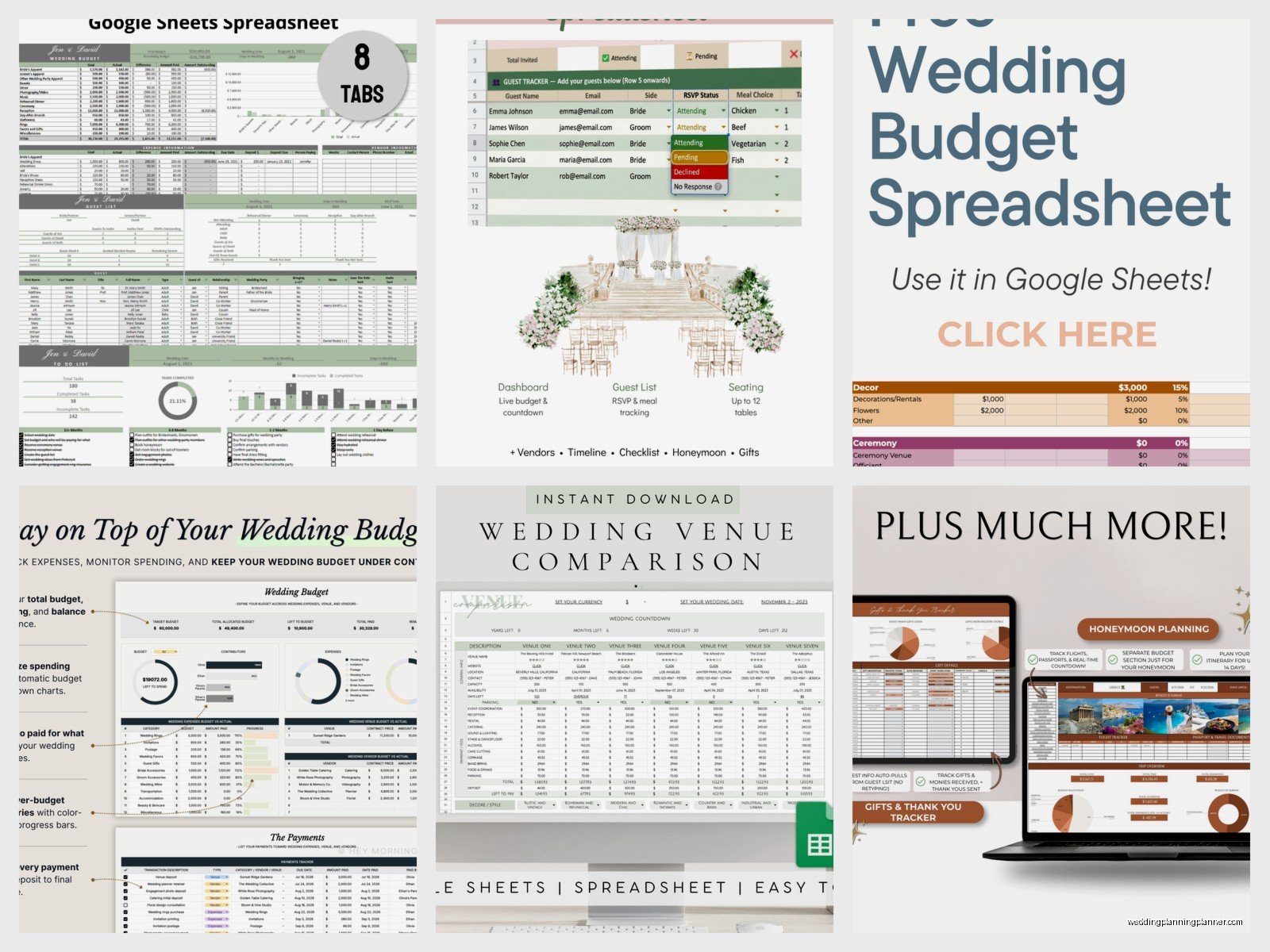
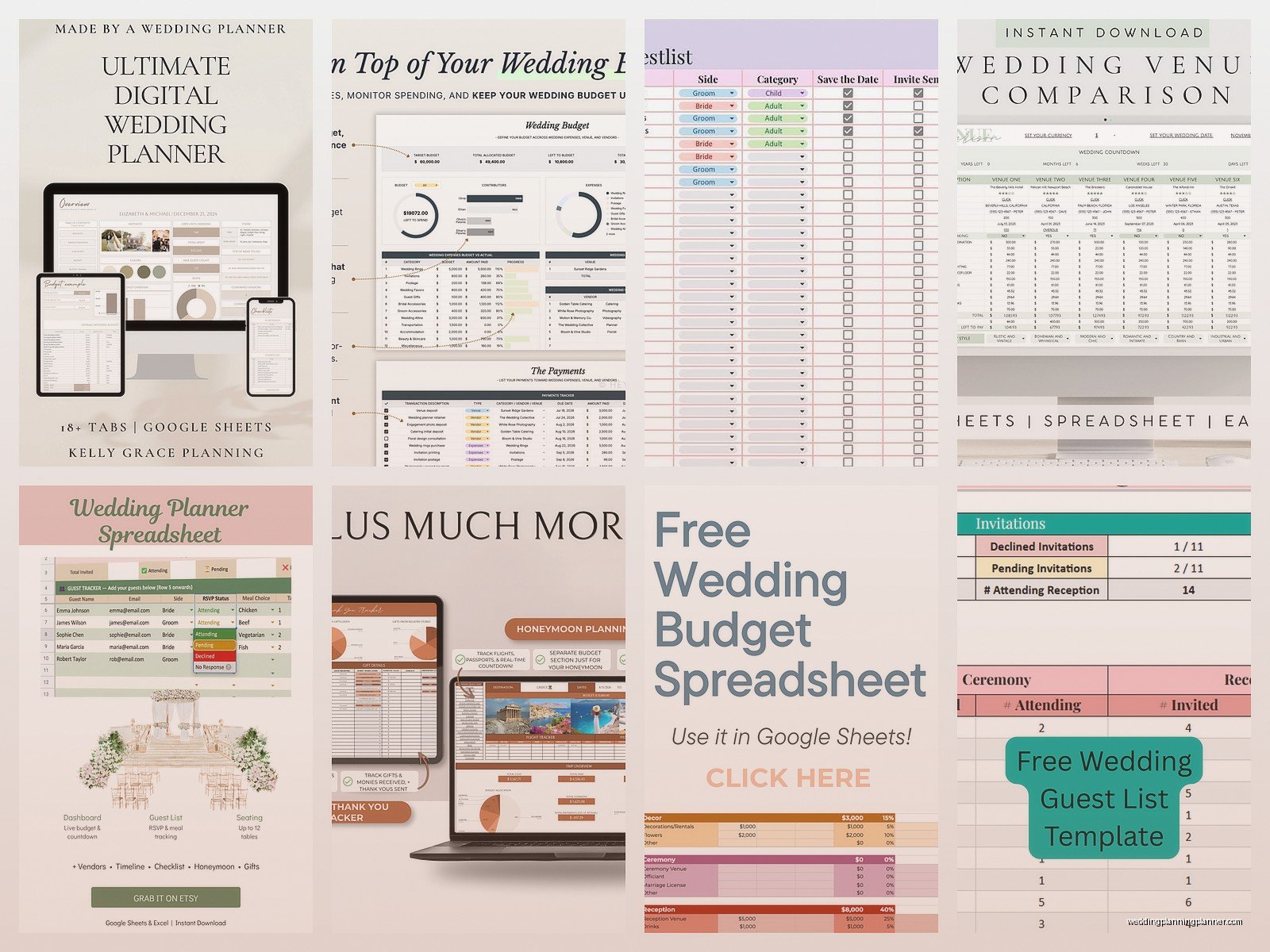
The main template you need is a master guest list tracker. This is non-negotiable. You can find free templates by literally just googling “wedding guest list Google Sheets template” but honestly most of them are either too complicated or missing key columns. What you actually need are these columns: guest name, address, email, phone, invited to rehearsal dinner (yes/no), invitation sent date, RSVP status, number of guests, meal choice, dietary restrictions, gift received, and thank you note sent.
I usually add a column for “group” too because it helps you sort by like, college friends vs. family vs. work people. Makes it easier when you’re trying to figure out seating charts later and you realize you can’t remember how your fiancé knows half these people.
Setting Up Your Master Planning Sheet
What I do is create one main Google Sheets file with multiple tabs at the bottom. Each tab is a different planning category. Your first tab should be the guest list like I mentioned. Second tab is your budget tracker and oh my god this is where things get real.
For the budget tab you need: vendor category, vendor name, estimated cost, actual cost, deposit paid, deposit date, balance due, balance due date, payment method, and notes. The categories I always use are venue, catering, photography, videography, flowers, music/DJ, transportation, attire, stationery, favors, and miscellaneous because there’s ALWAYS miscellaneous stuff that pops up.
One thing that really annoyed me about most free templates is they don’t include a column for who’s paying for what. Like if your parents are covering the venue but you’re paying for photography, you need to track that separately or it gets messy real fast. Add a “paid by” column trust me.
Third tab should be your vendor contact sheet. I keep this separate from the budget because sometimes you’re researching vendors you haven’t booked yet. Columns here: vendor type, business name, contact person, phone, email, website, Instagram handle (yeah I know but it matters now), quoted price, and status (researching/contacted/booked/passed).
Timeline and Task Management Tabs
You’re gonna need a timeline tab that breaks down tasks by month. I structure mine with these columns: task category, specific task, deadline date, assigned to (bride/groom/mom/planner/whoever), status, and priority level. The priority thing is key because not everything is actually urgent even though it feels that way.
For the timeline I usually start at 12 months out and work backwards. So like 12 months before: book venue and officiant, hire planner if you’re using one, start dress shopping. 10 months: book photographer and caterer. 8 months: book florist and music… you get the idea. But honestly every wedding is different and if you’re planning in 6 months or 18 months you just adjust.
What I learned the hard way is you gotta put reminder dates in there too, not just final deadlines. Like if your RSVP deadline is June 1st, put a reminder on May 15th to follow up with people who haven’t responded because there’s ALWAYS people who don’t respond on time and it’s so frustrating.
The Seating Chart Tab Nobody Talks About
This is where Google Sheets gets kinda tricky but also super useful. Create a tab for your seating chart with columns for: table number, guest name, meal choice, and any notes about who they need to sit near or absolutely cannot sit near. Family drama is real and you need to document it.
I usually create a separate little section on this same tab that lists each table number and the total seats available at that table. Then you can do a quick count to make sure you’re not accidentally seating 12 people at a table that only fits 10. Which I’ve seen happen more times than I wanna admit.
Some people get really fancy and color-code the rows by family side or friend group. You can do this in Google Sheets by selecting the row and clicking the fill color button. It’s not necessary but if you’re a visual person it helps you see at a glance if you’ve got too many of the groom’s college buddies at one table or whatever.
Where to Actually Download These Templates
So there’s a bunch of places to get free Google Sheets wedding templates. The Knot has one that’s pretty comprehensive but it’s kinda cluttered in my opinion. WeddingWire also offers one. Honestly though? I usually just start with a blank Google Sheet and build my own because then I know exactly where everything is.
If you want a pre-made one to start with, go to Google Sheets, click “Template Gallery” at the top, and look for their wedding planner template. It’s basic but it’s a decent starting point. You can customize it from there by adding or deleting columns you don’t need.
You can also find templates on Etsy but most of those cost money and like… it’s Google Sheets. You don’t need to pay for something you can build yourself in 20 minutes. Unless you find one that’s really beautifully designed and you don’t wanna deal with formatting, then okay fine.
The Stationery Tracking Tab I Always Add
Since I consult on wedding stationery this is my jam. You need a separate tab to track all your paper goods: save the dates, invitations, ceremony programs, menus, place cards, table numbers, thank you cards. For each item track: quantity needed, vendor, cost, order date, proof approval date, delivery date, and assembly status.
The assembly status thing is crucial because I cannot tell you how many couples underestimate how long it takes to assemble 150 invitations with belly bands and wax seals and… okay I’m getting off track but seriously budget way more time for assembly than you think you need.
Also add a column for postage costs because people always forget about stamps and then they’re shocked when they need like $200 worth of stamps for their invitations. My cat literally knocked over my stamp collection last week and I’m still finding them under furniture but that’s unrelated.
Making Your Sheets Actually Useful
Here’s the thing about Google Sheets that makes it better than Excel or paper planners or whatever — you can share it with specific people and give them different permission levels. Your mom can have view-only access so she stops texting you questions. Your wedding planner (if you have one) can have edit access. Your fiancé can have edit access but let’s be real they’re probably not gonna use it as much as you.
To share your sheet click the green “Share” button in the top right, enter email addresses, and choose whether they can view, comment, or edit. I usually give vendors view-only access to just the tabs they need to see, like the florist gets to see the timeline and contact sheet but not your budget.
Use data validation for certain columns to create dropdown menus. This sounds technical but it’s easy I promise. Like for the RSVP status column, click on the column letter, go to Data > Data Validation, and set it to “List of items” with options like: Not Sent, Sent, Accepted, Declined, No Response. Then you just click and select instead of typing it out every time.
Formulas That’ll Save Your Sanity
You don’t need to be a spreadsheet expert but a few basic formulas will change your life. In your guest list tab, use =COUNTA to count how many people have RSVP’d yes. The formula would be like =COUNTA(H2:H200) if column H is your RSVP status and rows 2-200 are your guests.
For your budget tab use =SUM to add up all your costs. So =SUM(D2:D50) would add up everything in the “actual cost” column from rows 2 to 50. Put this at the bottom so you can see your total spending in real time and maybe cry a little.
You can also use conditional formatting to highlight cells that meet certain criteria. Like if a balance is due within 30 days, make that cell turn red automatically. Go to Format > Conditional Formatting and set your rules. It’s sorta like having a personal assistant who reminds you when payments are coming up.
In summer 2021 I had a client who was planning a 200-person wedding entirely by herself and she created this incredibly complex Google Sheet with formulas that calculated her per-person costs and color-coded everything by priority level and honestly it was more organized than some professional planners I know. She sent it to me for feedback and I was just like… you missed your calling, you should be a wedding planner.
Tabs Most People Forget But Shouldn’t
Create a tab for your wedding day timeline. Not the planning timeline but the actual day-of schedule. List out everything from hair and makeup start time through the end of the reception. Include who needs to be where and when. Your photographer will love you for this and so will your wedding party who definitely won’t remember what time they’re supposed to show up.
Another tab I always recommend is a gift tracker. Columns: guest name, gift received date, gift description, where it was purchased (for returns if needed), thank you note sent date. You’re gonna get gifts at the shower, the bach party, the wedding, and randomly in the mail for months after, and if you don’t track them you WILL forget who gave you what.
I also keep a random ideas tab where I just dump inspiration links, color codes, photos, vendor recommendations from friends, whatever. It’s not organized but that’s fine because it’s just a brain dump space. Sometimes in the middle of planning you’ll remember something important and if you don’t write it down immediately it’s gone forever.
Mobile Access and Offline Mode
Download the Google Sheets app on your phone so you can access your planning sheets anywhere. This is clutch when you’re meeting with vendors and need to check your budget or when you’re at a family dinner and someone asks if they’re invited to the rehearsal dinner and you can’t remember.
You can also make your sheets available offline which I learned is super important after I lost cell service at a venue walkthrough once and couldn’t access my questions list. In the Google Sheets app go to settings and turn on offline access. It’ll save recent sheets to your device.
One more thing about the mobile app — you can use your phone camera to scan receipts and insert them directly into your sheet as images. Click the plus icon, choose “Image,” and select “Camera” to take a photo of the receipt. Then you have proof of purchase right there with your budget tracking.
Backing Up Your Data Because Technology Fails
Google Sheets auto-saves which is amazing but you should still download a backup copy every few weeks. Go to File > Download and choose either Excel format (.xlsx) or PDF. I usually do both. Store them in Dropbox or email them to yourself or whatever, just have a backup somewhere that’s not Google.
I know someone who lost access to their Google account right before their wedding due to some security issue and it was a nightmare trying to recover everything. Probably won’t happen to you but like… better safe than sorry you know?
Also use the version history feature if you accidentally delete something important. File > Version History > See Version History shows you every change made to the sheet and you can restore old versions if needed. This has saved me multiple times when I’ve accidentally deleted an entire tab or messed up a formula.
The beauty of Google Sheets is it’s free, it’s accessible from any device, multiple people can work on it at the same time, and it’s way more flexible than those wedding planning apps that lock features behind paywalls or… wait I already complained about that earlier. Anyway you get the point. Just start with the basic tabs I mentioned — guest list, budget, vendors, timeline, seating chart — and add more as you need them. You don’t have to build the perfect system on day one, you can adjust as you go and figure out what works for your specific wedding and planning style
