
Planning Guides, Style Guide
Wedding Guest List Google Sheets: Cloud Spreadsheet
Jul
Setting Up Your Wedding Guest List in Google Sheets
Okay so Google Sheets is honestly the best thing that happened to wedding planning and I’m not even exaggerating. I had this bride in spring 2023 who was using like three different Excel files on her laptop and every time her fiancé tried to update something they’d end up with version conflicts and it was a nightmare. They switched to Google Sheets and suddenly everyone could see the same info at the same time.
First thing you gotta do is open Google Sheets from your Google Drive. Click the big colorful plus sign or whatever, start a new spreadsheet. Name it something you’ll actually remember like “Wedding Guest List – Sarah & Tom” not just “Untitled Spreadsheet” because trust me you’ll have like forty tabs open eventually and you need to find this thing quickly.
The Basic Columns You Actually Need
Here’s what I typically set up for columns and you can adjust based on your situation but this covers most scenarios:
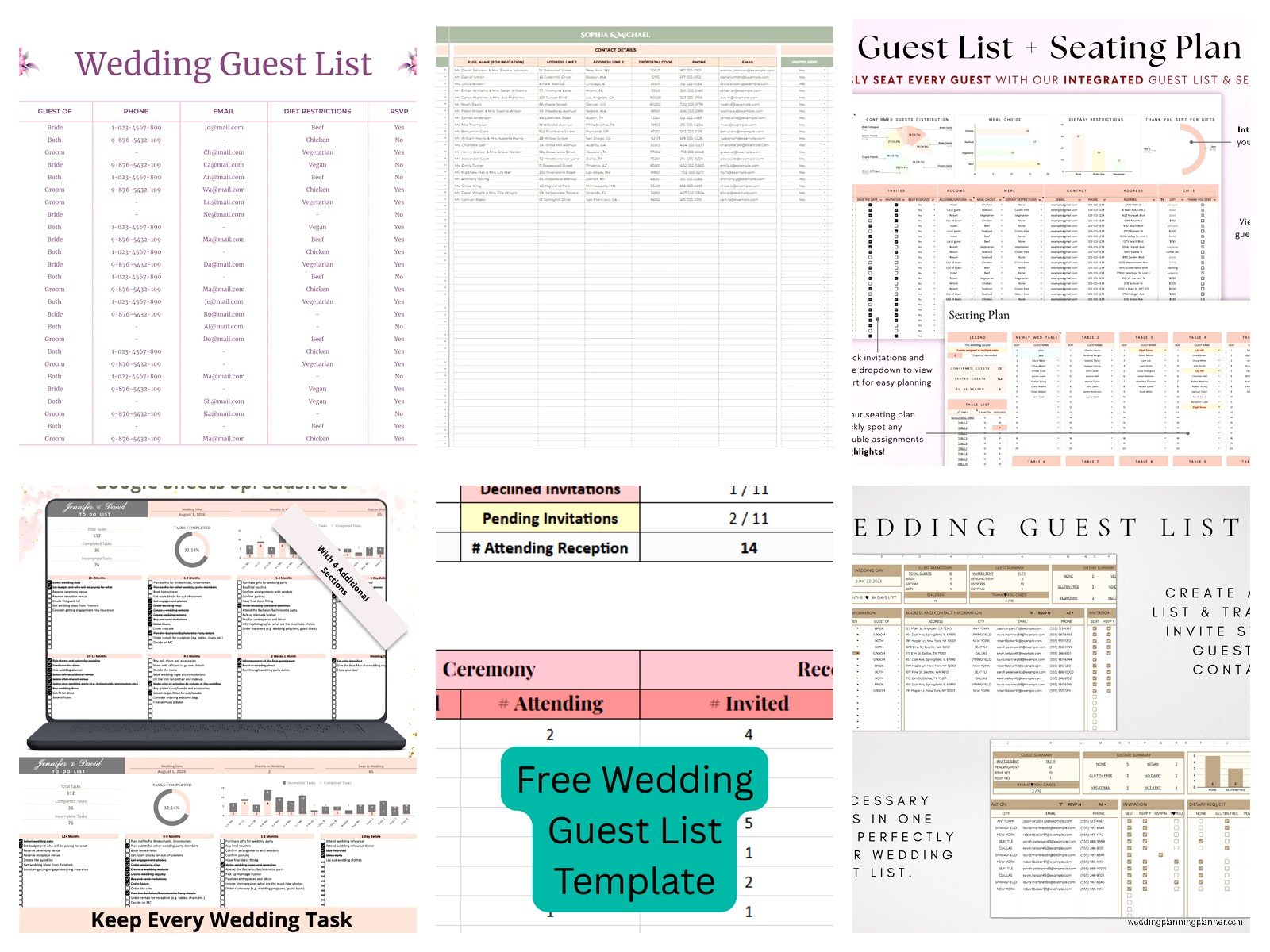
- Guest Name (full name, first and last)
- Guest Category (his side, her side, mutual friends, coworkers, etc.)
- Plus One (yes/no or their actual name if you know it)
- Address (full mailing address for invitations)
- Phone Number
- Invitation Sent (date or checkbox)
- RSVP Status (attending, declined, no response)
- Number Attending (actual headcount)
- Meal Choice (if you’re doing plated dinner)
- Dietary Restrictions
- Gift Received (optional but helpful for thank you notes)
- Thank You Sent (date)
- Table Assignment (you’ll fill this later)
You don’t need ALL of these right away but set up the columns now so you’re not scrambling later. I learned this the hard way when I forgot to add a dietary restrictions column and had to insert it between other columns and it messed up my whole… anyway just do it from the start.
Organizing by Household vs Individual
This is where people get confused and honestly it annoyed me for YEARS until I figured out a system that works. Some couples want to list every single person individually (John Smith, Jane Smith, Tommy Smith, Sarah Smith) and others want households (The Smith Family).
I usually recommend doing it by household for invitation purposes but then having a separate column for total attendees. So like you’d have one row that says “Smith Family” and then in the attendees column you’d put “4” and maybe in a notes column you specify who those four people are. But for RSVP tracking you might want individual rows because John might come but Jane might not.
Actually you know what, do whatever makes sense in your brain because you’re the one who’s gonna be staring at this spreadsheet for months. My cat just knocked over my coffee and I’m realizing that flexibility is key here—both in wedding planning and in preventing furniture disasters.
Using Filters and Sorting
Click on your header row (row 1) and then go to Data > Create a filter. This puts little dropdown arrows on each column header and it’s genuinely life-changing. You can filter to see only people who haven’t RSVP’d yet, or only people from the groom’s side, or only people who selected the chicken option.
I had a wedding in summer 2021 where we needed to do reduced capacity because of covid restrictions and being able to filter by “must invite” vs “would be nice to invite” saved that couple so much stress. They color-coded rows too—green for definite invites, yellow for maybe, red for only if we have space. Google Sheets lets you do that by right-clicking on the row number.
Sharing and Permissions
The whole point of using Google Sheets instead of Excel is that multiple people can work on it simultaneously. Click the blue Share button in the top right. You can add your fiancé’s email, your wedding planner’s email, maybe your mom if she’s helping with the list.
But here’s the thing—pay attention to the permission levels. You can give people:
- Viewer access (they can only look, not edit)
- Commenter access (they can suggest changes but not make them)
- Editor access (they can change whatever they want)
I usually tell couples to give each other editor access obviously, but maybe give parents commenter access unless they’re super tech-savvy and responsible. You don’t want your future mother-in-law accidentally deleting half your guest list because she doesn’t know how spreadsheets work.
Formulas That’ll Make Your Life Easier
You don’t need to be a spreadsheet genius but a few basic formulas help SO much. At the bottom of your “Number Attending” column, click an empty cell and type =SUM(I2:I200) or whatever your column letter is and however many rows you think you’ll have. This automatically counts your total headcount.
You can also use COUNTIF formulas to count specific things. Like =COUNTIF(H2:H200,”Attending”) would count how many people marked as attending in column H. I’m not gonna lie, I sometimes have to Google the exact formula syntax because I forget, but once you set it up it just works.
For meal choices, you can do =COUNTIF(J2:J200,”Chicken”) to count chicken dinners, =COUNTIF(J2:J200,”Beef”) for beef, etc. Your caterer will love you for having exact numbers.
Conditional Formatting for Visual Organization
This is kinda extra but it makes the spreadsheet so much easier to read at a glance. Go to Format > Conditional formatting. You can set rules like “if RSVP Status is ‘Declined’ turn the row red” or “if RSVP Status is ‘Attending’ turn it green.”
I like to highlight rows where people haven’t responded yet in yellow so they stand out. Then you know exactly who you need to hunt down for their response. Some couples get really into this and have like rainbow spreadsheets but honestly whatever helps you visually process the information.
Creating Multiple Tabs for Different Purposes
At the bottom of your Google Sheet you’ll see tab options. You can create multiple tabs within the same spreadsheet file. I usually recommend:
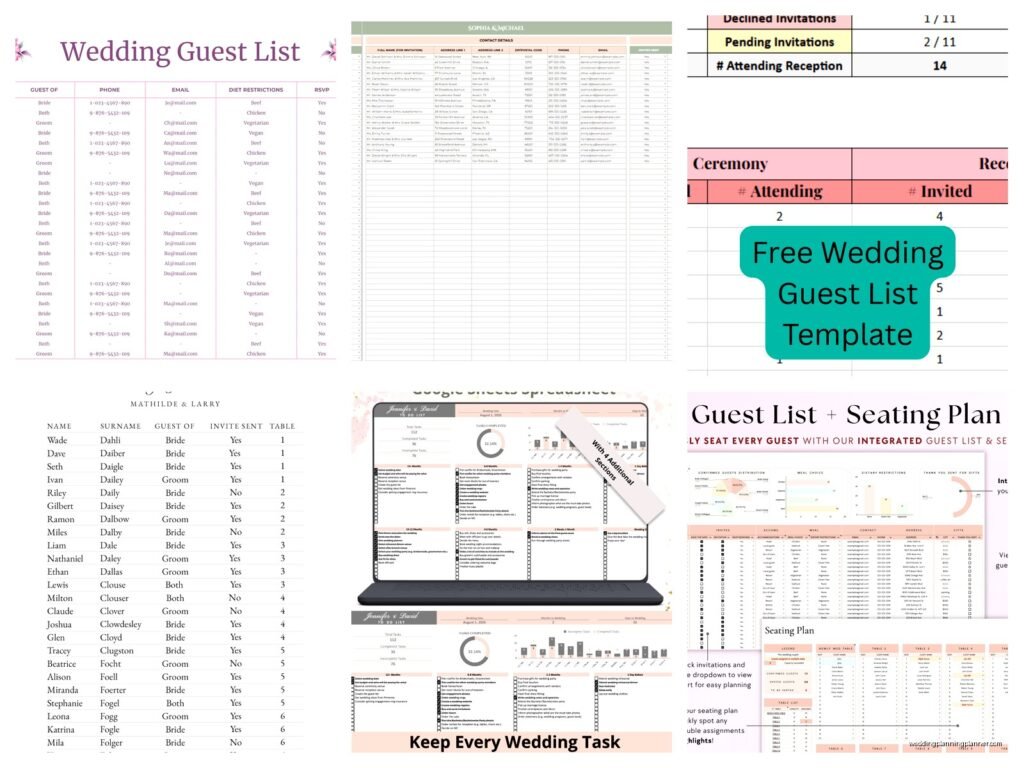
- Master Guest List (the main one with everyone)
- Seating Chart (we’ll get to this)
- Budget Tracker (separate topic but handy to have it all in one file)
- Vendor Contact Info
- Timeline/Schedule
You can click the little plus sign at the bottom left to add new tabs and rename them by right-clicking on the tab name. Having everything in one file means you’re not searching through Google Drive for multiple spreadsheets.
The Seating Chart Tab
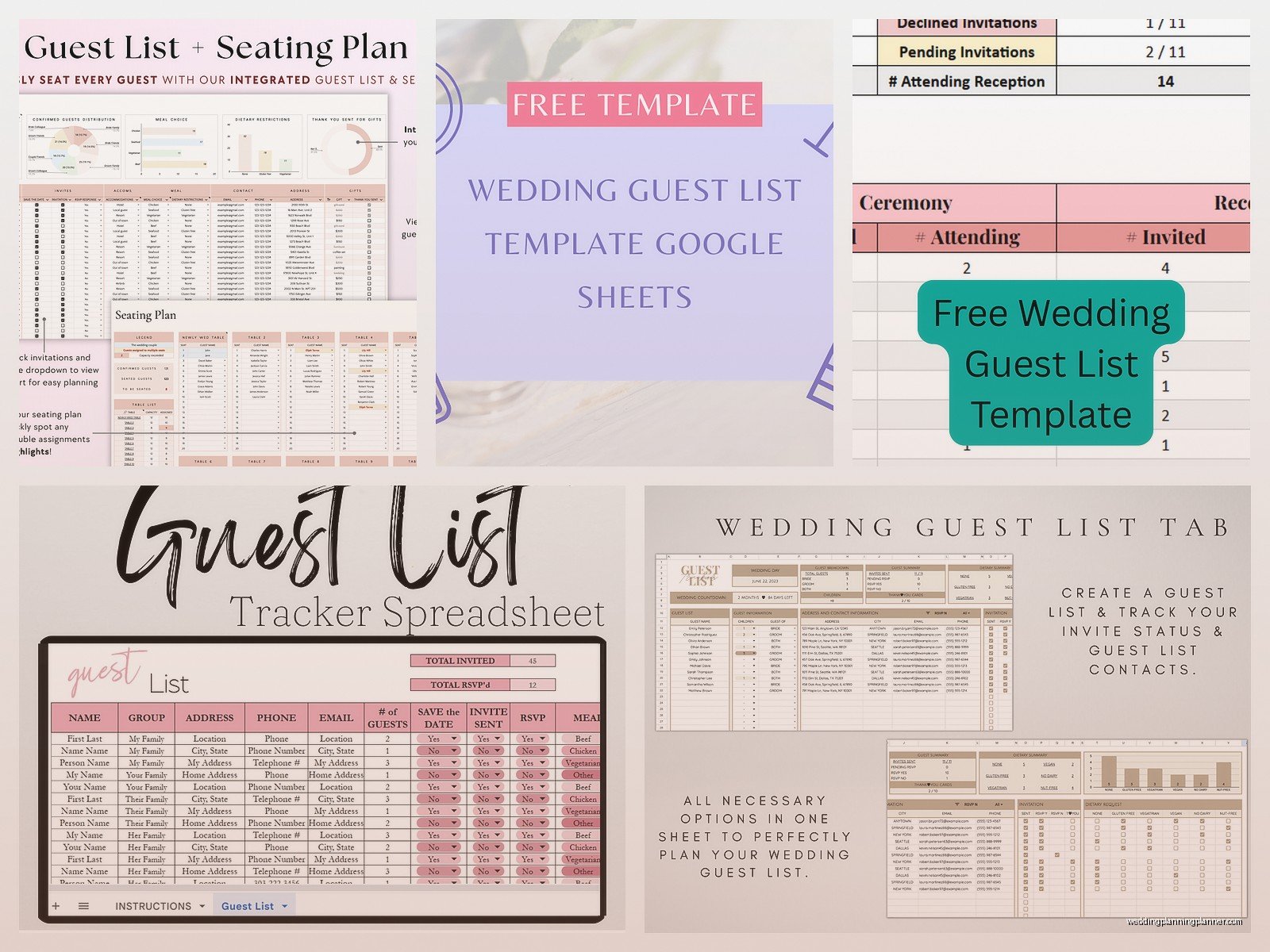
Once you know who’s actually coming, you can create a seating chart tab. Some people get fancy and try to make it look like actual table layouts with merged cells shaped like circles but honestly that’s more trouble than it’s worth in my opinion.
I just do a simple list format: Table 1, Table 2, etc. with the guests assigned to each table listed below. You can reference your main guest list tab if you’re feeling ambitious—like =IMPORTRANGE or =VLOOKUP formulas—but nah, sometimes it’s easier to just copy and paste names over.
Make sure you’re accounting for table capacity. If you’re doing rounds of 8, don’t assign 10 people to a table unless you want some guests sitting in other people’s laps. Your venue should tell you exact capacities.
Tracking Addresses for Invitations
The address column is crucial and also the most annoying to fill out completely. You need full mailing addresses formatted correctly. I recommend having separate columns for Street Address, City, State, and ZIP code because some mail merge programs work better that way.
Or you can just do one big address cell, whatever. But make sure you’re getting complete addresses from people. “123 Main St” isn’t enough—you need the apartment number if applicable, the correct city spelling, all of it. I’ve seen invitations returned because someone wrote “Katie” instead of “Katherine” and the mail carrier was confused or something.
Using Comments and Notes
Google Sheets lets you add comments to cells by right-clicking and selecting “Comment.” This is perfect for keeping track of weird situations like “Aunt Susan said she’s coming but might bring her new boyfriend we haven’t met” or “Need to check if the kids are invited or just adults.”
Comments notify whoever you tag (using the @ symbol and their email) so you can be like “@john@email.com did you want to invite your college roommate or not?” and he’ll get an email notification. It keeps the decision-making transparent and documented.
Protecting Important Data
If you’re worried about accidentally deleting something important, you can protect certain ranges. Go to Data > Protect sheets and ranges. You can lock specific columns (like maybe the address column once you’ve finalized it) so nobody can edit those cells without unprotecting them first.
The version history feature is also clutch. Go to File > Version history > See version history and you can see every change ever made to the spreadsheet and who made it. If someone accidentally deletes a bunch of rows, you can restore a previous version. I’ve had to do this exactly twice and both times I wanted to cry with relief that Google saves everything.
Mobile Access
Download the Google Sheets app on your phone because you’ll need to check this thing at random times. Like you’ll be at brunch and someone will ask if they’re invited and you can just pull up the spreadsheet right there. Or you’re at the venue for a tasting and they ask for headcount and boom, you’ve got it.
The mobile app lets you edit too, though typing addresses on a phone keyboard is tedious. I usually do major updates on a computer but quick checks on mobile.
Integrating with Other Tools
If you’re using a wedding website that tracks RSVPs digitally, some of them can export to CSV files that you can then import into Google Sheets. Go to File > Import and upload the CSV. It’s not always perfect—the columns might not match up exactly—but it’s faster than manually entering 150 responses.
For thank you notes later, you can reference your “Gift Received” column and filter by people you haven’t thanked yet. Some couples export the address column to use with mail merge for printing envelope labels. There are tutorials for that online and it’s not as complicated as it sounds.
Privacy Considerations
Don’t share your guest list spreadsheet publicly or post screenshots on social media with visible email addresses or phone numbers. People are weird about privacy these days and also you don’t want random internet strangers having your guests’ contact info.
When you share the sheet, use specific email addresses rather than “anyone with the link” unless you really don’t care who sees it. I had a couple who accidentally made their guest list public and someone from a wedding shaming group found it and started commenting mean things. Just… don’t do that.
Dealing with Changes and Updates
Guest lists are never final until like the week before the wedding, maybe not even then. People break up, people get back together, someone gets pregnant and can’t travel, someone’s plus-one becomes a serious partner who deserves a real invitation. Your spreadsheet needs to be flexible enough to handle all this.
I add a “Notes” column for tracking this kind of stuff. Like “Originally invited solo but now engaged so sending new invitation with fiancée’s name” or “Declined initially but asked if invitation still open after resolving scheduling conflict.” It helps you remember the context later when you’re trying to figure out why your numbers keep changing.
The Reality of Guest List Management
Look, managing a guest list is tedious no matter what tool you use, but Google Sheets makes it way less painful than paper lists or non-cloud solutions. You can access it anywhere, multiple people can work on it together, it auto-saves so you won’t lose data, and it’s free.
The biggest advantage honestly is that you and your partner can both update it in real-time. No more “did you add my cousin?” “I thought you were adding your cousin?” “no YOUR cousin” conversations. Just open the sheet, add the cousin, move on with your life.
Set it up properly from the start with all the columns you’ll need, use filters and formulas to make calculations automatic, and actually keep it updated as things change. A guest list spreadsheet is only useful if it’s accurate, and it’s only accurate if you’re maintaining it regularly throughout the planning process.
