
Planning Guides, Style Guide
Wedding Planning Template Google Sheets: Free Download Files

Aug
Why Google Sheets Is Actually Perfect for Wedding Planning
Okay so I’m gonna be real with you – wedding planning templates in Google Sheets changed my entire workflow around 2019 and I honestly don’t know how I managed before that. Like Excel is fine but the collaboration feature in Sheets? Game changer. You can share it with your partner, your mom who insists on having access to everything, your wedding planner (hi, that’s me), and everyone sees updates in real time without sending seventeen different file versions back and forth.
The thing that really sold me was when I had this bride in spring 2023 who was planning from Seattle while her fiancé was temporarily working in Tokyo. They needed to make decisions together but the time difference was brutal. Google Sheets let them both access the budget tracker, vendor list, and timeline whenever they wanted, leave comments for each other, and I could see everything they were discussing without playing telephone between them.
The Essential Templates You Actually Need
Here’s what I tell every couple – you don’t need forty different spreadsheets. You need maybe five or six really good ones that cover the main categories. Let me break down what actually matters:
Budget Tracker Template
This is your number one priority, honestly. I set mine up with columns for: category, vendor name, estimated cost, actual cost, deposit paid, deposit date, balance due, payment due date, payment method, and notes. The estimated vs actual cost columns are crucial because lemme tell you, things change. That florist quote that seemed firm? Yeah, it goes up when you decide you want peonies in January.
I also add a row at the top that shows total budget, total estimated, total spent, and remaining budget. Use simple formulas like =SUM() and you can watch in real time whether you’re on track or… not. Which is stressful but better than surprise debt, you know?
Guest List and RSVP Tracker
This one gets complicated fast so stay with me. Your columns should include: guest name, guest category (bride’s family, groom’s friends, college friends, whatever), mailing address, email, phone, invitation sent date, RSVP received date, number of guests attending, meal choice if you’re doing plated dinner, dietary restrictions, and notes.
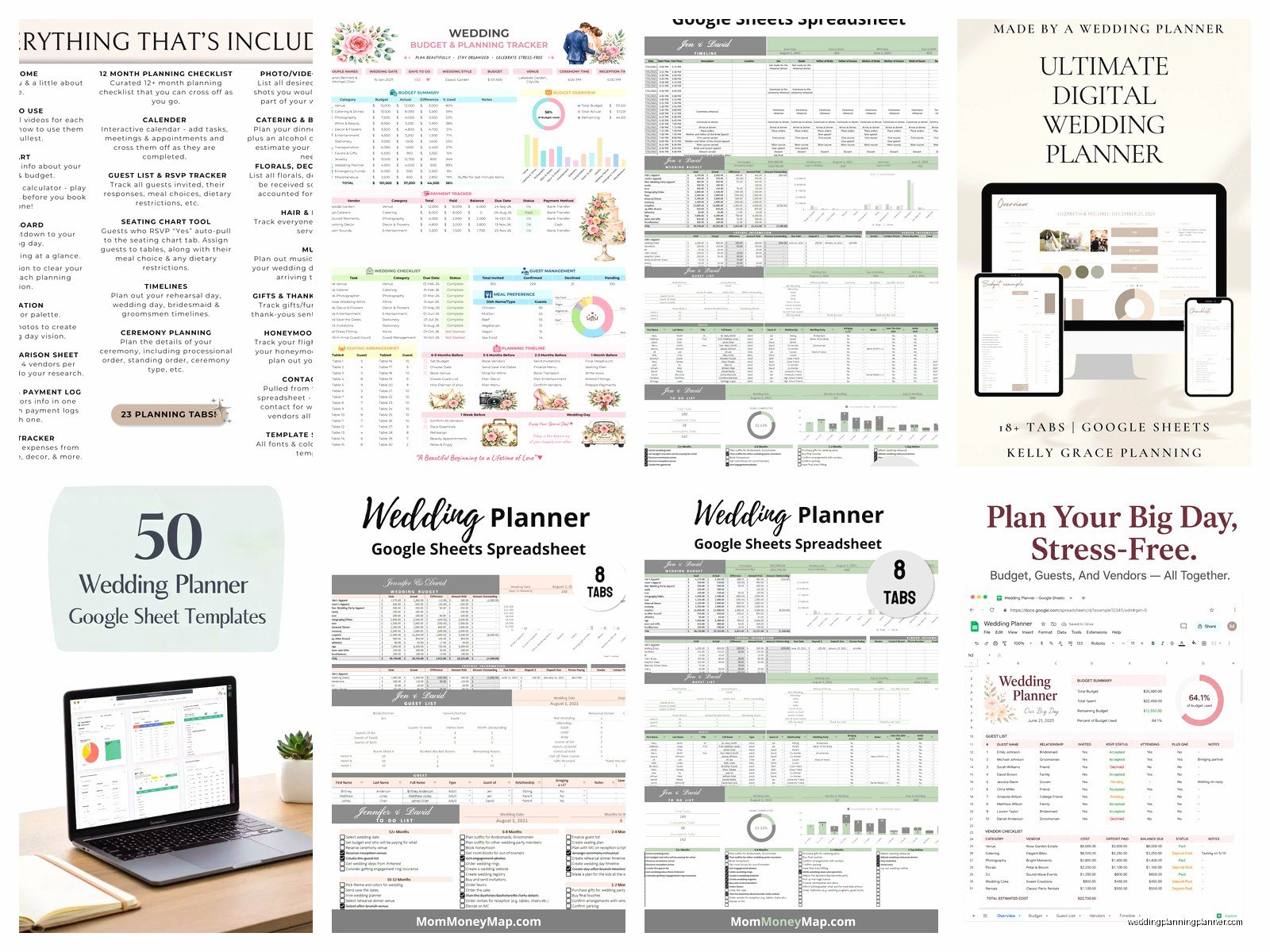
The thing that annoyed me for YEARS was couples who didn’t track their guest categories properly. Then they’d be shocked when they invited 80 people from the groom’s side and only 45 from the bride’s side and suddenly there’s family drama. Track it from the beginning, I’m serious.
I also add conditional formatting so that rows turn green when the RSVP is received, yellow when the invitation is sent but no response yet, and stays white if nothing’s happened. Visual cues help so much when you’re staring at 150 names.
Vendor Contact Sheet
Keep this simple: vendor type, business name, contact person, phone, email, website, contract signed (yes/no), deposit amount, total cost, and notes. I like to hyperlink the website directly in the cell so you can click through fast.
One thing I started doing is adding a column for “backup vendor” because in 2021… well, we all remember what happened with vendor availability. Having a second choice already researched saved my clients so much stress when their first-choice photographer had to cancel.
Timeline and Task List
This is where Google Sheets really shines compared to other tools because you can get creative with it. I organize mine by month leading up to the wedding, then break it down further as you get closer.
Columns I use: task description, category (venue, catering, attire, etc.), assigned to (bride, groom, planner, mom), due date, status (not started, in progress, complete), priority level, and notes. Then I freeze the top row and use filter views so each person can see just their tasks if they want.
The status column gets conditional formatting – red for not started tasks that are overdue, yellow for in progress, green for complete. My cat walked across my keyboard once and messed up all the formatting and I nearly cried because fixing it took forever, but anyway.
How to Actually Set These Up
Alright so here’s the practical part. Open Google Sheets (you need a Google account obviously). Start with a blank spreadsheet or… honestly there are tons of templates already out there that you can copy.
Finding Free Templates
Google’s template gallery has some basic wedding planning templates. Go to Google Sheets, click “Template Gallery” at the top, and look through the personal section. They’re pretty bare-bones but they give you a starting structure.
Better option though? Search “wedding planning template Google Sheets” and look for blogs or wedding sites offering free downloads. A lot of wedding planners and stationery designers (guilty) offer these as freebies. You’ll usually get a link that says “Make a Copy” and boom, it’s in your Google Drive ready to customize.
Just check that the template isn’t view-only before you get excited about it. Some people forget to set the sharing settings correctly and then you can’t actually use it which is super frustrating.
Customizing Your Template
Don’t just use a template as-is, okay? Every wedding is different. If you’re not doing a seated dinner, delete those meal choice columns. If you’re having a destination wedding, maybe add a column for travel arrangements in your guest list.
I always tell couples to spend like an hour at the beginning customizing their sheets to match their specific situation. It feels like procrastination but it’s actually gonna save you so much time later when you’re not working around irrelevant columns or missing important information.
Formulas That’ll Make Your Life Easier
You don’t need to be a spreadsheet expert but learning like three basic formulas will help so much. I’m not a tech person by any means – I planned weddings with paper planners for years – but these are simple enough that even I figured them out.
For budget tracking, use =SUM(B2:B50) to add up all costs in column B from row 2 to row 50. Change the numbers based on how many vendors you have. Then you can do =A1-B1 to subtract total spent from total budget to see what’s left.
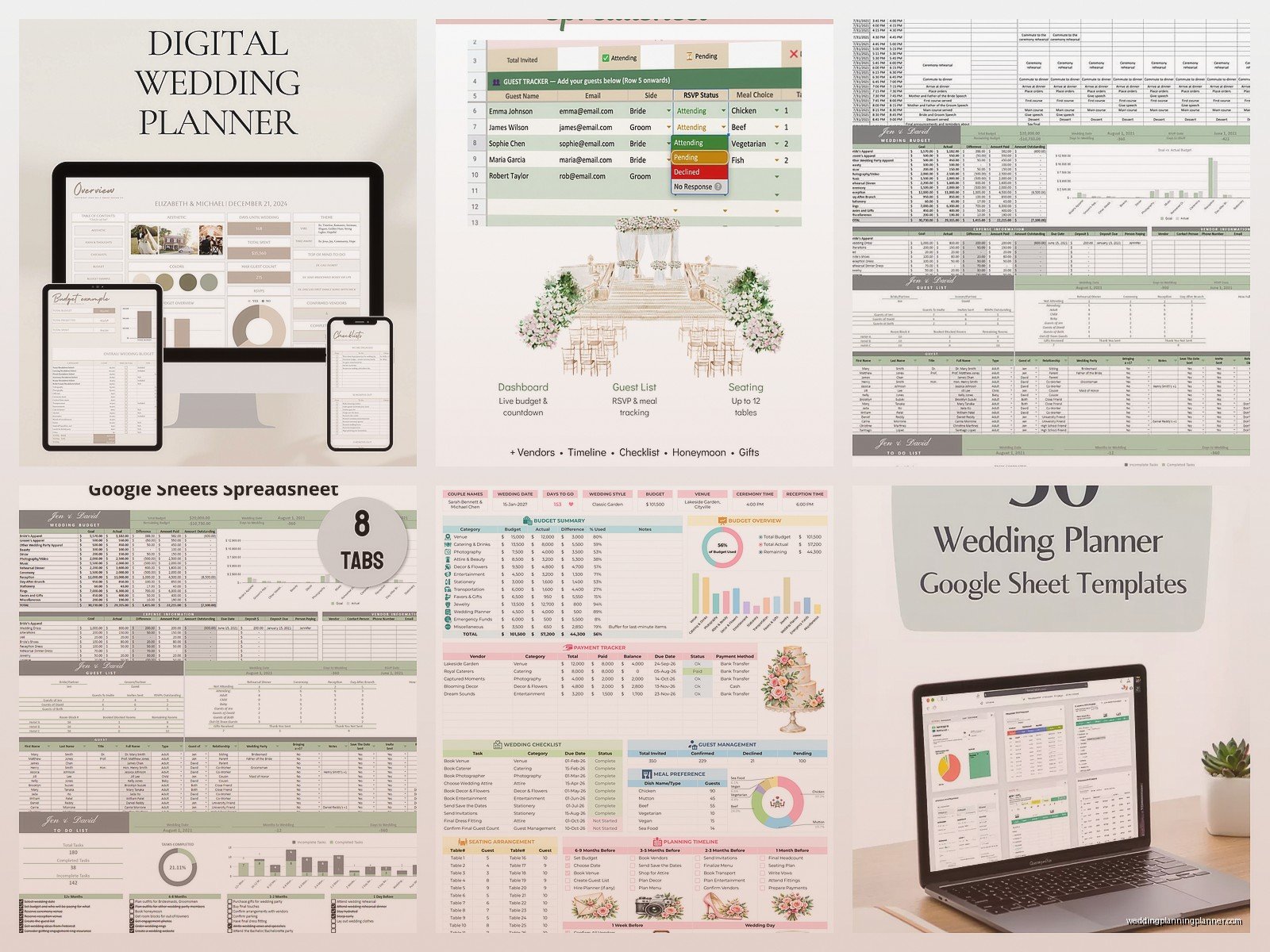
For guest count, use =COUNTIF(H2:H200,”Yes”) if column H is where you’re tracking attendance. This counts how many “Yes” responses you have. Super helpful for giving final numbers to your caterer.
The IF formula is useful too but it gets kinda complicated so maybe just Google “Google Sheets IF formula wedding” if you want to get fancy with it.
Sharing and Collaboration Settings
Click the “Share” button in the top right corner. You can add people by email address. Here’s what the permission levels mean:
Viewer means they can see everything but can’t change anything. Good for people who just need to reference information like your wedding party who wants to check the timeline.
Commenter means they can leave comments and suggestions but can’t edit cells directly. I use this for parents sometimes when they’re… let’s say enthusiastically involved but you don’t want them accidentally deleting your entire budget.
Editor means full access to change anything. Only give this to people you really trust, like your partner and maybe your planner.
You can also get a shareable link and set it to “anyone with the link can view” if you want to share it more broadly, but be careful with this for privacy reasons. Your guest list has addresses and personal info, you probably don’t want that floating around the internet.
Mobile Access Is Actually Good Now
The Google Sheets app used to be terrible for anything beyond viewing, but it’s gotten way better. I had a bride who literally updated her RSVP tracker from her phone while on her lunch break at work. You can edit cells, add comments, even use basic formulas from mobile now.
Download the app if you haven’t already. Sign in with the same Google account. All your sheets sync automatically. It’s not quite as easy as using it on a computer for major updates, but for quick changes or checking something while you’re at a vendor meeting? Works great.
Backup and Version History
Google Sheets auto-saves constantly which is amazing, but here’s something people don’t realize – you can see version history and restore old versions if someone messes something up.
Go to File > Version History > See Version History. You’ll see every change made, who made it, and when. You can click on any previous version and restore it. This saved me when a groom accidentally deleted an entire sheet of vendor contacts and didn’t realize it until two days later. We just restored the version from before he touched it and everything was back.
I also recommend downloading a backup copy as an Excel file every few weeks just in case. File > Download > Microsoft Excel. Store it somewhere safe. Belt and suspenders approach, you know?
Common Mistakes People Make
Not protecting certain cells or sheets. If you have formulas set up, you can protect those cells so they don’t accidentally get deleted. Right-click the cell or sheet tab, choose “Protect range,” and set who can edit it.
Making the spreadsheet too complicated. I’ve seen templates with like 15 different sheets and cross-referencing formulas that would make an accountant confused. Keep it simple or you won’t actually use it.
Forgetting to update it regularly. A template only works if you actually maintain it, which sounds obvious but I’ve had clients who set everything up beautifully in month one and then never touched it again until two weeks before the wedding when everything was chaos.
Not using data validation for dropdown menus. If you want consistent entries – like meal choices should only be “chicken,” “fish,” or “vegetarian” – set up data validation so people can only choose from those options. It prevents typos and weird variations that mess up your counts.
Specific Templates Worth Downloading
I’m not gonna link directly because things move around online, but search for these and you’ll find good free options:
The Knot has a budget tracker that’s pretty comprehensive. WeddingWire offers a guest list template. A Practical Wedding used to have – might still have – a whole suite of planning spreadsheets that were really no-nonsense and practical.
Honestly though? Once you understand the basic structure, you can build your own in like 30 minutes that’s perfectly customized to what you need. I started with someone else’s template back in the day and now mine looks completely different because I’ve tweaked it based on what actually matters for my clients.
Integrating With Other Tools
Google Sheets plays nice with other apps if you want to get fancy. You can import data from Forms if you create a wedding website RSVP form. Zapier can connect it to tons of other tools though that might be overkill for most people.
Some couples use Sheets for the detailed tracking and then something like Trello or Asana for task management because they prefer that visual board layout. That’s fine, use what works for you. I’m a spreadsheet person through and through but not everyone is.
The key is having one central source of truth for your important data – budget, guest list, vendor contacts. Whether that’s Google Sheets or something else doesn’t matter as much as making sure you’re not tracking things in seven different places and losing information.
Oh and one random thing – color-code your sheet tabs at the bottom. Right-click the tab, choose a color. It sounds silly but when you have six different sheets open, being able to see that budget is green and guest list is blue helps you navigate faster. Small thing but it matters when you’re stressed and trying to find something quickly during a vendor call.
