
Planning Guides, Style Guide
Google Sheets Guest List Template: Free Download Files
Sep
Google Sheets Guest List Templates That Actually Work
Okay so you need a guest list template and honestly Google Sheets is gonna be your best friend here. I’ve been using these for my wedding planning clients since like 2019 and I cannot tell you how many brides have thanked me for switching them from Excel or god forbid paper lists to a good Google Sheets setup.
The thing is, most free templates you find online are either way too complicated or they’re missing the stuff you actually need. I had this bride back in summer 2021 who came to me in tears because she’d been using some fancy template she found on Pinterest and it had all these formulas that broke when she tried to add her own columns. We spent two hours rebuilding her list from scratch and I was so annoyed because whoever made that template clearly never actually planned a real wedding.
What Makes a Good Guest List Template
Here’s what you actually need in your template and I’m gonna be real with you, it’s simpler than you think. You need names obviously, addresses for invites, meal choices if you’re doing a plated dinner, plus yes and RSVP tracking. Also whether they’re from the bride’s side or groom’s side because trust me that matters when parents start asking questions about numbers.
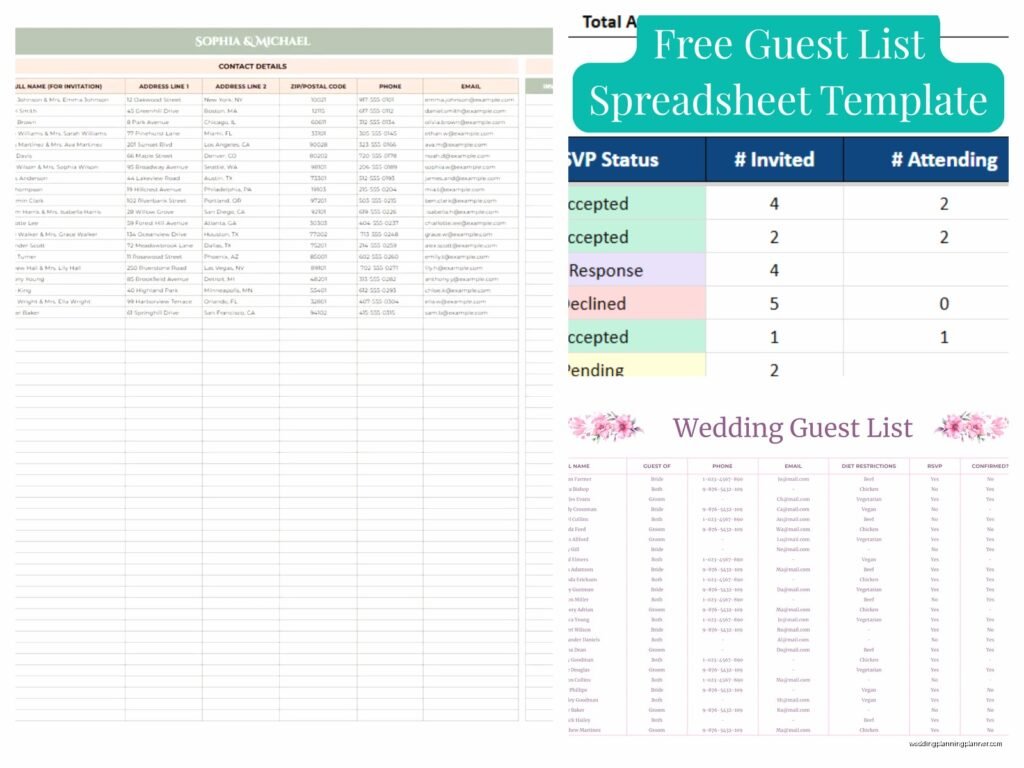
The best templates have these columns:
- Guest name (first and last separately is better for mail merge later)
- Relationship to couple (friend, family, coworker etc)
- Address fields (street, city, state, zip)
- Email and phone
- Number of guests in party
- Invited to (ceremony only, reception, rehearsal dinner)
- Save the date sent (yes/no or date)
- Invitation sent (date)
- RSVP received (yes/no/declined)
- Number attending
- Meal choice if applicable
- Dietary restrictions
- Table assignment
- Gift received and thank you sent
I know that looks like a lot but you can hide columns you don’t need right away. The beauty of Google Sheets is you can customize it as you go.
Setting Up Your Template From Scratch
If you wanna build your own instead of downloading one, it takes maybe 20 minutes. Open a new Google Sheet and just start with your column headers in row 1. Make them bold so they stand out. Then freeze that top row by going to View > Freeze > 1 row. This is crucial because when you’re scrolling through 150 guests you need to see what column is what.
Add some color to your headers too, like a light gray or whatever matches your wedding colors if you’re into that. I usually do a soft blush or sage green because it’s easier on the eyes than stark white.
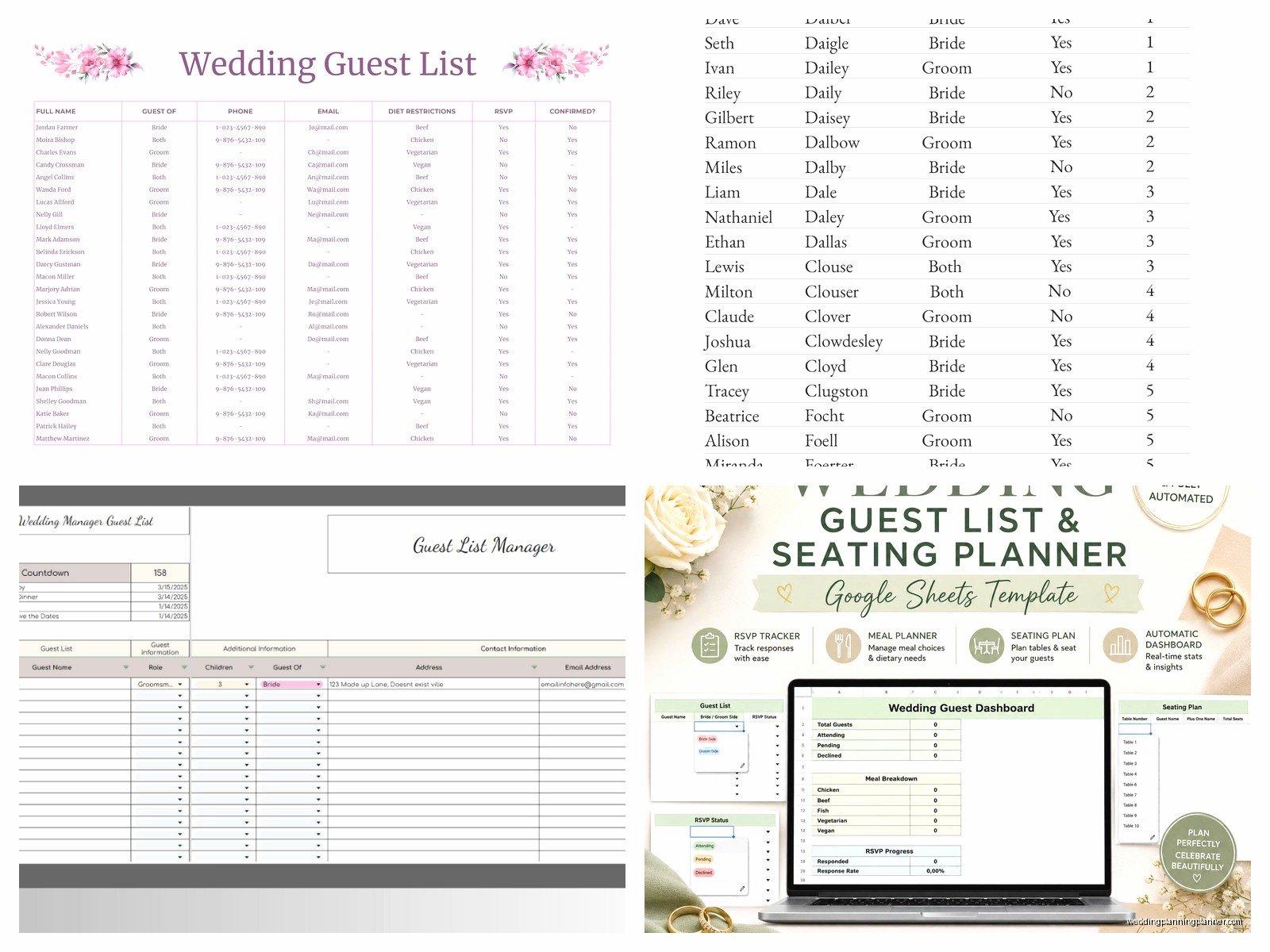
For the RSVP columns, you can set up data validation which sounds technical but it’s not. Click on the cell where you want a dropdown, then go to Data > Data validation. Set it to “List of items” and type: Yes, No, Pending. Now you have a dropdown menu instead of typing the same words over and over. Do this for meal choices too—like Chicken, Beef, Vegetarian, Vegan.
Formulas That Actually Help
Okay I’m not gonna make this super complicated but there are a few formulas that will save your life. At the bottom of your “Number Attending” column, add a SUM formula to count total guests. Just click the cell and type =SUM(J2:J200) or whatever your column letter is and however many rows you have.
You can also use COUNTIF to track responses. Like =COUNTIF(I2:I200,”Yes”) will tell you how many people said yes. Put these summary formulas at the top or bottom of your sheet where you can see them easily.
One formula I learned from a tech-savvy bride that changed everything for me—you can use conditional formatting to color-code rows based on RSVP status. Select your whole data range, go to Format > Conditional formatting, and set it so rows turn green when RSVP status is “Yes” and red when it’s “No”. It’s visual and you can see at a glance where you stand.
Free Templates You Can Actually Download
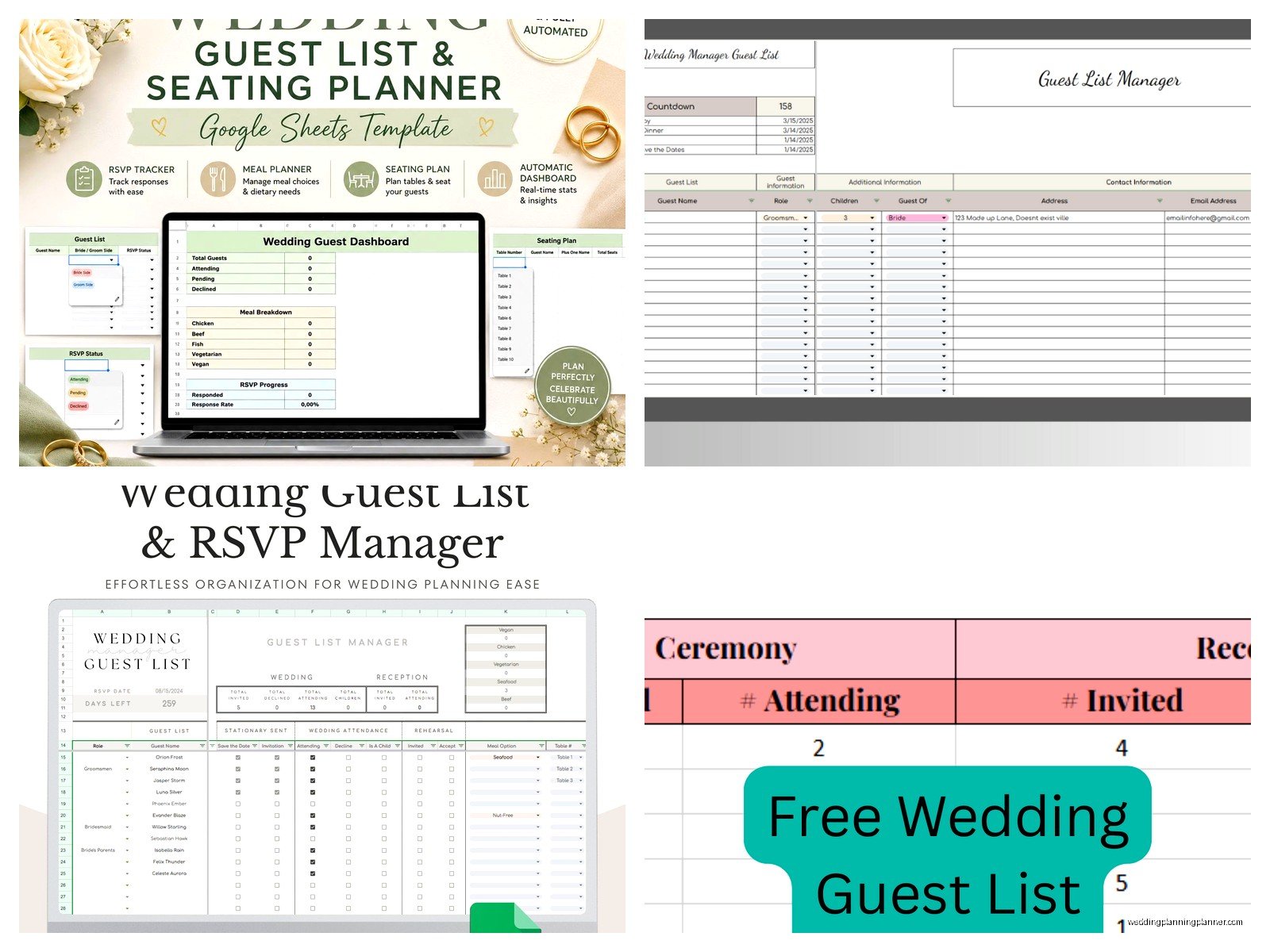
Alright so if you don’t wanna build from scratch, there are some decent free options out there. Google actually has templates in their template gallery but honestly they’re pretty basic. When you open Google Sheets, click on “Template Gallery” at the top and look for event or wedding templates.
The better option is searching “wedding guest list template Google Sheets” and looking for ones that let you make a copy to your own Drive. Make sure it says you can copy or download it—some people share view-only versions which is useless.
I have my own template that I share with clients and I’ve probably tweaked it like 50 times over the years. It has all the columns I mentioned plus a notes section because there’s always random stuff you need to remember—like “Aunt Susan needs to sit near the bathroom” or “Jake’s bringing his new girlfriend, get her name later”.
What really annoys me is when templates have locked cells or protected ranges that you can’t edit. Like why are you giving me a template I can’t customize? That defeats the whole purpose. Always check that you can edit everything before you start entering data.
Sharing and Collaboration Features
This is where Google Sheets absolutely destroys Excel or any other option. You can share your guest list with your partner, your mom, your wedding planner, whoever needs access. Click the Share button in the top right and add their email addresses.
Set permissions carefully though—you probably want your fiancé to have edit access but maybe your mom only needs view access or comment access if she’s just helping verify addresses. I had a situation in spring 2023 where a mother-in-law accidentally deleted like 40 guests because she had edit access and didn’t know what she was doing. We got it back from version history but it was stressful.
Speaking of version history, that’s your safety net. Go to File > Version history > See version history and you can restore any previous version of your sheet. This has saved me so many times when someone accidentally sorts wrong or deletes important data.
Tips for Managing Your List
Start entering guests as soon as you get engaged, even before you have a date or venue. You’d be surprised how much you forget if you wait. I tell all my clients to do a brain dump—just list everyone you can think of, then categorize them later as must-invite, should-invite, or maybe-invite depending on your final numbers.
Use the filter feature like crazy. Click on your header row and then click the filter icon. Now you can filter by any column—show only people who haven’t RSVP’d, only vegetarians, only bride’s side, whatever you need. This is essential when you’re trying to finalize numbers with your caterer or make seating charts.
For addresses, start collecting them early. I usually tell brides to send a quick email or text saying “Hey we’re getting married! What’s your current mailing address?” People move all the time and you don’t want invites bouncing back. You can even create a Google Form that feeds directly into your sheet if you have a lot of guests… actually that might be a whole separate thing but it’s worth looking into.
Organizing by Categories
I like to add a column for categories or groups. Like you might have Family-Bride, Family-Groom, College Friends, Work Friends, Neighborhood, etc. This helps when you’re trying to figure out where to cut if you’re over budget. It’s way easier to say “okay we’re cutting the extended work friends group” when you can see them all filtered together.
My cat just jumped on my keyboard and almost deleted this whole paragraph but anyway—you can also use these categories for table assignments later. Group people by how they know you and it makes the seating chart less of a nightmare.
Tracking Beyond RSVPs
Don’t forget to track gifts and thank you notes. I add columns for “Gift Received” with a description and “Thank You Sent” with a date. You think you’ll remember who gave what but after opening 100 gifts at your wedding you absolutely will not. Take photos of cards with gifts if that helps too.
Some couples also track shower invites and bachelor/bachelorette party stuff in the same sheet. You can add tabs at the bottom for different events—one tab for the wedding guest list, another for bridal shower, another for rehearsal dinner. It keeps everything in one place.
Mail Merge for Invitations
If you’re printing your own invites or doing labels, you can use your Google Sheet with mail merge add-ons. There are free ones like “Yet Another Mail Merge” that let you create address labels or even personalized emails straight from your sheet. I’m not gonna go deep into this because it gets kinda technical but just know it’s possible and it’s amazing.
The key is having your address fields separated properly—First Name, Last Name, Street Address, City, State, Zip all in separate columns. Makes mail merge so much easier than trying to parse one big address field.
Mobile Access
Download the Google Sheets app on your phone because you’re gonna need to update this thing at random times. Like when you’re at dinner and someone asks if they’re invited, or when you get a text RSVP and you wanna mark it down immediately. The app works pretty well though the interface is obviously smaller.
You can also enable offline access in case you need to check something without internet. Go to Settings in Google Drive and turn on offline access. Probably won’t need it much but it’s there.
Common Mistakes to Avoid
Don’t wait until the last minute to organize this. I’ve seen couples try to throw together a guest list two months before the wedding and it’s chaos. Start early, update regularly, and you’ll be fine.
Don’t forget to account for plus-ones properly. If someone gets a plus-one, I usually enter them as “John Smith + Guest” and then update with the actual name once I know it. This keeps your count accurate even if you don’t have all the details yet.
Also don’t rely solely on digital—export a PDF or Excel version periodically as backup. I know it’s Google and it’s supposed to be safe but I’m paranoid after that one time Google Docs went down for like a whole day and nobody could access anything. Better safe than sorry.
Customizing for Your Needs
Every wedding is different so customize your template for what you actually need. Having a destination wedding? Add columns for travel details and hotel blocks. Having a casual backyard thing? Maybe you don’t need formal meal choices. The template should work for you, not the other way around.
I had one couple who added a column for “Kids Invited” because they were doing adults-only but making exceptions for close family. Another couple tracked song requests from guests. Do whatever makes sense for your situation and don’t feel like you have to use every single column just because it’s there.
You can also add fun stuff like a column for whether people are invited to the afterparty or a column tracking who you’ve asked to be in photos. Make it work for your specific wedding vibe and needs. The flexibility is literally the best part of using Google Sheets instead of some rigid printed template or expensive software that costs like $50 and does basically the same thing.
