Planning Guides, Style Guide
Diy Wedding Invitations Cricut: Design & Ordering Guide
Jun
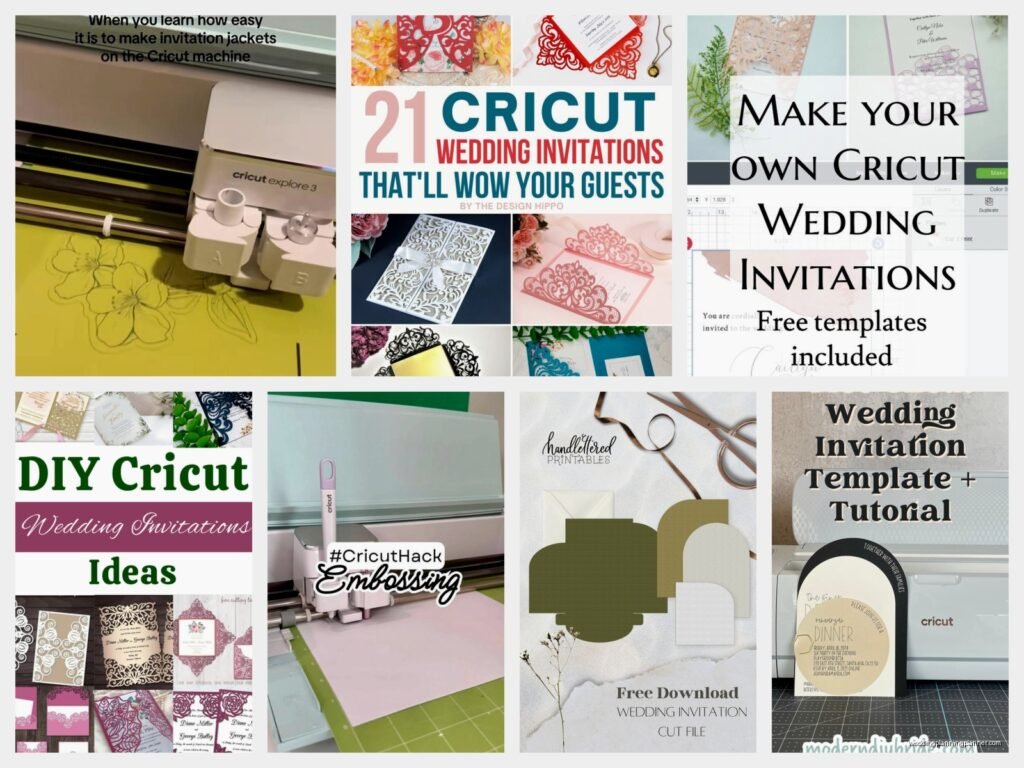
Getting Started with Your Cricut for Wedding Invitations
Okay so first thing – if you already have a Cricut machine you’re like halfway there, and if you don’t, the Cricut Maker or Explore Air 2 are both gonna work fine for wedding invitations. I used the Explore Air 2 for my cousin’s wedding in summer 2021 and honestly it held up better than I expected even though everyone keeps saying the Maker is superior.
You need Design Space which is Cricut’s software and yes it can be annoying because sometimes it glitches when you’re trying to upload your own designs but that’s just… we deal with it. Download it on your computer or tablet – I prefer computer because the screen is bigger and you’re gonna be staring at tiny details for hours.
The basic supplies you’ll need:
- Cardstock (110lb works best, don’t go lighter or it looks cheap)
- Scoring stylus or scoring wheel
- Fine point blade (comes with the machine usually)
- A good cutting mat – StandardGrip for most cardstock
- Weeding tools if you’re doing any vinyl work
- Bone folder for crisp folds
Choosing Your Design Direction
There are like three main approaches here and you gotta pick one before you start ordering anything because trust me I’ve seen brides buy $200 worth of supplies and then completely change their mind.
You can do fully cut invitations where the Cricut cuts out intricate shapes and patterns – think laser-cut vibes but DIY. Or you can print your invitation details at home or through a print shop and then use the Cricut just for cutting the shape or adding decorative elements. The third option is using the Cricut to cut stencils and then doing foiling or other decorative techniques.
I’m gonna be real with you, the fully cut intricate invitations look AMAZING but they take forever. Like I had a client in spring 2023 who insisted on these incredibly detailed floral cut invitations for 150 guests and she started crying in my office because she realized she’d have to spend like 40 hours just on the cutting alone. We scaled back.
Design Space Basics
When you open Design Space it’s kinda overwhelming at first. There’s a template library but honestly most of their wedding invitation templates are… not great? They look dated. What I do is either buy designs from Etsy (there are tons of Cricut-ready SVG files specifically for wedding invitations) or create my own in Canva or Illustrator and then upload them.
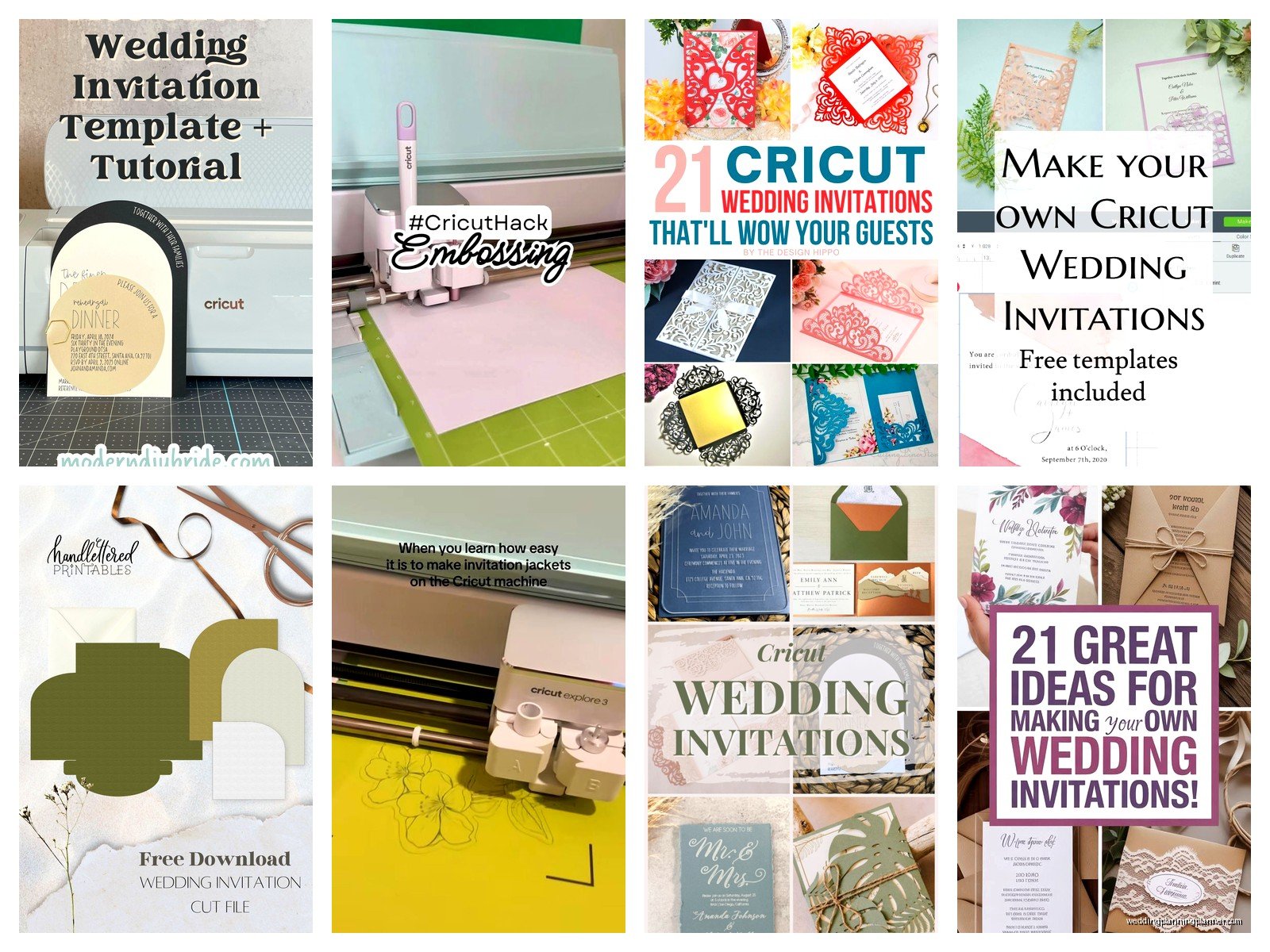
If you’re uploading your own design make sure it’s an SVG file for cut designs or a PNG if you’re just gonna print and cut. The upload process is straightforward – click upload, select your file type, and then you can choose whether it’s a simple cut image, a moderately complex one, or complex.
One thing that really annoyed me about Design Space is that it doesn’t always save your projects automatically even though it’s supposed to, so like… save manually every few minutes or you’ll lose your work when it crashes. Which it will.
Paper Selection and Ordering
This is where people mess up the most. You cannot just use regular printer paper or even regular cardstock from the craft store. Well you can but it’s gonna look homemade in a bad way.
For invitation cardstock I always recommend:
- 110lb to 130lb weight – sturdy but still cuts well
- Texture options: linen, felt, smooth (smooth cuts the cleanest)
- Colors that actually photograph well – ivory, white, blush, sage, navy
You can order from places like Cards & Pockets, Paper Source, or even Amazon if you’re on a budget. I usually tell people to order sample packs first because what looks good online might feel cheap in person or might not cut properly on your machine.
The thing about ordering paper is you need MORE than you think. If you need 100 invitations order enough for at least 120-130. You’re gonna mess up cuts, you’re gonna have misprints, someone’s gonna spill coffee on a stack (that was me, and it was on my own wedding invitations, not even a client’s).
Envelopes Are Their Own Situation
You can buy envelopes that match your cardstock from the same suppliers usually. Standard sizes are A7 for 5×7 invitations or A6 for smaller ones. But here’s where the Cricut comes back in – you can use it to address the envelopes.
The Cricut pens are okay but not amazing for this. I actually prefer using the Cricut to cut a stencil and then hand-lettering with a nice pen, or if you’re not confident in your handwriting you can… well you can print labels but that kinda defeats the handmade aesthetic doesn’t it.
Some people do the thing where they cut the guest names out of vinyl and stick them on the envelopes which looks cool but is SO time consuming. Like unless you only have 30 guests, nah.
Actually Designing Your Invitation
Let’s say you’re starting from scratch in Design Space. You’ll want to set your canvas size first – click the “Shapes” button and insert a square, then resize it to your actual invitation dimensions. Most people do 5×7 inches because that’s a standard size and envelopes are easy to find.
If you’re doing a cut design you need to think about what’s called “bridges” – these are the little connections that keep the inside pieces attached to the outside. Without bridges your design falls apart. Like if you cut out the letter O, you need a tiny bridge connecting the center circle to the outer ring or else it just drops out.
Design Space has a “Contour” feature that lets you hide certain cut lines which is useful for simplifying complex designs. And the “Attach” function is critical – it keeps all your elements in the same position relative to each other when the machine cuts.
Scoring and Folding
If you’re making a folded invitation or a gate-fold you need the scoring tool. Swap out the blade for the scoring stylus in the Cricut’s accessory slot. In Design Space you’ll add scoring lines where you want the fold to be.
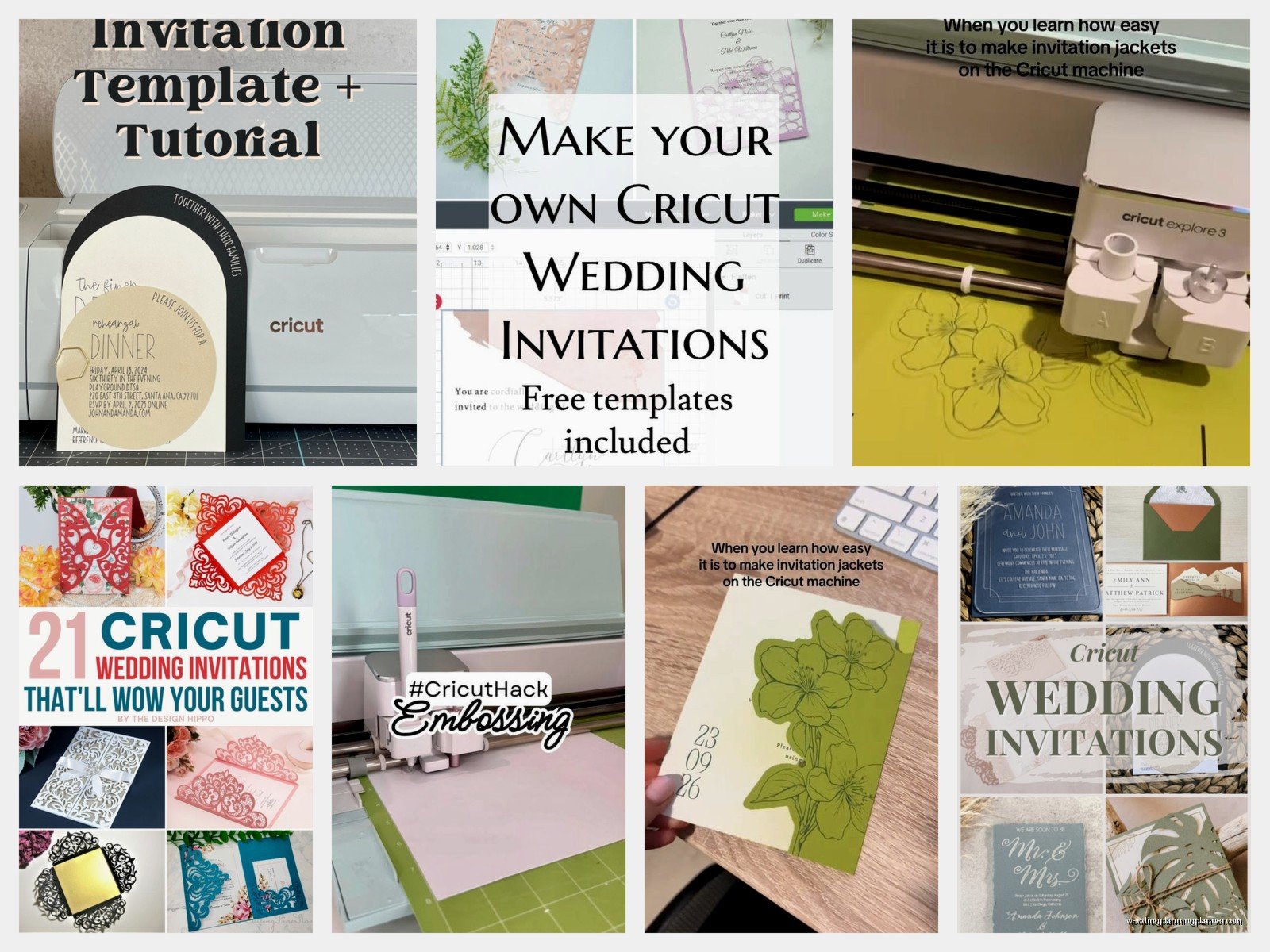
The trick is to score on the INSIDE of the fold for the cleanest crease. After the machine scores it, use a bone folder to actually crease the paper. Don’t just fold it with your fingers or it’ll look sloppy.
I once watched my cat walk across a table full of scored invitations that I hadn’t folded yet and honestly the paw prints made them unusable but also it was kind of hilarious in a horrible way.
Test Cuts Are Non-Negotiable
Do not – and I cannot stress this enough – do not just load up all your expensive cardstock and hit go. You need to do test cuts on scrap paper first. Every paper cuts differently based on thickness, texture, and even humidity in your room.
Set your material type in Design Space (there’s a dropdown menu) and it’ll auto-set the pressure and blade depth. But sometimes you need to adjust. If the cuts aren’t going all the way through, increase pressure. If it’s cutting too deep or tearing, decrease it.
Test your scoring depth too. Some papers need deeper scores, some need lighter ones. You want a crisp fold line without actually cutting through the paper.
Print Then Cut vs. Cut Only
The Print Then Cut feature lets you print your design on a home printer and then have the Cricut cut around it precisely. This is great if you want full-color invitations with photos or complex graphics that you can’t achieve with just cutting.
You print your design (Design Space will add registration marks), load the printed sheet onto your mat, and the Cricut’s sensor reads those marks to know where to cut. It works up to about 9.25 x 6.75 inches per sheet.
The limitation is it’s dependent on your home printer quality. If you have a cheap inkjet the colors might look washed out or the ink might smudge. A lot of people print at a local print shop on nice cardstock and then just use the Cricut for the cutting part which honestly makes more sense for wedding invitations where you want that professional look.
Foiling and Other Fancy Techniques
You can use the Cricut to add foil to your invitations using the foil transfer system or by cutting stencils. The foil transfer tool heats up and presses foil onto the paper wherever you’ve applied the special adhesive.
It’s cool in theory but in practice it’s kinda finicky. The temperature has to be exact, you have to apply even pressure, and sometimes it just doesn’t transfer properly. I’ve had better luck cutting a stencil with the Cricut and then using a laminator with toner-reactive foil, but that’s getting into more advanced territory.
Assembly Process and Timeline
Alright so you’ve designed everything, you’ve done your test cuts, you’ve ordered your paper – now you need to actually make these invitations and it’s gonna take longer than you think.
A realistic timeline for DIY Cricut invitations:
- Design and testing: 1-2 weeks (especially if you’re learning Design Space from scratch)
- Ordering supplies and waiting for delivery: 1-2 weeks
- Cutting all invitations: depends on complexity but figure 2-3 minutes per invitation minimum
- Assembly (gluing layers, adding embellishments, etc.): 5-10 minutes per invitation
- Addressing envelopes: 2-3 minutes each if handwriting, faster if printing
So for 100 invitations you’re looking at like 20-30 hours of work MINIMUM. And that’s if everything goes smoothly which… it won’t.
Common Problems You’re Gonna Run Into
The paper shifts on the mat during cutting – this happens when your mat isn’t sticky enough anymore. You can restick it with repositionable adhesive spray or just buy new mats because honestly they’re not that expensive.
Intricate cuts don’t fully separate from the paper – your blade is probably dull. The Cricut blades don’t last forever, especially if you’re cutting thick cardstock. Keep spare blades on hand.
Design Space won’t connect to your machine – close the software completely, turn off your Cricut, turn it back on, restart Design Space. This fixes it like 80% of the time. The other 20% you’re dealing with Bluetooth issues and I’m sorry but you’re on your own because I still don’t fully understand Bluetooth.
The scoring lines are too light or too deep – you gotta adjust the pressure settings manually. Go into the material settings and use the custom option.
Printing Your Invitation Wording
If you’re doing a cut design you still need to add your actual invitation text somewhere. You can print it on a separate insert card (which is actually easier because you can print multiple per page), or you can print directly on your cut invitation before you cut it.
If you’re printing before cutting you need to be super precise with your measurements. Set up your text in a word processor or design program with exact margins that match your Design Space layout. Print a test on regular paper, hold it up to the light with your cardstock to make sure alignment is right, then commit.
Some people do digital printing at places like Catprint or local print shops and then just use the Cricut for decorative cutting around the edges. This gives you the most professional text quality.
Envelope Addressing with Cricut
The Cricut can write on envelopes using the pen tool but the fonts are limited and honestly the quality is just okay. It’s fine for casual weddings but for formal ones it reads as obviously machine-done.
What works better is using the Cricut to cut address labels from nice label paper or even thin vinyl. You can get fancy script fonts this way and it looks more upscale than the pen.
Or – and this is what I do most often – use the Cricut for return addresses only (small and less noticeable if it’s obviously machine-done) and either hand-write the recipient addresses or hire a calligrapher for that part. Because trying to DIY literally everything is how you end up hating your wedding planning process.
Ordering Extras and Backup Plans
Order extra everything. Extra cardstock, extra envelopes, extra ribbon if you’re doing belly bands, extra whatever embellishments you’re using. You will mess up and you don’t want to be waiting for shipping again when you’re two weeks from your mail-by date.
Also have a backup plan for if your Cricut breaks. They’re generally reliable but I’ve had mine stop working mid-project before and it’s panic-inducing. Know where your nearest Cricut retailer is (Michaels, Joann’s, etc.) so you can buy a replacement quickly if needed, or have a friend with a Cricut who can help in an emergency.
The other thing is to start way earlier than you think necessary. If your wedding is in June don’t start making invitations in April. Start in January or February. Invitations should go out 6-8 weeks before the wedding which means they need to be DONE 10-12 weeks before, which means you should start the process 4-5 months out at minimum.
Cost Breakdown Reality Check
People do DIY invitations thinking they’ll save money and sometimes you do but sometimes you… don’t really. Let me break down actual costs:
- Cricut machine if you don’t have one: $200-400
- Cardstock for 100 invitations: $50-100 depending on quality
- Envelopes: $30-60
- Extra blades, mats, tools: $30-50
- Any embellishments (ribbon, wax seals, etc.): $20-100
- Your time: invaluable but also like 30+ hours
So you’re looking at $330-700+ total. You can get professionally printed invitations for $200-400 for 100 sets. The savings are there but they’re not massive, and you’re trading money for a significant time investment.
The real value is in customization and having exactly what you want, not necessarily in cost savings. Just be honest with yourself about that going in.
File Organization Because You’ll Forget
Save all your Design Space projects with clear names. Not “Wedding Invitation” but like “Wedding Invitation FINAL v3 – 5×7 – Blush Cardstock” because you’re gonna make multiple versions and you need to know which one is actually the final one.
Keep physical samples of each version too with notes on what settings you used. I have a whole binder of paper samples with sticky notes that say things like “110lb ivory linen – pressure 350 – blade depth 3” because I will not remember that information otherwise.
Also take photos of your settings screen in Design Space before you start a big cutting job so if something goes wrong you know exactly what you had it set to.